What is 4Weeks_4Months_Highs_Lows?
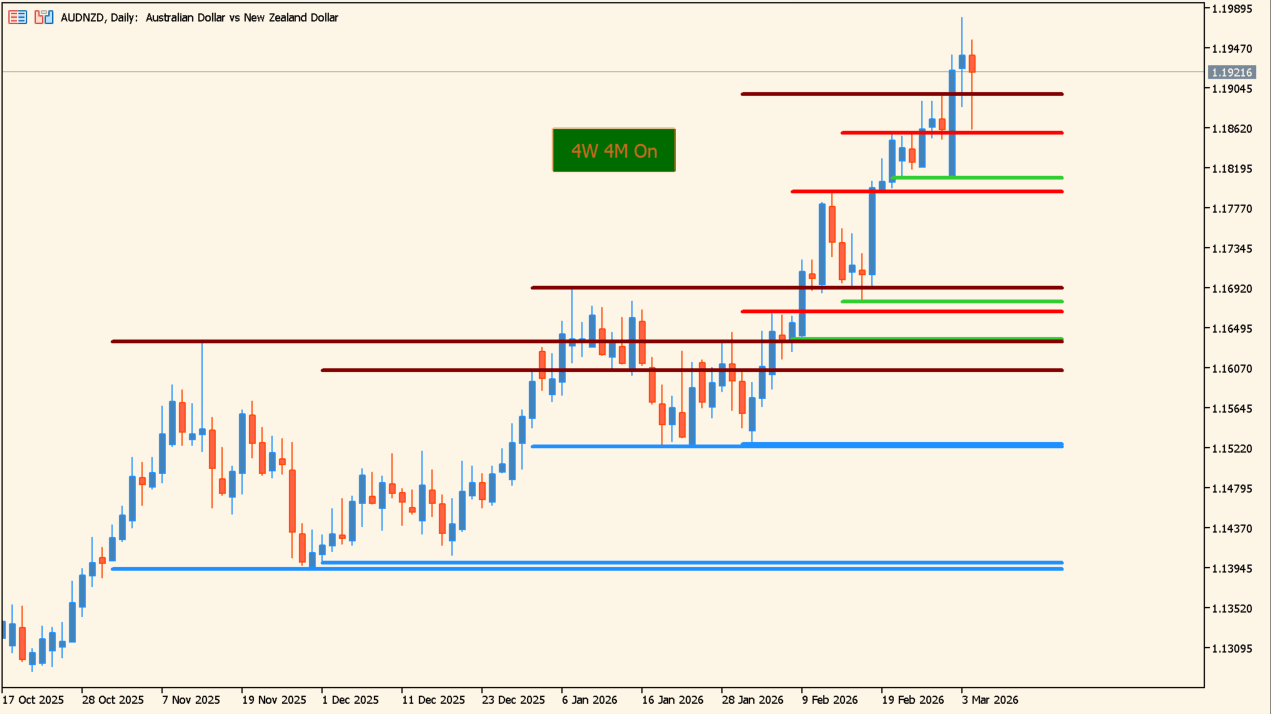
On a daily chart the monthly lines fit on screen along with the weekly ones.
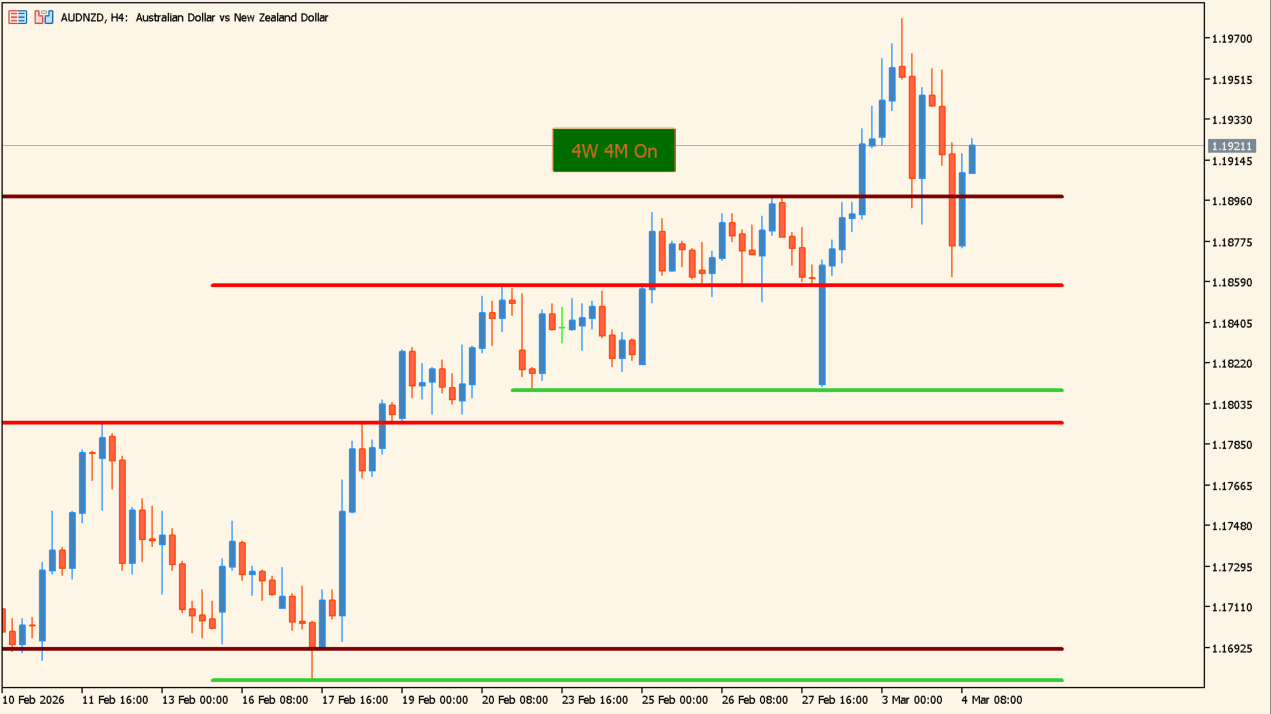
4Weeks_4Months_Highs_Lows reads the highs and lows of a set number of past weekly and monthly bars and draws them across the current chart as horizontal lines.
No_Weeks_Back and No_Months_Back set how many bars of each type are read. The weekly and monthly lines have separate color, style, and width settings, and an on-chart button toggles the whole display.
How to use 4Weeks_4Months_Highs_Lows
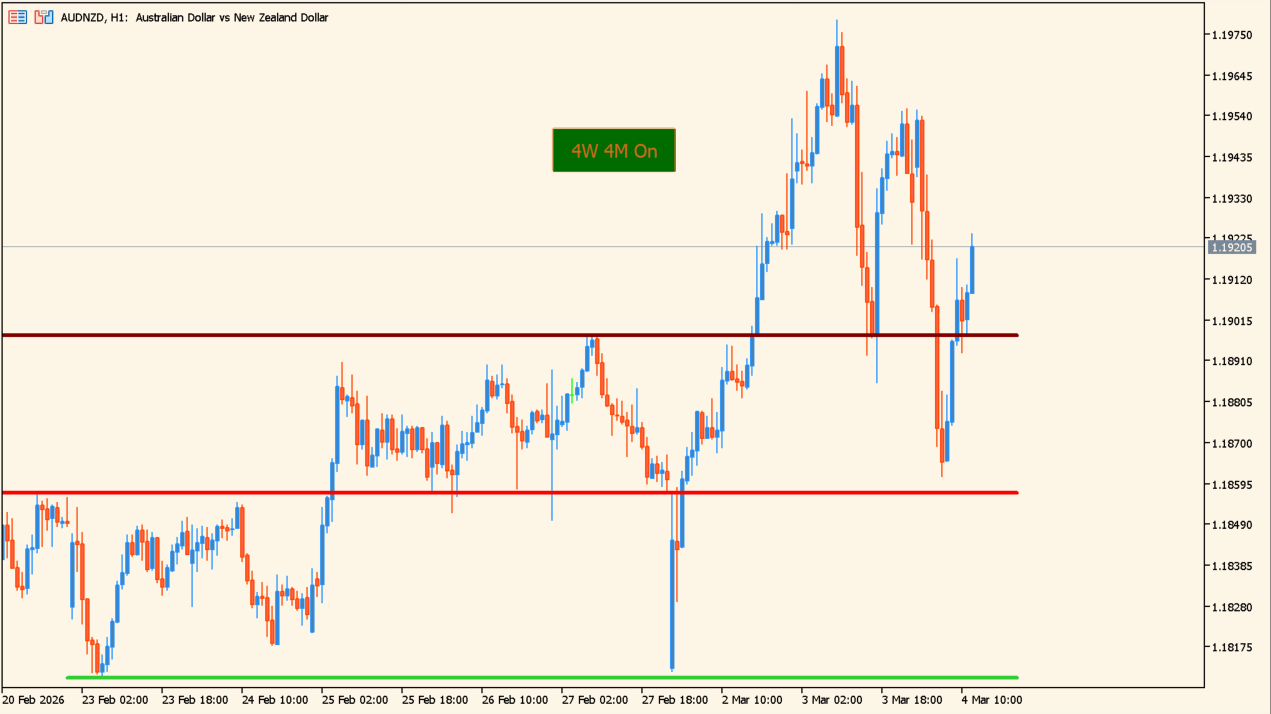
Price reaches one of the higher-timeframe lines.
Add the indicator and read the weekly and monthly lines against the current chart to see where the recent higher-timeframe extremes sit. Watch what price does as it reaches one of them.
Change No_Weeks_Back and No_Months_Back to cover a different number of past bars. The on-chart button, placed by the Button_ inputs, clears the lines when the chart needs to be uncluttered, and AlertsOn switches on the alert options.
Where it helps
The highs and lows come straight from the weekly and monthly bars, so nothing has to be marked by hand.
Separate color, style, and width settings for each set make it clear which timeframe a line came from.
The on-chart button removes every line at once, so the levels stay available without living on the chart permanently.
MT5 Indicator Parameters
The table below lists the available MT5 indicator parameters. You can customize these options in the MetaTrader Inputs dialog to match your trading preferences.
| Parameter | Description |
|---|---|
| Lines Section | Labels the line-settings section. |
| No_Weeks_Back | Sets the number of weekly bars used. |
| Clr_Week_Line_High | Sets the weekly high-line color. |
| Clr_Week_Line_Low | Sets the weekly low-line color. |
| Style_Week_Line | Sets the weekly line style. |
| Width_Week_Line | Sets the weekly line width. |
| No_Months_Back | Sets the number of monthly bars used. |
| Clr_Month_Line_High | Sets the monthly high-line color. |
| Clr_Month_Line_Low | Sets the monthly low-line color. |
| Style_Month_Line | Sets the monthly line style. |
| Width_Month_Line | Sets the monthly line width. |
| Shift_Right_Line | Sets the right shift for lines. |
| Button Section | Labels the button-settings section. |
| Button_Window | Sets the chart window for the button. |
| Button_Corner | Sets the button corner. |
| Button_X | Sets the button horizontal position. |
| Button_Y | Sets the button vertical position. |
| Button_Width | Sets the button width. |
| Button_Height | Sets the button height. |
| Button_FontSize | Sets the button font size. |
| Button_BrdColor | Sets the button border color. |
| Button_OffBkColor | Sets the off-state background color. |
| Button_OnBkColor | Sets the on-state background color. |
| Button_OffTxtColor | Sets the off-state text color. |
| Button_OnTxtColor | Sets the on-state text color. |
| Button_Default_State | Sets the default button state. |
| Alerts Section | Labels the alert-settings section. |
| AlertsOn | Enables or disables alerts. |
| Alert_Timeframe | Sets the alert evaluation time frame. |
| AlertPopUp | Enables or disables popup alerts. |
| AlertSound | Enables or disables sound alerts. |
| AlertEmail | Enables or disables email alerts. |
| AlertNotify | Enables or disables push alerts. |
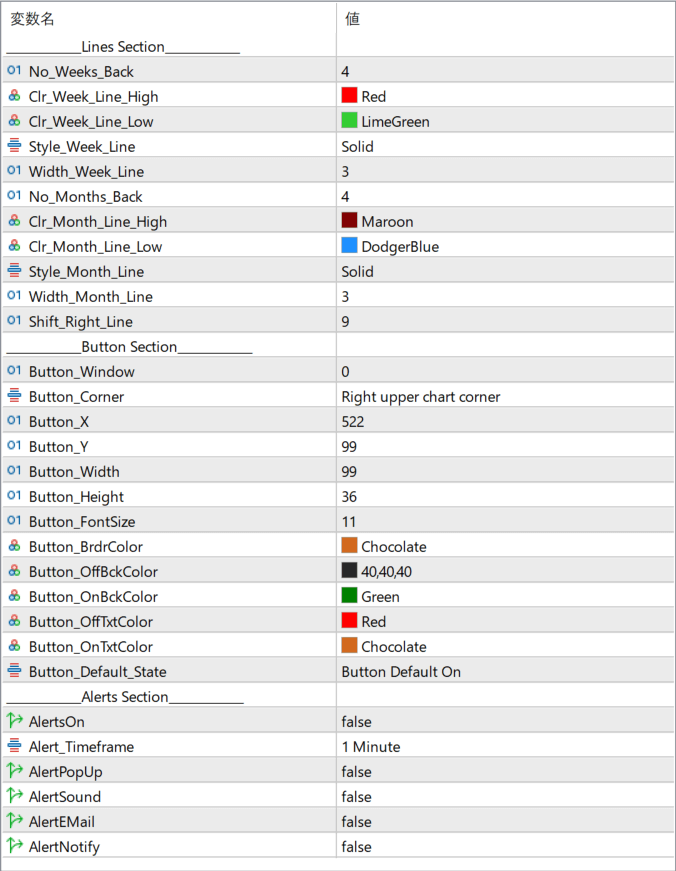
The screenshot above shows the default input parameters in the MT5 settings window.
How to Install .ex5 Indicator in MetaTrader 5
- Download the ZIP file and extract it.
- In MT5, select File → Open Data Folder.
- Open MQL5 → Indicators and copy the EX5 or MQ5 file into it.
- If the package includes library files, copy them to MQL5 → Libraries. Copy TPL files to the top-level templates folder.
- Restart MT5, find the indicator in the Navigator, and drag it onto a chart.
Test the tool on a demo account first. File contents and required folders can vary between packages.