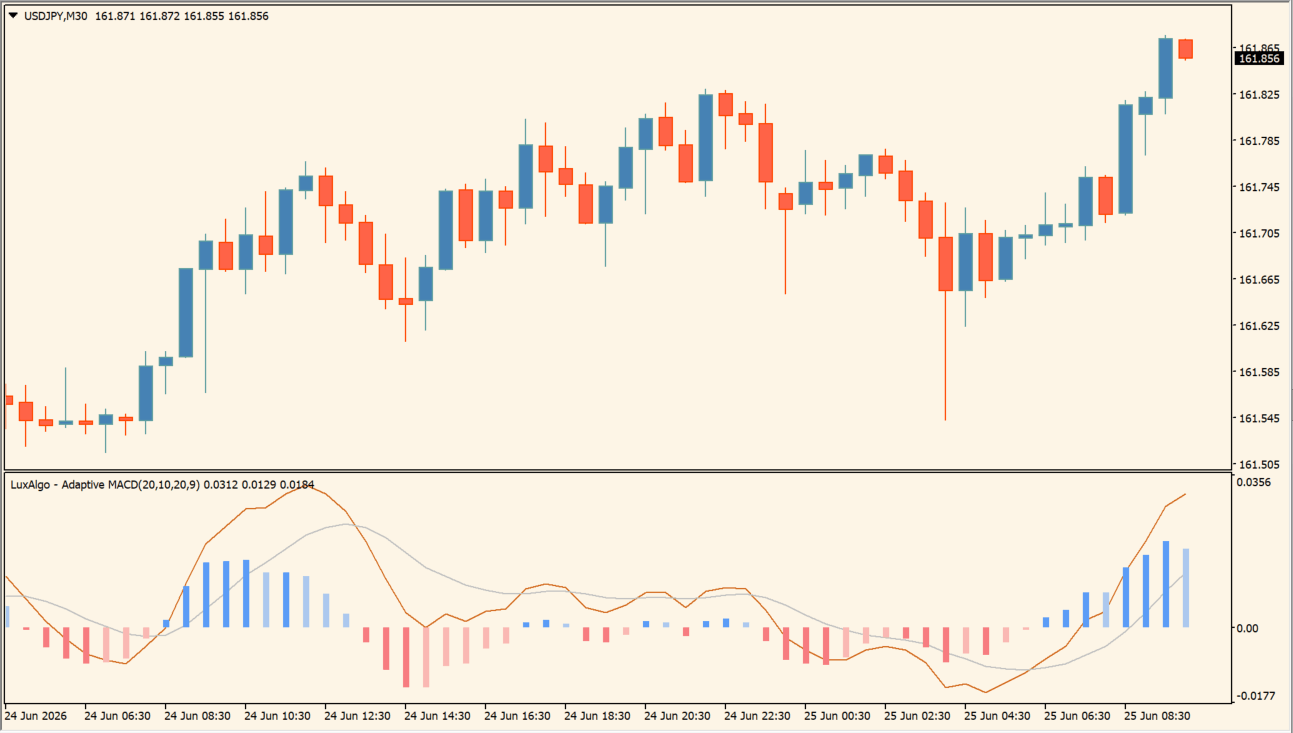
What is Adaptive MACD?
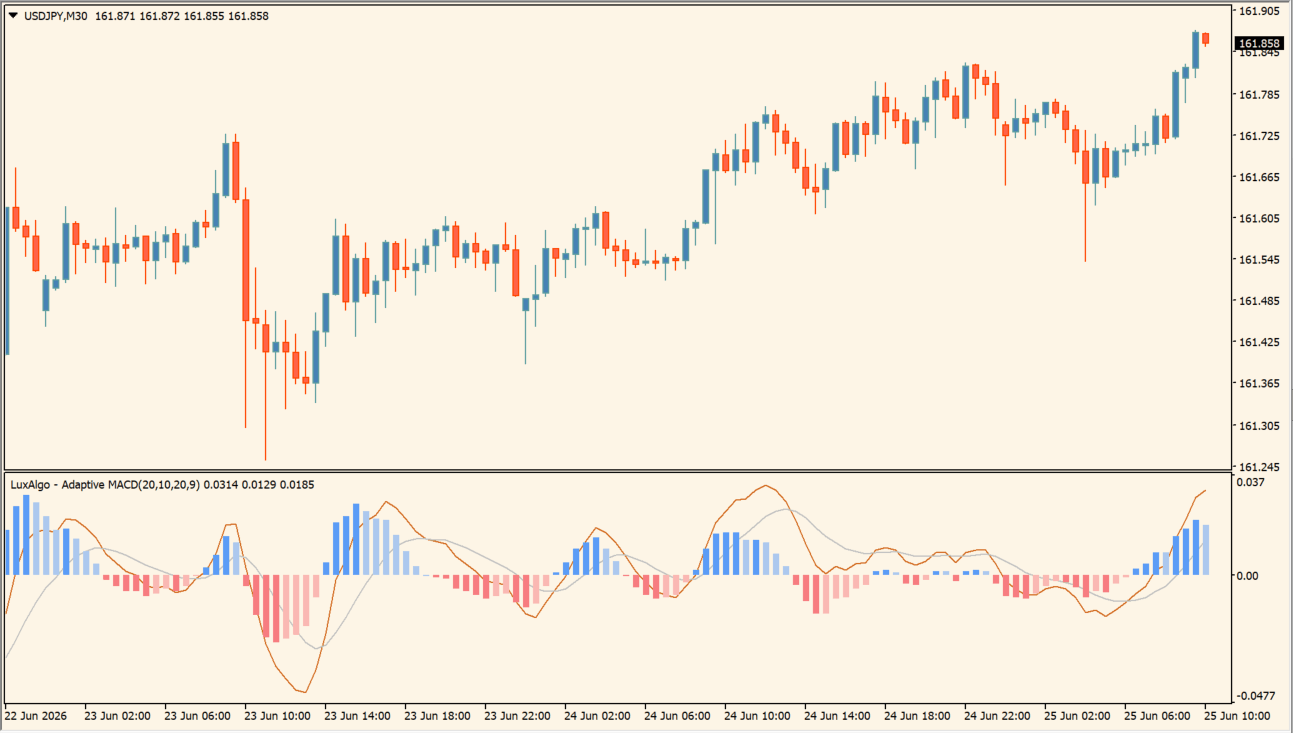
Adaptive MACD plots an orange line, a gray line, and a blue-and-red histogram in the MT4 sub-window. It prints no trade arrows and is used to compare line direction with histogram size.
Line direction and histogram size are read together, and the R2 setting adds an adaptive component alongside the fast, slow, and signal periods. Placing the pane beside a standard MACD makes the difference in response between the two easy to compare.
How to use Adaptive MACD
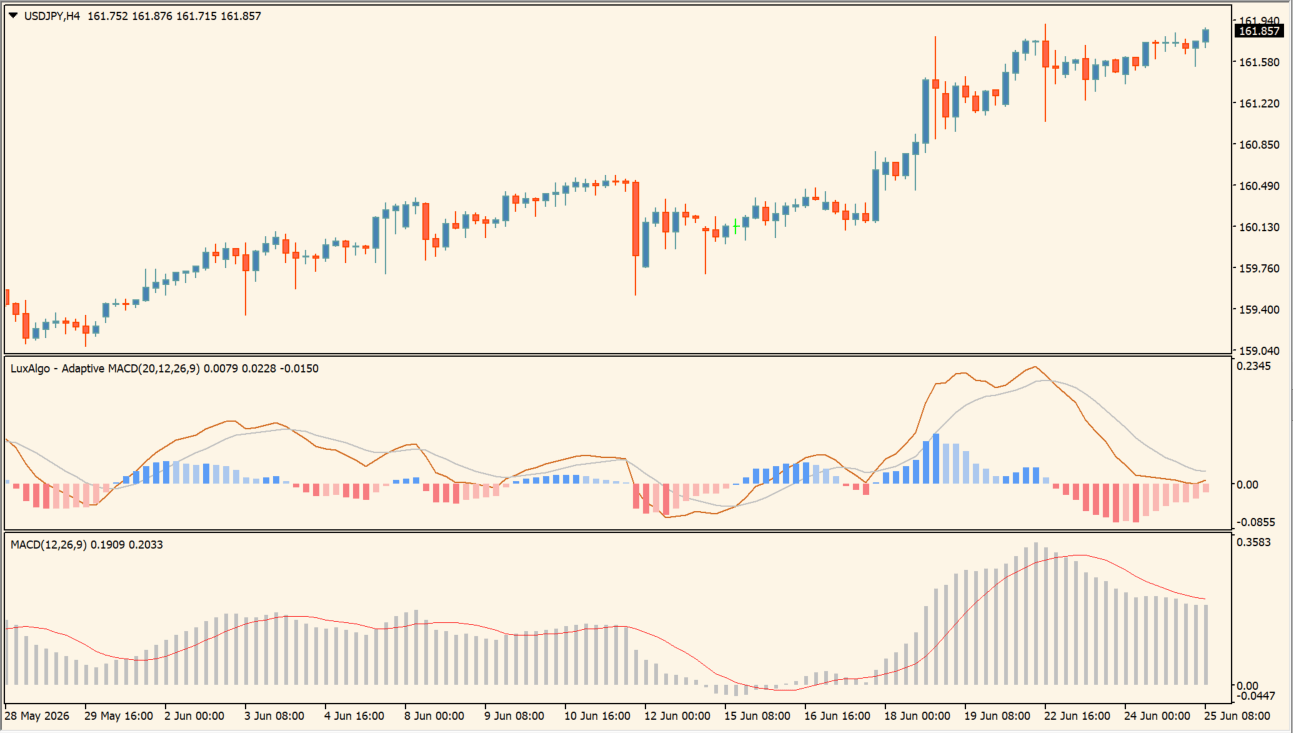
Read line direction and histogram size together with the price chart in front. In an uptrend, a histogram that weakens and then turns up again is visible as a change in bar size. In a downtrend, red bars appear alongside a falling line.
- Compare the candle direction on the price chart with the direction of the Adaptive MACD lines.
- In an uptrend, a histogram that weakens and then turns up again is visible as a change in bar size.
- In a downtrend, red bars appear alongside a falling line.
- Expect the reading to arrive slightly late, and expect repeated line crossings that are hard to read while the chart is in a range.
- Adjust R2 Period, Fast Period, Slow Period, and Signal Period in the Inputs, and compare the pane with the higher-timeframe display and with recent highs and lows.
Where it helps
Line direction and bar size show the state and its size in one pane, placing the pane beside a standard MACD makes the difference in response easy to see, and contracting bars with a flattening slope are visible in the same view.
MT4 Indicator Parameters
The table below lists the available MT4 indicator parameters. You can customize these options in the MetaTrader Inputs dialog to match your trading preferences.
| Parameter | Description |
|---|---|
| Adaptive R2 Period | Sets the period used in the Adaptive MACD calculation. Default: 20. |
| Fast EMA Period | Sets the fast moving-average period. Default: 12. |
| Slow EMA Period | Sets the slow moving-average period. Default: 26. |
| Signal Period | Sets the smoothing period for the signal line. Default: 9. |
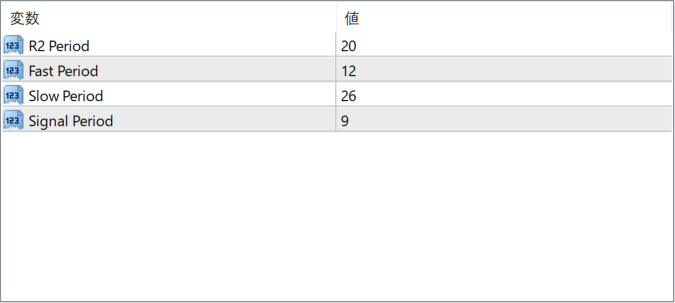
The screenshot above shows the default input parameters in the MT4 settings window.
How to Install .ex4 Indicator in MetaTrader 4
- Download the ZIP file and extract it.
- In MT4, select File → Open Data Folder.
- Open MQL4 → Indicators and copy the EX4 or MQ4 file into it.
- If the package includes library files, copy them to MQL4 → Libraries. Copy TPL files to the top-level templates folder.
- Restart MT4, find the indicator in the Navigator, and drag it onto a chart.
Test the tool on a demo account first. File contents and required folders can vary between packages.


