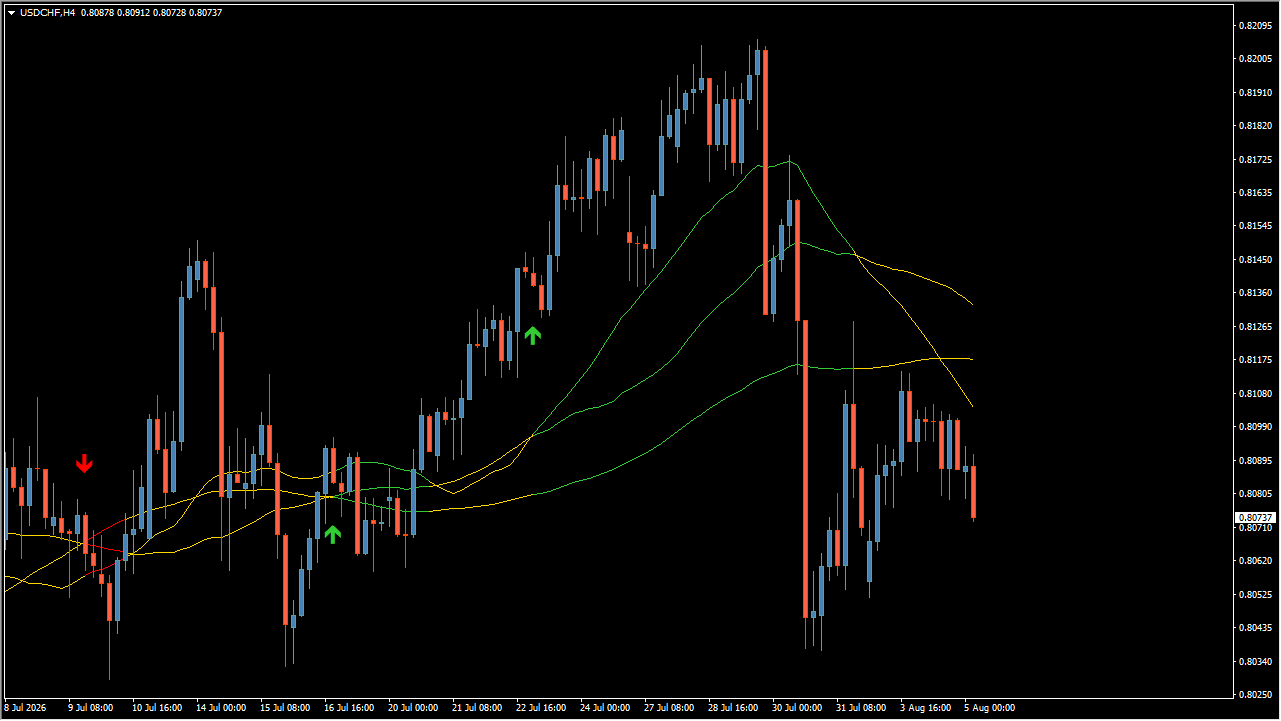
What is Order Block Edge Indicator?
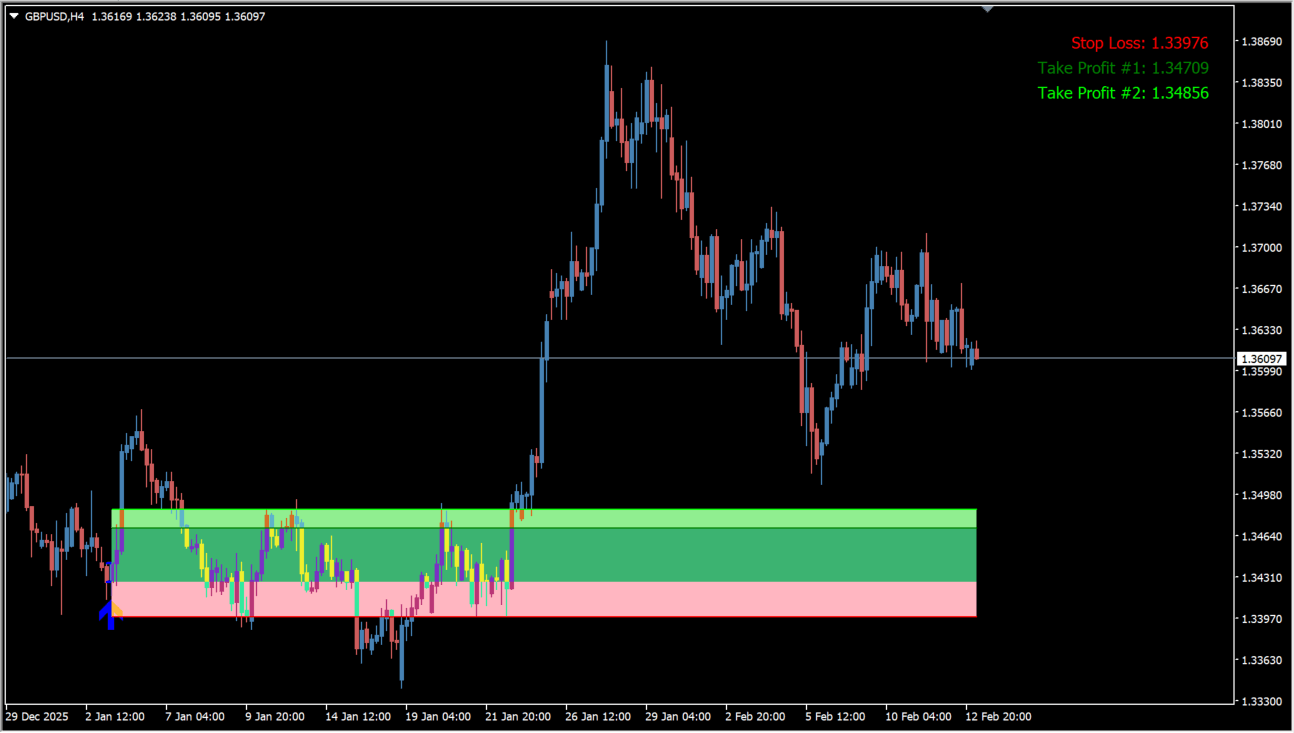
order-block-edge-indicator is an MT4 order-block indicator that shows arrow signals together with automatically drawn stop-loss and two take-profit levels. It displays order-block zones and uses ATR as the basis for setting the distance of the take-profit and stop-loss levels.
How to use Order Block Edge Indicator
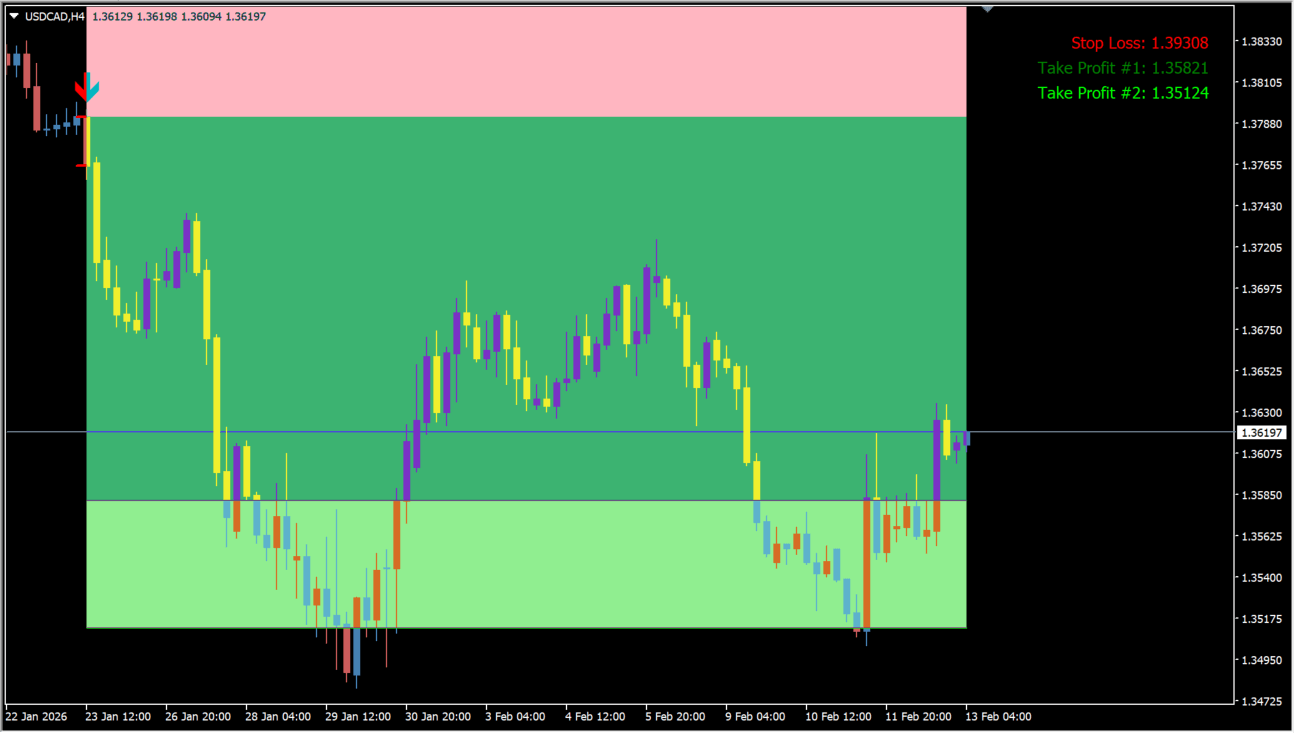
Arrow signals with stop-loss and take-profit lines appear when the required conditions around an order block are met. Confirm that the zone and signal point the same way, then follow the arrow direction and place the displayed levels on the order.
Where it helps
MT4 Indicator Parameters
The table below lists the available MT4 indicator parameters. You can customize these options in the MetaTrader Inputs dialog to match your trading preferences.
| Parameter | Description |
|---|---|
| *** Indicator Inputs *** | Configuration group. |
| Required number of subsequent candles in | Sets the number of subsequent candles required for entry detection. Default: 5. |
| Required minimum % move | Sets the minimum price movement required for signal detection. Default: 0.1. |
| *** Main Inputs *** | Configuration group. |
| Stop loss line color | Sets the stop-loss line color. Default: Red. |
| Take profit #1 line color | Sets the first take-profit line color. Default: Green. |
| Take profit #2 line color | Sets the second take-profit line color. Default: Lime. |
| Stop loss zone color | Sets the stop-loss zone background color. Default: LightPink. |
| Take profit #1 zone color | Sets the first take-profit zone background color. Default: MediumSeaGreen. |
| Take profit #2 zone color | Sets the second take-profit zone background color. Default: LightGreen. |
| Allow draw SL and TP labels | Enables the display of stop-loss and take-profit price labels. Default: true. |
| Stop loss label color | Sets the stop-loss price label color. Default: Red. |
| Take profit #1 label color | Sets the first take-profit label color. Default: Green. |
| Take profit #2 label color | Sets the second take-profit label color. Default: Lime. |
| Bullish arrow on chart color | Sets the color of the bullish entry arrow. Default: Blue. |
| Bearish arrow on chart color | Sets the color of the bearish entry arrow. Default: Red. |
| *** SL and TP Inputs *** | Configuration group. |
| SL detection distance (days) | Sets the number of past days used for stop-loss calculation. Default: 5. |
| ATR Period for SL shift | Sets the ATR period used for stop-loss adjustment. Default: 14. |
| SL shift coefficient (from ATR) | Sets the stop-loss distance coefficient relative to ATR. Default: 0.1. |
| TP #1 coefficient (from SL) | Sets the first take-profit multiplier relative to the stop-loss width. Default: 1.5. |
| TP #2 coefficient (from SL) | Sets the second take-profit multiplier relative to the stop-loss width. Default: 2.0. |
| *** Notifications Inputs *** | Configuration group. |
| Show Alerts | Enables alerts when a signal occurs. Default: true. |
| Send PUSH Notifications | Controls whether MT4 push notifications are sent. Default: false. |
| Send email Notifications | Controls whether signals are sent by email. Default: false. |
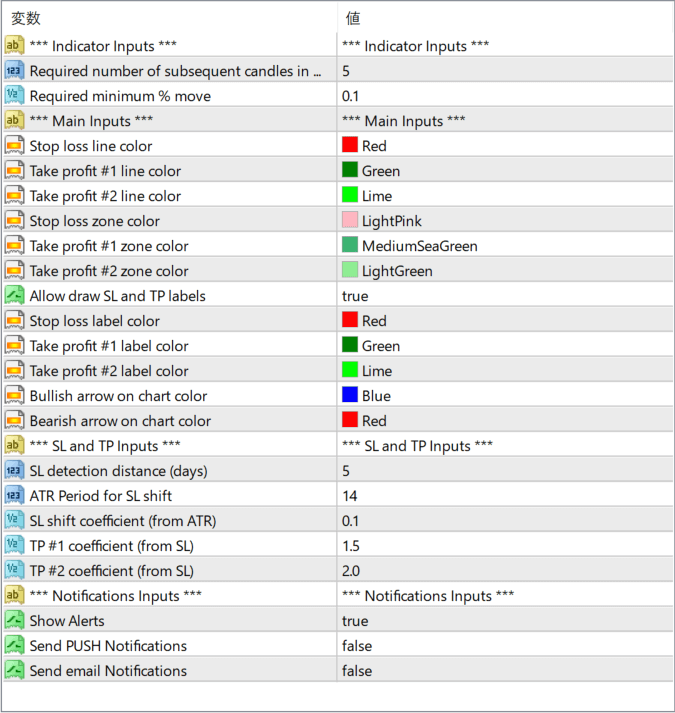
The screenshot above shows the default input parameters in the MT4 settings window.
How to Install .ex4 Indicator in MetaTrader 4
- Download the ZIP file and extract it.
- In MT4, select File → Open Data Folder.
- Open MQL4 → Indicators and copy the EX4 or MQ4 file into it.
- If the package includes library files, copy them to MQL4 → Libraries. Copy TPL files to the top-level templates folder.
- Restart MT4, find the indicator in the Navigator, and drag it onto a chart.
Test the tool on a demo account first. File contents and required folders can vary between packages.