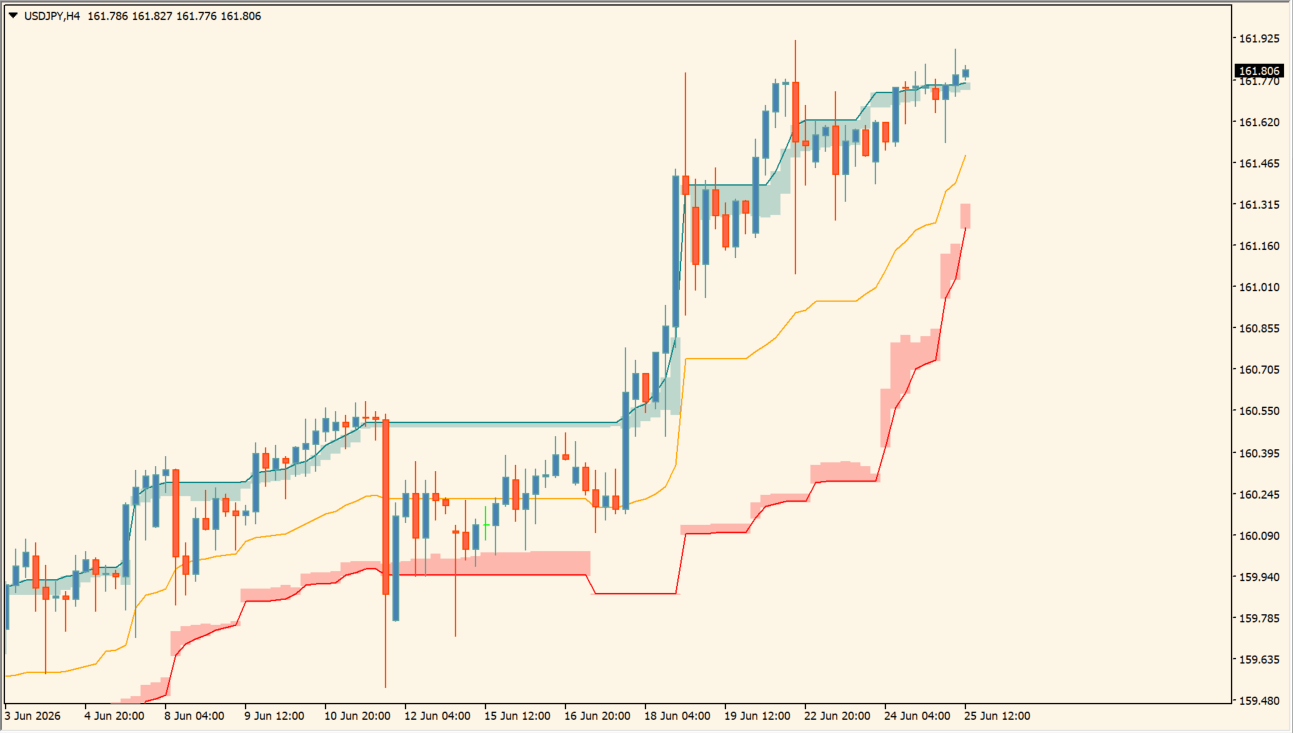
What is AI Channels (Clustering)?
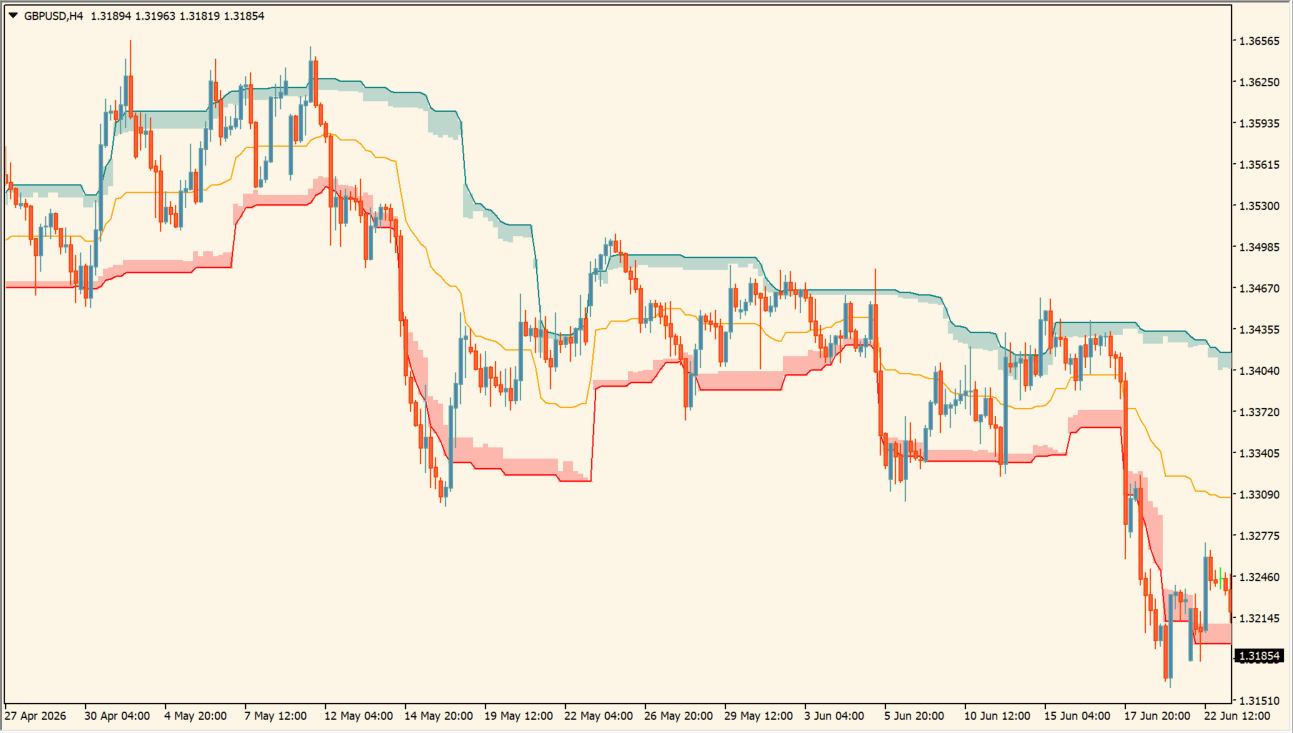
AI Channels (Clustering) draws an upper zone, an average line, and a lower zone on the MT4 chart. Teal shading sits above price, an orange line runs through the middle, and red shading sits below.
It prints no entry arrows. The display is used to see where price tends to stall and how far a move has extended inside the channel.
How to use AI Channels (Clustering)
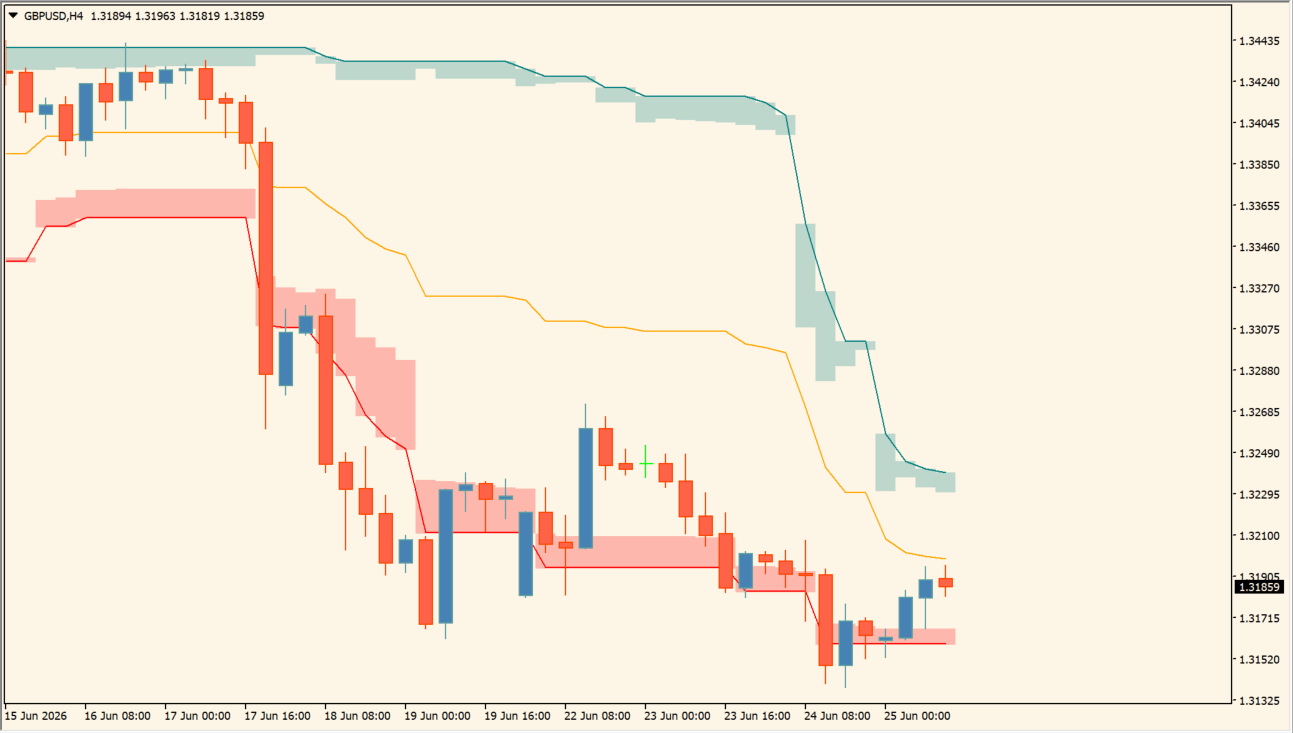
Read the position of price inside the channel. When price approaches the upper zone, note whether it stalls or continues. When price approaches the lower zone, note whether the decline continues or steadies.
- Use the orange average line as the reference inside the channel. Do not read a touch of an outer zone as an automatic reversal, and adjust Window Size, Clusters, Denoise Channels, and Historical Bars Calculation when the display needs reorganizing or is slow to draw.
Where it helps
Upper, middle, and lower levels appear together instead of being drawn line by line, the average line and the outer zones show how far price has moved inside the channel, and the position of price between them is readable at a glance.
MT4 Indicator Parameters
The table below lists the available MT4 indicator parameters. You can customize these options in the MetaTrader Inputs dialog to match your trading preferences.
| Parameter | Description |
|---|---|
| Clustering Window Size | Sets the range used for the channel calculation. Default: 30. |
| Number of Clusters | Sets the number of display groupings used by the channel. Default: 5. |
| Denoise Channels | Applies smoothing to reduce channel noise. Default: true. |
| Use as Trailing Stop | Uses the channel output as a trailing-stop reference when enabled. Default: false. |
| Maximum Iterations | Limits the number of clustering iterations. Default: 500. |
| Historical Bars | Sets how many historical bars are processed. Default: 5000. |
| Upper Zone Color | Sets the upper-zone color. Default: Teal. |
| Average Zone Color | Sets the center/average color. Default: Orange. |
| Lower Zone Color | Sets the lower-zone color. Default: Red. |
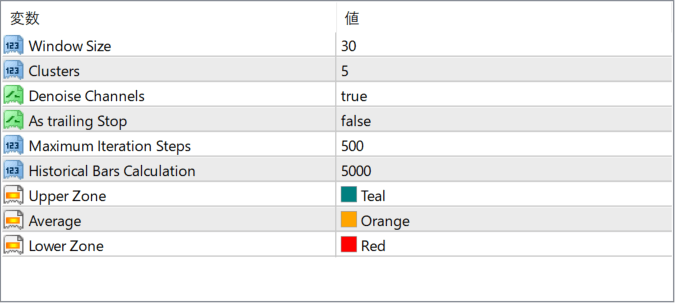
The screenshot above shows the default input parameters in the MT4 settings window.
How to Install .ex4 Indicator in MetaTrader 4
- Download the ZIP file and extract it.
- In MT4, select File → Open Data Folder.
- Open MQL4 → Indicators and copy the EX4 or MQ4 file into it.
- If the package includes library files, copy them to MQL4 → Libraries. Copy TPL files to the top-level templates folder.
- Restart MT4, find the indicator in the Navigator, and drag it onto a chart.
Test the tool on a demo account first. File contents and required folders can vary between packages.


