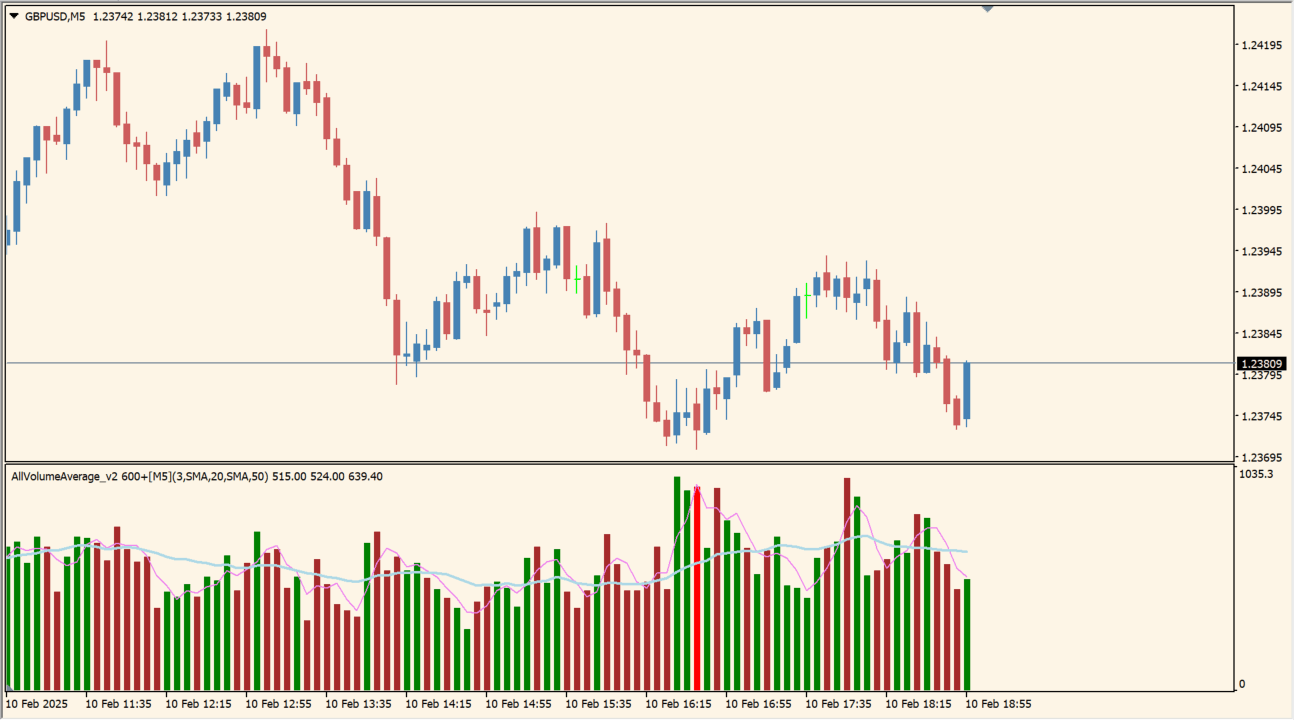
What is AllVolumeAverage_v2 600+?
AllVolumeAverage_v2 600+ displays a volume-style series with two moving averages in a subwindow. A brighter graph marks larger volume readings that may accompany a new trend or a mature move.
A large volume reading can appear near both the start and the end of a trend. The display is therefore useful for reviewing activity together with price, not for assigning one fixed meaning to every spike.
How to use AllVolumeAverage_v2 600+
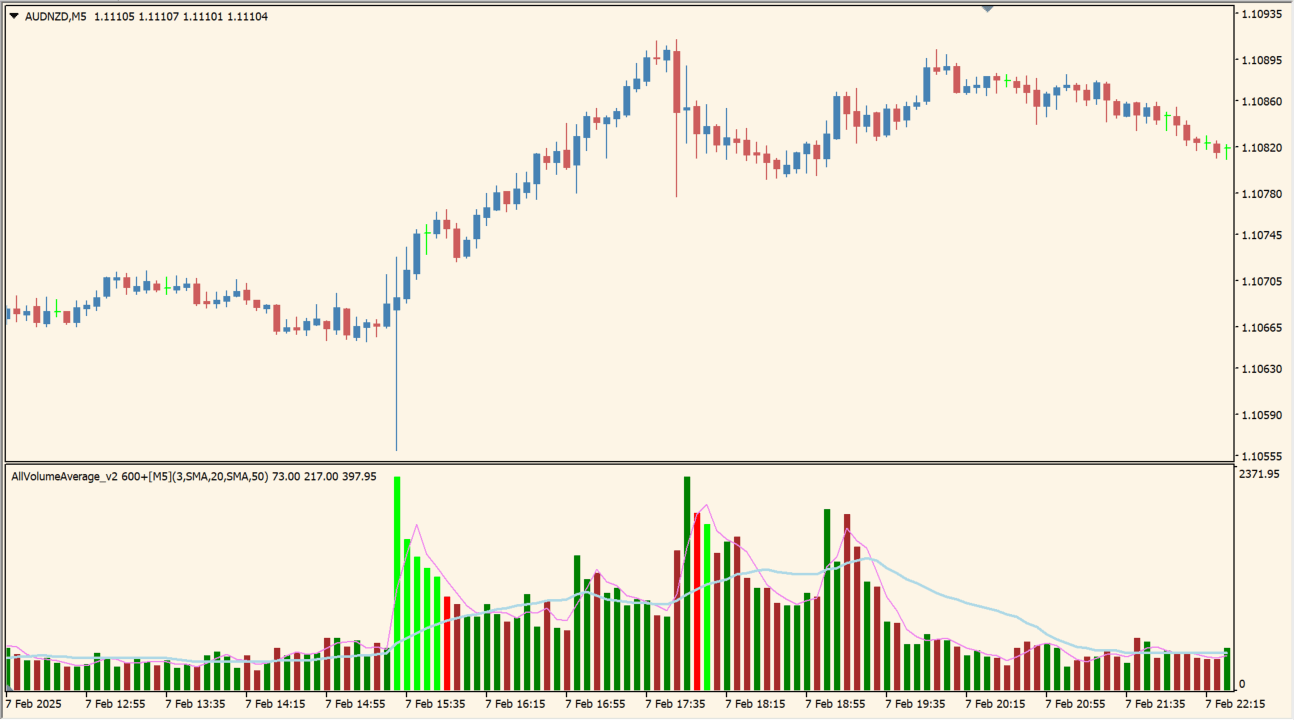
Apply AllVolumeAverage_v2 600+ to an MT4 chart and compare bright activity bars with the direction and phase of the current price movement.
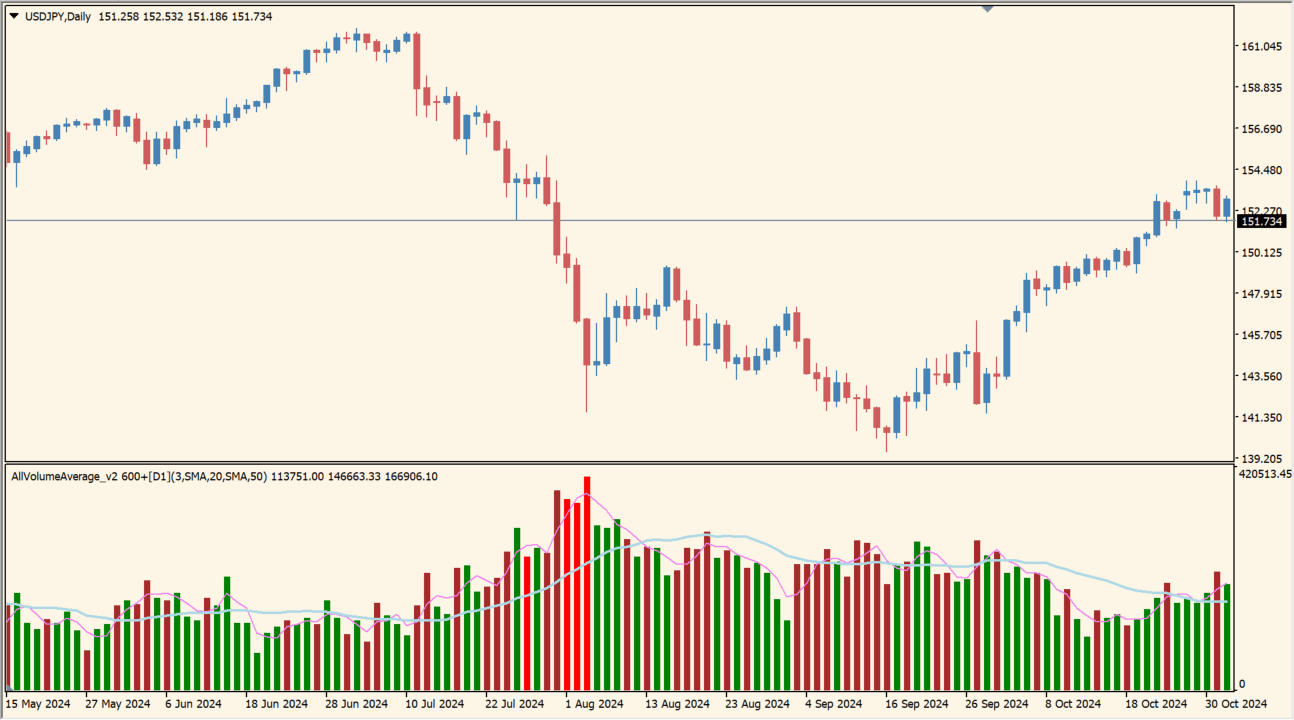
Use the available period and display inputs to change the two averages, volume window, colors, and the number of bars processed.
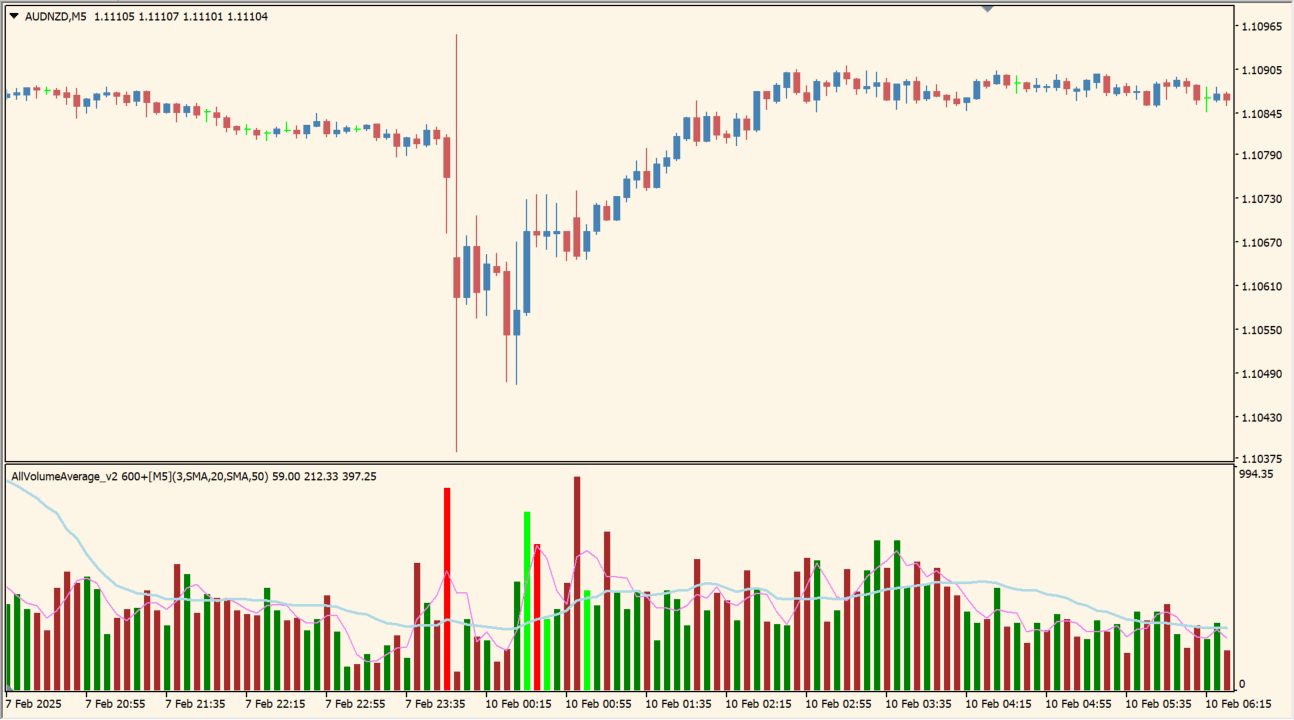
Where it helps
Keeps the activity series separate from the main price chart.
Adds short- and longer-term references around the volume movement.
Makes unusually large readings easier to find without hiding the underlying graph.
MT4 Indicator Parameters
The table below lists the available MT4 indicator parameters. You can customize these options in the MetaTrader Inputs dialog to match your trading preferences.
| Parameter | Description |
|---|---|
| TimeFrame | Sets this calculation or display option. Default: 0. |
| FastLength | Sets this calculation or display option. Default: 3. |
| FastMode | Sets this calculation or display option. Default: 0. |
| SlowLength | Sets this calculation or display option. Default: 20. |
| SlowMode | Sets this calculation or display option. Default: 0. |
| BreakoutPct | Controls this indicator option. Default: 50. |
| AlertMode | Enables or disables this display option. Default: 0. |
| SoundsNumber | Enables or disables this display option. Default: 5. |
| SoundsPause | Enables or disables this display option. Default: 5. |
| UpSound | Enables or disables this display option. Default: "alert.wav". |
| DnSound | Enables or disables this display option. Default: "alert2.wav". |
| EmailMode | Enables or disables this display option. Default: 0. |
| EmailsNumber | Enables or disables this display option. Default: 1. |
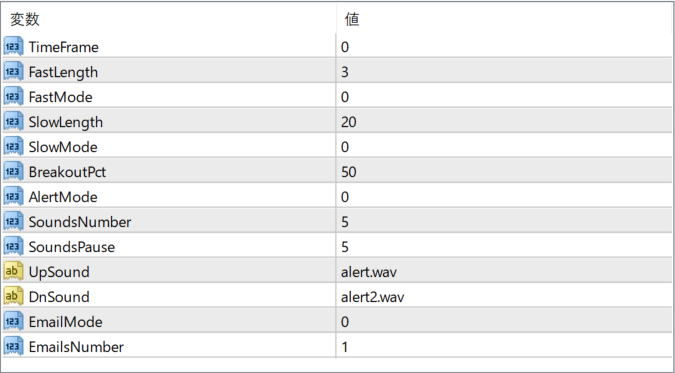
The screenshot above shows the default input parameters in the MT4 settings window.
How to Install .ex4 Indicator in MetaTrader 4
- Download the ZIP file and extract it.
- In MT4, select File → Open Data Folder.
- Open MQL4 → Indicators and copy the EX4 or MQ4 file into it.
- If the package includes library files, copy them to MQL4 → Libraries. Copy TPL files to the top-level templates folder.
- Restart MT4, find the indicator in the Navigator, and drag it onto a chart.
Test the tool on a demo account first. File contents and required folders can vary between packages.


