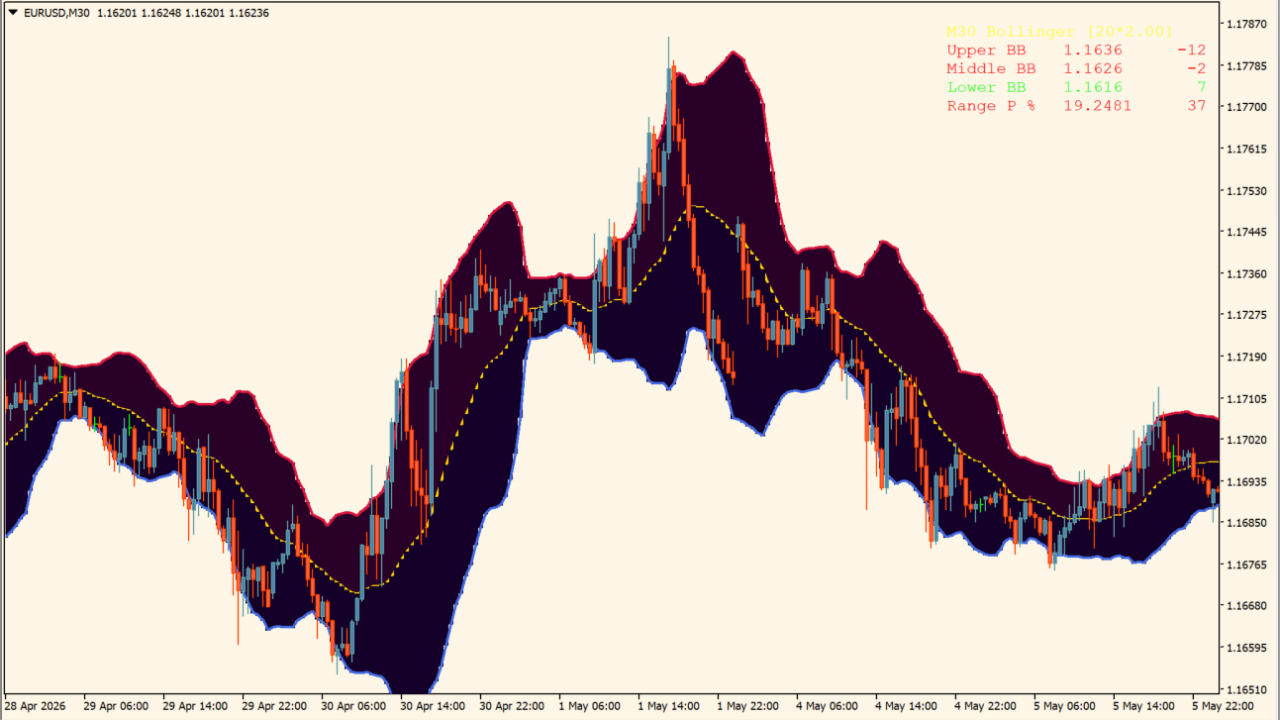
What is bb-buy-sell-zone-indicator?
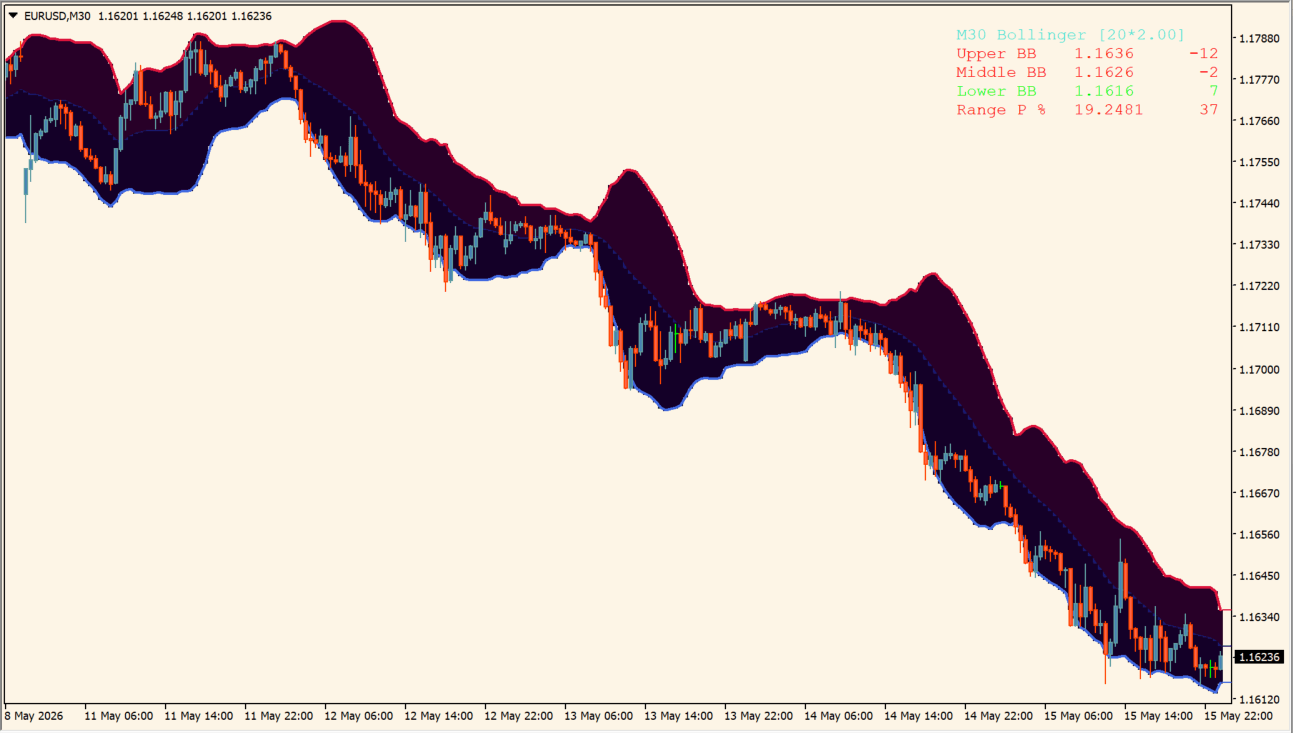
bb-buy-sell-zone-indicator enhances standard Bollinger Bands by filling upper and lower bands with colored zones to highlight buying and selling pressure.
It displays real-time metrics in an information panel, including the relative percentage position of price within the band range.
How to use bb-buy-sell-zone-indicator
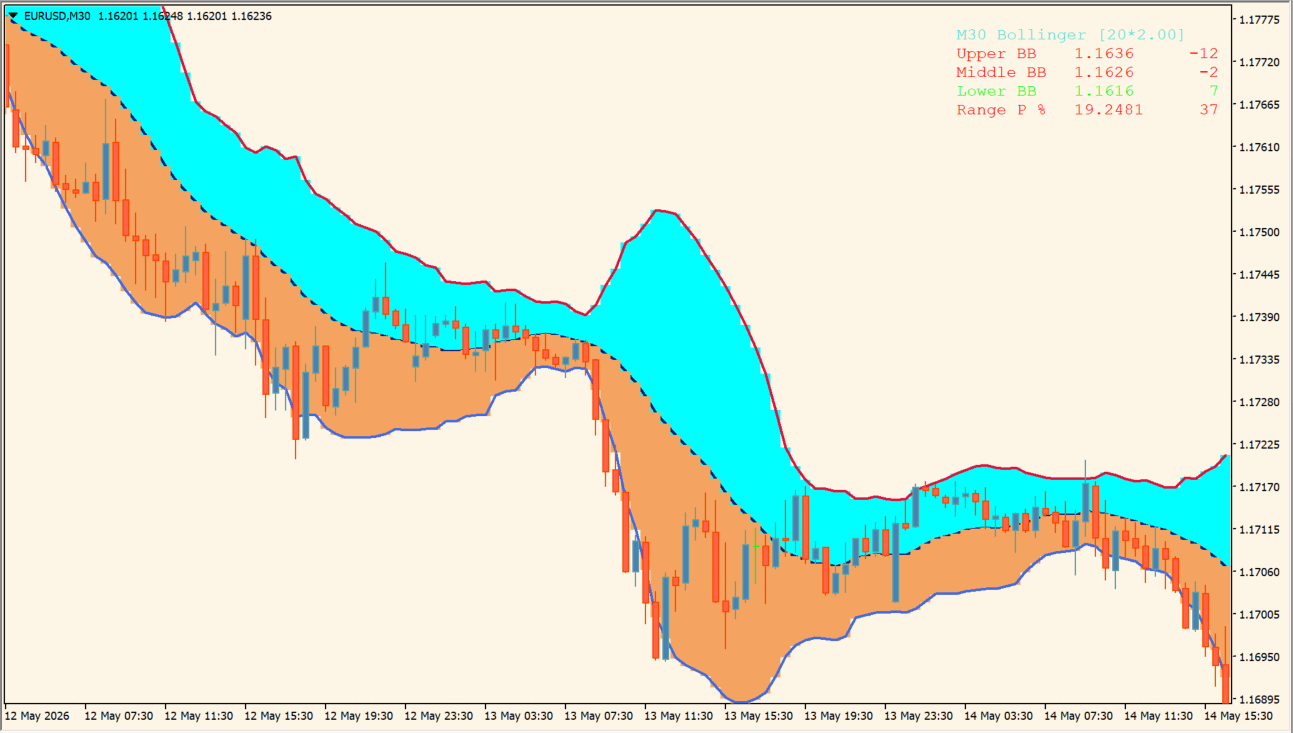
Read Upper BB, Middle BB, Lower BB, and Range P % together to locate price within the Bollinger Band:
- Compare Range P % with the upper, middle, and lower band positions displayed on the chart.
- Use the colored regions to distinguish where price is located within the band rather than as buy-or-sell labels.
- Adjust BandsPeriod, Deviations, BandsShift, fill, and label options to change the band display.
- Compare the location value with band width and the recent chart movement, since price can remain near an outer region.
Where it helps
Fills upper and lower band areas for intuitive visual analysis.
Displays Upper, Middle, Lower BB levels and Range P % position.
Offers detailed control over period, deviation, line colors, and transparency.
MT4 Indicator Parameters
The table below lists the available MT4 indicator parameters. You can customize these options in the MetaTrader Inputs dialog to match your trading preferences.
| Parameter | Description |
|---|---|
| BandsPeriod | Sets the calculation period for Bollinger Bands. Default: 20. |
| Deviations | Sets the standard deviation multiplier for band width. Default: 2.0. |
| BandsShift | Sets the horizontal shift for band display. Default: 0. |
| ЗаливкаВЕРХ | Sets the upper zone fill transparency. Default: 40,40. |
| ЗаливкаНИЗ | Sets the lower zone fill transparency. Default: 20,40. |
| ПодГрафиком | Controls whether the indicator displays on the main chart. Default: true. |
| ЗаливкаПлотность | Sets the zone fill density. Default: 17. |
| ПоказатьМЕТКИ | Controls display of price level labels. Default: true. |
| РазмерМеток | Sets the font size for labels. Default: 1. |
| ПолосаВЕРХ | Sets the upper band line color. Default: clrCrimson. |
| ПолосаЦЕНТР | Sets the middle band line color. Default: clrGold. |
| ПолосаНИЗ | Sets the lower band line color. Default: clrRoyalBlue. |
| ТолщинаBands | Sets the band line thickness. Default: 2. |
| ПоказатьИНФО | Controls display of the information panel. Default: true. |
| myChartX | Sets the horizontal position offset of the info panel. Default: 10. |
| myChartY | Sets the vertical position offset of the info panel. Default: 5. |
| УголПривязки | Sets the corner anchor position for the info panel. Default: Right upper chart corner. |
| ШиринаСтрок | Sets the line spacing height for the info panel. Default: 15. |
| Заголовок | Sets the title background color for the info panel. Default: clrMidnightBlue. |
| colorUP | Sets the display color for bullish values. Default: clrLime. |
| colorEQ | Sets the display color for neutral values. Default: clrGold. |
| colorDN | Sets the display color for bearish values. Default: clrRed. |
| РазмерШрифта | Sets the font size for the info panel. Default: 10. |
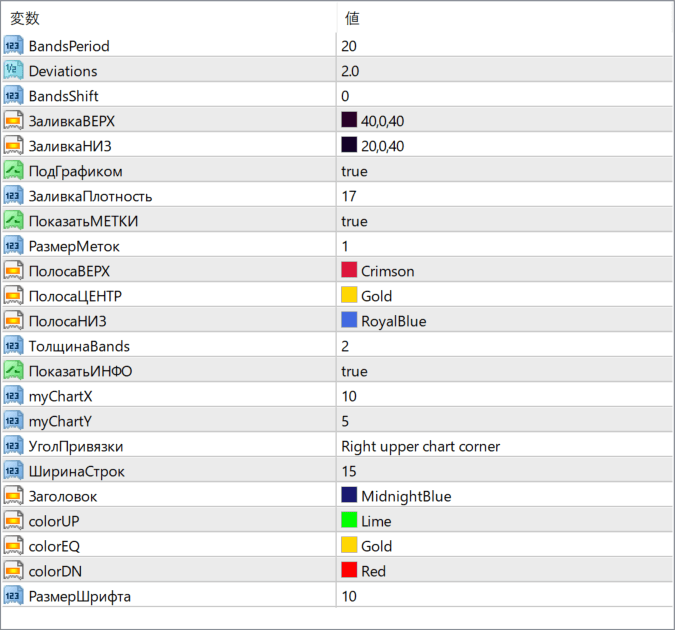
The screenshot above shows the default input parameters in the MT4 settings window.
How to Install .ex4 Indicator in MetaTrader 4
- Download the ZIP file and extract it.
- In MT4, select File → Open Data Folder.
- Open MQL4 → Indicators and copy the EX4 or MQ4 file into it.
- If the package includes library files, copy them to MQL4 → Libraries. Copy TPL files to the top-level templates folder.
- Restart MT4, find the indicator in the Navigator, and drag it onto a chart.
Test the tool on a demo account first. File contents and required folders can vary between packages.


