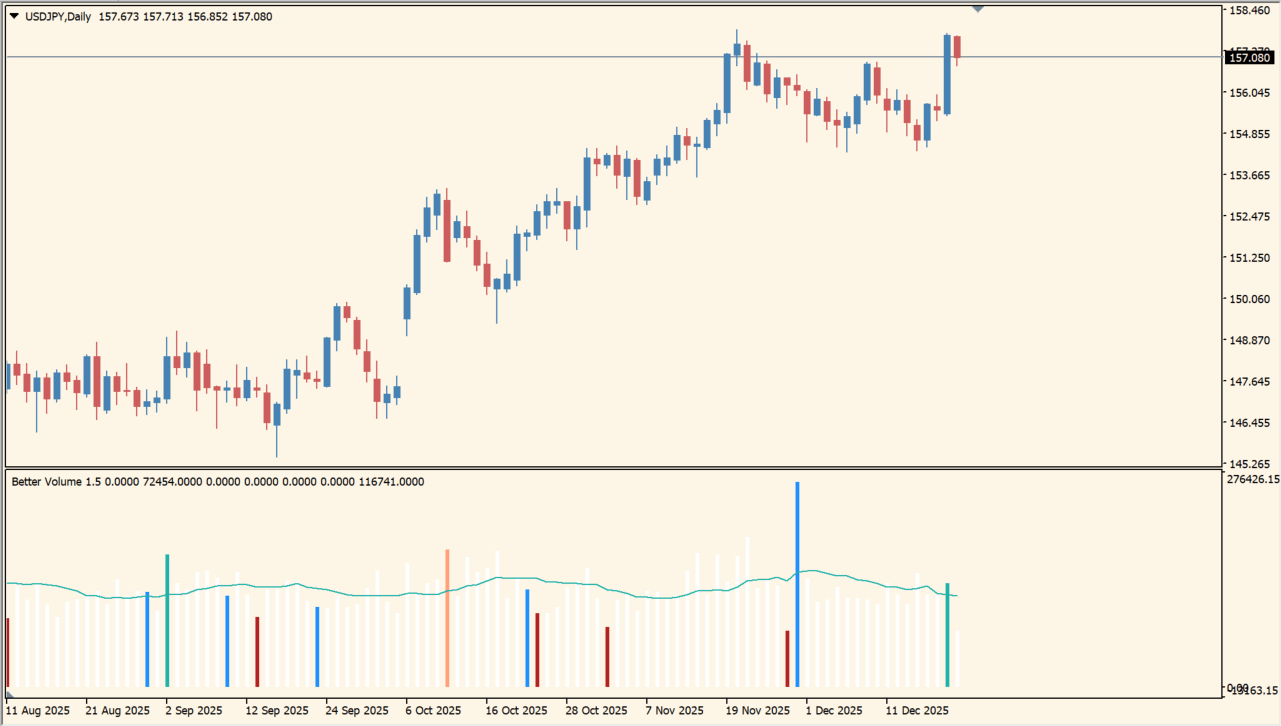
What is Better Volume New Alerts?
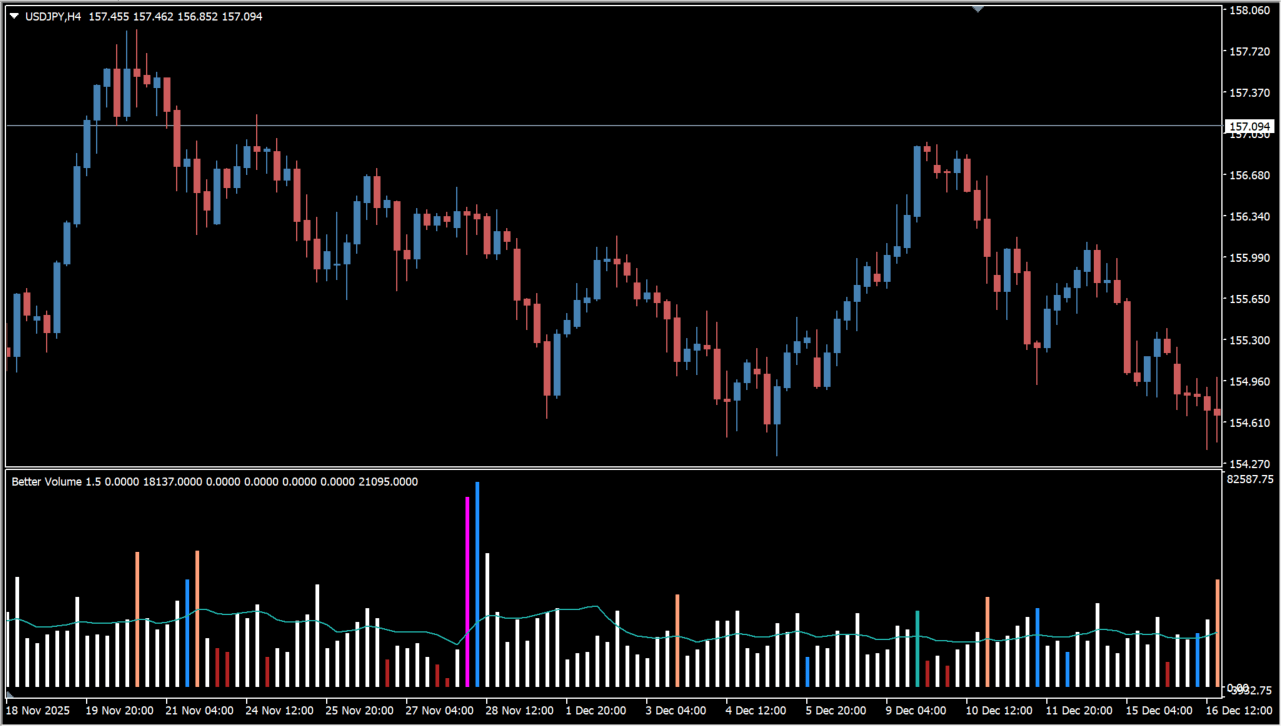
Better Volume New Alerts displays tick-volume bars in a subwindow and classifies their relative characteristics with colors. The display is for comparing increases, decreases, and deviations from the selected average rather than interpreting price alone.
Optional visual, sound, and email notifications are available from the Inputs dialog. The indicator’s displayed volume is tick volume, so it should be reviewed as the platform’s activity measure.
How to use Better Volume New Alerts
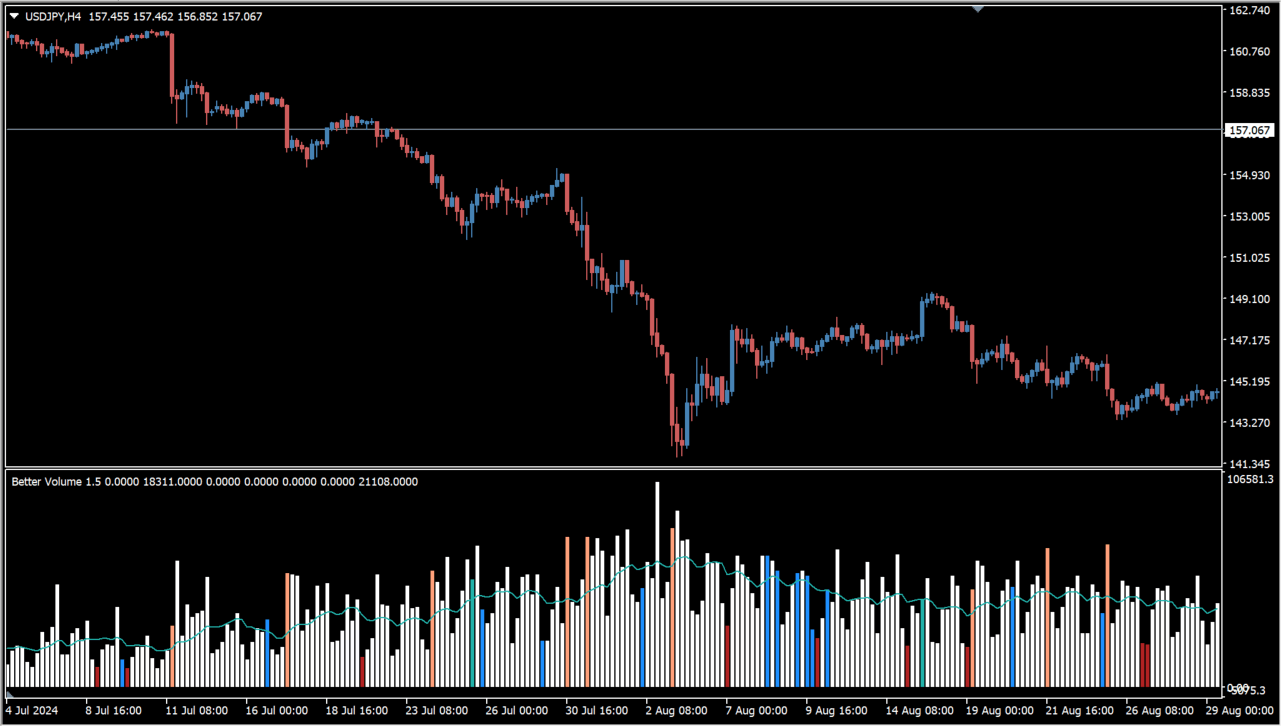
Compare the colored volume bars with the corresponding candles and with the recent volume average. Read the changing volume display together with chart structure and other drawn levels rather than treating one bar color as a complete decision.
NumberOfBars controls how much history is displayed, MAPeriod and LookBack set the averaging and comparison ranges, and width1 and width2 change bar presentation. UseVisualAlert, UseSoundAlert, and UseEmailAlert select the notification methods.
Where it helps
The subwindow uses colors to distinguish volume characteristics.
MAPeriod and LookBack control the displayed volume context.
Visual, sound, and email alerts are separate settings.
MT4 Indicator Parameters
The table below lists the available MT4 indicator parameters. You can customize these options in the MetaTrader Inputs dialog to match your trading preferences.
| Parameter | Description |
|---|---|
| NumberOfBars | Sets the number of historical bars displayed; 0 displays all available bars. |
| Note | Displays the accompanying note for the bar-count setting. |
| MAPeriod | Sets the moving-average period used for volume comparison. |
| LookBack | Sets the lookback range used for comparison. |
| width1 | Sets the first bar-width setting. |
| width2 | Sets the second bar-width setting. |
| UseVisualAlert | Enables or disables visual alerts. |
| UseSoundAlert | Enables or disables sound alerts. |
| UseEmailAlert | Enables or disables email alerts. |
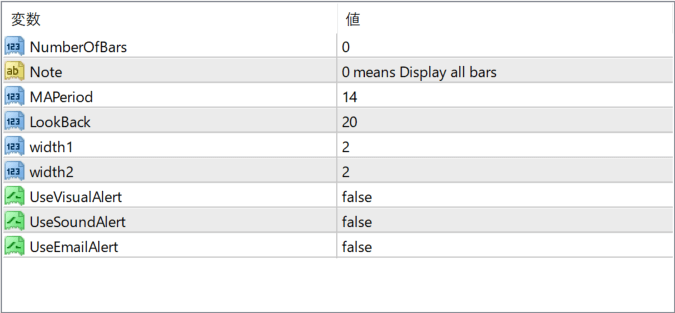
The screenshot above shows the default input parameters in the MT4 settings window.
How to Install .ex4 Indicator in MetaTrader 4
- Download the ZIP file and extract it.
- In MT4, select File → Open Data Folder.
- Open MQL4 → Indicators and copy the EX4 or MQ4 file into it.
- If the package includes library files, copy them to MQL4 → Libraries. Copy TPL files to the top-level templates folder.
- Restart MT4, find the indicator in the Navigator, and drag it onto a chart.
Test the tool on a demo account first. File contents and required folders can vary between packages.


