What is Better Volume 1.5?
Better Volume 1.5 takes standard volume a step further on MT5 by sorting tick volume into color-coded classes. It has no signals and belongs to the volume and volatility group.
Beyond simple rises and falls in volume, the colors let you tell low activity, high activity, and buyer- or seller-led activity apart at a glance, which helps when reading market participants’ sentiment and the market's current phase.
How to use Better Volume 1.5
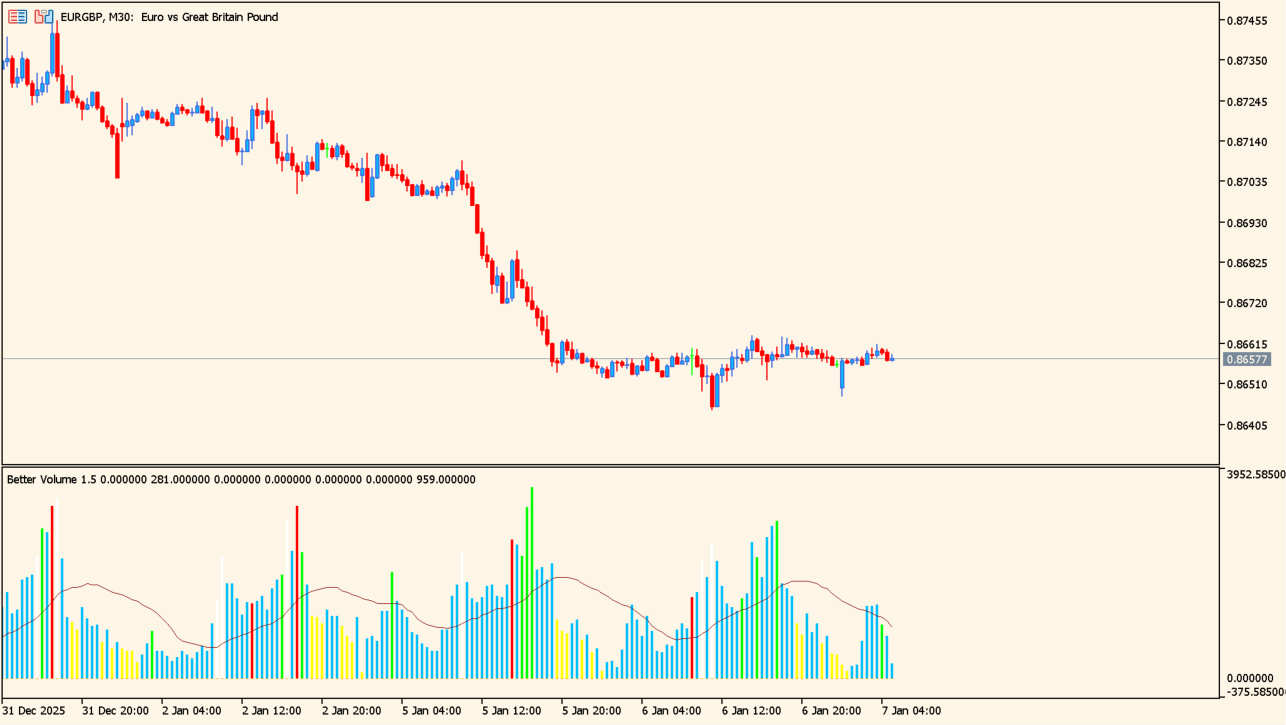
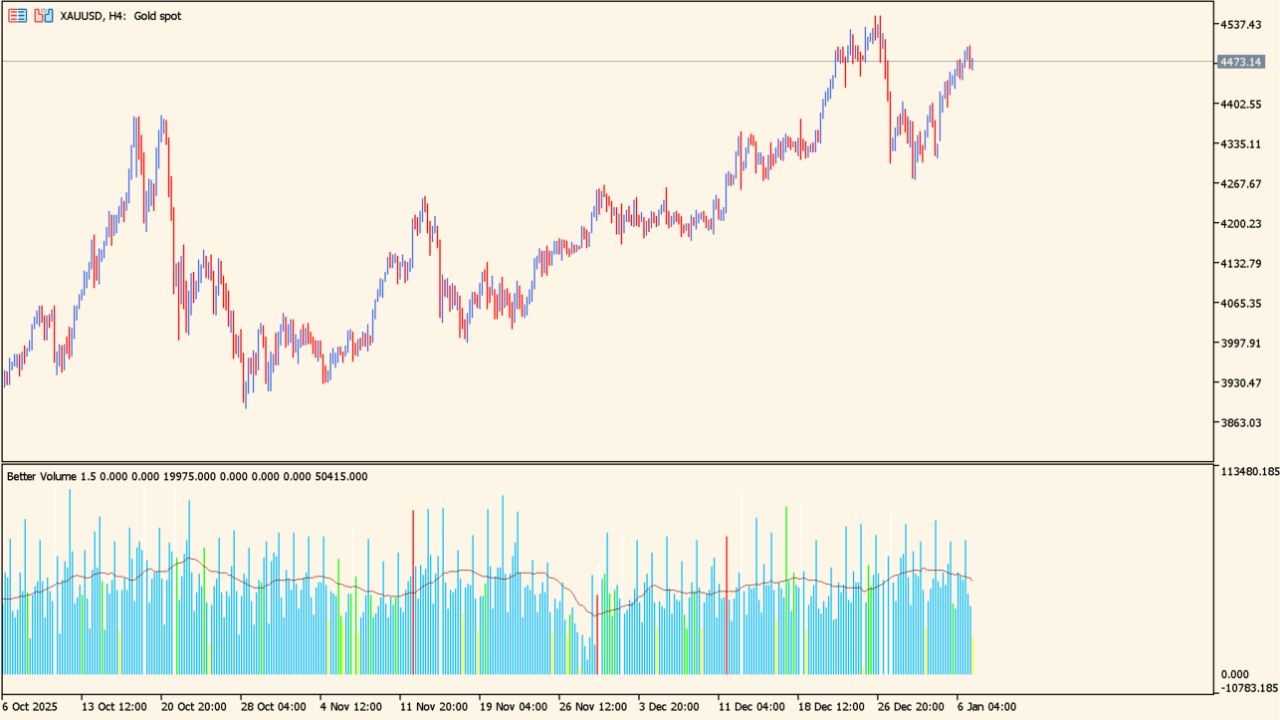
Volume bars and a moving-average line are displayed.
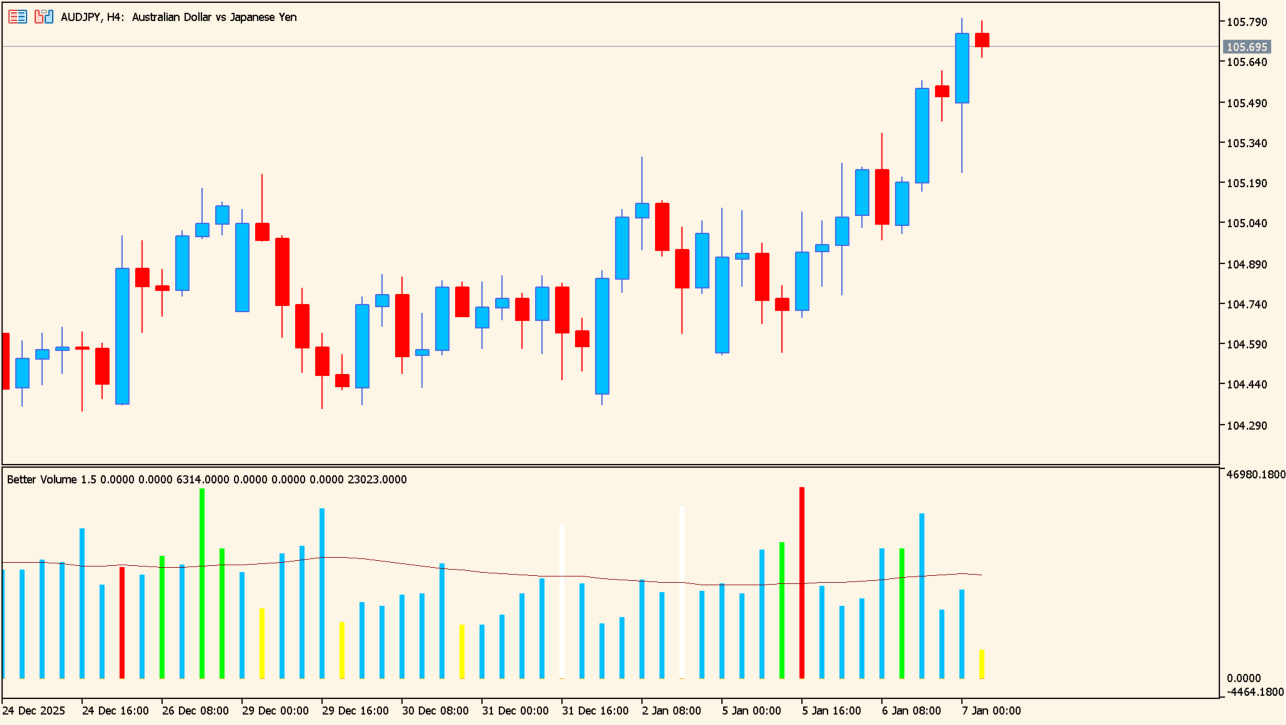
Better Volume 1.5 analyzes tick volume — the FX market's stand-in for actual traded volume — and displays it as a histogram.
Blue marks normal volume, while yellow marks low volume — market participants waiting on the sidelines. Green shows rising volume, but it often comes from large participants adjusting their positions, so direction tends to be unclear and calls for caution.
Red shows volume rising with buyers in control, and white shows activity picking up under sellers. Always read these colors together with the higher-timeframe trend and the overall market environment.
A moving average of volume is also drawn, and its crosses with the histogram offer a supplementary check on shifts in momentum.
MT5 Indicator Parameters
The table below lists the available MT5 indicator parameters. You can customize these options in the MetaTrader Inputs dialog to match your trading preferences.
| Parameter | Description |
|---|---|
| Note | — |
| MAPeriod | Sets the calculation period of the volume moving average. |
| LookBack | Sets the number of past bars referenced to classify volume. |
| width1 | Adjusts the thickness of the volume bars. |
| ahi | — |
| fxdaytrader | — |
| ahi1 | — |
| IgnoreLightSeaGreen | Excludes volume in the specified color from alerts. |
| IgnoreWhite | Sets whether white volume bars are ignored. |
| IgnoreFireBrick | Excludes red volume bars from alert checks. |
| IgnoreDodgerBlue | Sets whether blue volume bars are ignored. |
| IgnoreLightSalmon | Excludes light red volume bars. |
| IgnoreMagenta | Ignores volume shown in magenta. |
| ahi2 | — |
| AlertOnMAcross | Gives an alert when the histogram crosses the volume moving average. |
| ahi3 | — |
| 0:current candle | — |
| PopupAlerts | Turns pop-up alerts on or off. |
| EmailAlerts | Turns email alerts on or off. |
| PushNotificationAlerts | Sets push notification alerts. |
| SoundAlerts | Turns sound notifications on or off. |
| fxdaytrader | — |
| History candle | — |
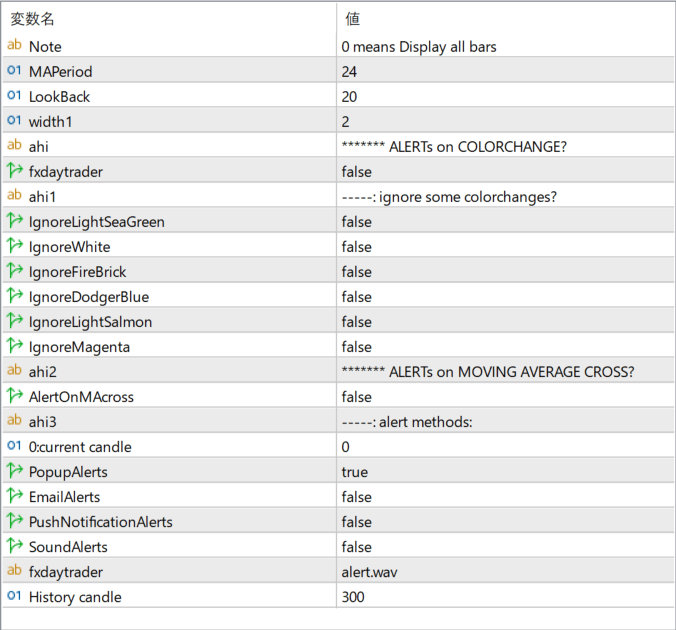
The screenshot above shows the default input parameters in the MT5 settings window.
How to Install .ex5 Indicator in MetaTrader 5
- Download the ZIP file and extract it.
- In MT5, select File → Open Data Folder.
- Open MQL5 → Indicators and copy the EX5 or MQ5 file into it.
- If the package includes library files, copy them to MQL5 → Libraries. Copy TPL files to the top-level templates folder.
- Restart MT5, find the indicator in the Navigator, and drag it onto a chart.
Test the tool on a demo account first. File contents and required folders can vary between packages.