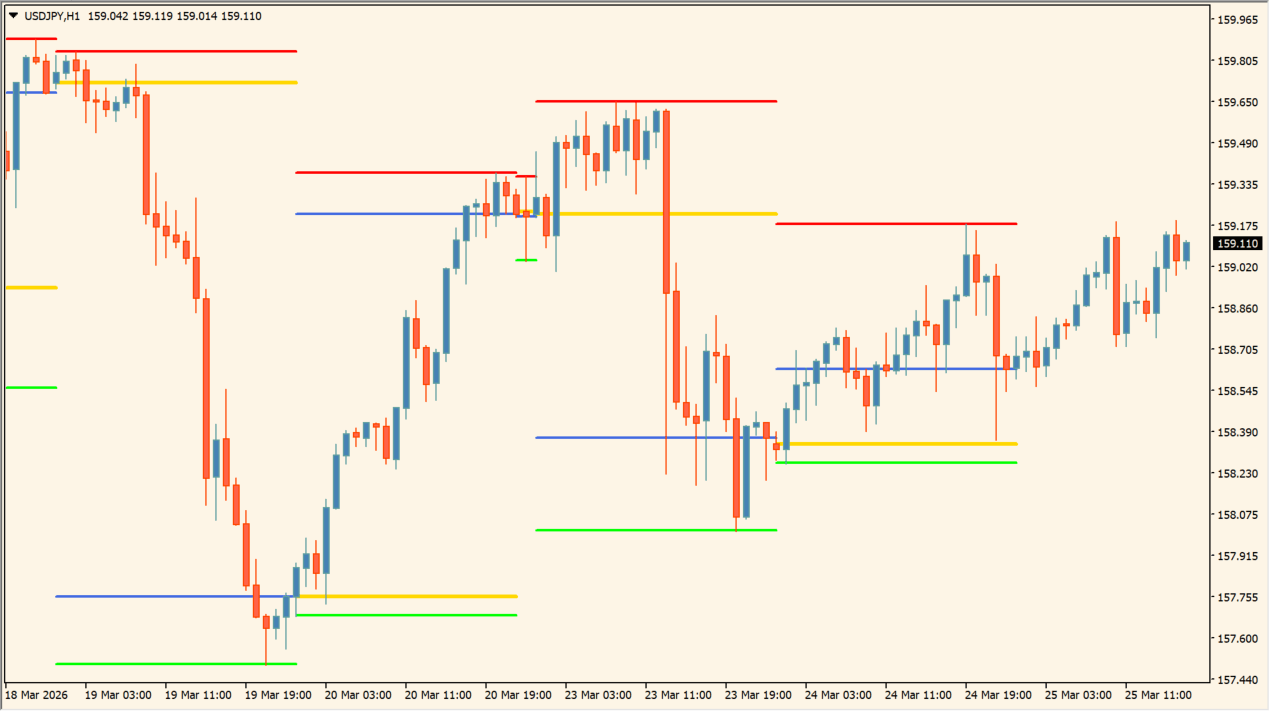
What is bigger-tf-ohlc-indicator?
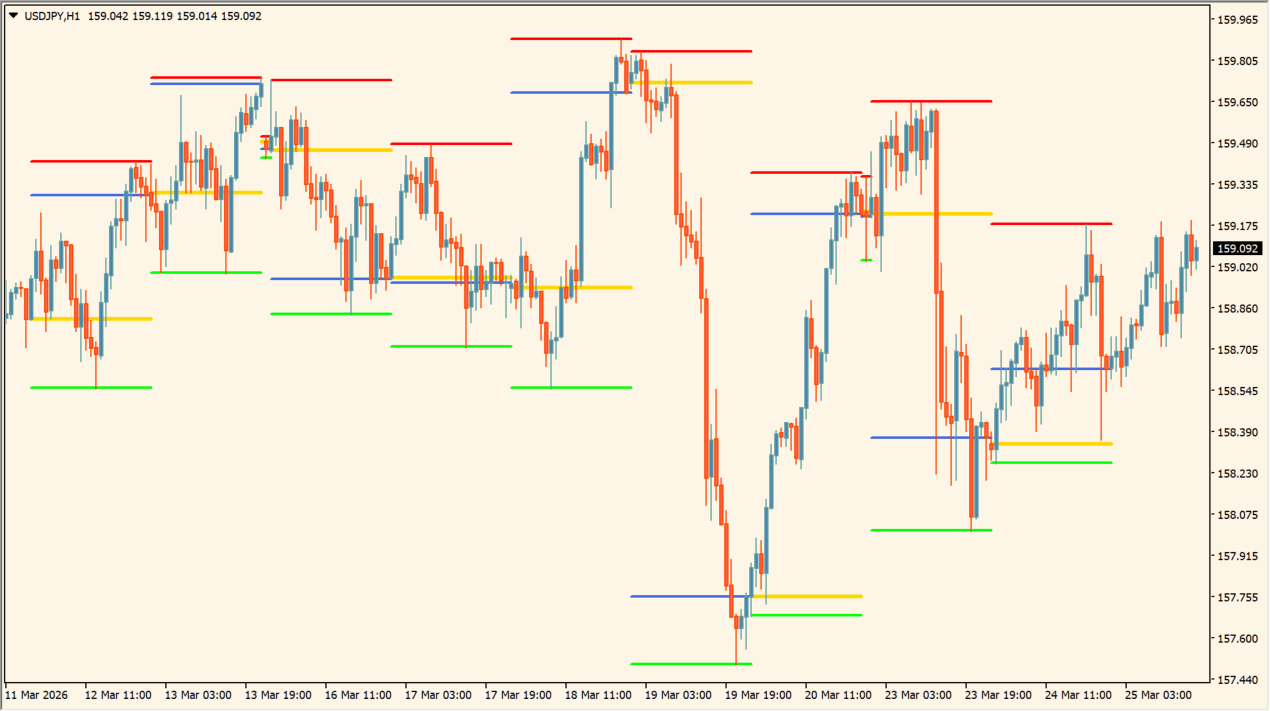
bigger-tf-ohlc-indicator automatically plots open, high, low, and close price levels from higher timeframes directly onto your current chart. This provides immediate visual context of key higher timeframe reference levels without requiring manual chart switching.
How to use bigger-tf-ohlc-indicator
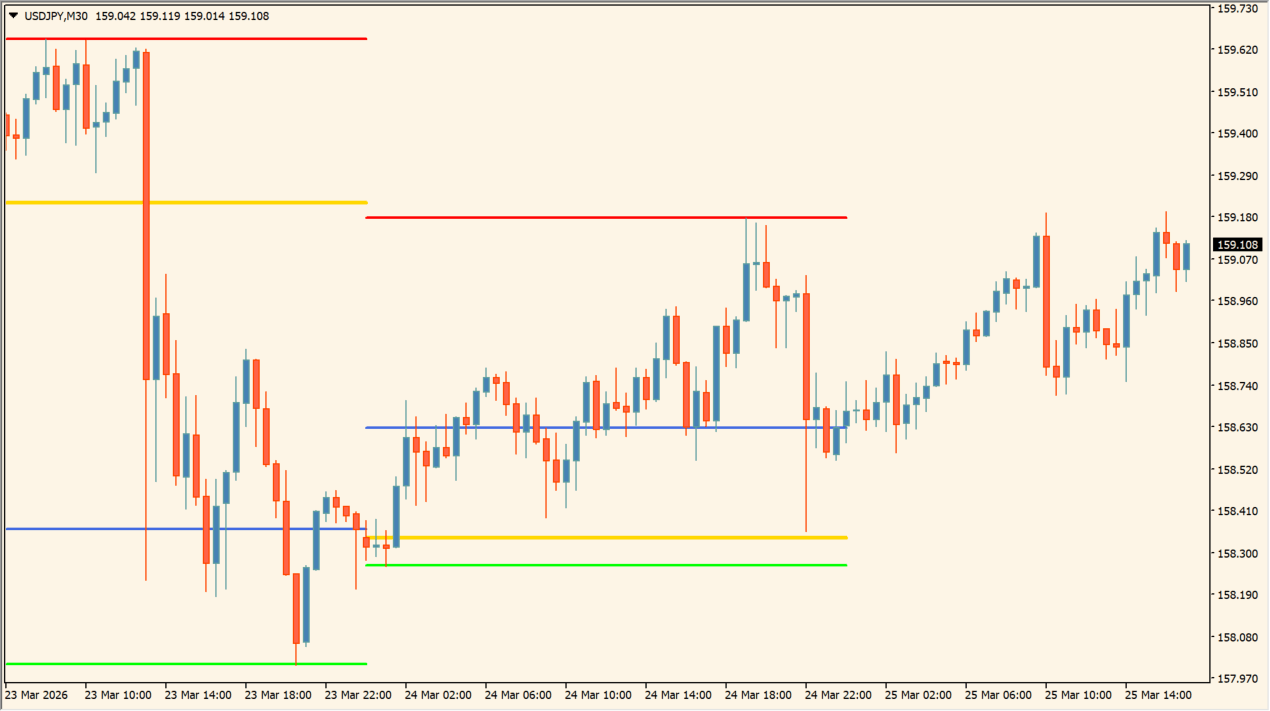
Attach bigger-tf-ohlc-indicator to your preferred MT4 chart and configure the target higher timeframe in inputs. Observe how higher timeframe OHLC lines mark historical key reference zones and price behavior around these levels.
Where it helps
Displays open, high, low, and close lines from higher timeframes on your current chart.
Assign distinct line colors to open, high, low, and close levels for clear visual identification.
Supports displaying multiple higher timeframe levels simultaneously to monitor broader market boundaries.
MT4 Indicator Parameters
The table below lists the available MT4 indicator parameters. You can customize these options in the MetaTrader Inputs dialog to match your trading preferences.
| Parameter | Description |
|---|---|
| TimeFrame | Sets the higher timeframe to calculate OHLC levels. Default: Current. |
| BarsCount | Sets the number of past higher timeframe bars to display. Default: 10. |
| ShowCurrentBar | Enables or disables displaying lines for the current forming bar. Default: true. |
| ExtraTFCount | Sets the number of additional higher timeframes to display. Default: 0. |
| OpenColor | Sets the line color for the open price level. Default: clrGray. |
| HighColor | Sets the line color for the high price level. Default: clrGreen. |
| LowColor | Sets the line color for the low price level. Default: clrRed. |
| CloseColor | Sets the line color for the close price level. Default: clrBlue. |
| ShowSeparator | Enables or disables separator lines on the chart. Default: true. |
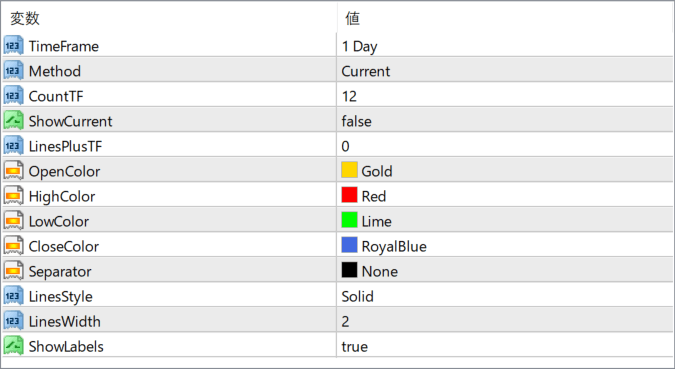
The screenshot above shows the default input parameters in the MT4 settings window.
How to Install .ex4 Indicator in MetaTrader 4
- Download the ZIP file and extract it.
- In MT4, select File → Open Data Folder.
- Open MQL4 → Indicators and copy the EX4 or MQ4 file into it.
- If the package includes library files, copy them to MQL4 → Libraries. Copy TPL files to the top-level templates folder.
- Restart MT4, find the indicator in the Navigator, and drag it onto a chart.
Test the tool on a demo account first. File contents and required folders can vary between packages.


