What is Bollinger bands squeeze?
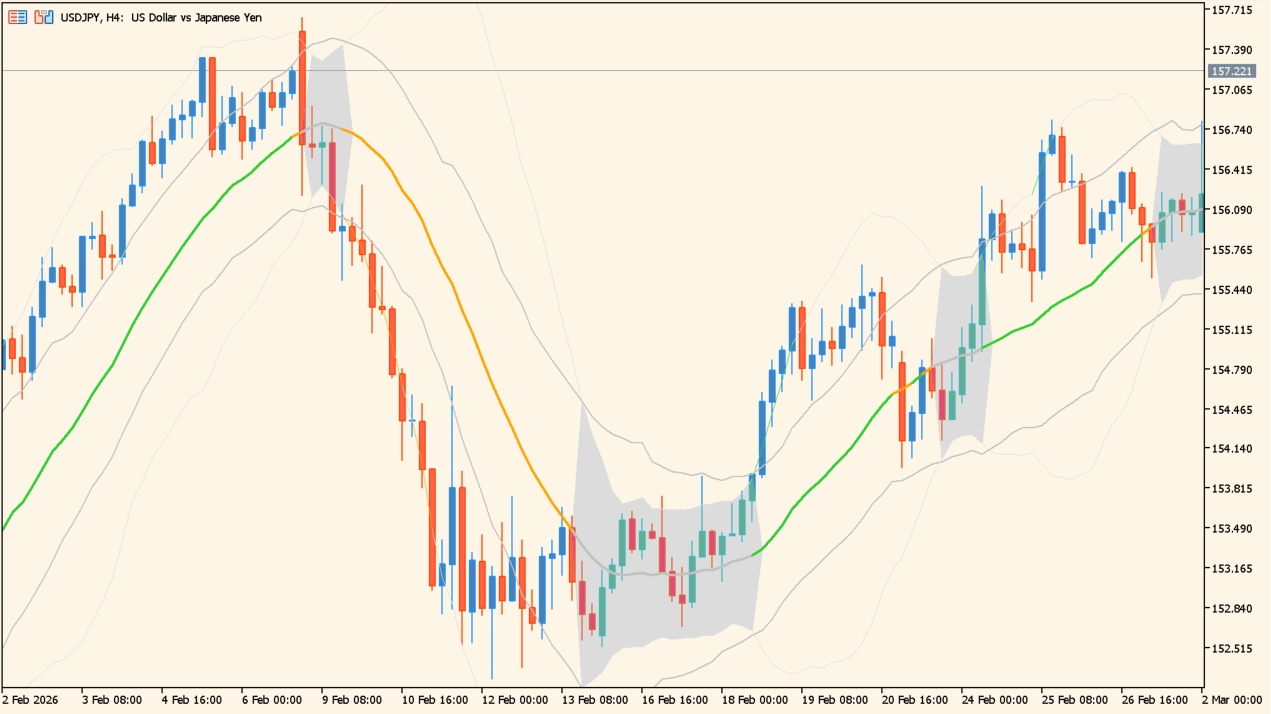
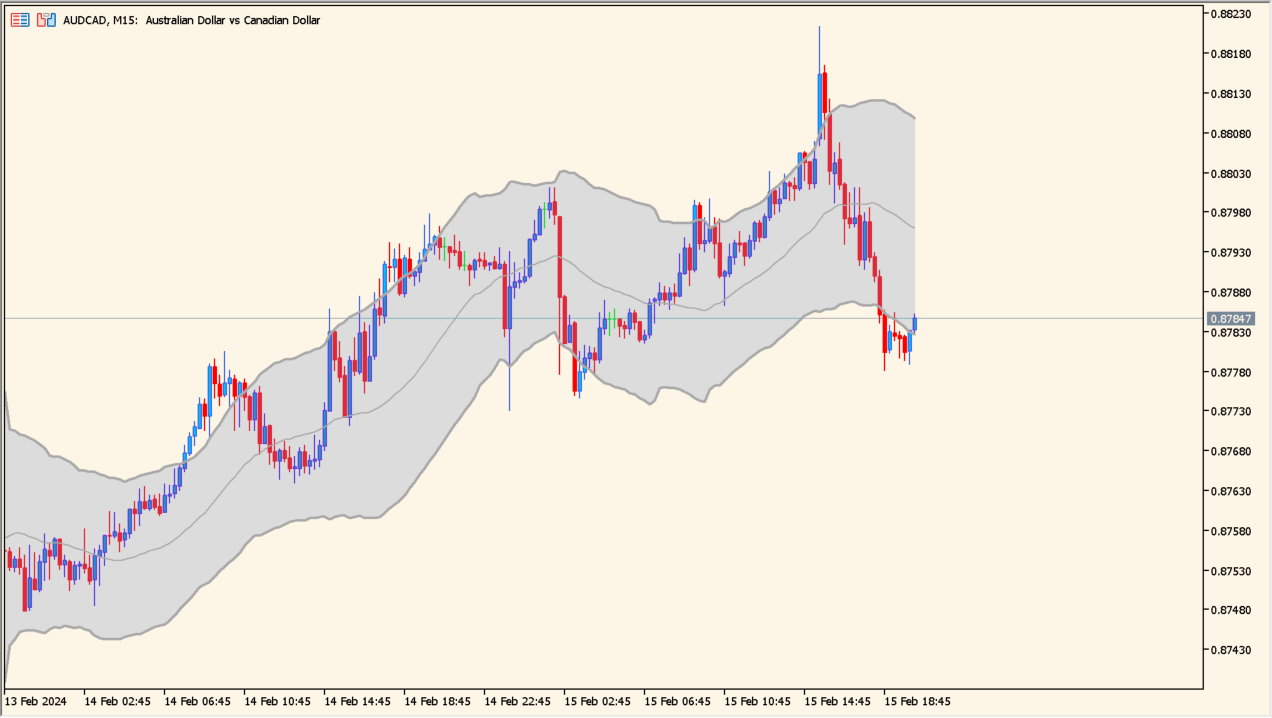
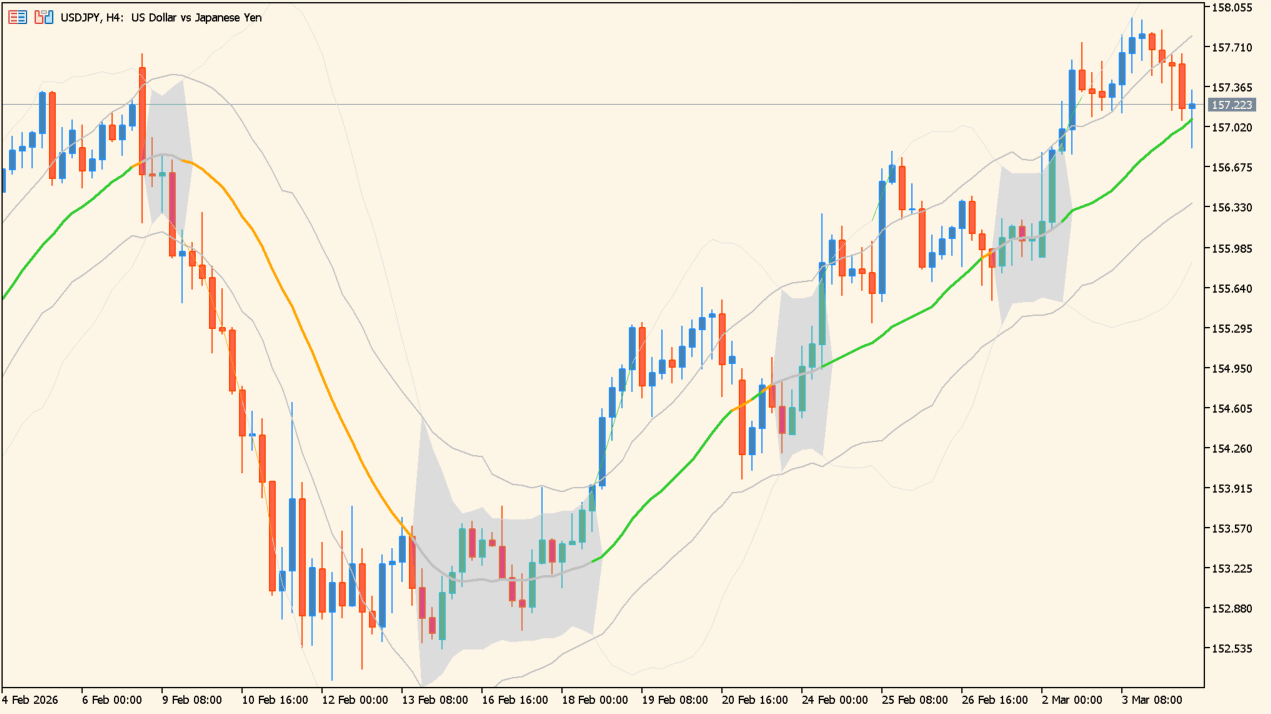
Bollinger bands squeeze places Bollinger Bands and a Keltner Channel together so a low-volatility squeeze can be seen as the bands contract. The squeeze area is marked in gray.
A squeeze can precede a larger move, but false breaks also occur. The indicator is best used to inspect a transition from quiet range conditions to expanding movement.
How to use Bollinger bands squeeze
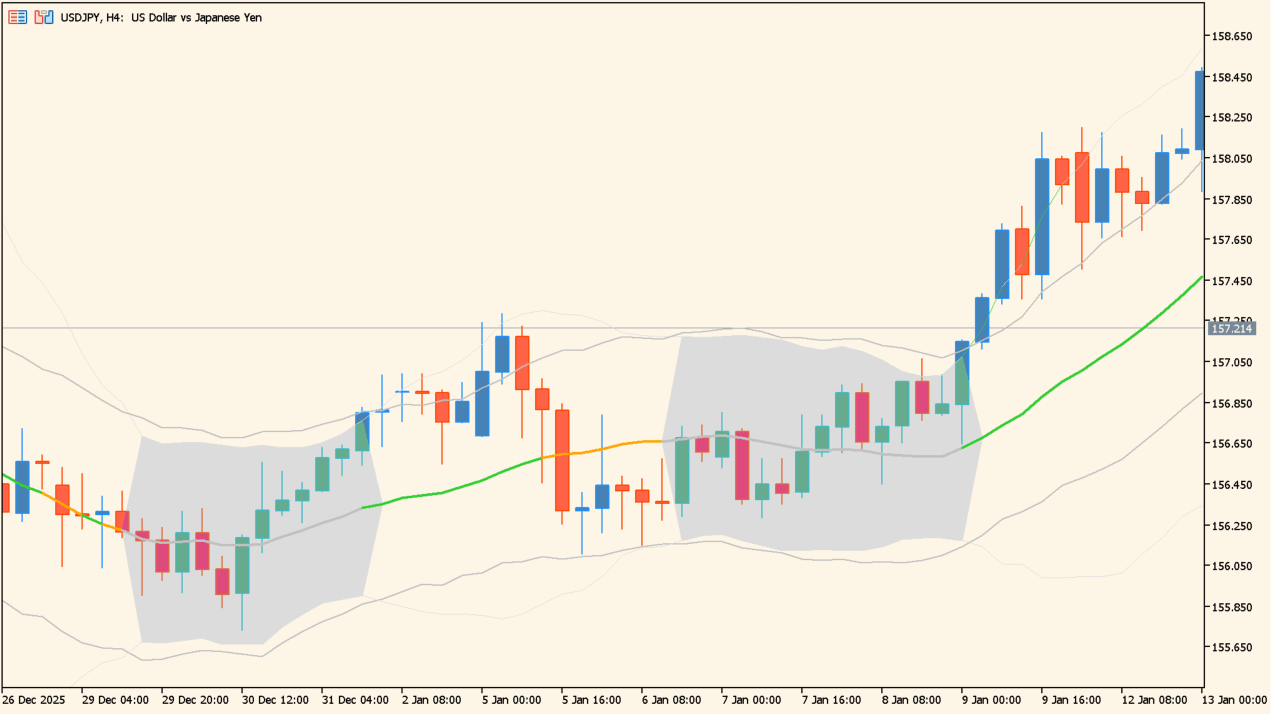
Apply Bollinger bands squeeze to an MT5 chart and inspect the gray squeeze area before comparing the direction of the eventual band expansion.
Set BB and Keltner period, Price, BB width, and Keltner channel width to control the two calculations and their relative distance.
Where it helps
Shows Bollinger and Keltner calculations together instead of viewing either one alone.
Makes the contraction state easy to locate on the chart.
Helps compare quiet conditions with the subsequent expansion without promising its direction.
MT5 Indicator Parameters
The table below lists the available MT5 indicator parameters. You can customize these options in the MetaTrader Inputs dialog to match your trading preferences.
| Parameter | Description |
|---|---|
| inpPeriod | Sets this calculation or display option. Default: 20. |
| inpPrice | Sets this calculation or display option. Default: PRICE_CLOSE. |
| inpBbMultiplier | Sets this calculation or display option. Default: 2.0. |
| inpKcMultiplier | Sets this calculation or display option. Default: 1.5. |
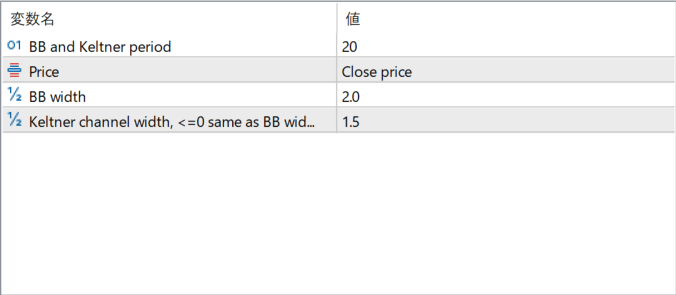
The screenshot above shows the default input parameters in the MT5 settings window.
How to Install .ex5 Indicator in MetaTrader 5
- Download the ZIP file and extract it.
- In MT5, select File → Open Data Folder.
- Open MQL5 → Indicators and copy the EX5 or MQ5 file into it.
- If the package includes library files, copy them to MQL5 → Libraries. Copy TPL files to the top-level templates folder.
- Restart MT5, find the indicator in the Navigator, and drag it onto a chart.
Test the tool on a demo account first. File contents and required folders can vary between packages.