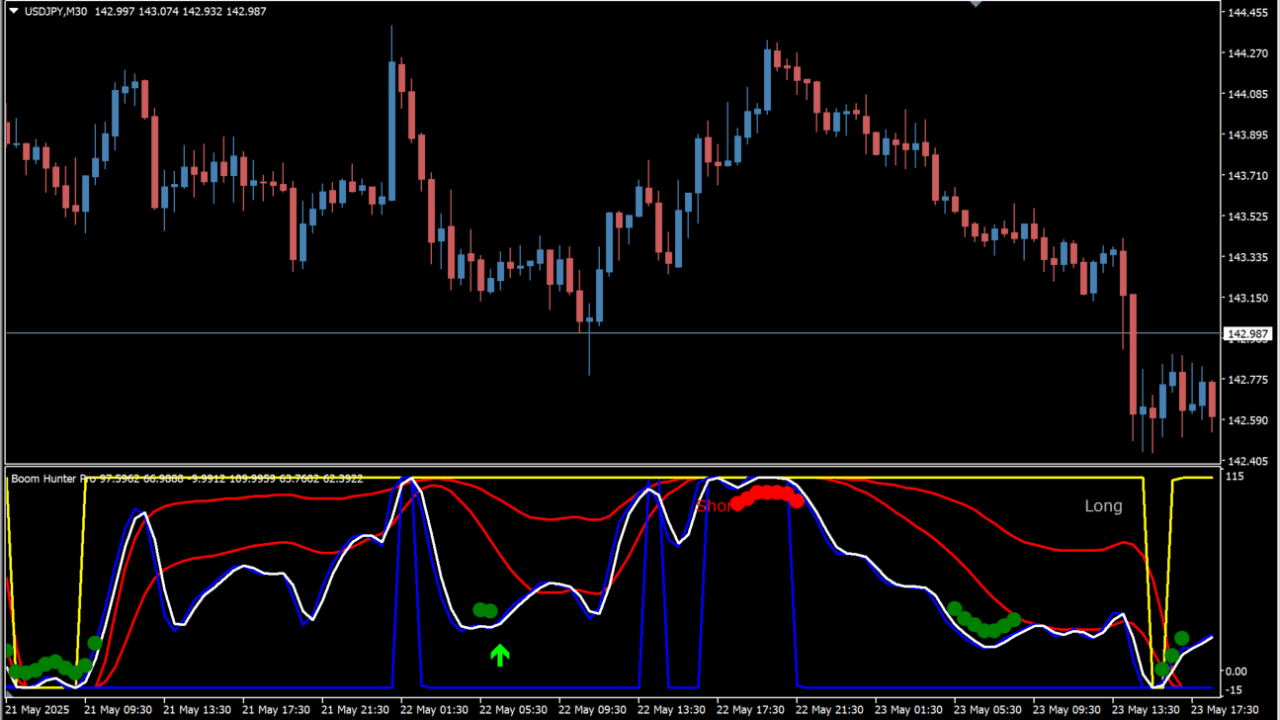
What is Boom Hunter Pro?
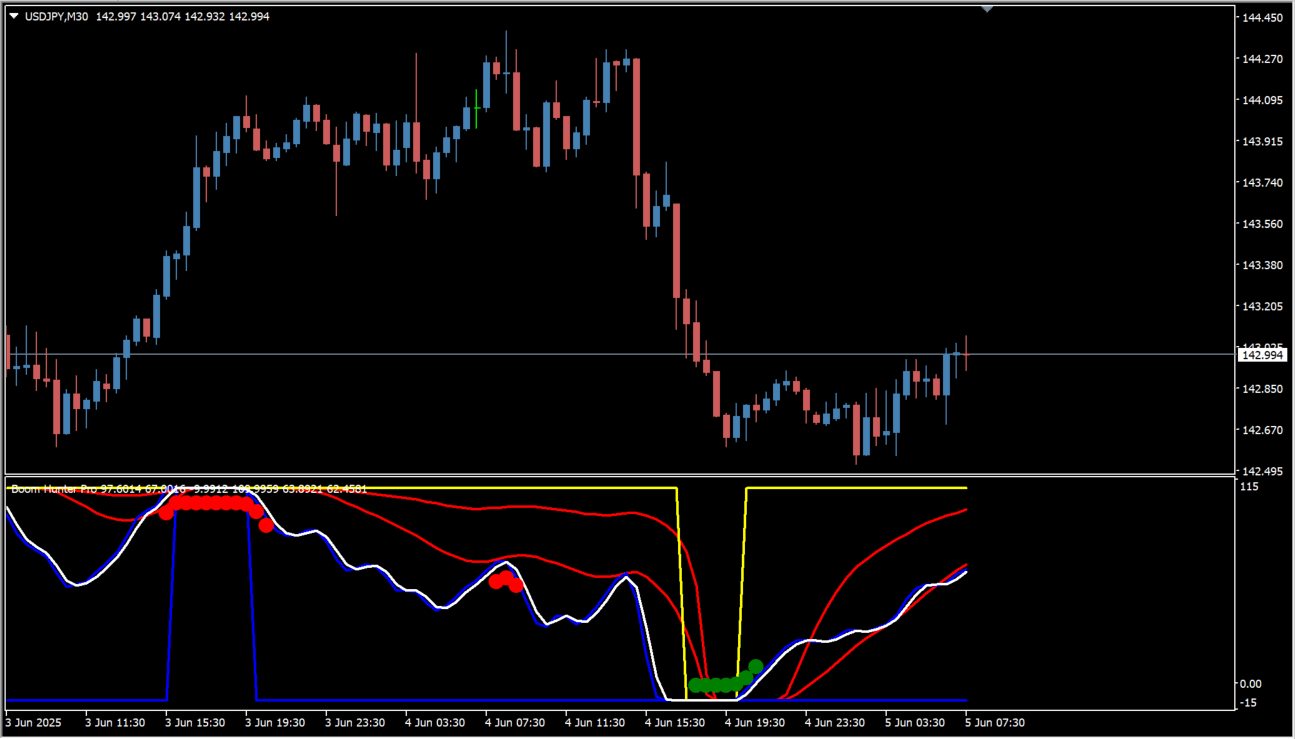
Boom Hunter Pro is an MT4 indicator that combines up to six different oscillators in a sub-window. Each oscillator in the group runs on its own logic.
How to use Boom Hunter Pro
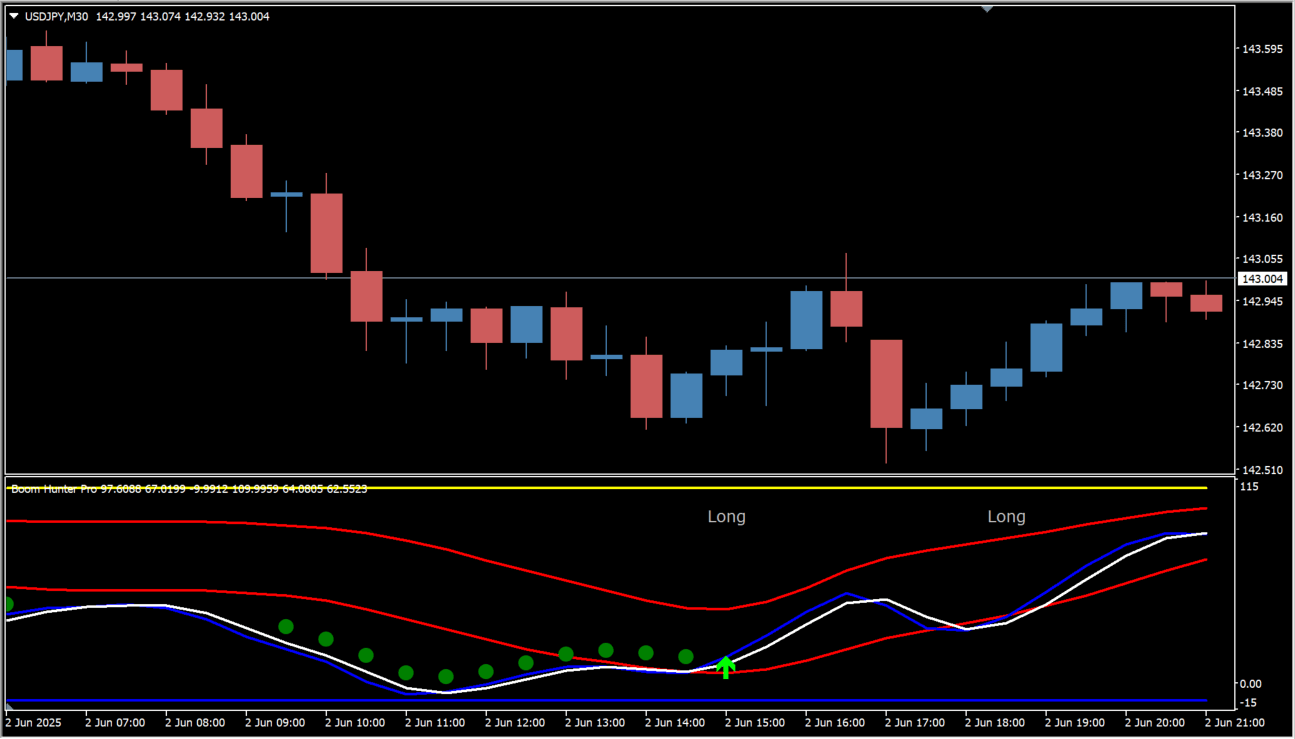
Dots in the sub-window appear when every oscillator detects the trend running too far near a bottom or a top. An entry sign appears once the dots continue, and a trend following sign also lights up where all the directions line up.
Where it helps
Confirm a sign without watching the sub-window
Compare six oscillators in one place instead of reading them one by one
Review which of the entry, exit and turn conditions raise an alert
MT4 Indicator Parameters
The table below lists the available MT4 indicator parameters. You can customize these options in the MetaTrader Inputs dialog to match your trading preferences.
| Parameter | Description |
|---|---|
| Show Fibonacci Lines? | Controls whether the Fibonacci lines are drawn. |
| Show Entry and Exit Points? | Controls whether the entry and exit points are drawn. |
| Square Line? | Controls whether the line is drawn in a stepped, square form. |
| Show Downward Boom Line? | Controls whether the downward boom line is drawn. |
| Show Long Entries? | Controls whether the long signs are drawn. |
| Show Short Entries? | Controls whether the short signs are drawn. |
| Quotient | LPPeriod | Sets the period of the first low pass filter, which affects how smooth the oscillator is. |
| K1 | Sets the coefficient tied to Quotient; a smaller value makes it more sensitive. |
| Trigger Length | Sets the period of the trigger line, which affects when a signal is produced. |
| LPPeriod2 | Sets the period of the second low pass filter, used for a different oscillator calculation. |
| K1 | Sets one of the two sensitivity coefficients for LPPeriod2. |
| K2 | Sets the other sensitivity coefficient for LPPeriod2. |
| LPPeriod3 | Sets the period of the third low pass filter. |
| K1 | Sets one of the two coefficients for LPPeriod3. |
| K3 | Sets the other coefficient for LPPeriod3, which affects the detection of the turning point. |
| Size | Sets the vertical scale of the indicator. |
| Y axis | Sets the offset of the Y axis. |
| Line Color | Sets the colour of the boom line. |
| WT | master | Sets the period of the main oscillator. |
| time 1 | Sets one of the two time coefficients used in the oscillator calculation. |
| 2 | Sets the other time coefficient used in the oscillator calculation. |
| LSMA | 1 | Sets the period of the least squares moving average. |
| 2 | An additional parameter that the original describes as undefined or for internal use. |
| Show Break Lines? | Controls whether the high and low break lines are drawn. |
| Resistance | Left Bars | Sets the number of bars to the left used to detect resistance. |
| Right Bars | Sets the number of bars to the right used to detect resistance. |
| Support (Long) | Left Bars | Sets the number of bars to the left used to detect the long-side support line. |
| Right Bars | Sets the number of bars to the right used to detect the long-side support line. |
| Support (Short) | Left Bars | Sets the number of bars to the left used to detect the short-side support line. |
| Right Bars | Sets the number of bars to the right used to detect the short-side support line. |
| Show Bar Colors? | Controls whether the bars themselves change colour. |
| Show Pump Bar Colors? | Controls whether the bar colour changes on a sharp move. |
| dragno | Adjusts where the indicator is placed, which the original describes as a visual adjustment. |
| ************************* | Section label for the alert group. |
| Display Alerts | Controls whether the alert is shown on screen. |
| Pop-Up | Controls whether the alert opens a pop-up. |
| Sound | Controls whether the alert plays a sound. |
| Send email | Controls whether the alert is sent by email. |
| Push notification | Controls whether a push notification is sent. |
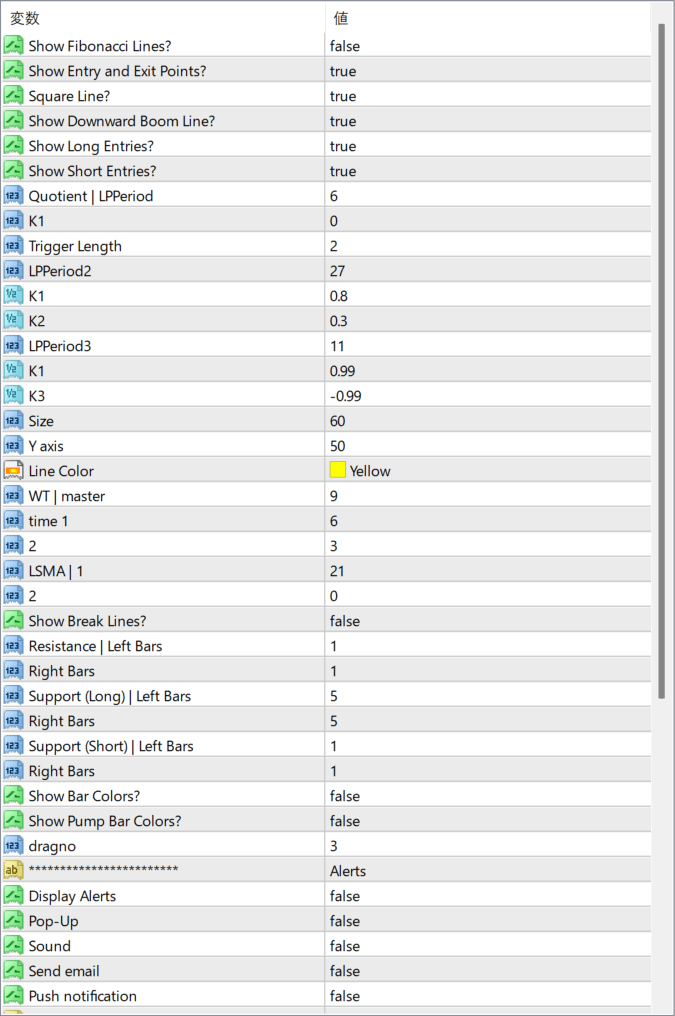
The screenshot above shows the default input parameters in the MT4 settings window.
How to Install .ex4 Indicator in MetaTrader 4
- Download the ZIP file and extract it.
- In MT4, select File → Open Data Folder.
- Open MQL4 → Indicators and copy the EX4 or MQ4 file into it.
- If the package includes library files, copy them to MQL4 → Libraries. Copy TPL files to the top-level templates folder.
- Restart MT4, find the indicator in the Navigator, and drag it onto a chart.
Test the tool on a demo account first. File contents and required folders can vary between packages.


