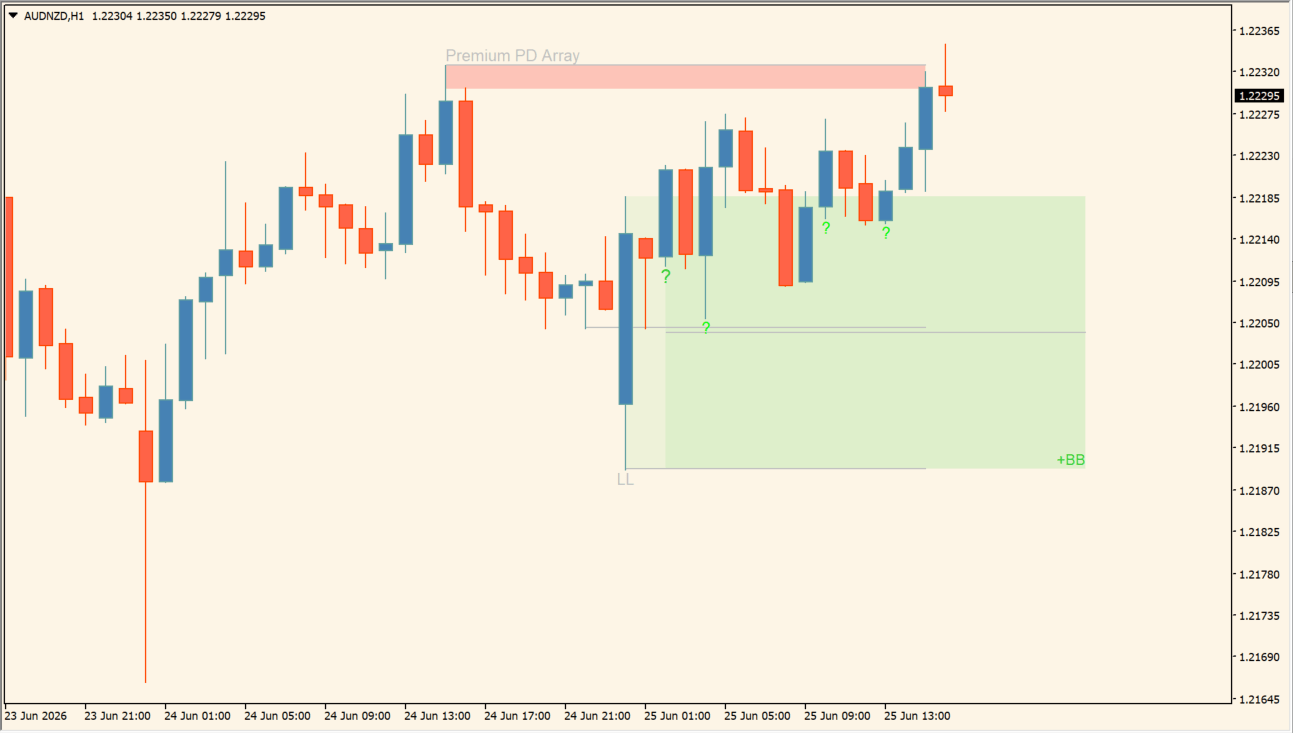
What is Breaker Blocks with Signals?
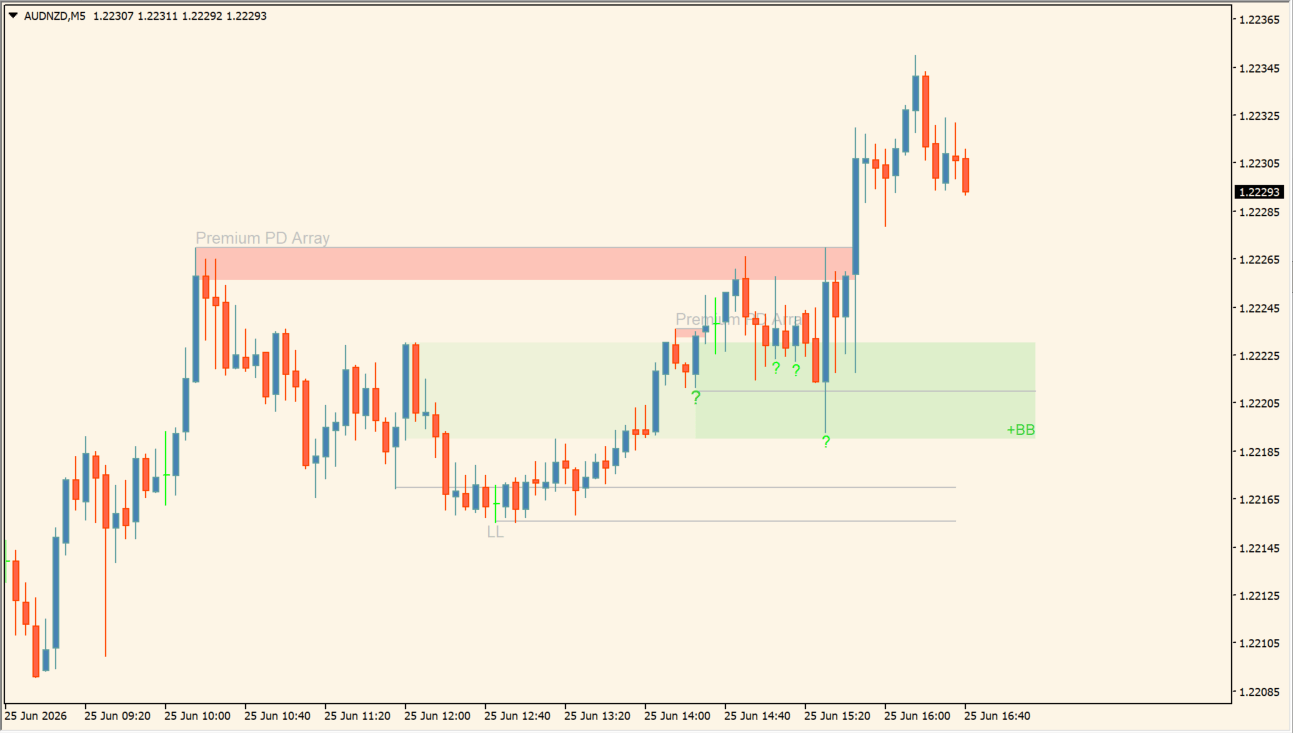
Breaker Blocks with Signals marks breaker-block areas, a Premium/Discount PD array, and swing labels on an MT4 chart. Green +BB labels identify buy-side breaker-block candidates, red -BB labels identify sell-side candidates, and horizontal lines keep the related prior swings visible.
HH marks a newly higher high and LL a newly lower low, while a green question mark marks a developing condition. The markings organize structure and do not represent a completed trading signal by themselves.
How to use Breaker Blocks with Signals
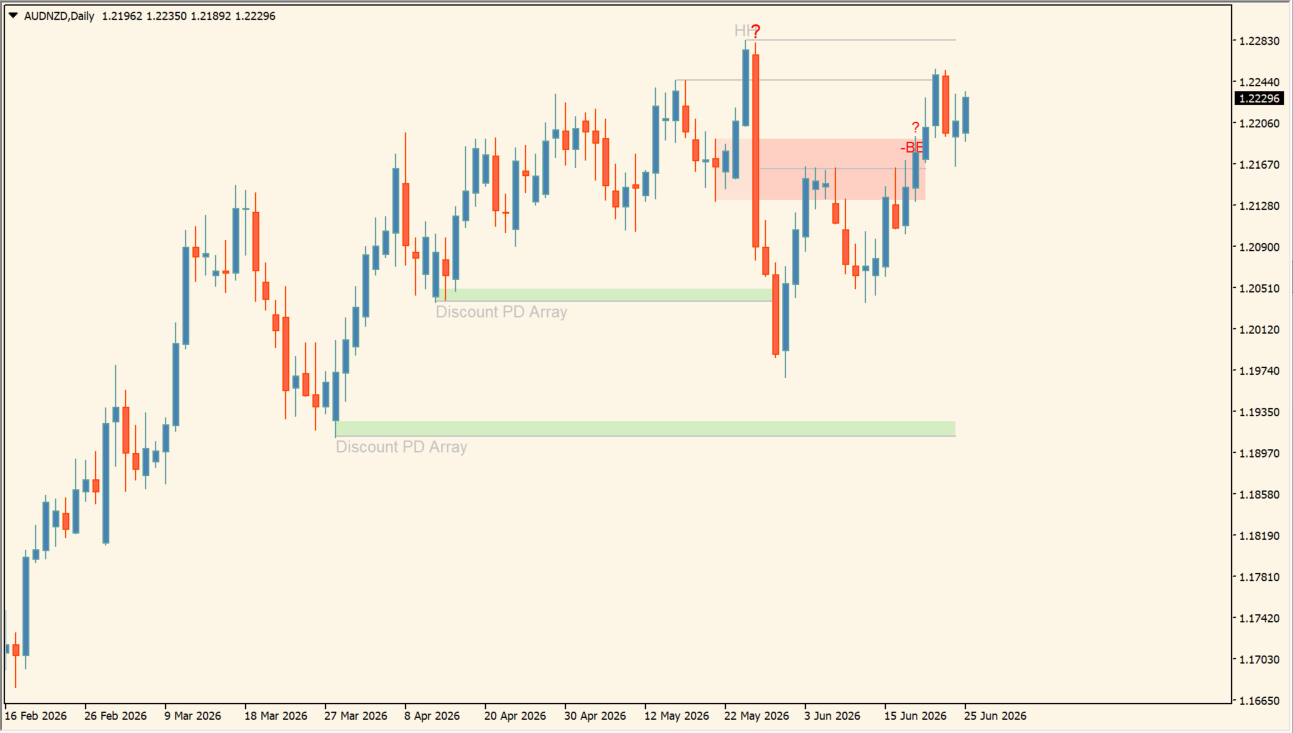
Read the overlay as a combined zone, swing, and label map. +BB is a buy-side breaker-block candidate and -BB a sell-side candidate, HH and LL label the newly higher high or lower low, the red Premium PD Array sits above and the broad green Discount-side zone below, and the Last Swing line keeps the most recent swing position visible.
A practical caution
The zones and labels are drawn from earlier price action, so a +BB, -BB, or question-mark label is not a completed signal by itself. Let price reach the zone first, then read the candle reaction, the recent highs and lows, and the higher-timeframe direction before deciding.
Where it helps
Breaker labels, HH and LL marks, and swing lines keep the watched levels in one place, the Premium and Discount areas help separate a stretched price from a pullback candidate, and waiting for price to reach a zone makes momentum-only entries easier to avoid.
MT4 Indicator Parameters
The table below lists the available MT4 indicator parameters. You can customize these options in the MetaTrader Inputs dialog to match your trading preferences.
| Parameter | Description |
|---|---|
| Structure Length | Sets the lookback used to identify swing and breaker-block structure. Default: 5. |
| Breaker Block Section | Labels the breaker-block input section. |
| Use Candle Body Only | Uses candle bodies instead of full wick ranges when enabled. Default: false. |
| Use Two Candles | Builds the breaker condition from two candles when enabled. Default: false. |
| Stop at First Center-Line Break | Stops extending the block after price first breaks its center line. Default: true. |
| Premium/Discount Section | Labels the premium/discount-array input section. |
| Require Entry in PD Array | Restricts qualifying conditions to the premium or discount array. Default: false. |
| Show Premium/Discount Zone | Shows or hides premium and discount shading. Default: false. |
| Highlight Swing Breaks | Highlights detected breaks of prior swing levels. Default: false. |
| Show Swings and PD Arrays | Shows the swing lines and premium/discount arrays. Default: true. |
| Text Color | Sets the color of chart labels. Default: Silver. |
| Swing Line Color | Sets the color of swing reference lines. Default: Silver. |
| Take-Profit Section | Labels the optional take-profit input section. |
| Enable Take-Profit Levels | Shows calculated take-profit levels when enabled. Default: false. |
| Take-Profit Color | Sets the take-profit line color. Default: DodgerBlue. |
| Risk-to-Reward Level 1 | Sets the first risk-to-reward multiple. Default: 2.0. |
| Risk-to-Reward Level 2 | Sets the second risk-to-reward multiple. Default: 3.0. |
| Risk-to-Reward Level 3 | Sets the third risk-to-reward multiple. Default: 4.0. |
| Color Section | Labels the breaker-color input section. |
| Bullish Breaker Color | Sets the bullish breaker-block color. Default: LimeGreen. |
| Last-Swing Color 1 | Sets the color of the first Last Swing entry in the inputs list. Default: Red. |
| Bearish Breaker Color | Sets the bearish breaker-block color. Default: Red. |
| Last-Swing Color 2 | Sets the color of the second Last Swing entry in the inputs list. Default: LimeGreen. |
| Alert Settings Section | Labels the alert-delivery input section. |
| Enable Popup Alerts | Turns MT4 popup alerts on or off. Default: false. |
| Enable Sound Alerts | Turns sound alerts on or off. Default: false. |
| Enable Email Alerts | Turns email alerts on or off. Default: false. |
| Enable Push Notifications | Turns mobile push notifications on or off. Default: false. |
| Wait for Candle Close | Waits for the current candle to close before evaluating an alert. Default: true. |
| Alerts Section | Labels the final alert input section. |
| Enable Alerts | Turns the indicator alert system on or off. Default: false. |
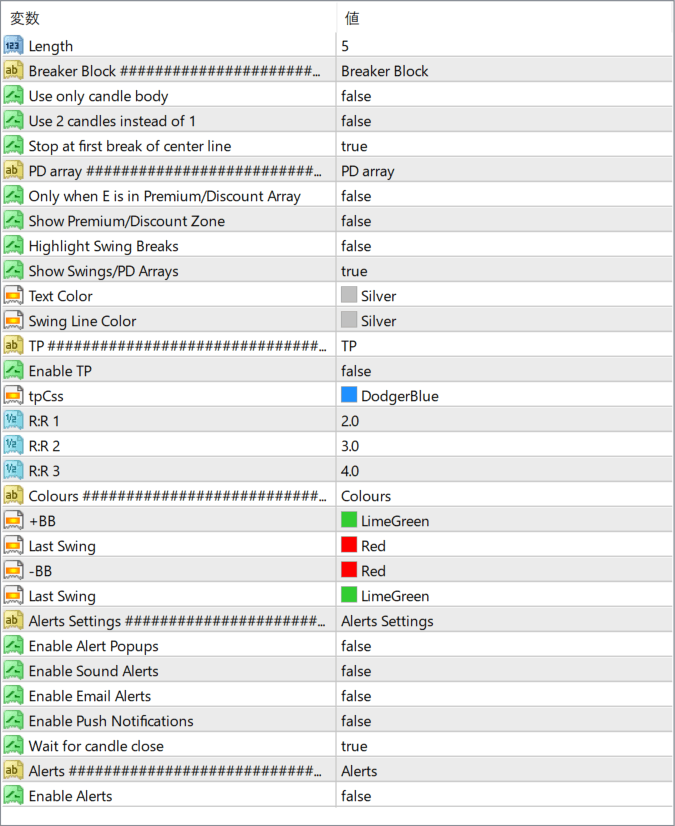
The screenshot above shows the default input parameters in the MT4 settings window.
How to Install .ex4 Indicator in MetaTrader 4
- Download the ZIP file and extract it.
- In MT4, select File → Open Data Folder.
- Open MQL4 → Indicators and copy the EX4 or MQ4 file into it.
- If the package includes library files, copy them to MQL4 → Libraries. Copy TPL files to the top-level templates folder.
- Restart MT4, find the indicator in the Navigator, and drag it onto a chart.
Test the tool on a demo account first. File contents and required folders can vary between packages.


