What is buying-selling-pressure?
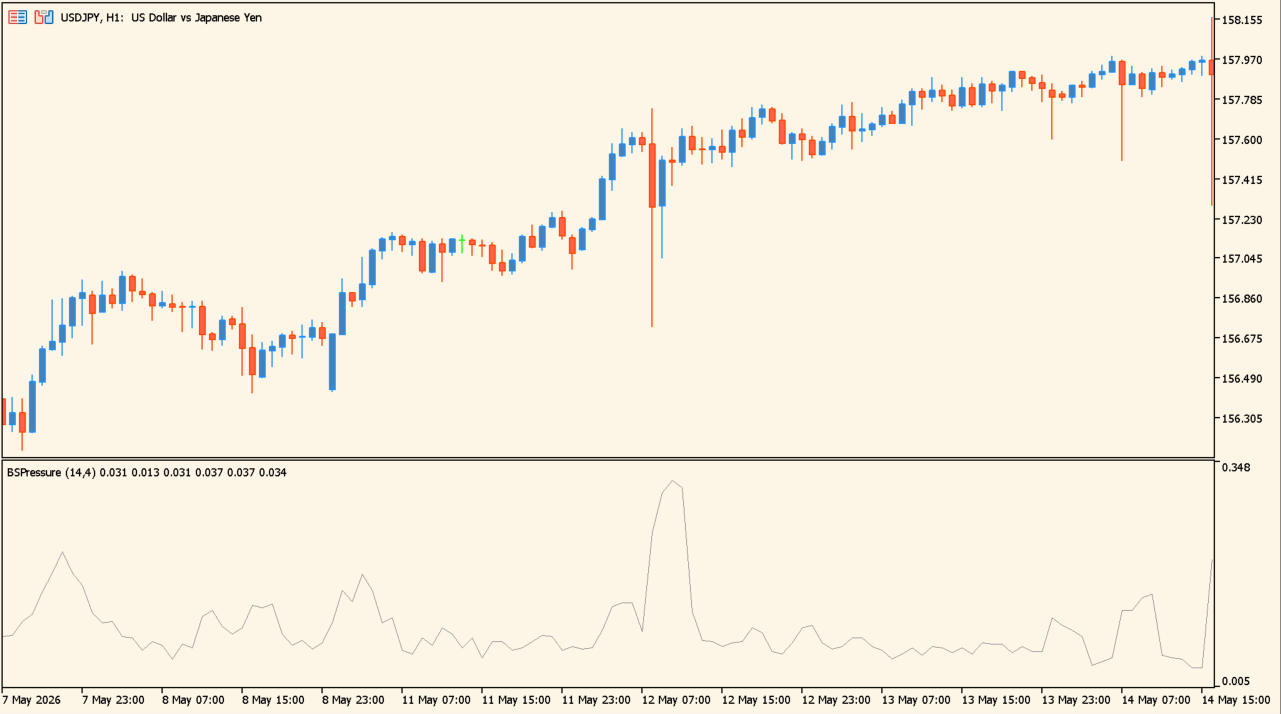
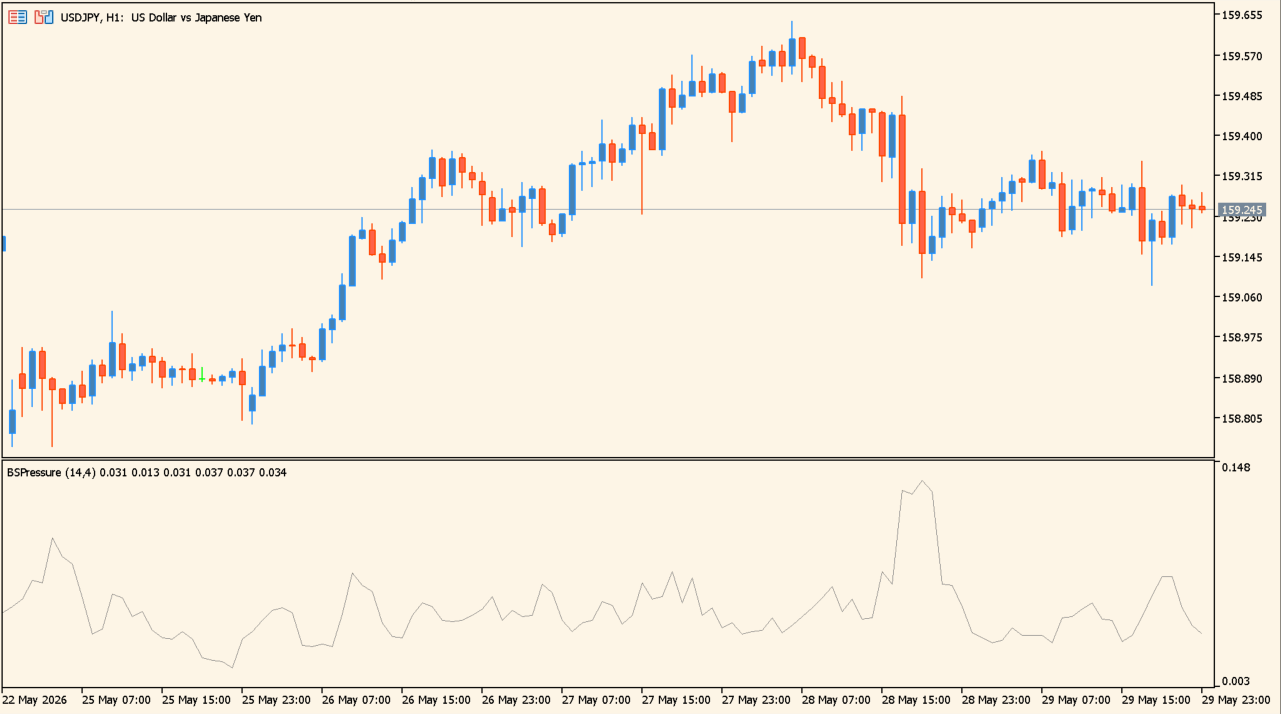
The pane shows the pressure line below the price chart.
buying-selling-pressure plots a single line in a separate MT5 pane, drawn from candle price action to show the balance between buying and selling pressure. The line rises as buying takes the larger share and falls as selling does.
Period and Smoothing period control the calculation and smoothing lengths. Pressure filter and Smoothing filter choose which of the available readings the pane shows.
How to use buying-selling-pressure
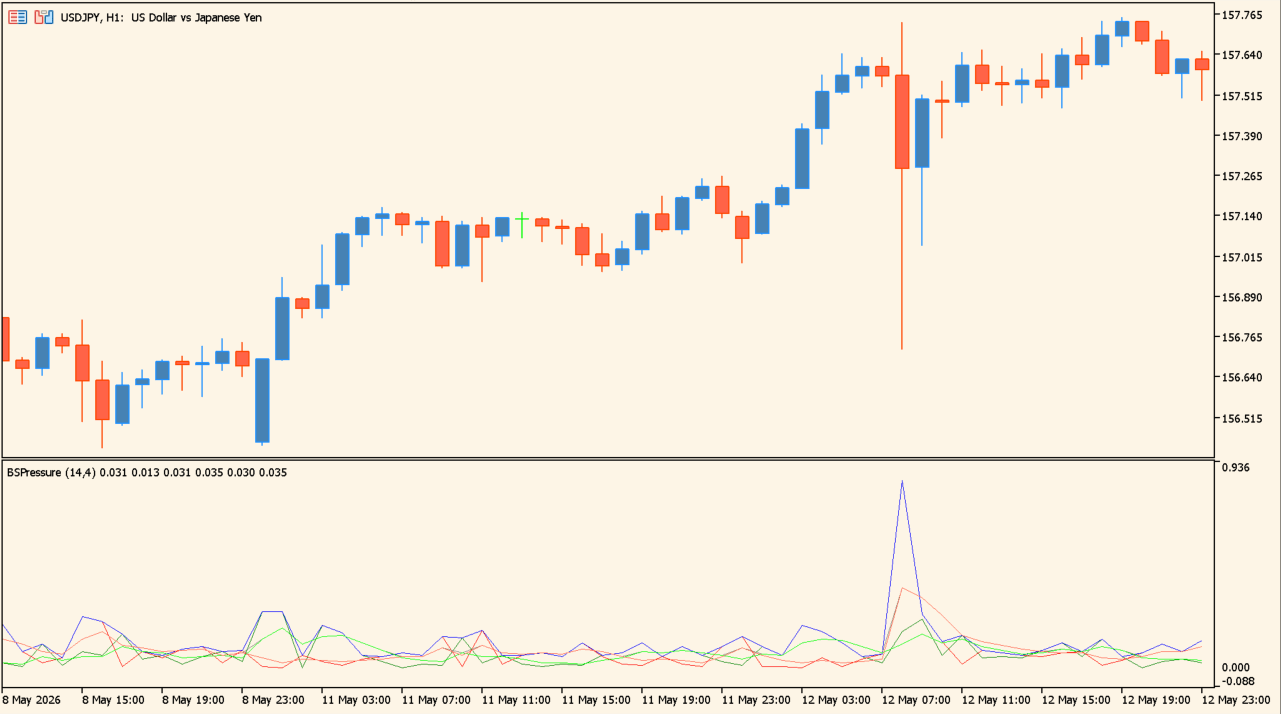
The Pressure filter and Smoothing filter inputs change what the pane displays.
Add the oscillator to an MT5 chart and read the line against the candles above it. Compare the direction of the line with the size and direction of the current price movement.
Look for stretches where price and the line move apart, with price posting a new extreme while the line does not follow. Switching Pressure filter or Smoothing filter changes which reading appears in the pane.
Where it helps
The comparison between buying and selling pressure arrives as a single line, instead of being pieced together from the candles.
Period and Smoothing period set the calculation and smoothing lengths, so the amount of short-term movement in the line is adjustable.
Pressure filter and Smoothing filter let the same indicator show the prevailing pressure or the smoothed form.
MT5 Indicator Parameters
The table below lists the available MT5 indicator parameters. You can customize these options in the MetaTrader Inputs dialog to match your trading preferences.
| Parameter | Description |
|---|---|
| Period | Sets the period used for the pressure calculation. |
| Smoothing period | Sets the period used to smooth the displayed line. |
| Smoothing method | Selects the smoothing method. |
| Pressure filter | Selects the pressure information shown. |
| Smoothing filter | Selects the smoothed display mode. |
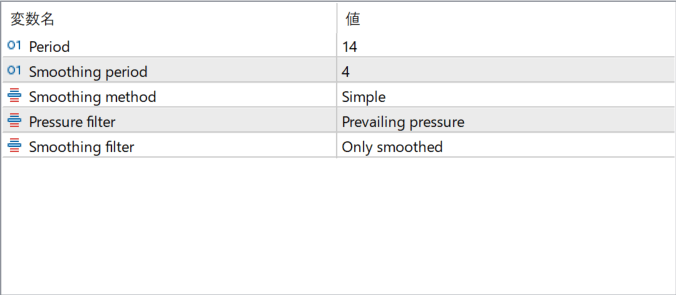
The screenshot above shows the default input parameters in the MT5 settings window.
How to Install .ex5 Indicator in MetaTrader 5
- Download the ZIP file and extract it.
- In MT5, select File → Open Data Folder.
- Open MQL5 → Indicators and copy the EX5 or MQ5 file into it.
- If the package includes library files, copy them to MQL5 → Libraries. Copy TPL files to the top-level templates folder.
- Restart MT5, find the indicator in the Navigator, and drag it onto a chart.
Test the tool on a demo account first. File contents and required folders can vary between packages.