What is Buyside & Sellside Liquidity?
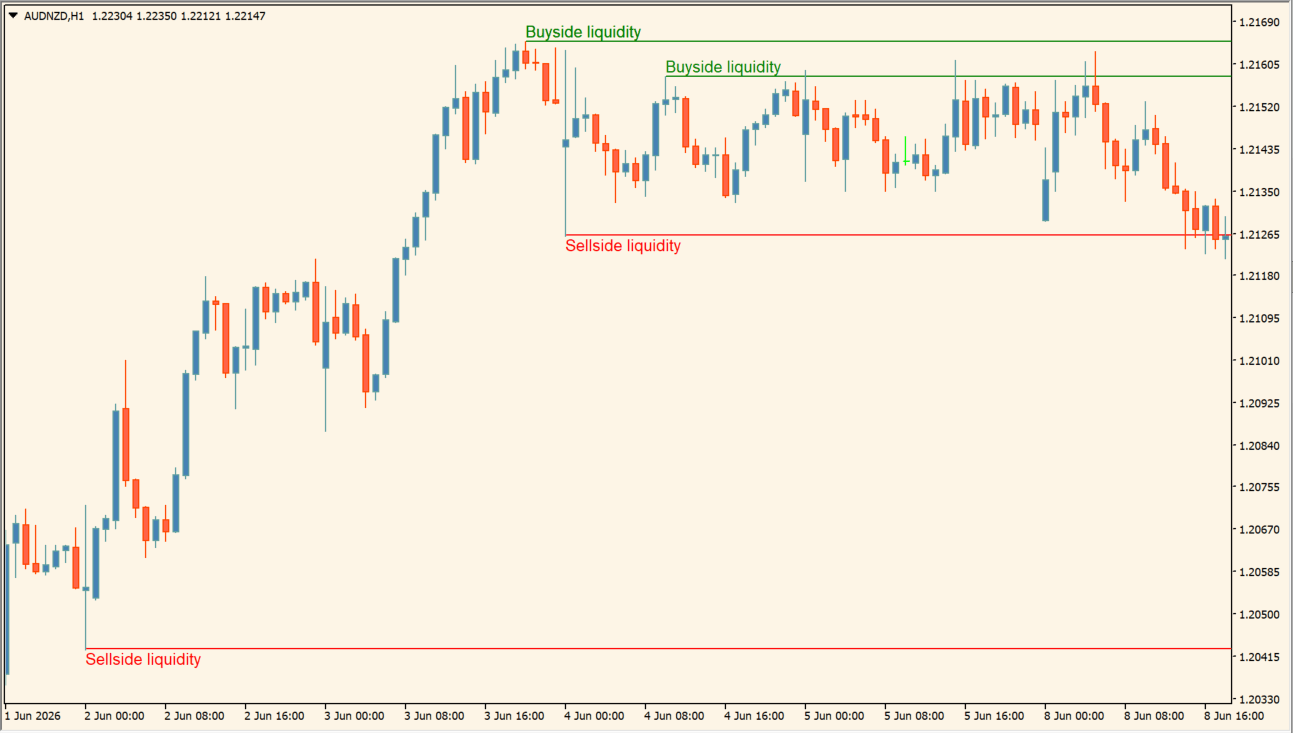
Buyside & Sellside Liquidity marks potential liquidity pools around prior highs and lows. Green buyside zones appear above price and red sellside zones appear below it. The tool does not print entry arrows; it provides context for where price may seek orders or react.
Zone-based marking keeps the focus on an area around an extreme rather than suggesting that liquidity exists at one perfectly precise price.
How to use Buyside & Sellside Liquidity
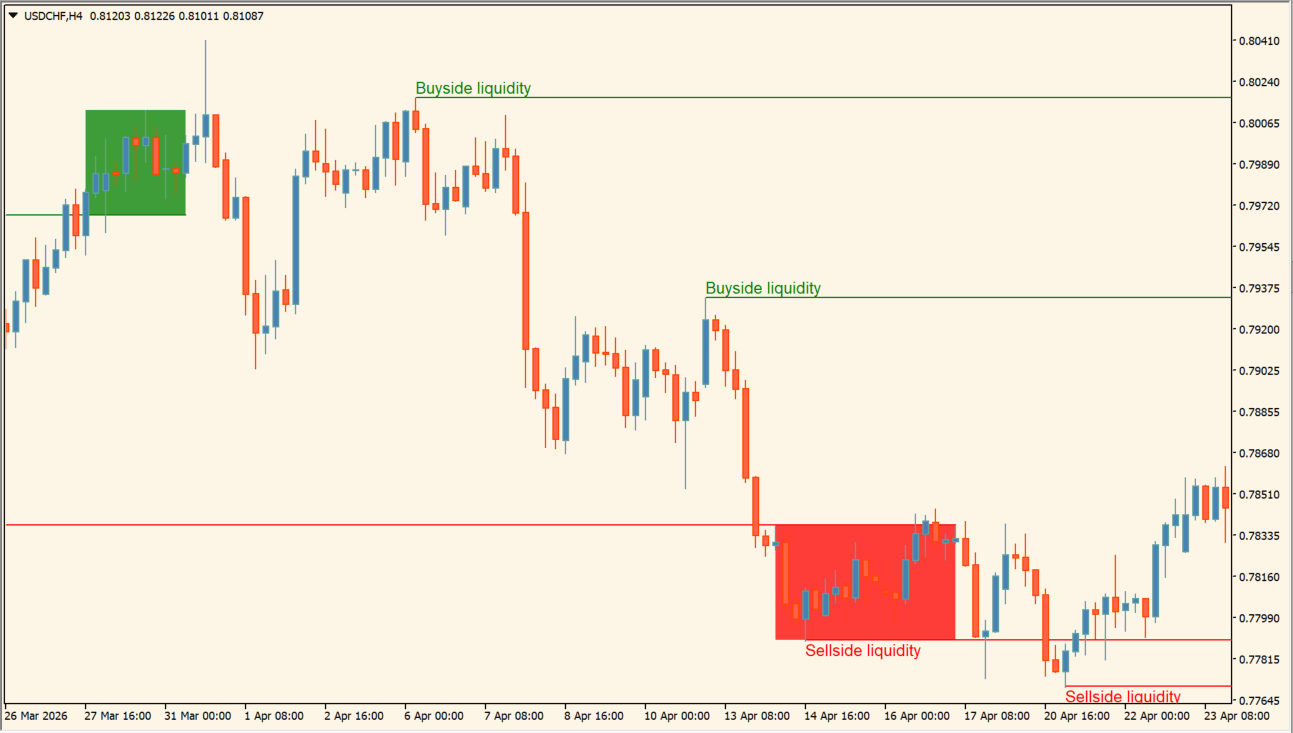
When price approaches a green buyside zone, watch whether it sweeps the high and continues or rejects after taking liquidity. Apply the same process to a red sellside area around a prior low.
A touch does not guarantee a reversal. Price can trade beyond a zone before returning, so combine liquidity levels with candle momentum, higher-timeframe direction, and nearby structure. They are also useful for planning likely profit targets before entering a position.
Where it helps
Green and red zones separate liquidity above highs and below lows.
Nearby pools can help frame realistic target areas.
Zones encourage reading a reaction area instead of one exact line.
Best Settings & MT4 Parameters for Buyside & Sellside Liquidity
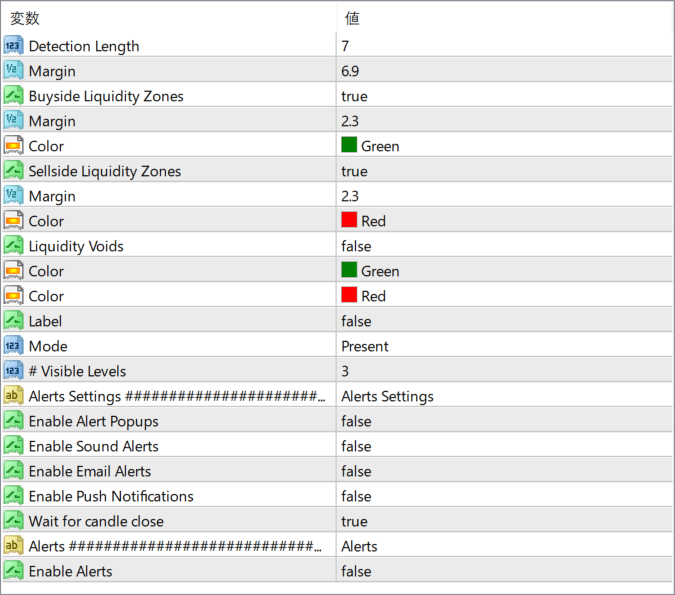
- Detection Length
- Controls the swing window used for zone detection; the default shown is 7.
- Margin
- Adjusts the width or tolerance around detected areas.
- Buyside / Sellside Liquidity Zones
- Individually enables the green and red zones.
- Liquidity Voids
- Optionally displays liquidity voids; disabled in the example.
- Mode
- Controls how historical or present zones are handled.
- # Visible Levels
- Limits the number of displayed levels; the default shown is 3.
- Alert channels
- Controls popup, sound, email, and push notifications.
- Wait for candle close
- Delays alert evaluation until the candle closes.
How to Install .ex4 Indicator in MetaTrader 4
- Download the ZIP file and extract it.
- In MT4, select File → Open Data Folder.
- Open MQL4 → Indicators and copy the EX4 or MQ4 file into it.
- If the package includes library files, copy them to MQL4 → Libraries. Copy TPL files to the top-level templates folder.
- Restart MT4, find the indicator in the Navigator, and drag it onto a chart.
Test the tool on a demo account first. File contents and required folders can vary between packages.