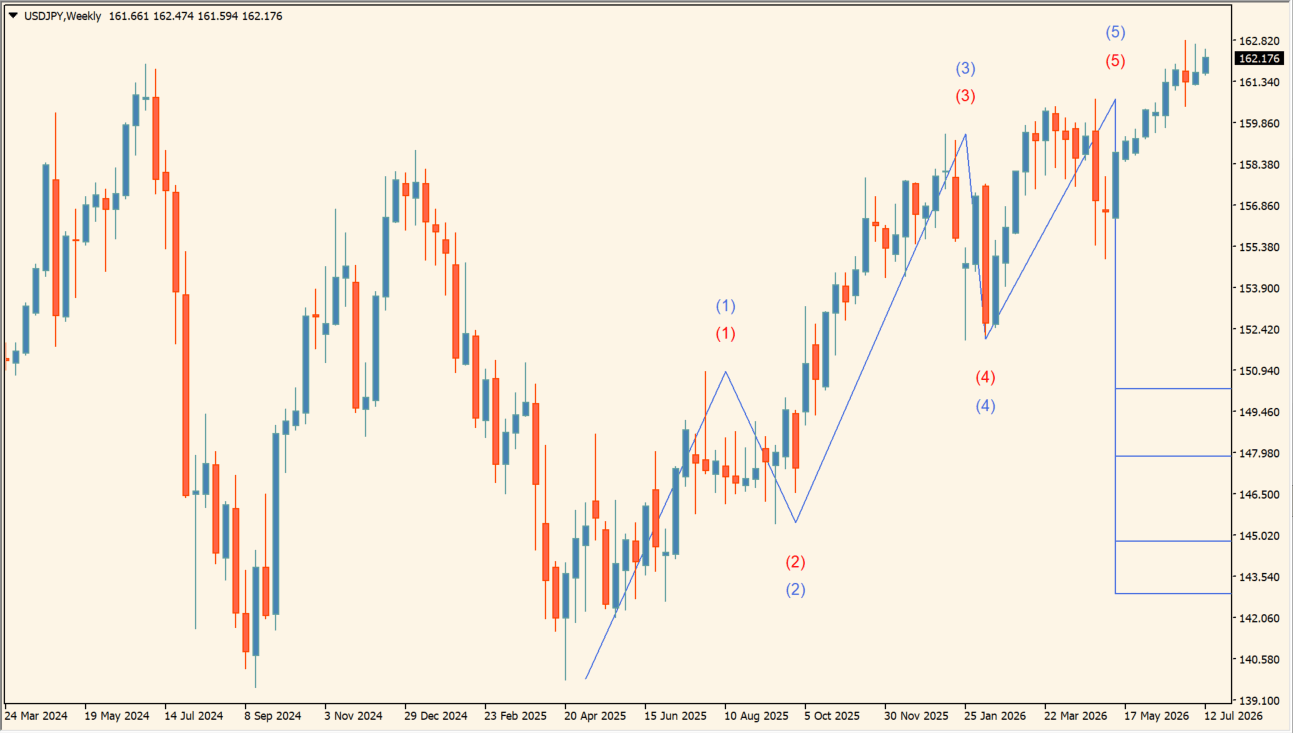
What is Elliott Wave?
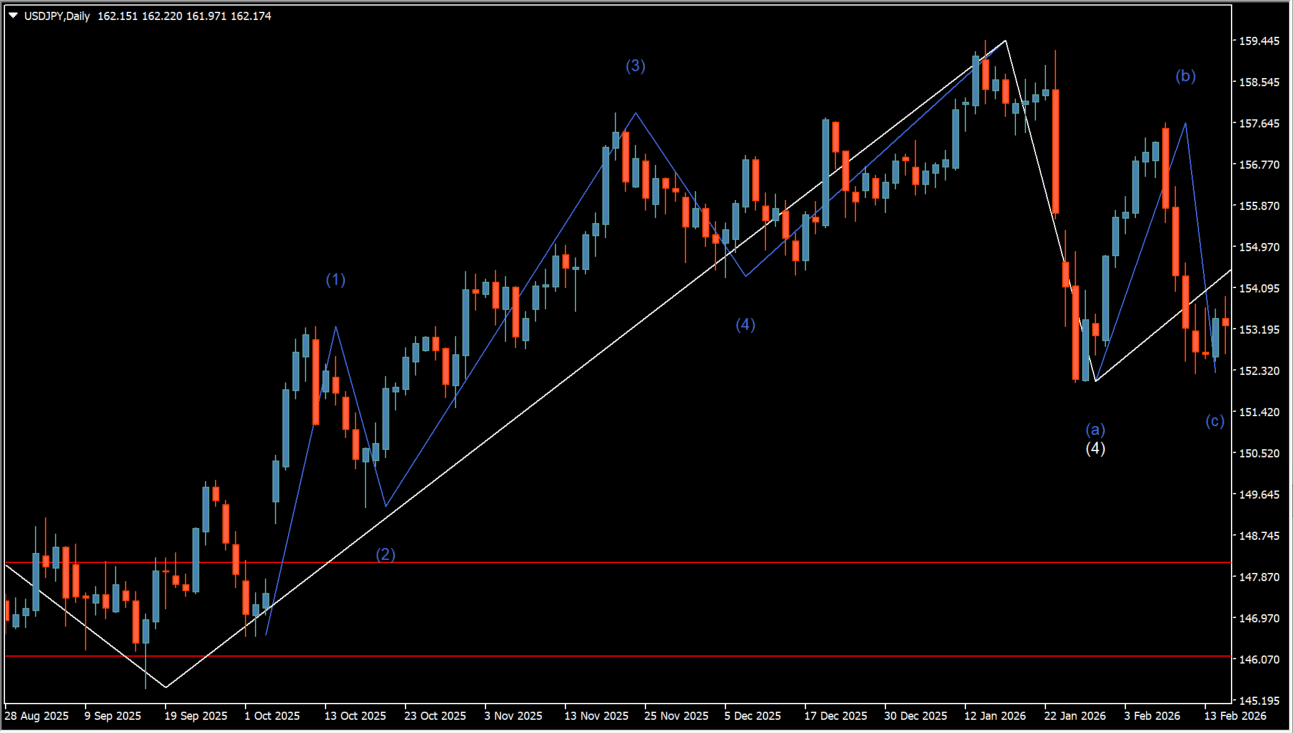
Elliott Wave is an MT4 indicator that connects highs and lows with ZigZag lines and labels waves as (1)–(5) and (a)–(c). Red, blue, and white ZigZag lines show three different lengths on the same chart.
How to use Elliott Wave
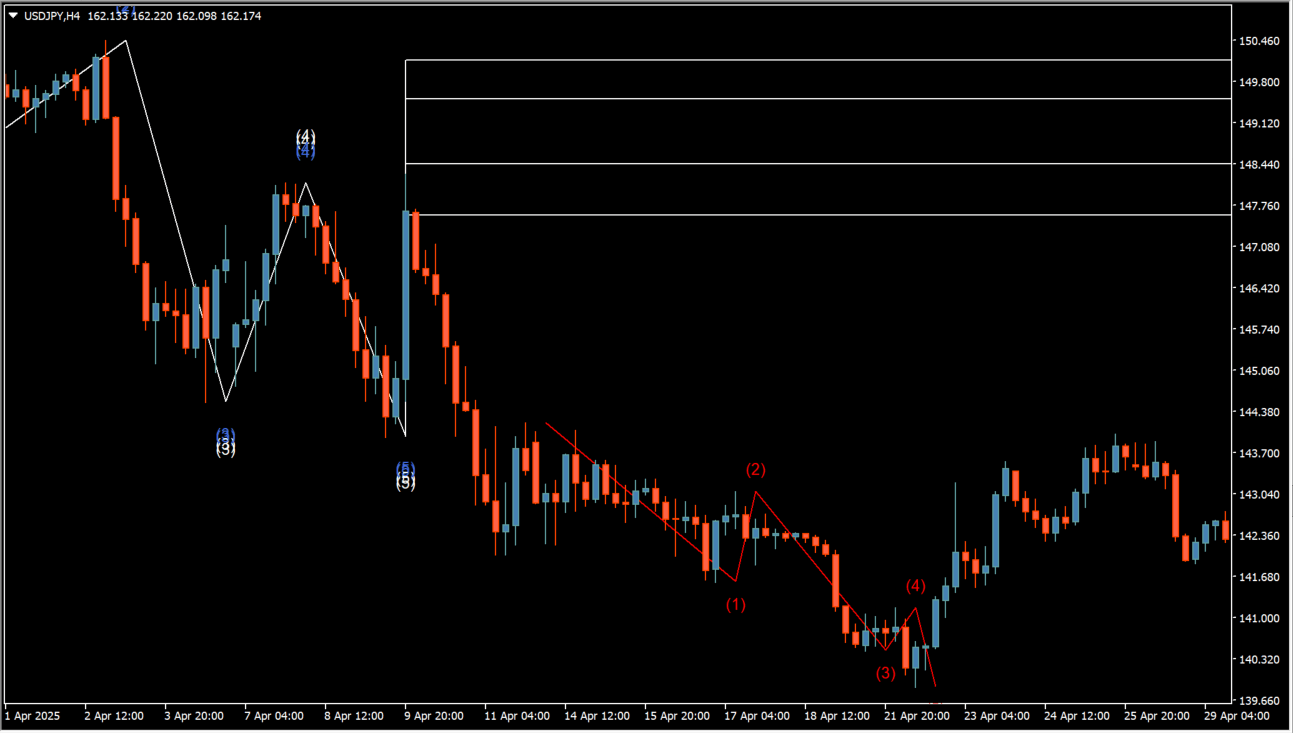
Read the red line for shorter swings, then compare it with the blue and white lines and their wave labels to place the current movement within the larger displayed structure.
Where it helps
Separate shorter and larger swings by their line colours and lengths
Compare the wave labels across the three ZigZag scales
Organize highs, lows, and wave labels in one chart view
MT4 Indicator Parameters
The table below lists the available MT4 indicator parameters. You can customize these options in the MetaTrader Inputs dialog to match your trading preferences.
| Parameter | Description |
|---|---|
| Candles to calculate | Sets the number of candles used in the calculation. |
| source [high - low] ######################### | Configuration group. |
| High Source | Selects the price used for the high side of the ZigZag calculation. |
| Low Source | Selects the price used for the low side of the ZigZag calculation. |
| ZigZag ######################### | Configuration group. |
| Show 1 | Shows or hides the first ZigZag. |
| Length 1 | Sets the length of the first ZigZag. |
| Color 1 | Sets the color of the first ZigZag line. |
| Show 2 | Shows or hides the second ZigZag. |
| Length 2 | Sets the length of the second ZigZag. |
| Color 2 | Sets the color of the second ZigZag line. |
| Show 3 | Shows or hides the third ZigZag. |
| Length 3 | Sets the length of the third ZigZag. |
| Color 3 | Sets the color of the third ZigZag line. |
| Distance multiplier for labels | Adjusts the distance between wave labels and price. |
| Fibonacci values ######################### | Configuration group. |
| level 1 | Sets the first Fibonacci-related level. |
| level 2 | Sets the second Fibonacci-related level. |
| level 3 | Sets the third Fibonacci-related level. |
| level 4 | Sets the fourth Fibonacci-related level. |
| show ZZ | Shows or hides the ZigZag display. |
| Alerts Settings ######################### | Configuration group. |
| Enable Alert Popups | Enables or disables pop-up alerts. |
| Enable Sound Alerts | Enables or disables sound alerts. |
| Enable Email Alerts | Enables or disables email alerts. |
| Enable Push Notifications | Enables or disables push notifications. |
| Wait for candle close | Controls whether drawing waits for the candle to close. |
| Alerts ######################### | Configuration group. |
| Enable Alerts | Enables or disables the alert system. |
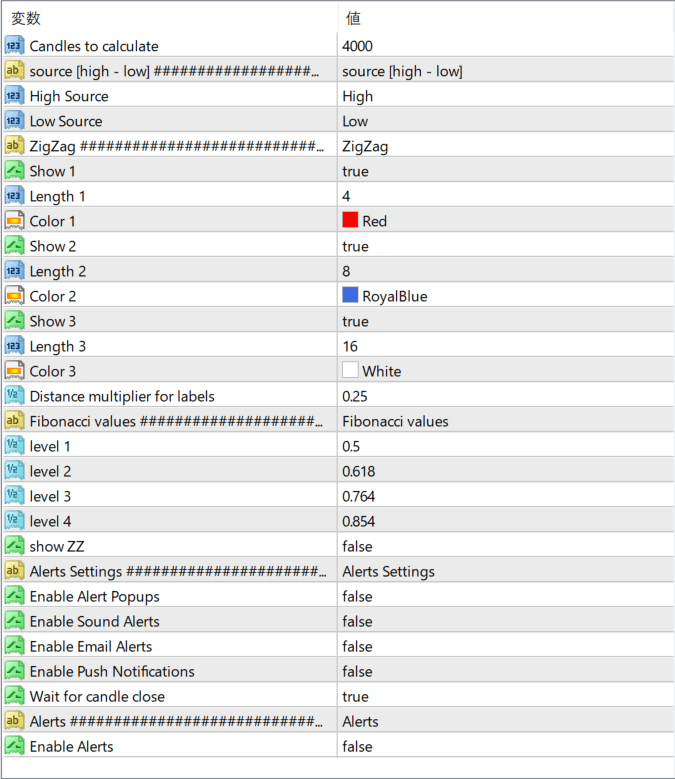
The screenshot above shows the default input parameters in the MT4 settings window.
How to Install .ex4 Indicator in MetaTrader 4
- Download the ZIP file and extract it.
- In MT4, select File → Open Data Folder.
- Open MQL4 → Indicators and copy the EX4 or MQ4 file into it.
- If the package includes library files, copy them to MQL4 → Libraries. Copy TPL files to the top-level templates folder.
- Restart MT4, find the indicator in the Navigator, and drag it onto a chart.
Test the tool on a demo account first. File contents and required folders can vary between packages.


