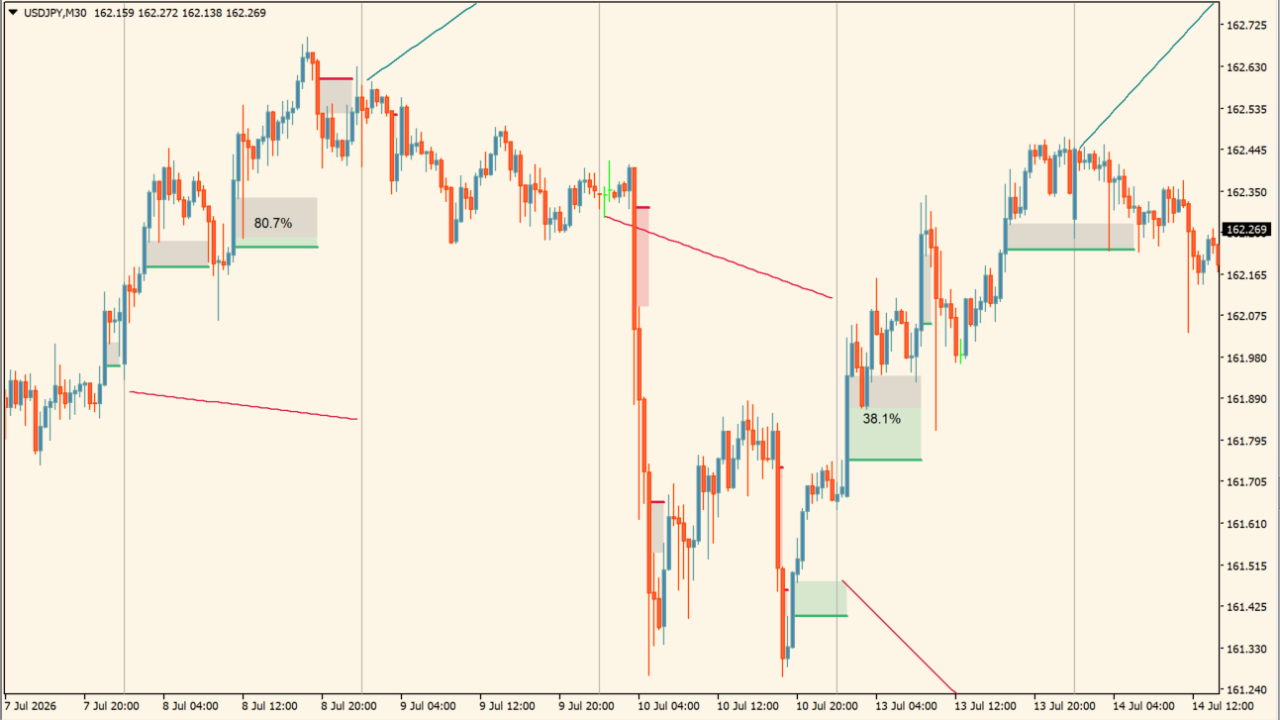
What is Fair Value Gap Absorption Indicator?
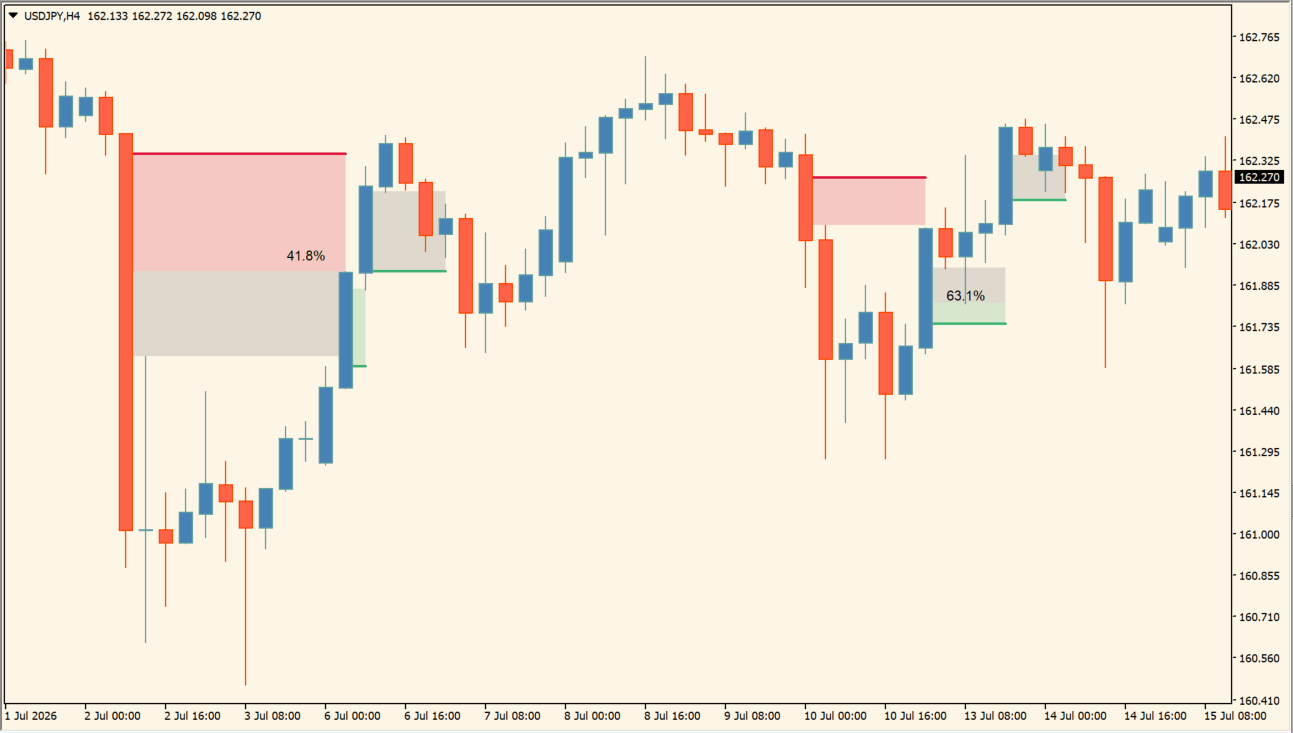
Fair Value Gap Absorption Indicator is an MT4 indicator that displays Fair Value Gap zones on the chart with numerical mitigation percentages. It uses green bullish imbalance zones, red bearish imbalance zones, and gray mitigation overlays.
How to use Fair Value Gap Absorption Indicator
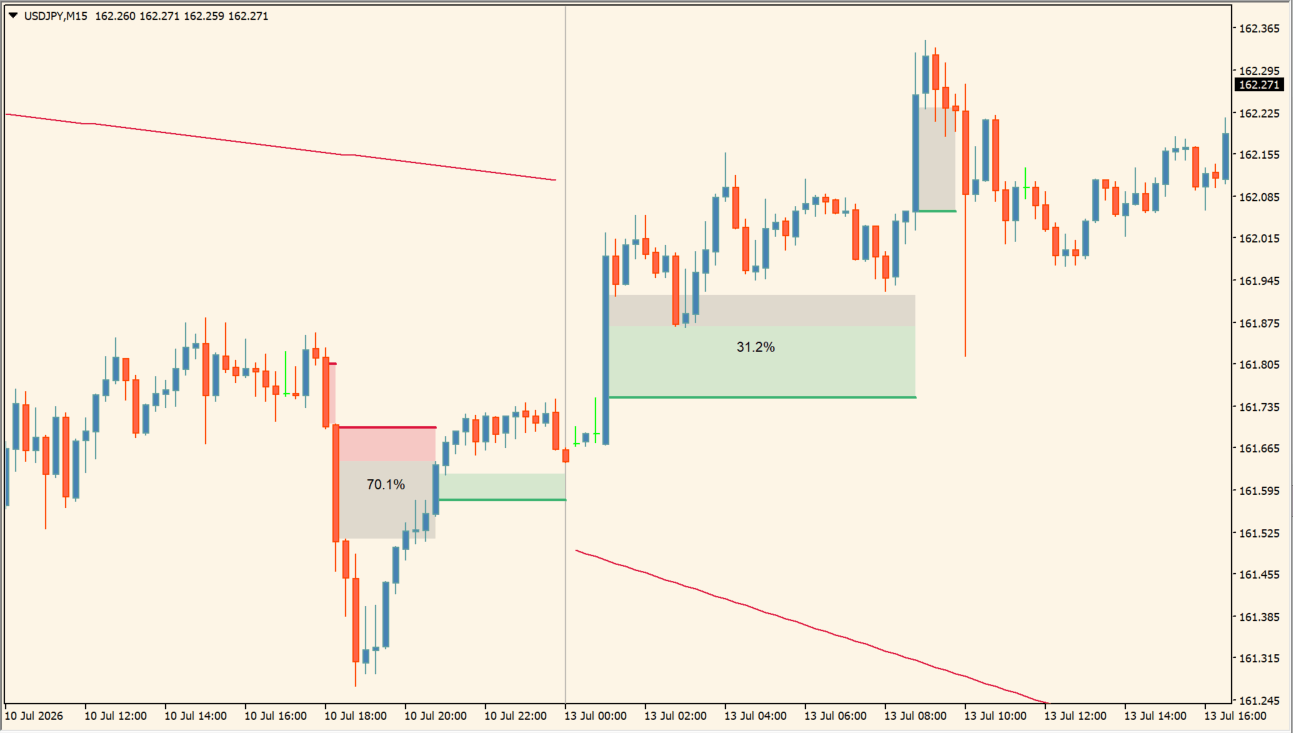
Add Fair Value Gap Absorption Indicator to an MT4 chart and identify green boxes for upward imbalance and red boxes for downward imbalance.
As price approaches a marked area, observe whether price pauses at the outer boundary or penetrates into the gray zone. If price reacts there, align the structure with previous swing highs and lows. If price moves through it, observe candlestick behavior if price pushes completely through to the opposite edge.
Use Historical Fair Value Gaps with this effect in mind: it controls the visibility of older formed gap structures.
Where it helps
MT4 Indicator Parameters
The table below lists the available MT4 indicator parameters. You can customize these options in the MetaTrader Inputs dialog to match your trading preferences.
| Parameter | Description |
|---|---|
| Fair Value Gap Width Filter | Sets the minimum width filter for gap detection. Default: 0.5. |
| Bullish, Imbalance | Sets the display color for bullish imbalance zones. Default: MediumSeaGreen. |
| Mitigation | Sets the display color for the mitigated zone area. Default: DimGray. |
| Bearish, Imbalance | Sets the display color for bearish imbalance zones. Default: Crimson. |
| Display Percentage of Mitigation | Displays the percentage of zone mitigation on the chart. Default: true. |
| Historical Fair Value Gaps | Retains previously formed historical gap zones on the chart. Default: true. |
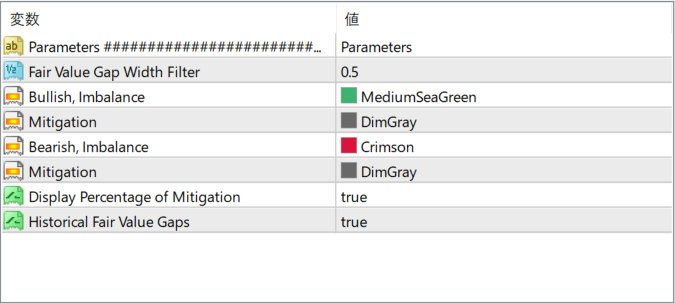
The screenshot above shows the default input parameters in the MT4 settings window.
How to Install .ex4 Indicator in MetaTrader 4
- Download the ZIP file and extract it.
- In MT4, select File → Open Data Folder.
- Open MQL4 → Indicators and copy the EX4 or MQ4 file into it.
- If the package includes library files, copy them to MQL4 → Libraries. Copy TPL files to the top-level templates folder.
- Restart MT4, find the indicator in the Navigator, and drag it onto a chart.
Test the tool on a demo account first. File contents and required folders can vary between packages.


