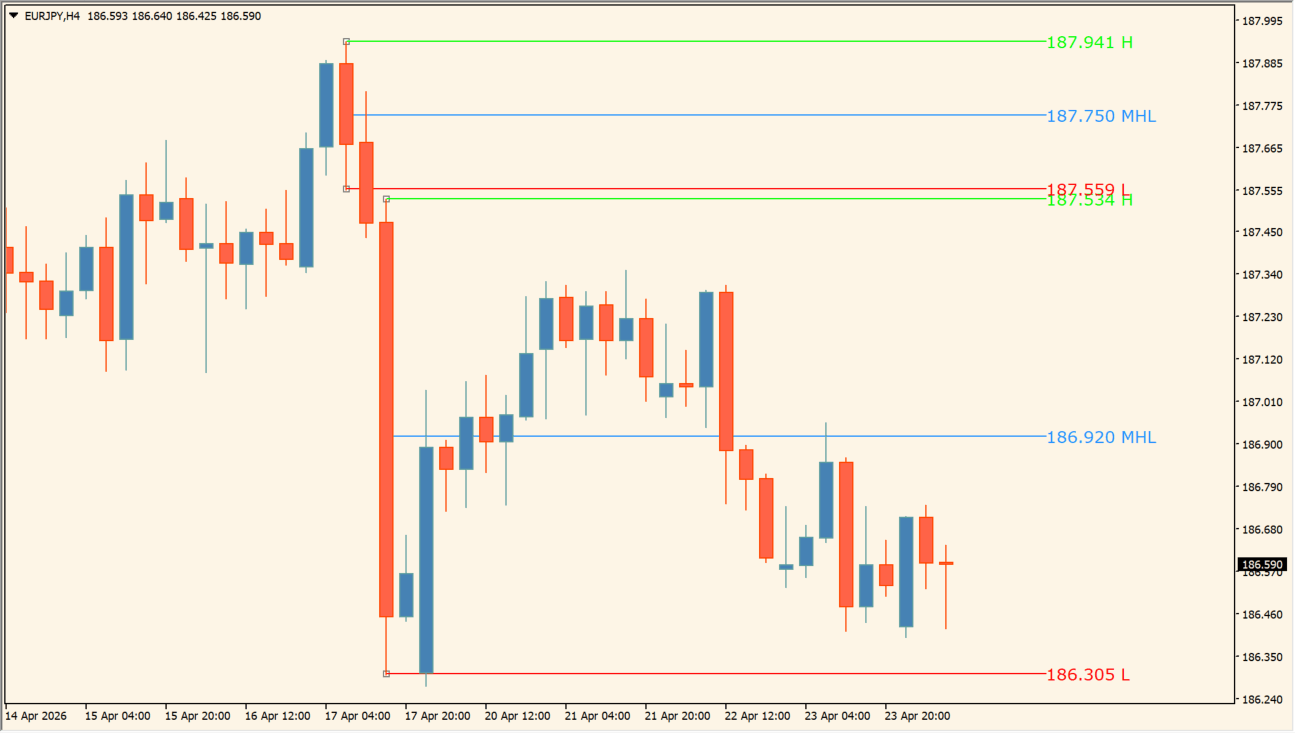
What is Candle_OHLC_click?
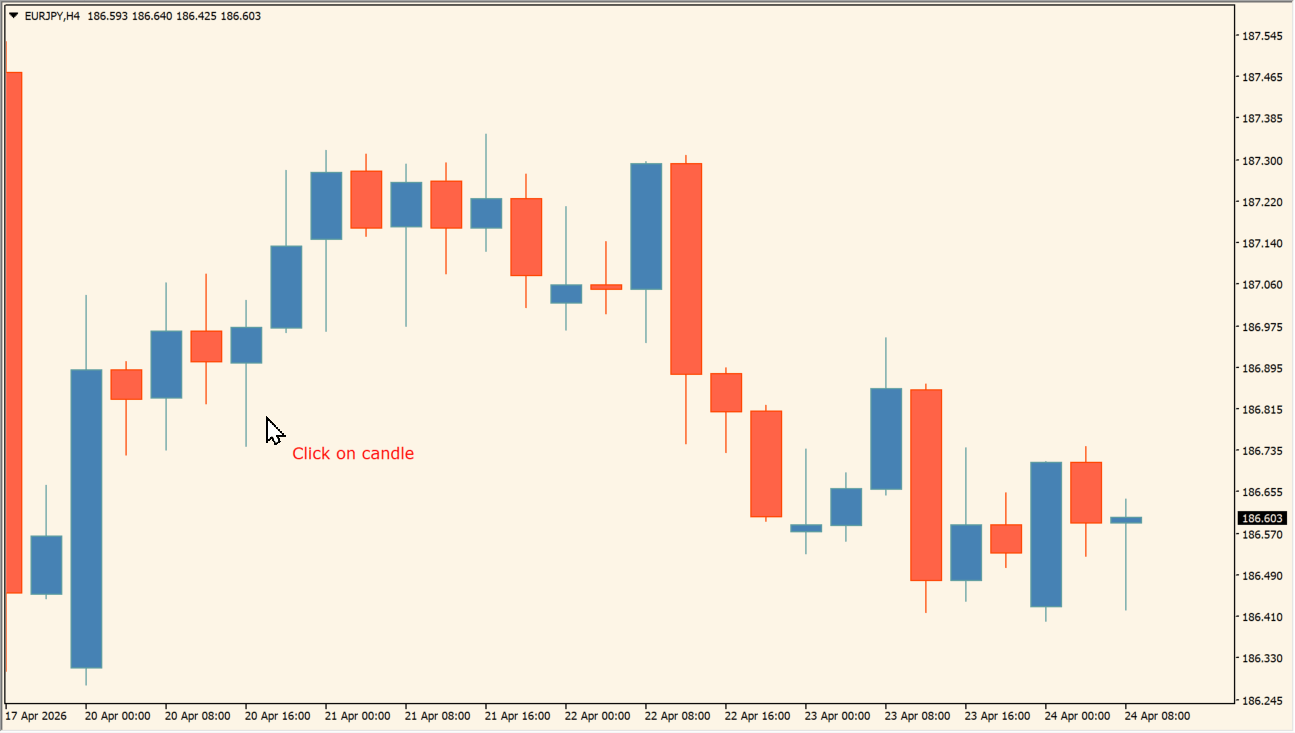
Candle_OHLC_click lets you select a candle and draw lines from its open, high, low, close, high-low midpoint, and candle-body midpoint. The C key triggers it by default, and the levels of the candle you pick are drawn as horizontal objects on the chart.
The Inputs dialog separates the level-visibility controls from the style controls. Each price level can therefore be shown or hidden and assigned its own color, while text, width, and rightward extension remain configurable.
How to use Candle_OHLC_click
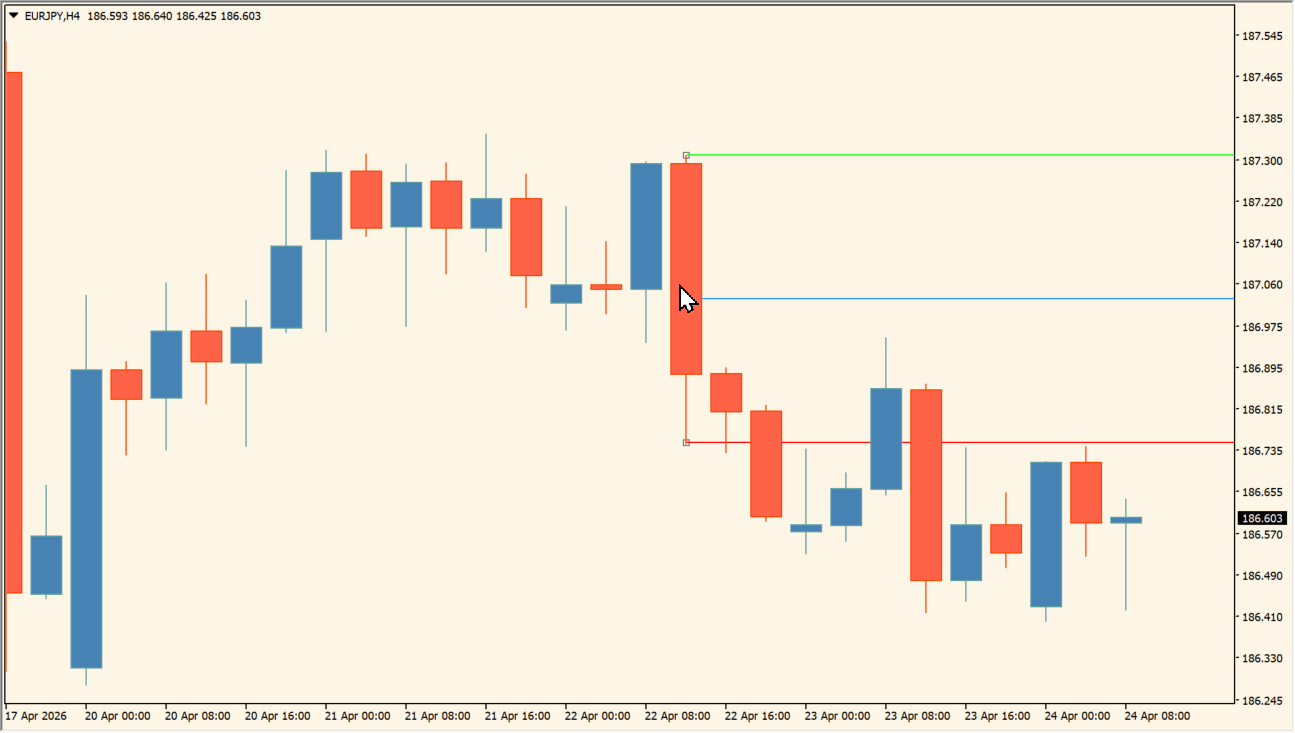
Press the configured hotkey, click the candle whose levels you want to mark, then read the enabled OHLC and midpoint lines. An existing line can also be selected to move or delete it.
Hotkey (1 second) changes the key, Text show and the font inputs change labels, and the Levels show group changes which candle prices are drawn. The Styles group changes each level’s color, line style, width, and extension to the right.
Where it helps
Open, high, low, close, and two midpoint levels can be displayed.
A line that has already been drawn can be selected to move or remove it.
Visibility and color controls are provided for each level.
MT4 Indicator Parameters
The table below lists the available MT4 indicator parameters. You can customize these options in the MetaTrader Inputs dialog to match your trading preferences.
| Parameter | Description |
|---|---|
| To make: press hotkey, click candle | Usage instruction shown in the Inputs dialog. |
| To move: select line at candle, move it | Usage instruction shown in the Inputs dialog. |
| To delete: select line at candle, delete it | Usage instruction shown in the Inputs dialog. |
| Hotkey (1 second) | Sets the hotkey used before selecting a candle. |
| Text show | Shows or hides price text on the lines. |
| __ font | Sets the line-label font. |
| __ font size | Sets the line-label font size. |
| Levels show | Level-visibility settings section. |
| __ open | Shows or hides the open line. |
| __ high | Shows or hides the high line. |
| __ low | Shows or hides the low line. |
| __ close | Shows or hides the close line. |
| __ mid of HL | Shows or hides the high-low midpoint line. |
| __ mid of body | Shows or hides the candle-body midpoint line. |
| Styles | Line-style settings section. |
| __ open | Sets the open-line color. |
| __ high | Sets the high-line color. |
| __ low | Sets the low-line color. |
| __ close | Sets the close-line color. |
| __ mid of HL | Sets the high-low midpoint-line color. |
| __ mid of body | Sets the candle-body midpoint-line color. |
| __ style | Sets the line style. |
| __ width | Sets the line width. |
| __ extend (right of live) | Sets the line extension to the right. |
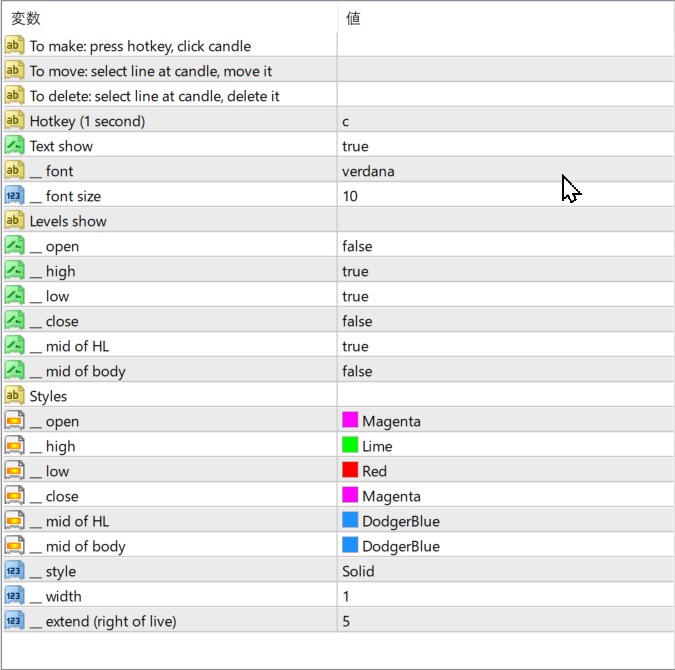
The screenshot above shows the default input parameters in the MT4 settings window.
How to Install .ex4 Indicator in MetaTrader 4
- Download the ZIP file and extract it.
- In MT4, select File → Open Data Folder.
- Open MQL4 → Indicators and copy the EX4 or MQ4 file into it.
- If the package includes library files, copy them to MQL4 → Libraries. Copy TPL files to the top-level templates folder.
- Restart MT4, find the indicator in the Navigator, and drag it onto a chart.
Test the tool on a demo account first. File contents and required folders can vary between packages.


