What is Candle Volume Indicator?
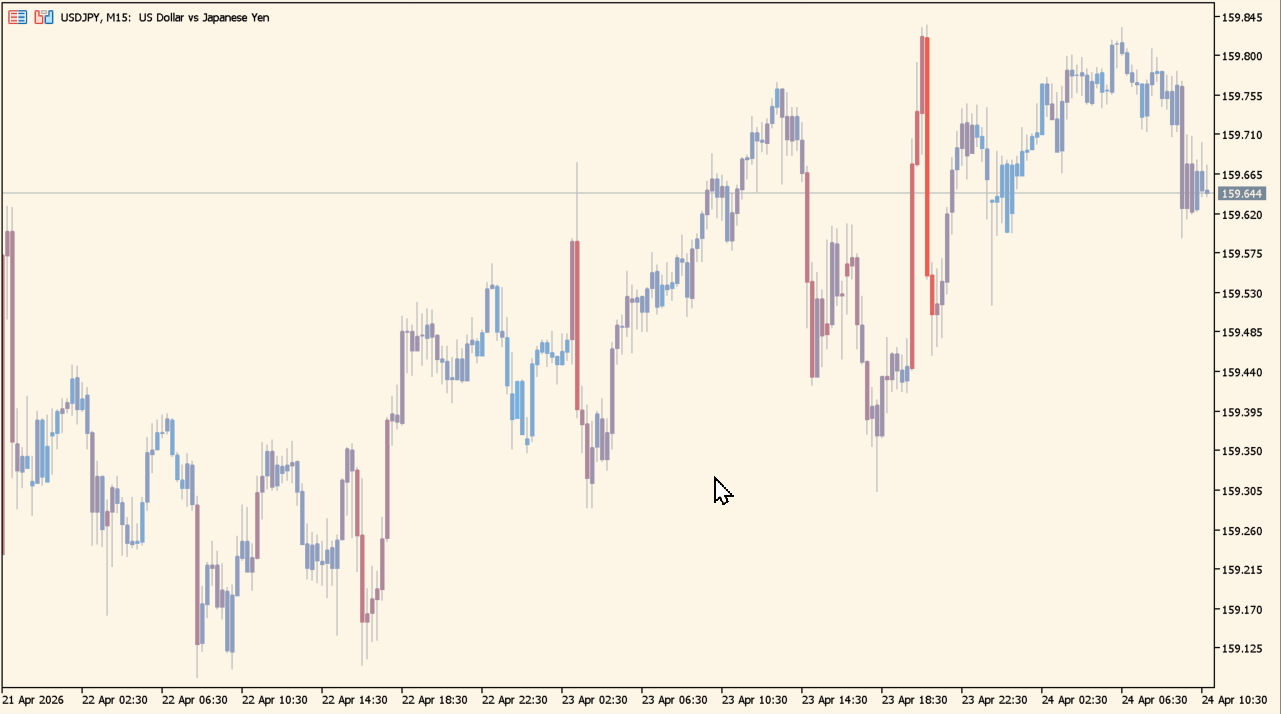
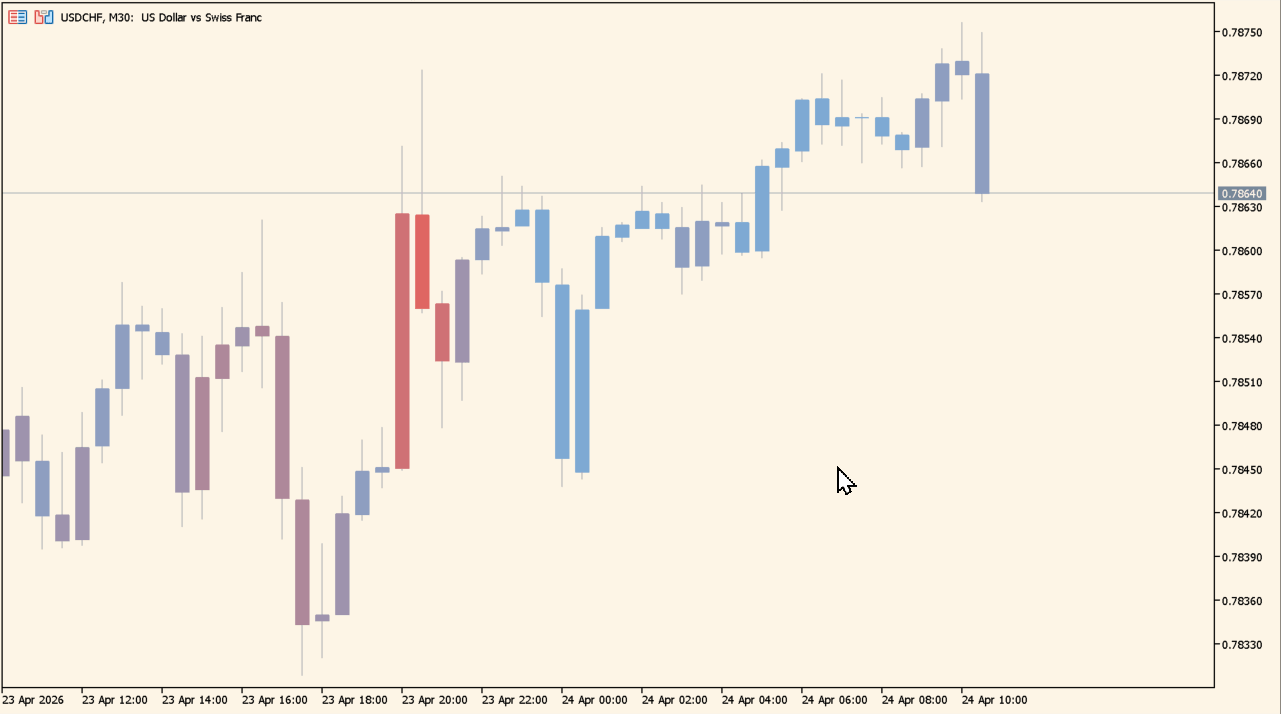
Candle Volume Indicator colors candles according to the volume comparison settings in its MT5 Inputs. High-volume and low-volume candles use distinct colors, along with a separate shadow color.
The colors describe the indicator classification over the selected historical count. They should be compared with candle structure and the wider chart rather than treated as a standalone forecast.
How to use Candle Volume Indicator
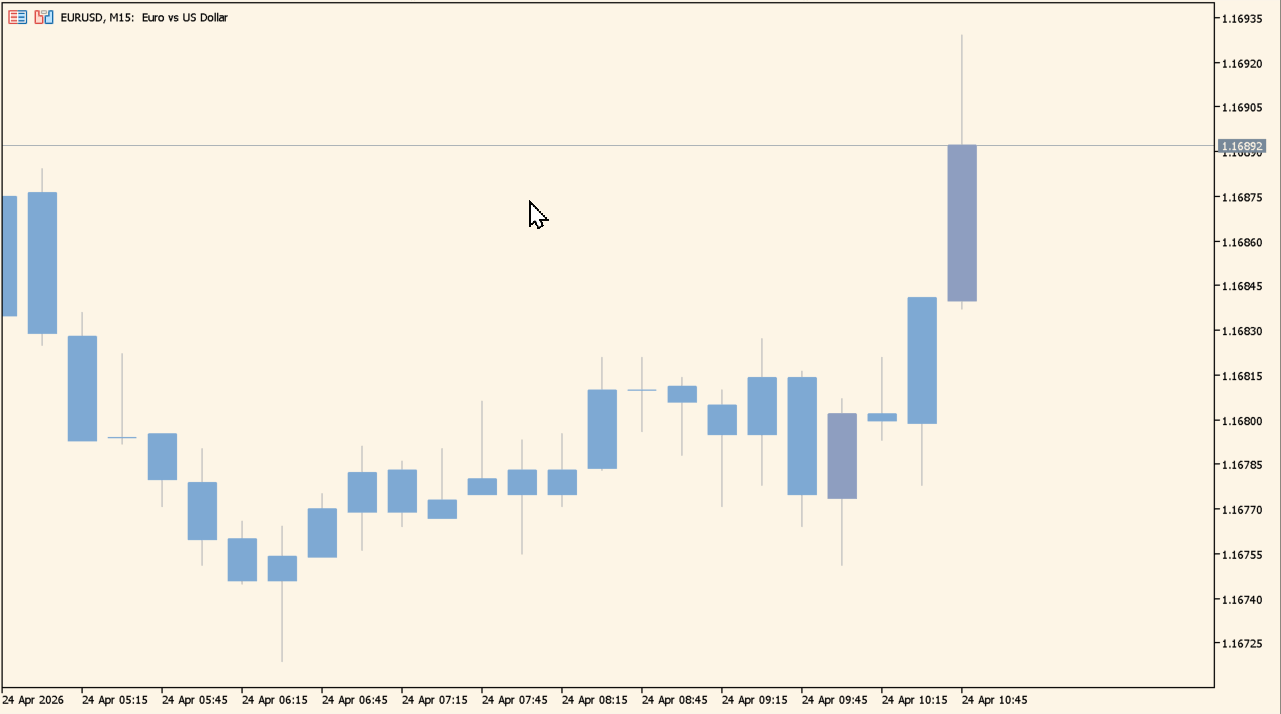
Review colored candles alongside the surrounding range and visible price movement. Increase or decrease the historical bar count only after considering the timeframe being reviewed.
Preset colors can override custom color settings. The remaining Inputs set the colors for high volume, low volume, and shadows.
Where it helps
Bars to count controls the historical volume reference.
A preset palette can be selected independently.
High volume, low volume, and shadow colors are available.
MT5 Indicator Parameters
The table below lists the available MT5 indicator parameters. You can customize these options in the MetaTrader Inputs dialog to match your trading preferences.
| Parameter | Description |
|---|---|
| ~~Indicator settings~~ | Labels the indicator-settings section. |
| Bars to count: | Sets the number of historical bars used for the volume comparison. Default: 1000. |
| ~~Presets~~ | Labels the preset-settings section. |
| Enabling presets will ignore color setting | Indicates that enabled presets override custom color settings. |
| Preset colors: | Selects a preset color palette. Default: Blue with Red accent. |
| ~~Custom Color settings~~ | Labels the custom-color settings section. |
| High Volume Color: | Sets the color used for high-volume candles. Default: Red. |
| Low Volume Color: | Sets the color used for low-volume candles. Default: DeepSkyBlue. |
| Shadow color: | Sets the color used for candle shadows. Default: LightSlateGray. |
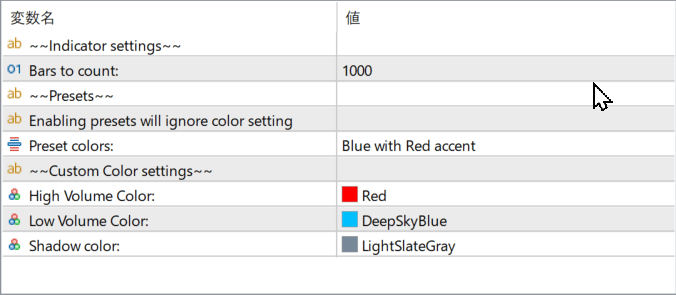
The screenshot above shows the default input parameters in the MT5 settings window.
How to Install .ex5 Indicator in MetaTrader 5
- Download the ZIP file and extract it.
- In MT5, select File → Open Data Folder.
- Open MQL5 → Indicators and copy the EX5 or MQ5 file into it.
- If the package includes library files, copy them to MQL5 → Libraries. Copy TPL files to the top-level templates folder.
- Restart MT5, find the indicator in the Navigator, and drag it onto a chart.
Test the tool on a demo account first. File contents and required folders can vary between packages.