What is candles_parbitrary_seconds8_1.1?
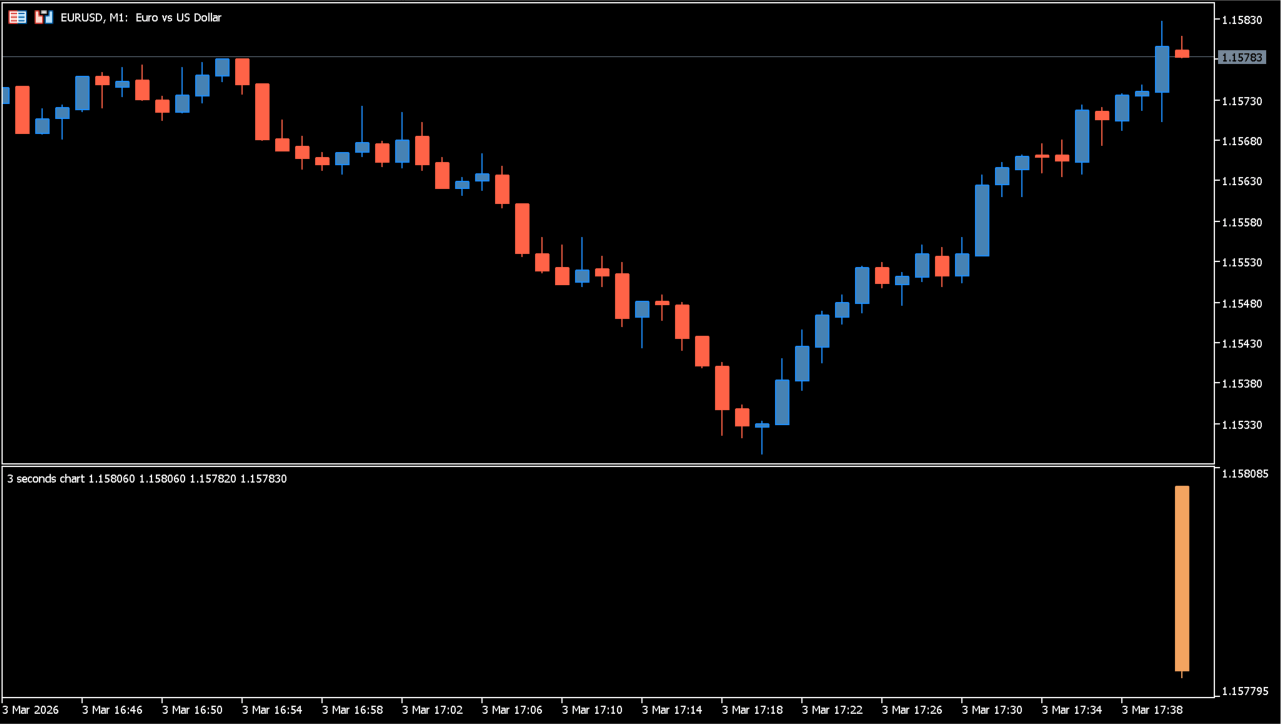
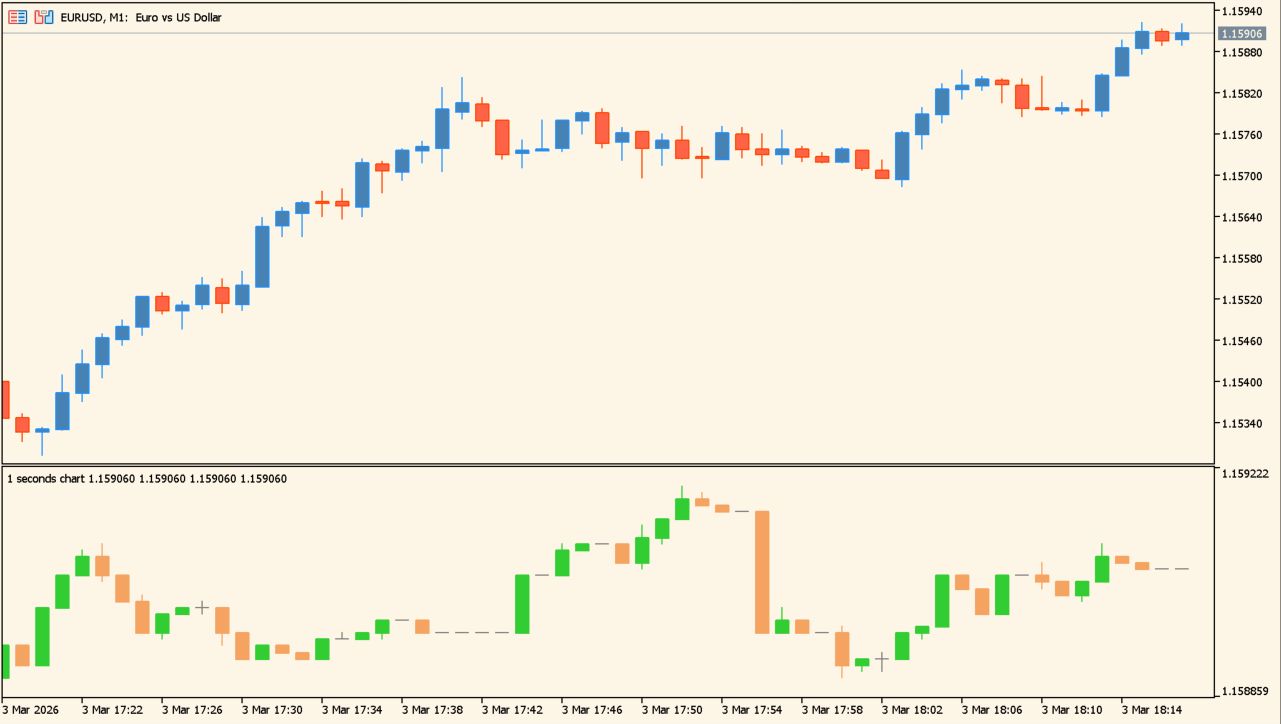
MT5 has no seconds chart of its own. This indicator builds one from tick data, generating candles at whatever interval in seconds you set and drawing them in a sub-window.
A standard MT5 chart stops at the one-minute timeframe, so a 5-second or 10-second view is not otherwise available. The time display works in seconds as well, which is what makes finer entry and exit timing readable.
How to use candles_parbitrary_seconds8_1.1
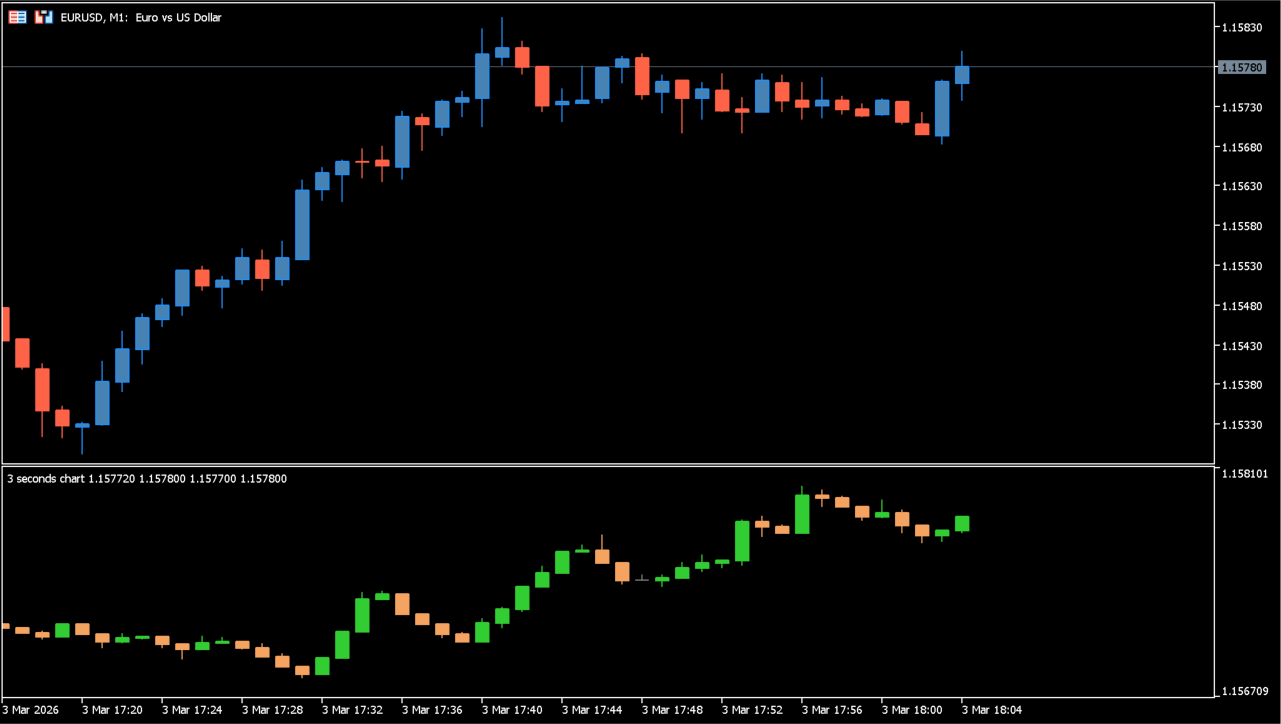
Set the number of seconds in the parameter and apply the indicator to a chart. That is all it takes: candles start forming at your interval and are written into the sub-window in real time.
The short intervals make the force behind a brief move and the small pullbacks inside it visible, which is what suits this to scalping and to watching price around a news release. These candles are built differently from ordinary timeframes, so other indicators laid over them may not work correctly. Treat it as a dedicated chart for watching price second by second.
Where it helps
A 5-second or 10-second view is not something MT5 offers, so this is the only way to see what happens inside a single minute bar.
Candles are written in real time, which is what you need when price is running around a news release.
Small retracements that a one-minute candle hides become individual bars at these intervals.
MT5 Indicator Parameters
The table below lists the available MT5 indicator parameters. You can customize these options in the MetaTrader Inputs dialog to match your trading preferences.
| Parameter | Description |
|---|---|
| Seconds for candles interval | Sets the seconds interval used to generate the custom candles. |
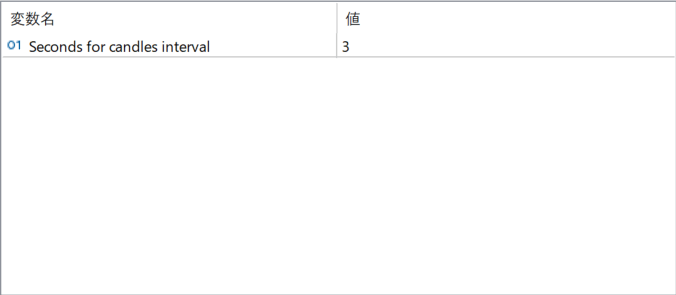
The screenshot above shows the default input parameters in the MT5 settings window.
How to Install .ex5 Indicator in MetaTrader 5
- Download the ZIP file and extract it.
- In MT5, select File → Open Data Folder.
- Open MQL5 → Indicators and copy the EX5 or MQ5 file into it.
- If the package includes library files, copy them to MQL5 → Libraries. Copy TPL files to the top-level templates folder.
- Restart MT5, find the indicator in the Navigator, and drag it onto a chart.
Test the tool on a demo account first. File contents and required folders can vary between packages.