What is Chart Click Controller?
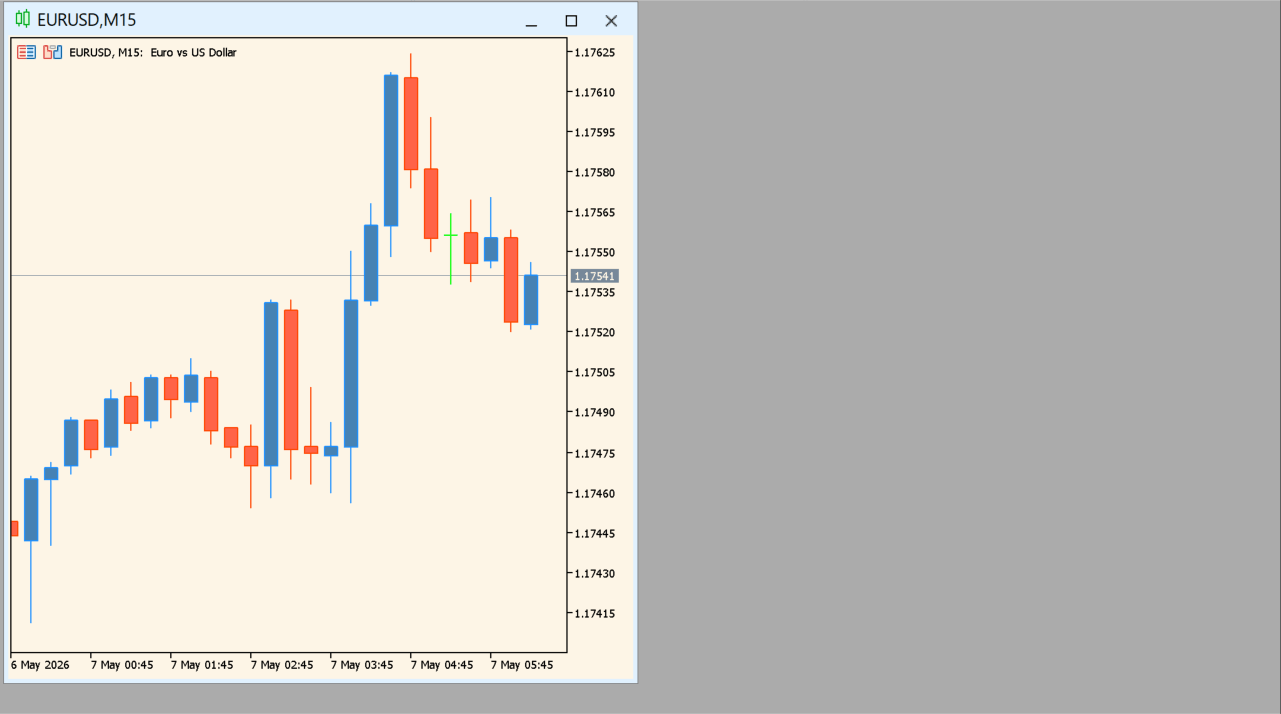
Chart Click Controller is an MT5 chart-operation utility. A triple click maximizes a chart window, and a key-controlled click mode is available.
It changes interaction behavior rather than calculating a market indicator. The configured key code, delay, and two switches define the available controls.
How to use Chart Click Controller
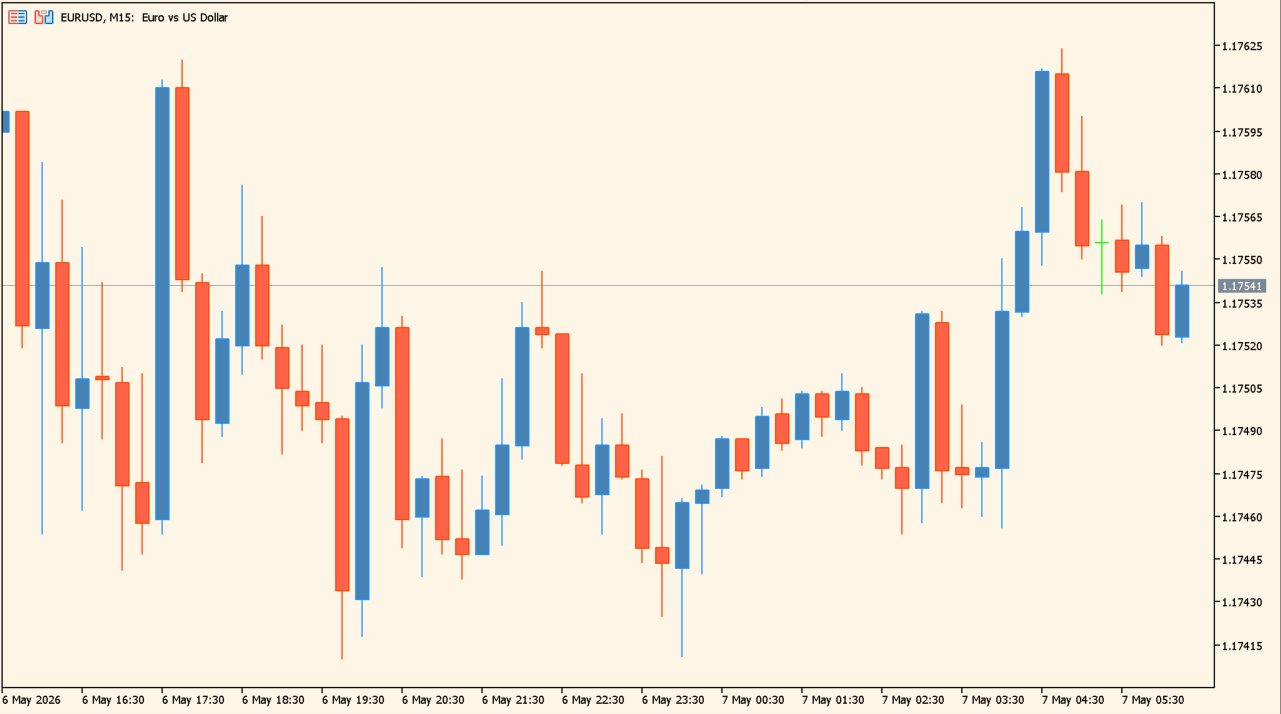
Set the toggle key and click delay, then enable only the detection modes needed for the current workspace. Key code 16 corresponds to Shift.
Use the control with a chart layout that can be tested safely, especially when multiple chart windows are open.
Where it helps
A key code can gate the click-control behavior.
The delay input controls the mouse-click detection interval.
Triple-click and mouse-click detection have individual switches.
MT5 Indicator Parameters
The table below lists the available MT5 indicator parameters. You can customize these options in the MetaTrader Inputs dialog to match your trading preferences.
| Parameter | Description |
|---|---|
| Key code for toggle key | Sets the key code used to toggle the control. Default: 16. |
| Click delay for mouse click detection | Sets the click-detection delay in milliseconds. Default: 300. |
| Enable or disable triple click detection | Enables or disables triple-click detection. Default: true. |
| Enable or disable mouse click detection | Enables or disables mouse-click detection. Default: true. |
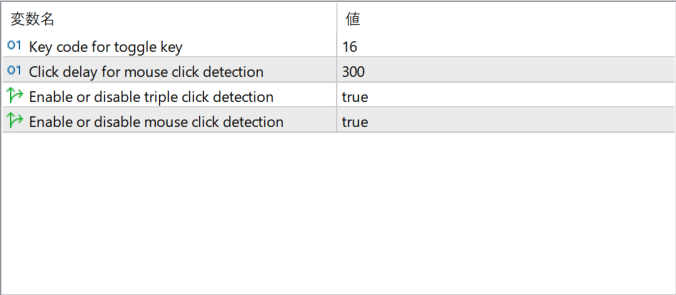
The screenshot above shows the default input parameters in the MT5 settings window.
How to Install .ex5 Indicator in MetaTrader 5
- Download the ZIP file and extract it.
- In MT5, select File → Open Data Folder.
- Open MQL5 → Indicators and copy the EX5 or MQ5 file into it.
- If the package includes library files, copy them to MQL5 → Libraries. Copy TPL files to the top-level templates folder.
- Restart MT5, find the indicator in the Navigator, and drag it onto a chart.
Test the tool on a demo account first. File contents and required folders can vary between packages.