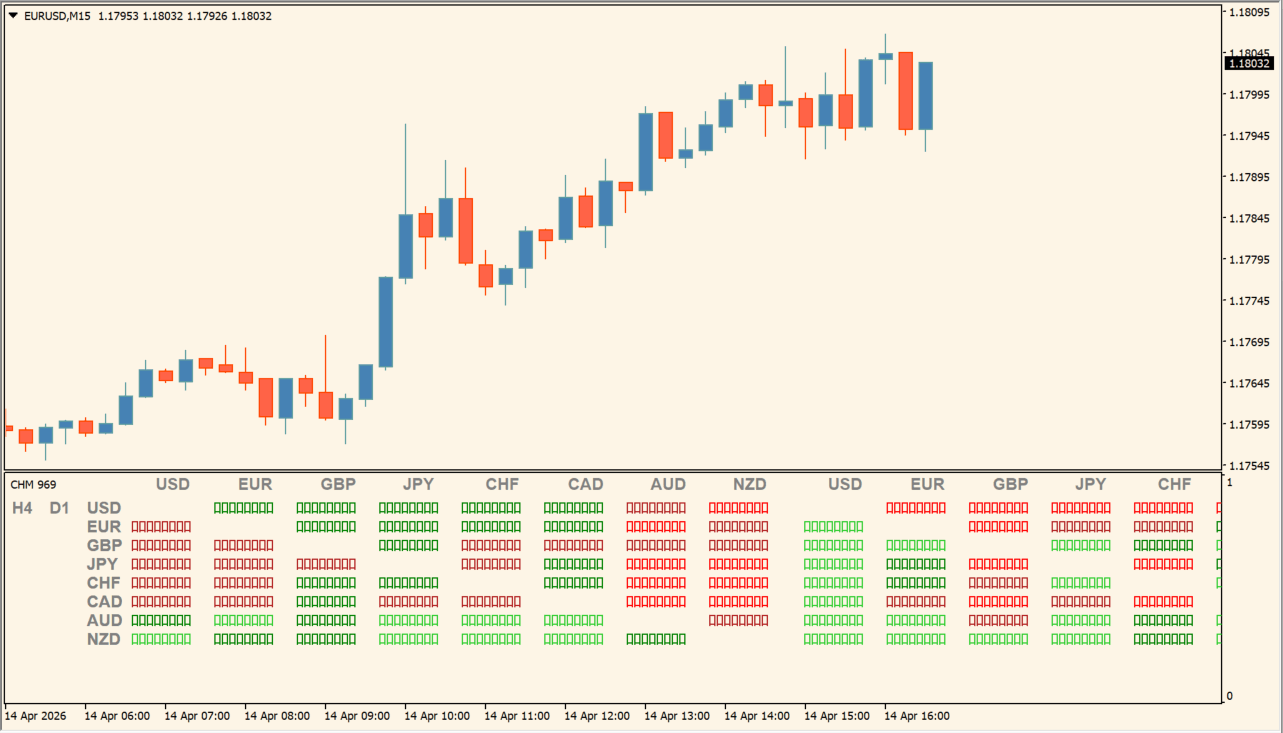
What is Currency Heatmap?
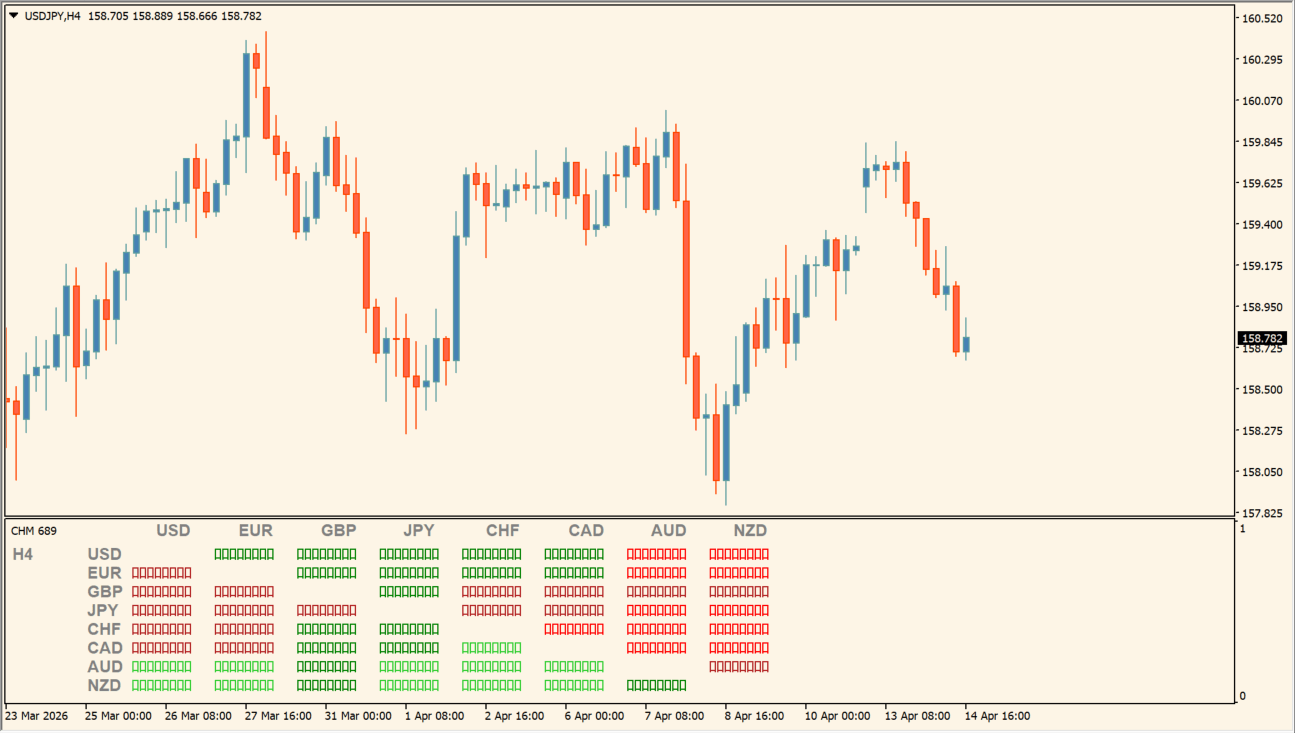
Currency Heatmap displays the relative strength of selected currencies in a color-coded matrix on MT4. Horizontal and vertical currency lists create a pairwise view, while timeframes provide additional comparison rows.
Green, red, and gray states separate stronger, weaker, and unchanged readings in the display. The package includes an .ex4 file and the matrix is intended as market context rather than a standalone instruction.
How to use Currency Heatmap
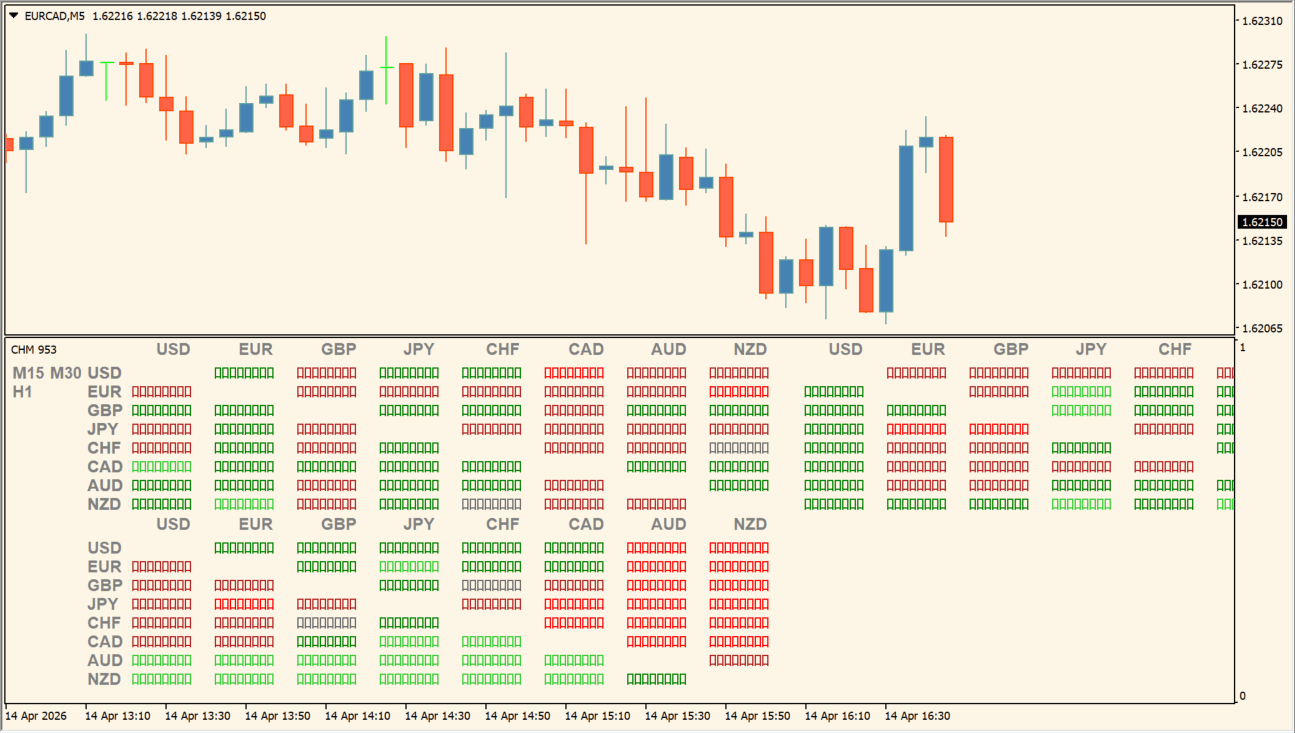
Review the currency matrix across the selected timeframes, then compare the displayed state with the related price charts. The heatmap makes relative strength differences visible without opening each pair separately.
CurrenciesHorizontal, CurrenciesVertical, and TimeFrames define the matrix. StrongUp, WeakUp, NoMove, WeakDown, StrongDown, and DoesNotExist set the displayed colors, while UseMSLineDrawFont controls the font option.
Where it helps
The matrix organizes relative strength in one chart panel.
Timeframe rows provide additional context for the displayed states.
The configured colors separate stronger, weaker, and unchanged readings.
MT4 Indicator Parameters
The table below lists the available MT4 indicator parameters. You can customize these options in the MetaTrader Inputs dialog to match your trading preferences.
| Parameter | Description |
|---|---|
| CurrenciesHorizontal | Sets the currencies shown across the matrix. Default: USD;EUR;GBP;JPY;CHF;CAD;AUD;NZD. |
| CurrenciesVertical | Sets the currencies shown down the matrix. Default: USD;EUR;GBP;JPY;CHF;CAD;AUD;NZD. |
| TimeFrames | Sets the timeframe rows used for comparison. Default: H4;D1. |
| StrongUp | Sets the color for the strong-up state. Default: LimeGreen. |
| WeakUp | Sets the color for the weak-up state. Default: Green. |
| NoMove | Sets the color for the no-move state. Default: DimGray. |
| WeakDown | Sets the color for the weak-down state. Default: FireBrick. |
| StrongDown | Sets the color for the strong-down state. Default: Red. |
| DoesNotExist | Sets the color for the unavailable state. Default: Black. |
| UseMSLineDrawFont | Controls the matrix font option. Default: false. |
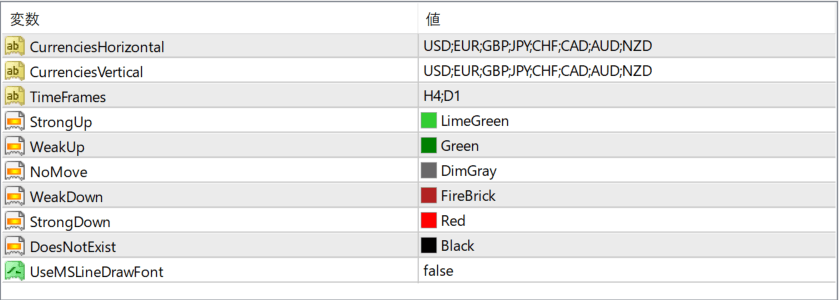
The screenshot above shows the default input parameters in the MT4 settings window.
How to Install .ex4 Indicator in MetaTrader 4
- Download the ZIP file and extract it.
- In MT4, select File → Open Data Folder.
- Open MQL4 → Indicators and copy the EX4 or MQ4 file into it.
- If the package includes library files, copy them to MQL4 → Libraries. Copy TPL files to the top-level templates folder.
- Restart MT4, find the indicator in the Navigator, and drag it onto a chart.
Test the tool on a demo account first. File contents and required folders can vary between packages.


