What is DAT MACD?
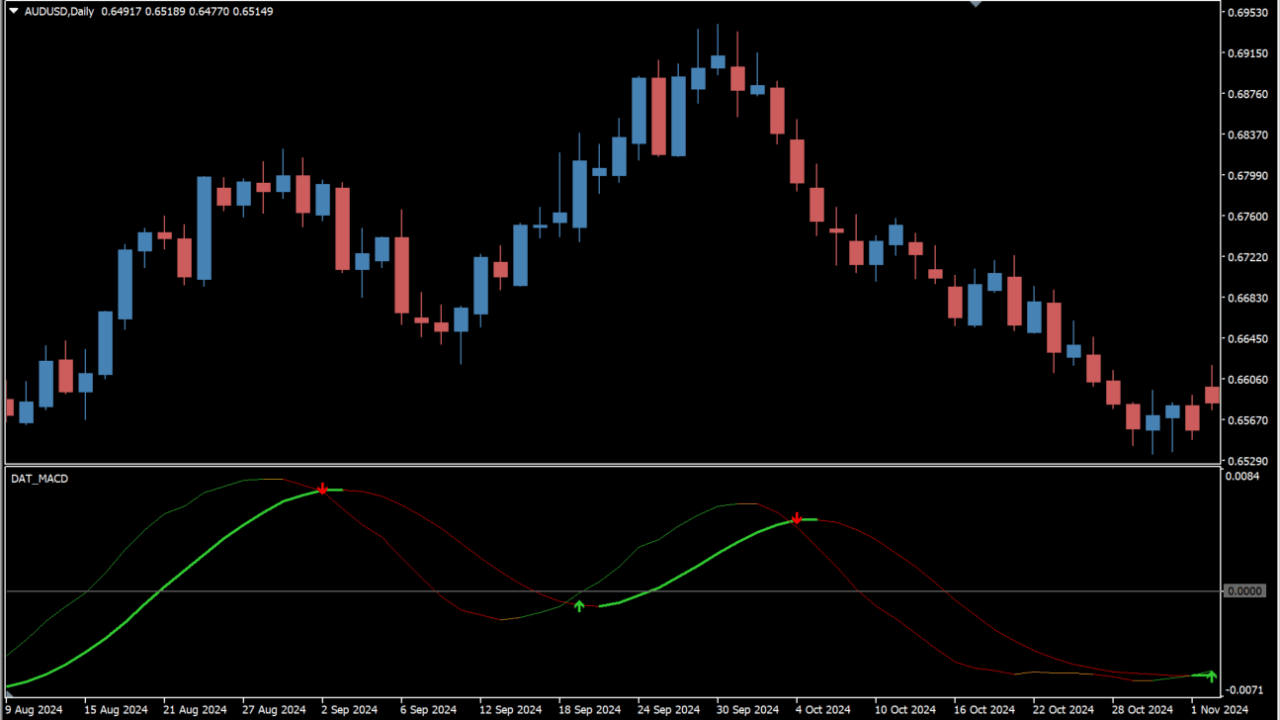
DAT MACD is a custom MT4 indicator that combines MACD with TRIX and marks signals from moving-average crosses read against the zero line. The line changes color with the direction, so the current state is readable at a glance.
How to use DAT MACD
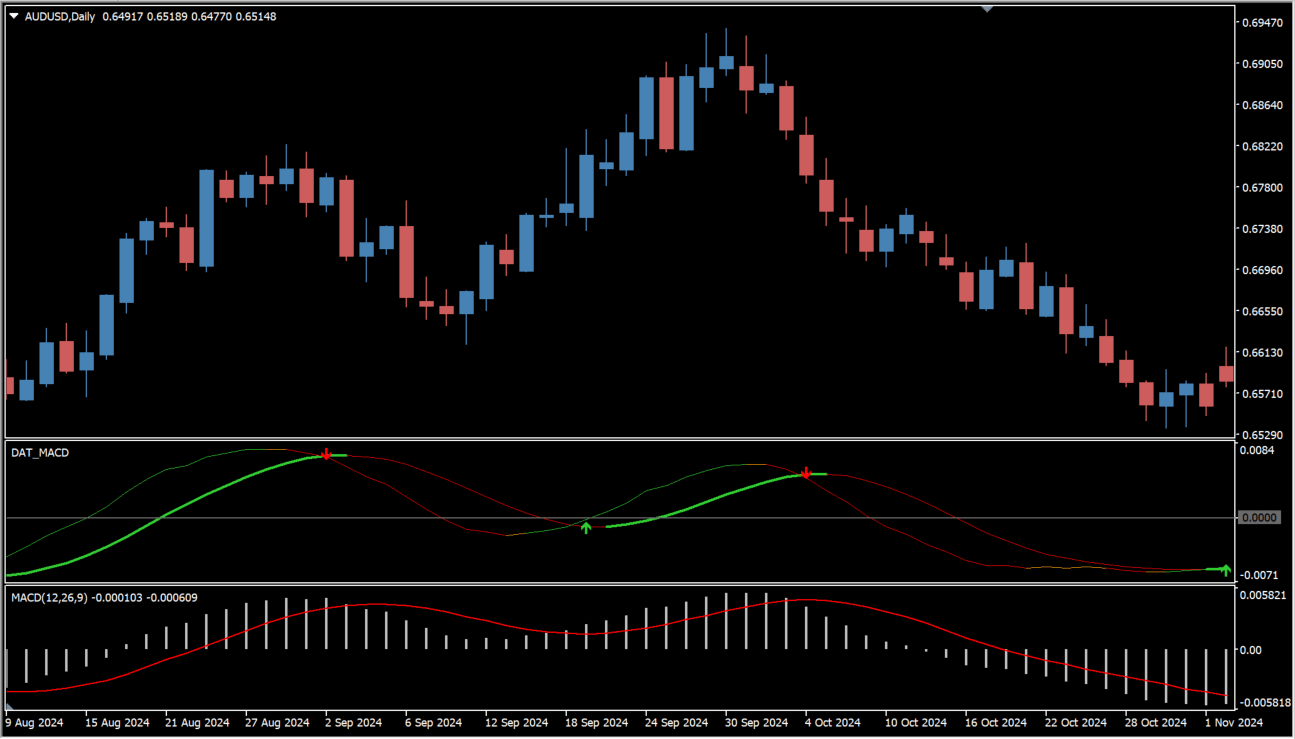
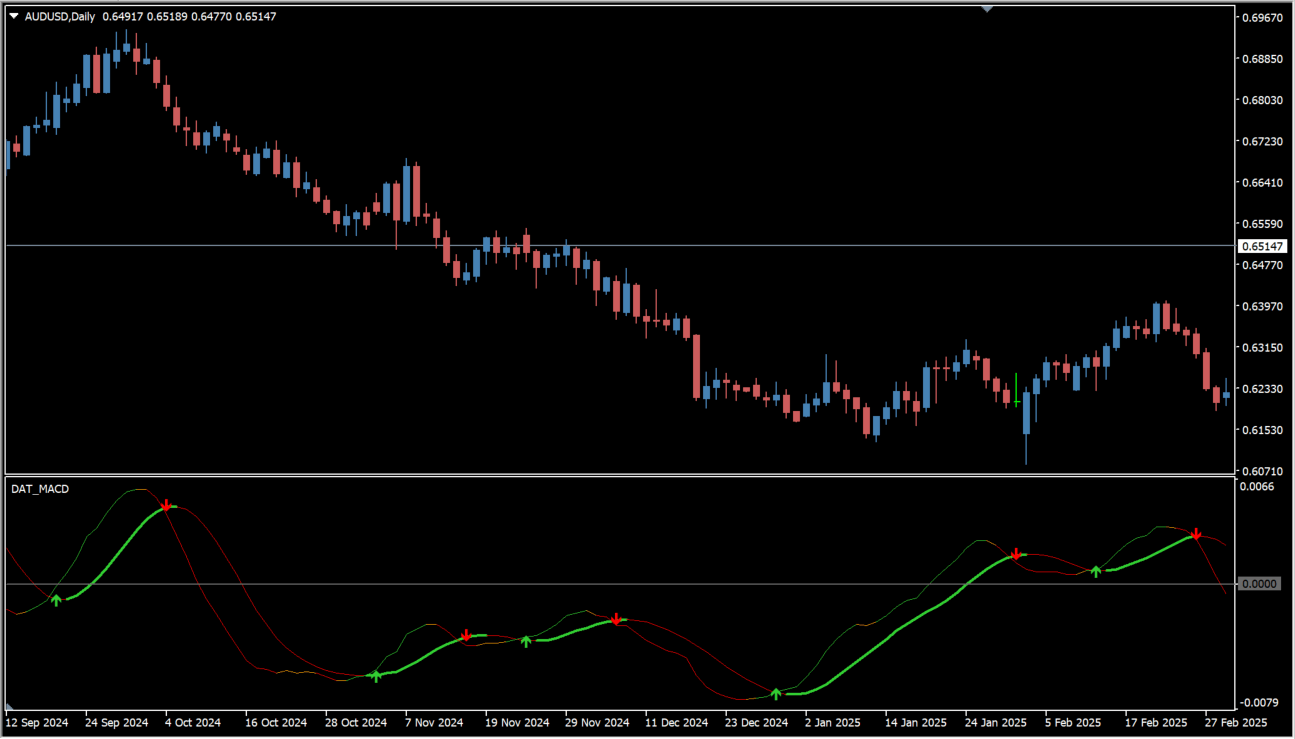
Color-coded lines and signal marks in the sub-window appear when the fast line crosses the slow line and holds on the same side of the zero line. The line turns green after an upward cross that holds above the zero line and red after a downward cross that holds below it. The TRIX and divergence settings give a separate read on trend strength and possible reversals.
Where it helps
MT4 Indicator Parameters
The table below lists the available MT4 indicator parameters. You can customize these options in the MetaTrader Inputs dialog to match your trading preferences.
| Parameter | Description |
|---|---|
| Show_Signal | Turns the signal display on or off. Default: true. |
| _1_ | Section label for the MACD settings group. |
| FastPeriod | Sets the period of the fast MACD moving average. Default: 12. |
| SlowPeriod | Sets the period of the slow MACD moving average. Default: 26. |
| SignalPeriod | Sets the period of the MACD signal line. Default: 9. |
| method_selection | Selects the moving-average type used in the calculation. Default: 0:SMA,1:EMA,2:SMMA,3:LWMA. |
| method_type | Specifies the calculation method as a numeric value. Default: 3. |
| price_selection | Selects the applied price used in the calculation. Default: 0:CLOSE,1:OPEN,2:HIGH,3:LOW,4:Median(high.... |
| price_type | Specifies the price type as a numeric value. Default: 0. |
| _1__ | Section label for the TRIX settings group. |
| Show_TRIX | Turns the TRIX display on or off. Default: false. |
| TrixFastPeriod | Sets the fast TRIX period. Default: 18. |
| TrixSlowPeriod | Sets the slow TRIX period. Default: 35. |
| Trix_b | Sets the TRIX smoothing coefficient. Default: 0.1. |
| Trix_hot | Sets the threshold used to identify an uptrend. Default: 0.7. |
| Trix_Cool | Sets the threshold used to identify a downtrend. Default: 35.0. |
| _2_ | Section label for the divergence settings group. |
| IndicatorLineWindow | Specifies the window number used for the indicator line. Default: 1. |
| DivergenceUpColor | Sets the line color used for an upward divergence. Default: DarkGoldenrod. |
| DivergenceDnColor | Sets the line color used for a downward divergence. Default: DarkGoldenrod. |
| ShowChartTrendLines | Controls whether trend lines are drawn on the chart. Default: false. |
| ShowSubWindowTrendLines | Controls whether trend lines are drawn in the sub-window. Default: false. |
| ShowTrendLines1MChart | Controls whether trend lines are drawn on the one-minute chart. Default: false. |
| AlertShowOnDivergence | Controls whether an alert is shown when a divergence appears. Default: false. |
| AlertSoundOnDivergence | Controls whether a sound plays when a divergence appears. Default: false. |
| AlertMailOnDivergence | Controls whether an email notification is sent when a divergence appears. Default: false. |
| ClassicUpDivSound | Specifies the sound file used for an upward divergence. Default: alert.wav. |
| ClassicDnDivSound | Specifies the sound file used for a downward divergence. Default: alert.wav. |
| ReverseUpDivSound | Specifies the sound file used for a reverse upward divergence. Default: news.wav. |
| ReverseDnDivSound | Specifies the sound file used for a reverse downward divergence. Default: news.wav. |
| NumberOfDivergenceBars | Specifies the number of bars used to detect divergence. Default: 500. |
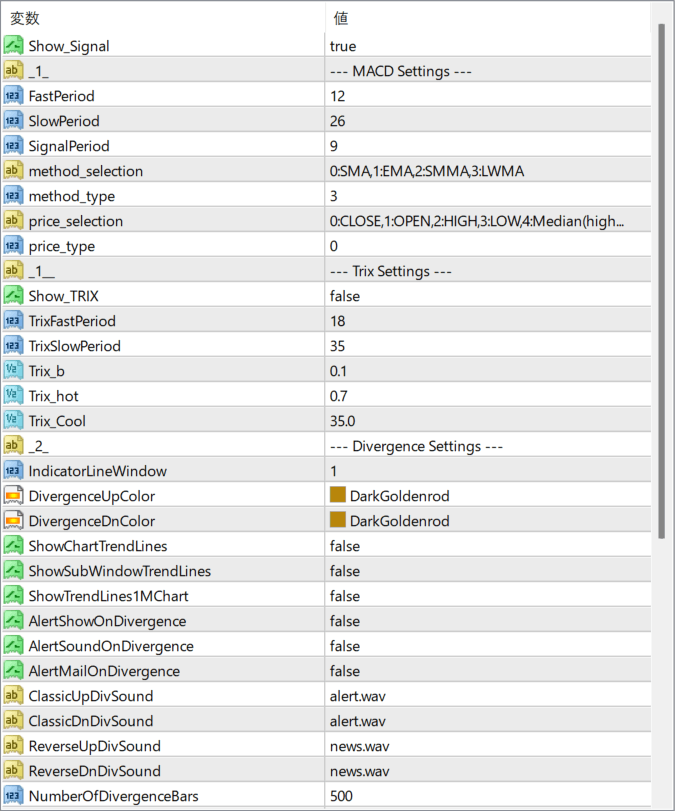
The screenshot above shows the default input parameters in the MT4 settings window.
How to Install .ex4 Indicator in MetaTrader 4
- Download the ZIP file and extract it.
- In MT4, select File → Open Data Folder.
- Open MQL4 → Indicators and copy the EX4 or MQ4 file into it.
- If the package includes library files, copy them to MQL4 → Libraries. Copy TPL files to the top-level templates folder.
- Restart MT4, find the indicator in the Navigator, and drag it onto a chart.
Test the tool on a demo account first. File contents and required folders can vary between packages.


