What is Elders_Safe_Zone_MTF?
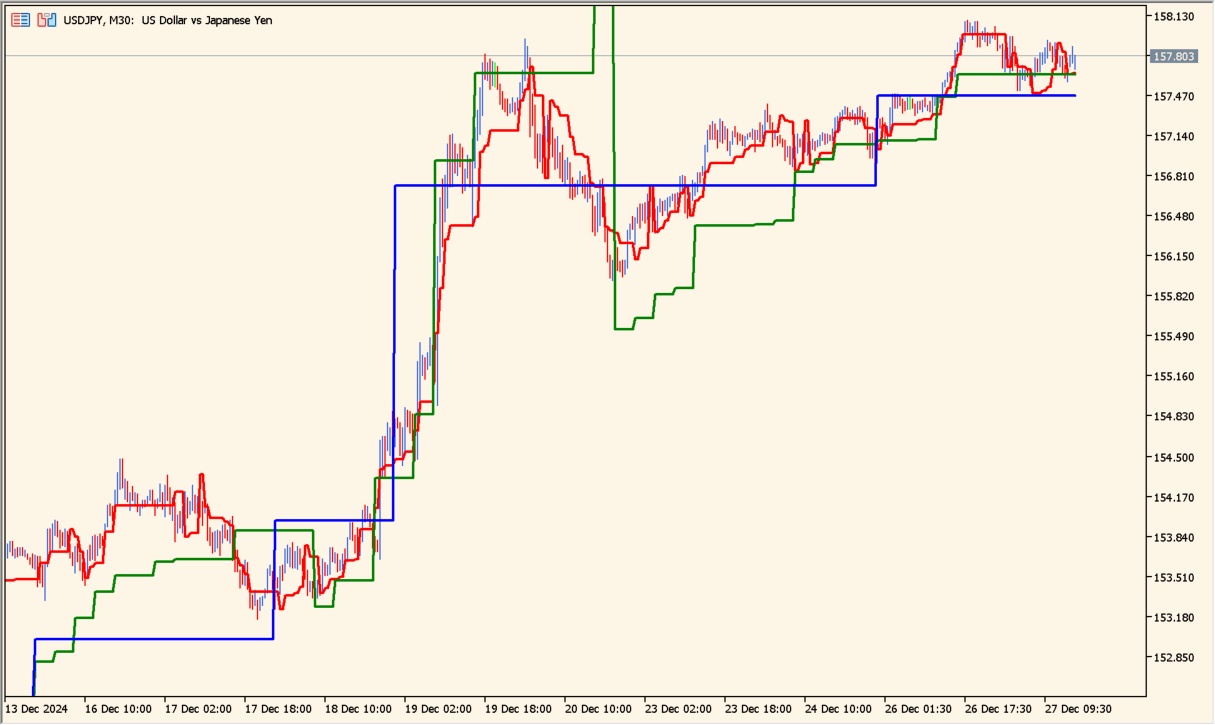
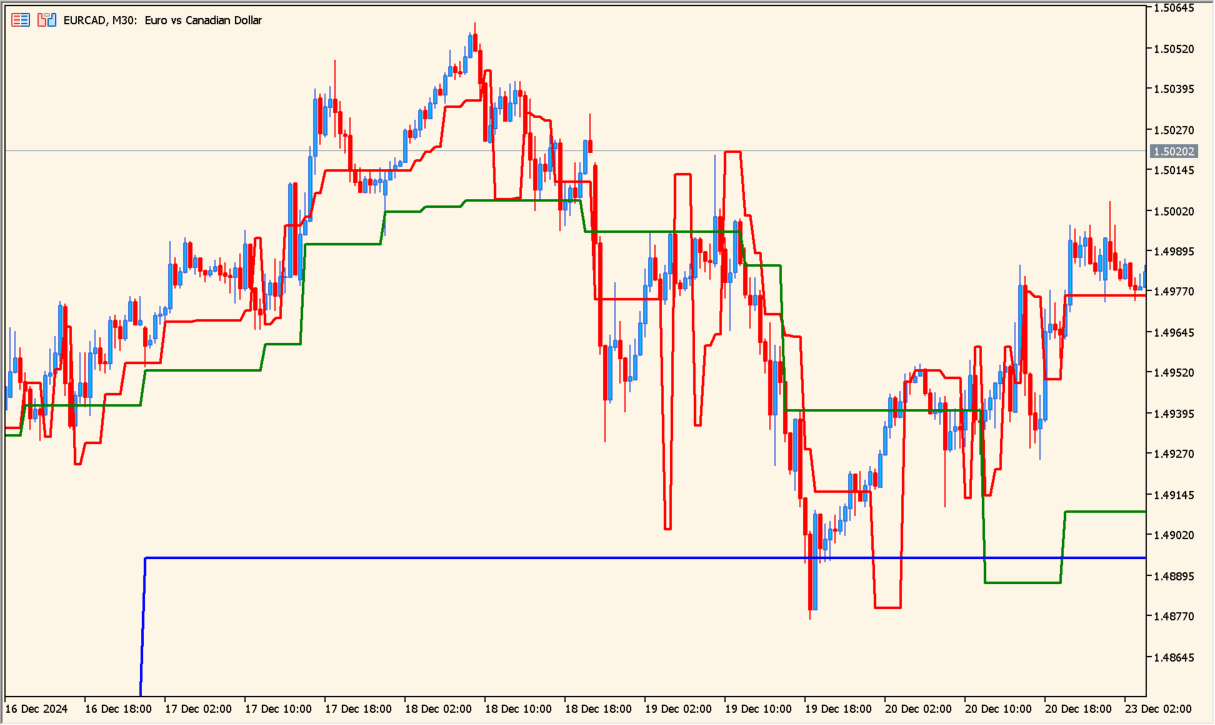
Elders_Safe_Zone_MTF displays three color-coded lines based on an EMA-style Safe Zone calculation. Each line can use its own timeframe, so several levels can be viewed on one chart.
The lines can act as stop reference areas and show broader direction when all three point the same way. A line cross alone is not presented as an entry signal.
How to use Elders_Safe_Zone_MTF
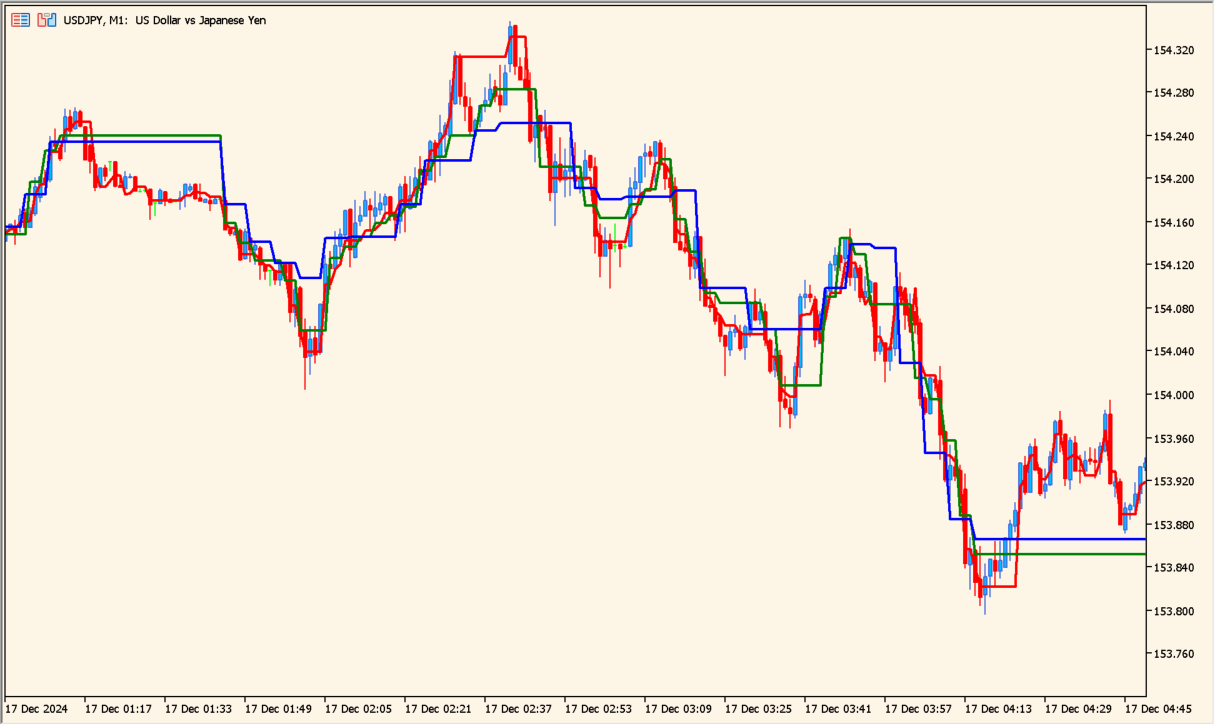
Add Elders_Safe_Zone_MTF to an MT5 chart and compare the direction of the three colored lines across the selected timeframes.
Adjust the period, stop factor, EMA period, drawing mode, and the three ESZ timeframe inputs to match the timeframes you want to inspect.
Where it helps
Places separate timeframe readings on the same chart for a broader trend view.
Shows EMA-based lines that can be reviewed as potential stop or support and resistance areas.
Each timeframe can be changed without confusing it with the other two lines.
MT5 Indicator Parameters
The table below lists the available MT5 indicator parameters. You can customize these options in the MetaTrader Inputs dialog to match your trading preferences.
| Parameter | Description |
|---|---|
| InpPeriod | Sets this calculation or display option. Default: 10. |
| InpStopFactor | Sets this calculation or display option. Default: 3. |
| InpPeriodEMA | Sets this calculation or display option. Default: 13. |
| InpDrawMode | Enables or disables this display option. Default: DRAW_MODE_STEPS. |
| InpTimeframe1 | Sets this calculation or display option. Default: PERIOD_H1. |
| InpTimeframe2 | Sets this calculation or display option. Default: PERIOD_H4. |
| InpTimeframe3 | Sets this calculation or display option. Default: PERIOD_D1. |
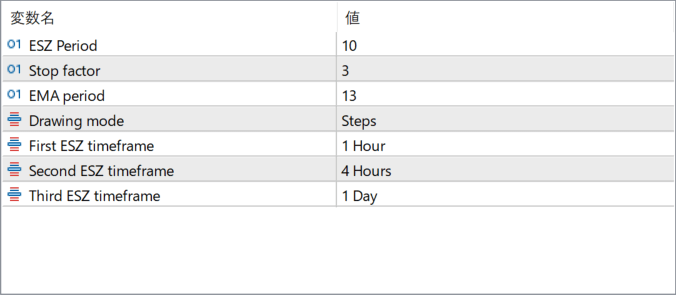
The screenshot above shows the default input parameters in the MT5 settings window.
How to Install .ex5 Indicator in MetaTrader 5
- Download the ZIP file and extract it.
- In MT5, select File → Open Data Folder.
- Open MQL5 → Indicators and copy the EX5 or MQ5 file into it.
- If the package includes library files, copy them to MQL5 → Libraries. Copy TPL files to the top-level templates folder.
- Restart MT5, find the indicator in the Navigator, and drag it onto a chart.
Test the tool on a demo account first. File contents and required folders can vary between packages.