What is FBW 3D BC?
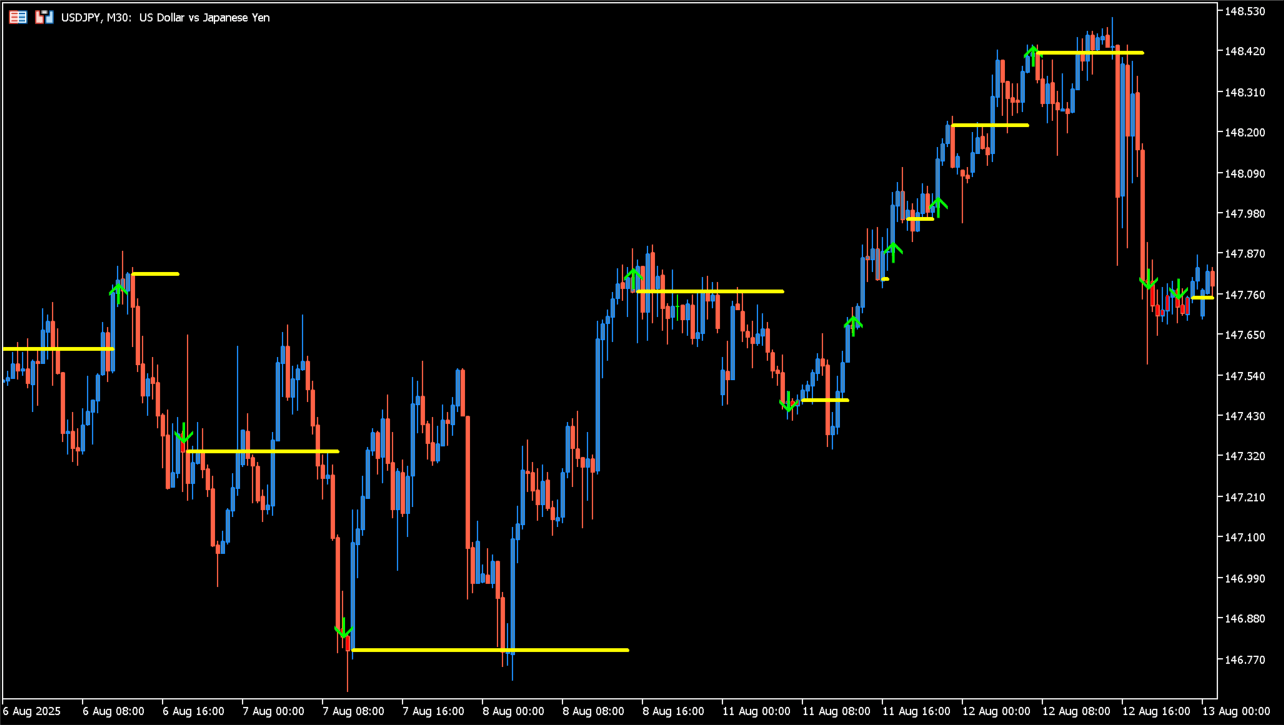
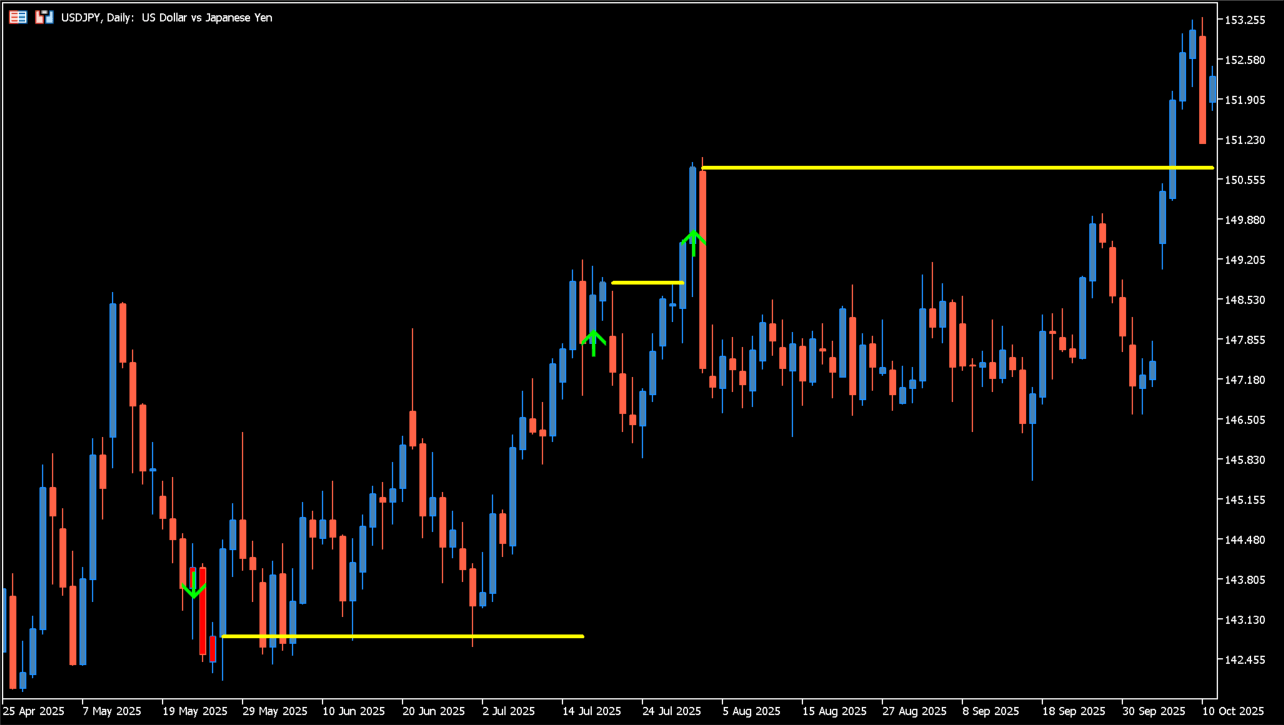
FBW 3D BC compares three configured ADX periods and places its calculated horizontal levels on an MT5 chart. Colored arrow marks also appear at selected conditions.
The display is a calculation based on its ADX periods and level-history settings. Review it together with current price structure.
How to use FBW 3D BC
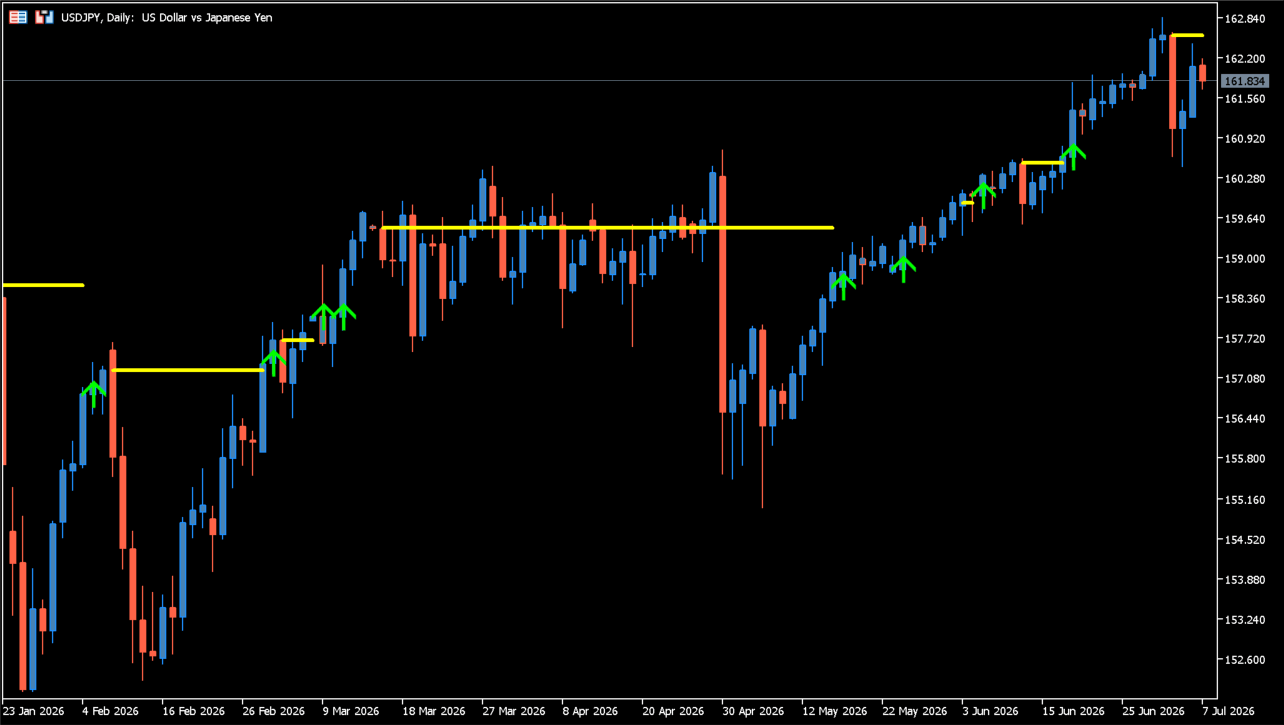
Review the three ADX periods together with the visible horizontal levels and completed candles. Keep the level display and optional arrow marks separate when assessing the current chart context.
The alert, email, and push switches control notifications, while the line-history and color inputs control the presentation recorded by the indicator.
Where it helps
Three independently configured ADX lengths are available in the source Inputs window.
A history setting controls how many earlier horizontal lines remain visible.
Horizontal-line, arrow, email, and push settings are separate Inputs.
MT5 Indicator Parameters
The table below lists the available MT5 indicator parameters. You can customize these options in the MetaTrader Inputs dialog to match your trading preferences.
| Parameter | Description |
|---|---|
| ADXperiod1 | Sets the first ADX calculation period. Default: 10. |
| ADXperiod2 | Sets the second ADX calculation period. Default: 14. |
| ADXperiod3 | Sets the third ADX calculation period. Default: 20. |
| UseAlertToHorizontalLine | Enables or disables alerts related to displayed horizontal lines. Default: false. |
| UseAlertUpDownArrows | Enables or disables alerts related to the up and down arrow marks. Default: false. |
| How many previous horizontal lines to trac... | Sets how many earlier horizontal lines the display retains. Default: 0. |
| Ignore previous horizontal lines short than | Sets the minimum period used when checking earlier horizontal lines. Default: 2. |
| PHLC_Arrow_Color | Sets the color used for the arrow mark. Default: Chocolate. |
| Send alerts via email? | Enables or disables email notifications. Default: false. |
| Send alerts via push notifications? | Enables or disables push notifications. Default: false. |
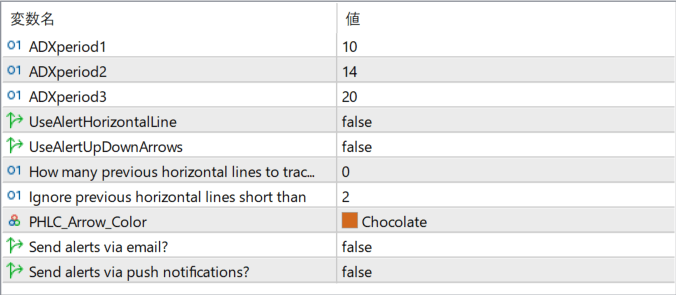
The screenshot above shows the default input parameters in the MT5 settings window.
How to Install .ex5 Indicator in MetaTrader 5
- Download the ZIP file and extract it.
- In MT5, select File → Open Data Folder.
- Open MQL5 → Indicators and copy the EX5 or MQ5 file into it.
- If the package includes library files, copy them to MQL5 → Libraries. Copy TPL files to the top-level templates folder.
- Restart MT5, find the indicator in the Navigator, and drag it onto a chart.
Test the tool on a demo account first. File contents and required folders can vary between packages.