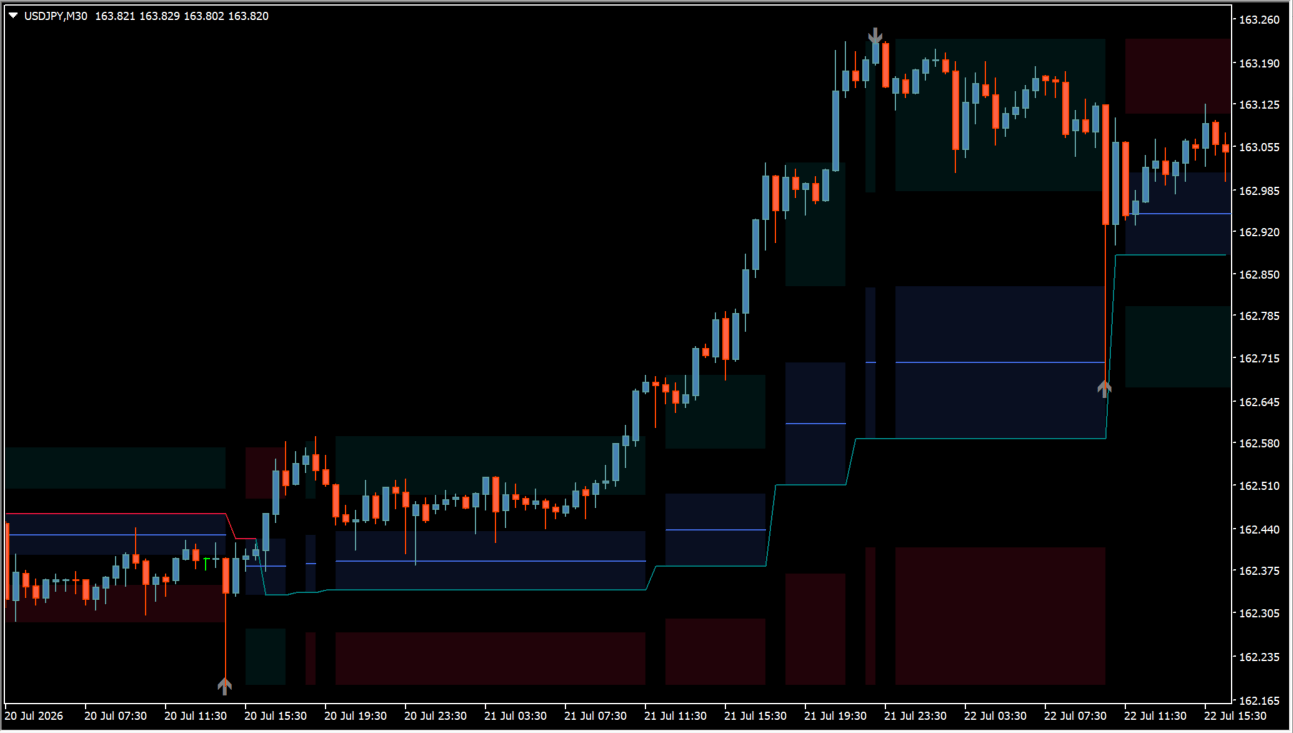
What is Fibonacci Trailing Stop?
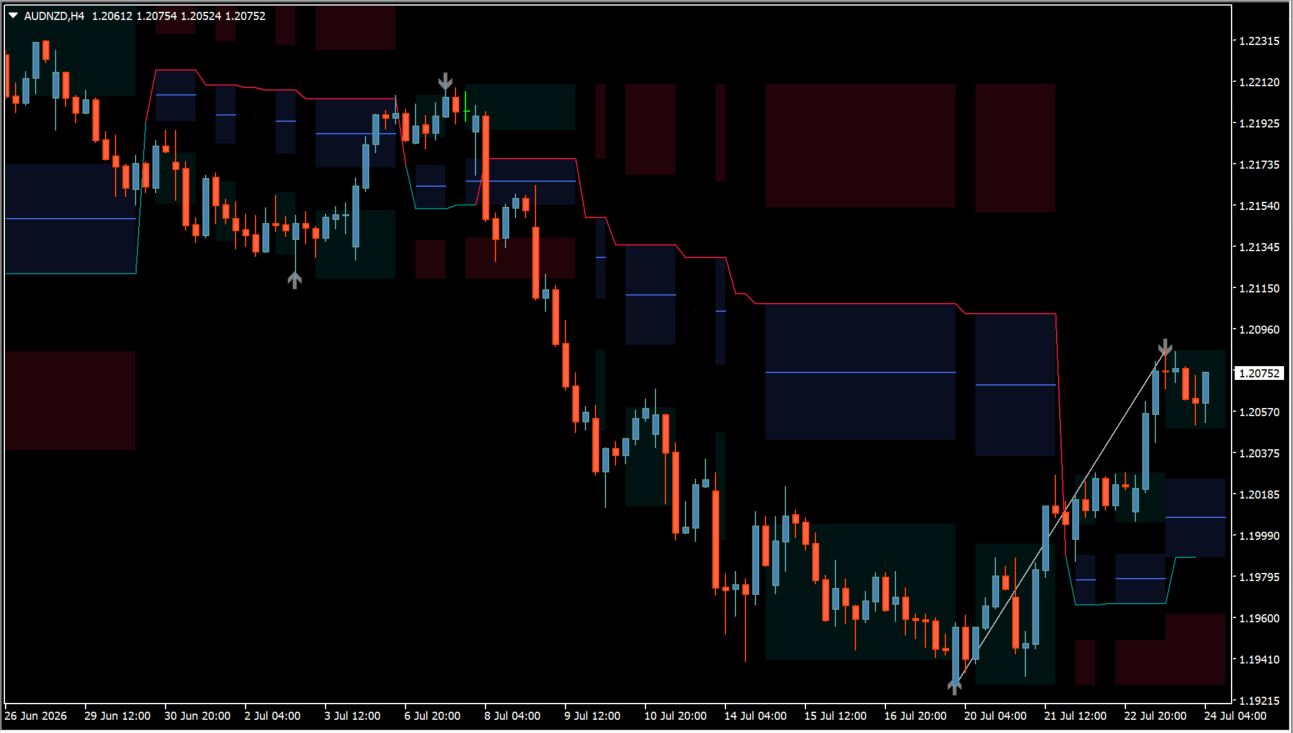
Fibonacci Trailing Stop is an MT4 indicator that calculates stop levels using Fibonacci ratios from detected swing points and plots them as continuous colored lines above or below price action.
A teal line marks the trailing stop reference below price during uptrends, while a crimson line marks the trailing stop reference above price during downtrends, alongside the swing points and Fibonacci levels used to calculate them.
How to use Fibonacci Trailing Stop
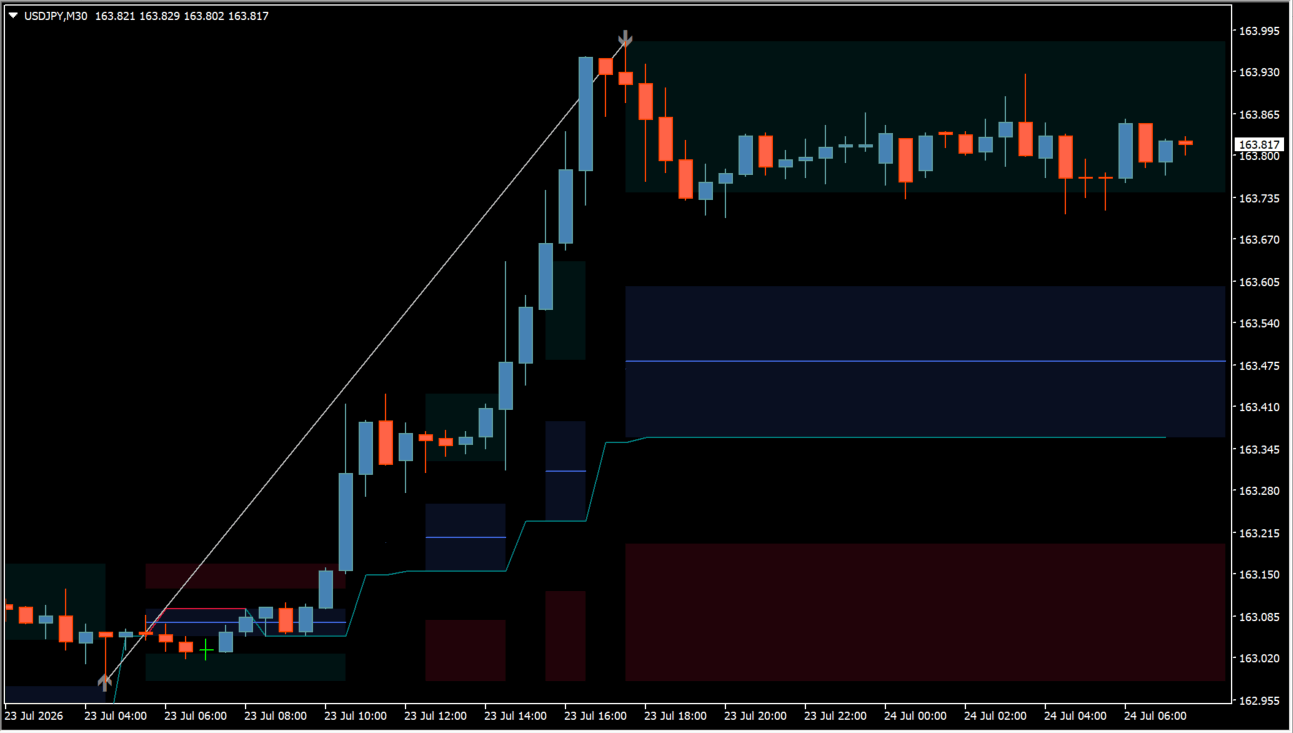
Use the plotted line as a trailing stop reference for the current trend:
Where it helps
Displays Fibonacci-based trailing stop reference lines calculated from swing points, teal and crimson line colors distinguish long and short stop references, and level, trigger, and color adjustments are available in the Inputs tab.
MT4 Indicator Parameters
The table below lists the available MT4 indicator parameters. You can customize these options in the MetaTrader Inputs dialog to match your trading preferences.
| Parameter | Description |
|---|---|
| Swings ######################### | Swing detection settings section. |
| L | Sets the L input value. Default: 20. |
| R | Sets the R input value. Default: 1. |
| Swings labels | Shows or hides swing labels. Default: false. |
| Fibonacci Trailing Stop ######################### | Fibonacci trailing stop settings section. |
| Level | Sets the level value used by the indicator. Default: -0.382. |
| Use Manual Level | Controls whether manual level control is enabled. Default: false. |
| Manual Level | Sets the manual level value when manual level control is enabled. Default: 1.618. |
| Trigger | Selects the trigger price setting. Default: Close. |
| Bullish Color | Sets the bullish display color. Default: Teal. |
| Bearish Color | Sets the bearish display color. Default: Crimson. |
| Fibonacci ######################### | Fibonacci display settings section. |
| Latest Fibonacci | Controls whether the latest Fibonacci display is enabled. Default: true. |
| F0 | Sets the F0 display color. Default: Teal. |
| Fm | Sets the Fm display color. Default: RoyalBlue. |
| F1 | Sets the F1 display color. Default: Crimson. |
| Shadows | Enables or disables the Shadows option. Default: true. |
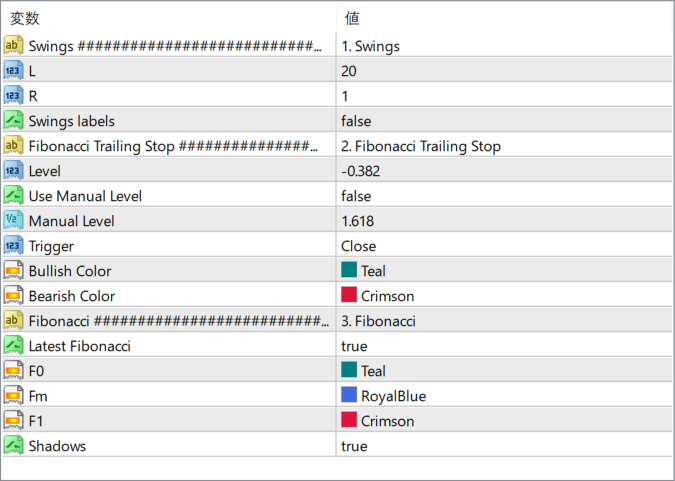
The screenshot above shows the default input parameters in the MT4 settings window.
How to Install .ex4 Indicator in MetaTrader 4
- Download the ZIP file and extract it.
- In MT4, select File → Open Data Folder.
- Open MQL4 → Indicators and copy the EX4 or MQ4 file into it.
- If the package includes library files, copy them to MQL4 → Libraries. Copy TPL files to the top-level templates folder.
- Restart MT4, find the indicator in the Navigator, and drag it onto a chart.
Test the tool on a demo account first. File contents and required folders can vary between packages.


