What is fractal-adx-cloud?
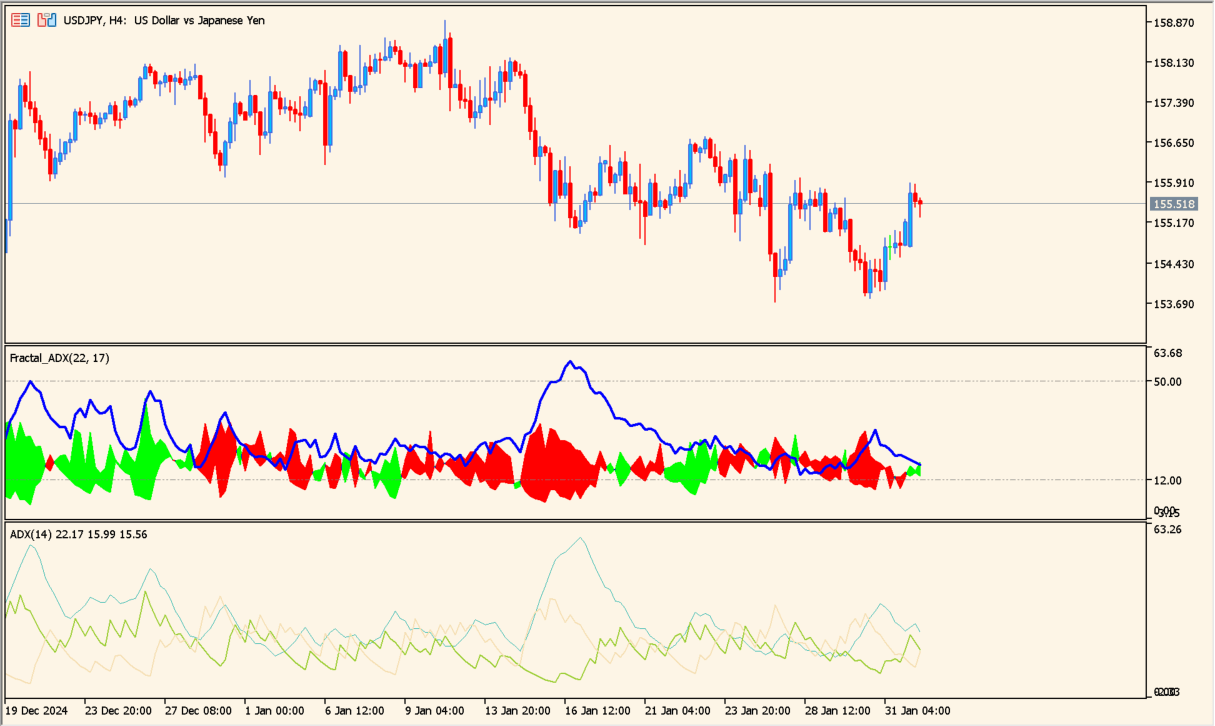
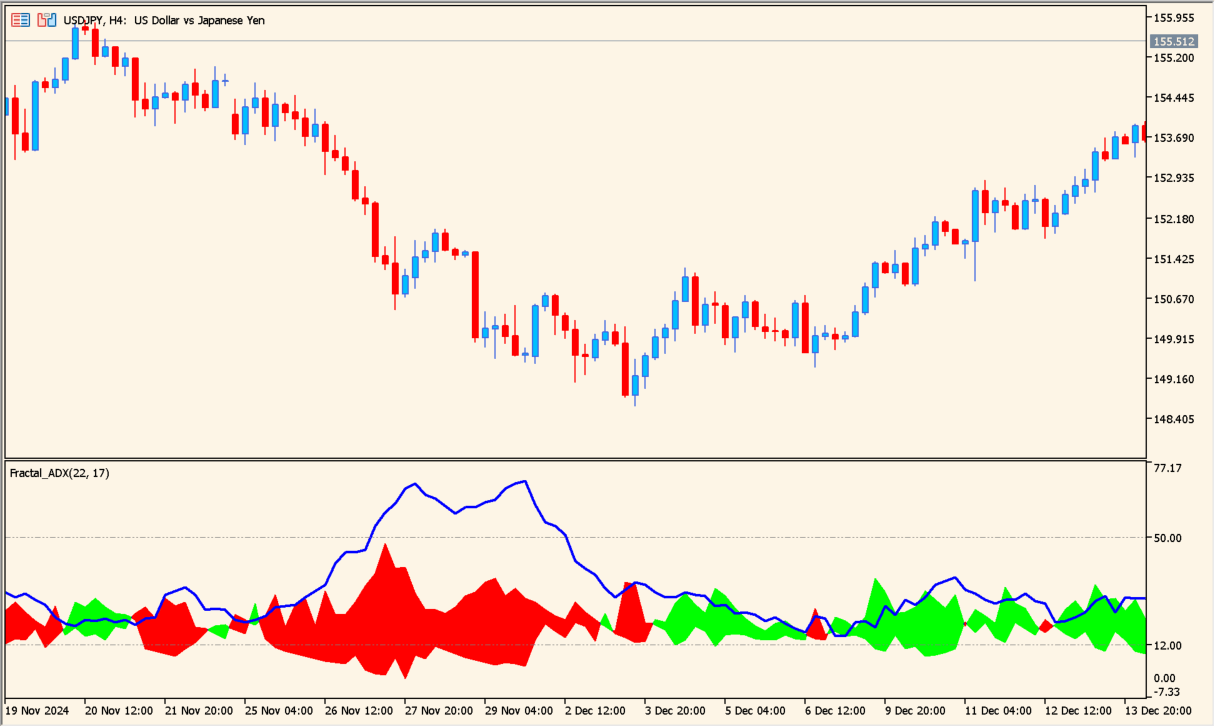
Fractal-adx-cloud reorganizes the usual ADX view of ADX, +DI, and -DI into a blue ADX line with red and green histogram areas. The colors emphasize falling and rising direction more directly than three plain lines.
The display is a clearer way to inspect trend direction, not a replacement for reviewing price movement and the underlying ADX behavior.
How to use fractal-adx-cloud
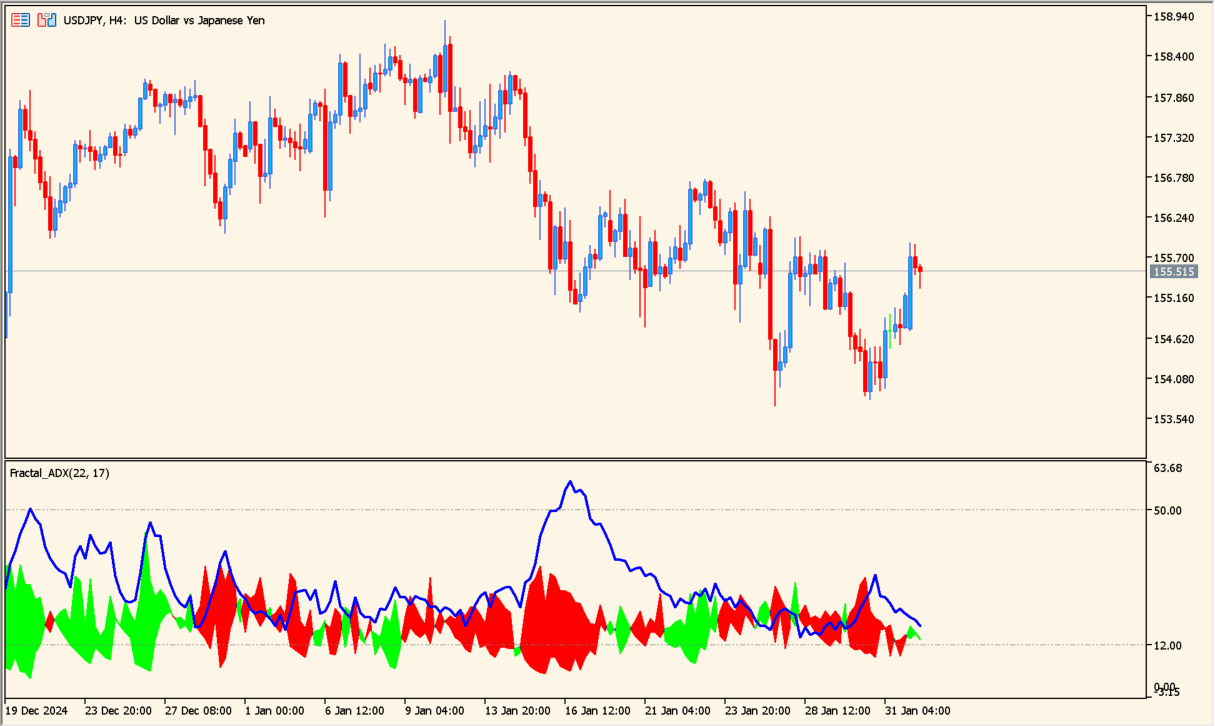
Place fractal-adx-cloud in an MT5 subwindow and compare the blue line with the red or green histogram as the trend changes.
The Inputs retain the original names, including the averaging depth, normal speed, price constant, and horizontal shift. Adjust them only after observing the default display.
Where it helps
Red and green histogram areas make rising and falling movement easier to distinguish.
Keeps the main ADX line visible while presenting the directional information more clearly.
Preserves the source settings, including the non-English labels shown in the Inputs image.
MT5 Indicator Parameters
The table below lists the available MT5 indicator parameters. You can customize these options in the MetaTrader Inputs dialog to match your trading preferences.
| Parameter | Description |
|---|---|
| e_period | Sets this calculation or display option. Default: 30. |
| normal_speed | Controls this indicator option. Default: 30. |
| IPC | Controls this indicator option. Default: PRICE_CLOSE_. |
| Shift | Sets this calculation or display option. Default: 0. |
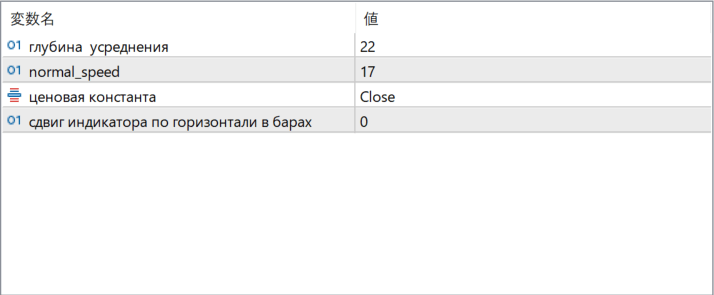
The screenshot above shows the default input parameters in the MT5 settings window.
How to Install .ex5 Indicator in MetaTrader 5
- Download the ZIP file and extract it.
- In MT5, select File → Open Data Folder.
- Open MQL5 → Indicators and copy the EX5 or MQ5 file into it.
- If the package includes library files, copy them to MQL5 → Libraries. Copy TPL files to the top-level templates folder.
- Restart MT5, find the indicator in the Navigator, and drag it onto a chart.
Test the tool on a demo account first. File contents and required folders can vary between packages.