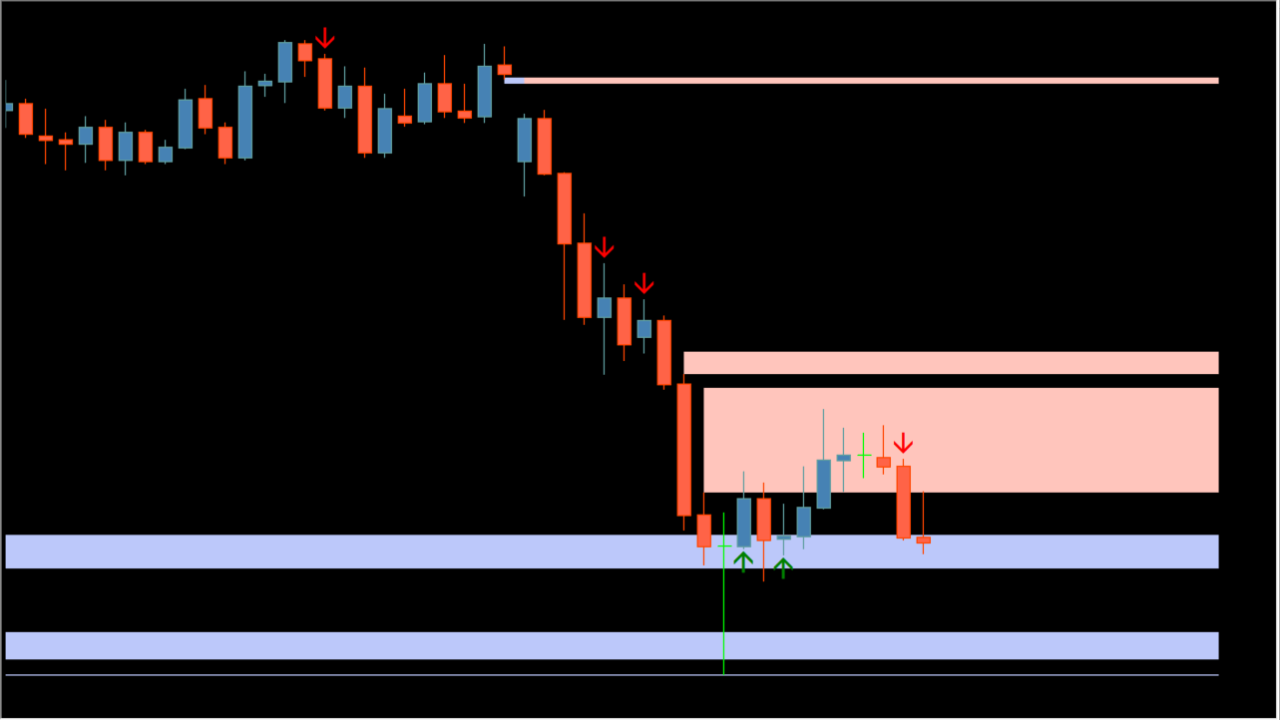
What is FVG-iFVG + SFP ICT MT4 By TFlab?
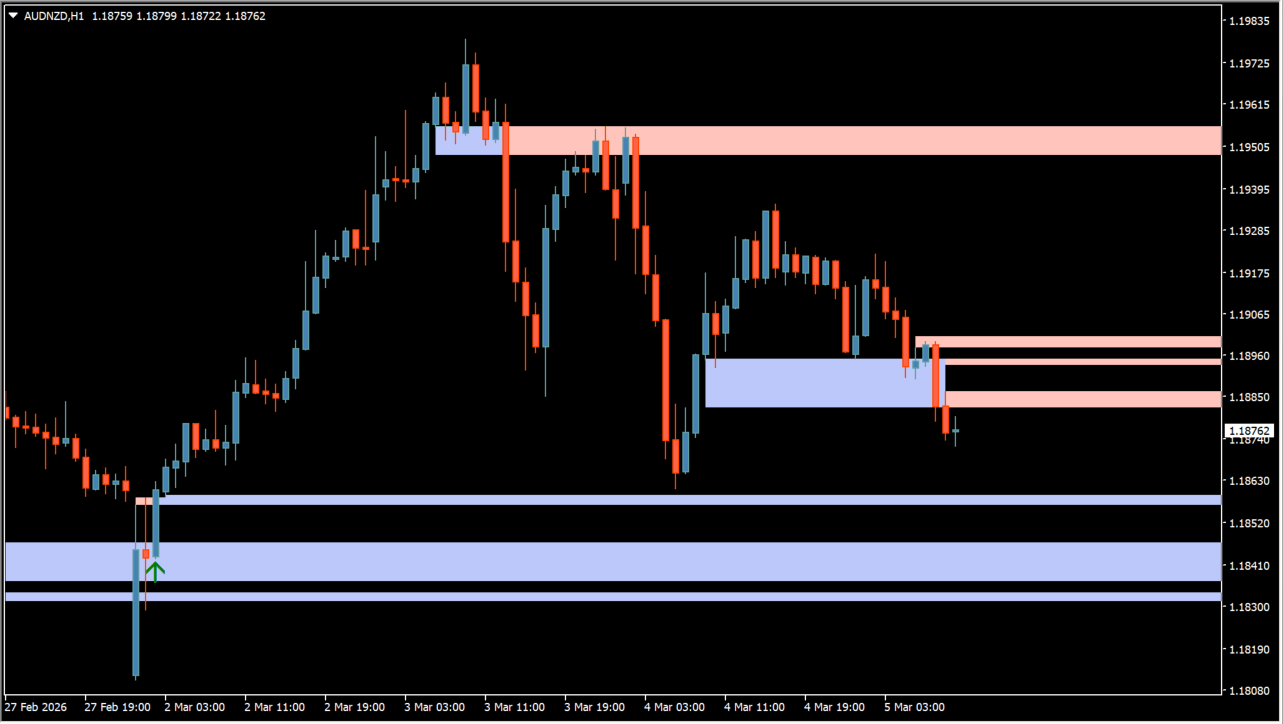
FVG-iFVG + SFP ICT MT4 By TFlab is an ICT market structure indicator for MT4 that automatically plots Fair Value Gaps (FVG), Inverse Fair Value Gaps (iFVG), and Swing Failure Pattern (SFP) signal markers.
How to use FVG-iFVG + SFP ICT MT4 By TFlab
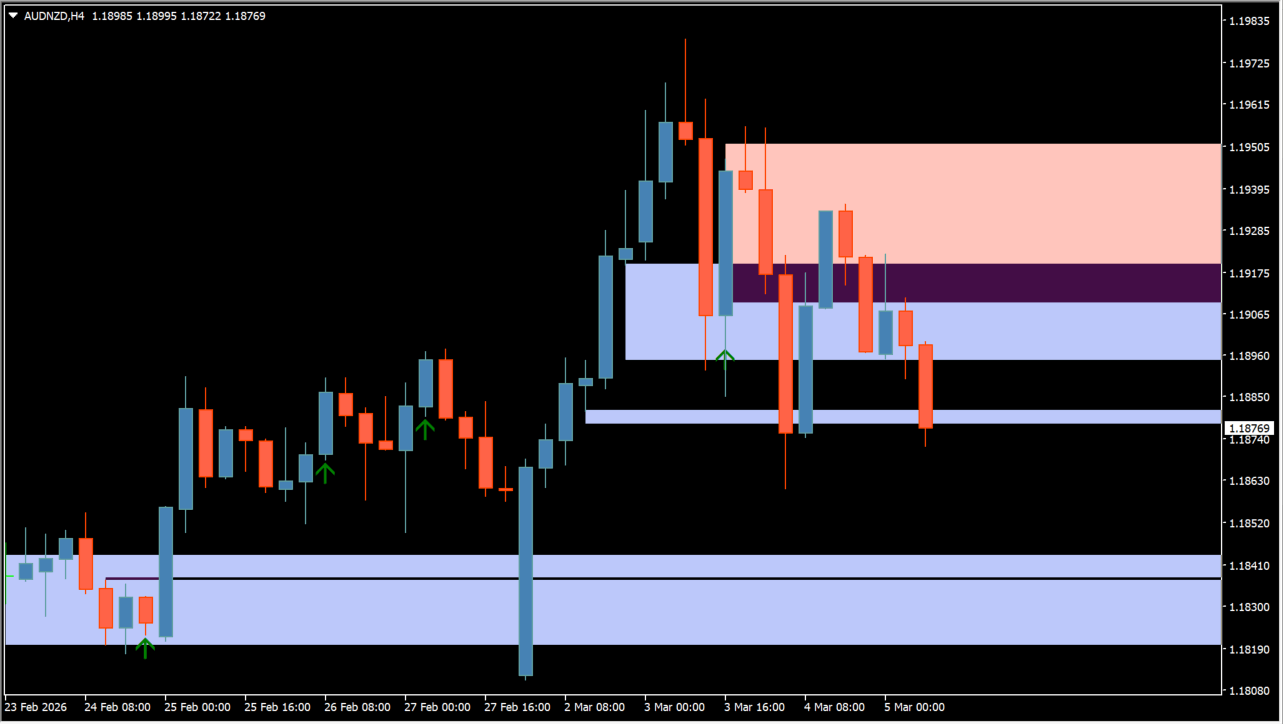
Attach the indicator to your MT4 chart to view automatically drawn FVG and iFVG zone rectangles. Observe price interaction as price retraces into historical gap zones.
Where it helps
Displays bullish and bearish Fair Value Gap (FVG) rectangles on price charts.
Highlights Inverse FVGs (iFVG) and Swing Failure Pattern (SFP) signal markers.
Configures minimum and maximum pip height thresholds for displayed gap boxes.
MT4 Indicator Parameters
The table below lists the available MT4 indicator parameters. You can customize these options in the MetaTrader Inputs dialog to match your trading preferences.
| Parameter | Description |
|---|---|
| FvgPeriod | Sets calculation bar period for Fair Value Gap identification. Default: 3. |
| MinGapPips | Sets minimum gap height threshold in pips. Default: 1.0. |
| MaxGapPips | Sets maximum gap height threshold in pips. Default: 100.0. |
| ShowIFVG | Enables or disables Inverse FVG (iFVG) zone display. Default: true. |
| ShowSFP | Enables or disables Swing Failure Pattern (SFP) marker signals. Default: true. |
| BullishFvgColor | Sets fill color for bullish Fair Value Gap boxes. Default: clrDodgerBlue. |
| BearishFvgColor | Sets fill color for bearish Fair Value Gap boxes. Default: clrTomato. |
| BullishIfvgColor | Sets fill color for bullish Inverse FVG boxes. Default: clrDeepSkyBlue. |
| BearishIfvgColor | Sets fill color for bearish Inverse FVG boxes. Default: clrLightCoral. |
| MaxHistoryBars | Sets maximum historical bars limit for calculation. Default: 1000. |
| PopupAlert | Enables or disables MT4 desktop popup alert messages. Default: false. |
| SoundAlert | Enables or disables audio sound alerts. Default: false. |
| PushAlert | Enables or disables mobile push notifications. Default: false. |
| EmailAlert | Enables or disables email notifications. Default: false. |
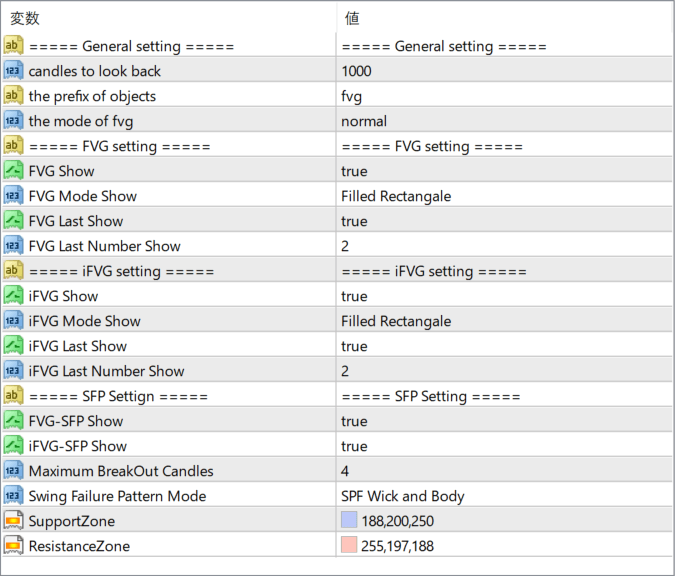
The screenshot above shows the default input parameters in the MT4 settings window.
How to Install .ex4 Indicator in MetaTrader 4
- Download the ZIP file and extract it.
- In MT4, select File → Open Data Folder.
- Open MQL4 → Indicators and copy the EX4 or MQ4 file into it.
- If the package includes library files, copy them to MQL4 → Libraries. Copy TPL files to the top-level templates folder.
- Restart MT4, find the indicator in the Navigator, and drag it onto a chart.
Test the tool on a demo account first. File contents and required folders can vary between packages.


