What is gann-multi-trend-indicator?
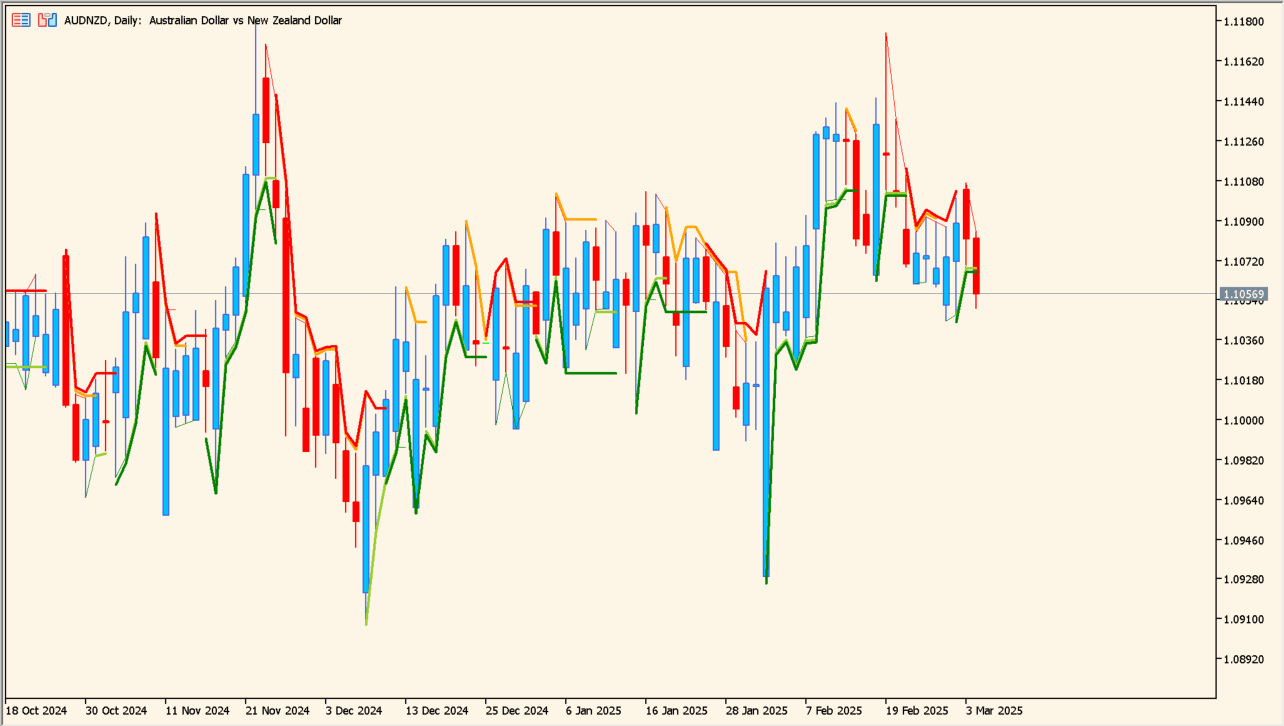
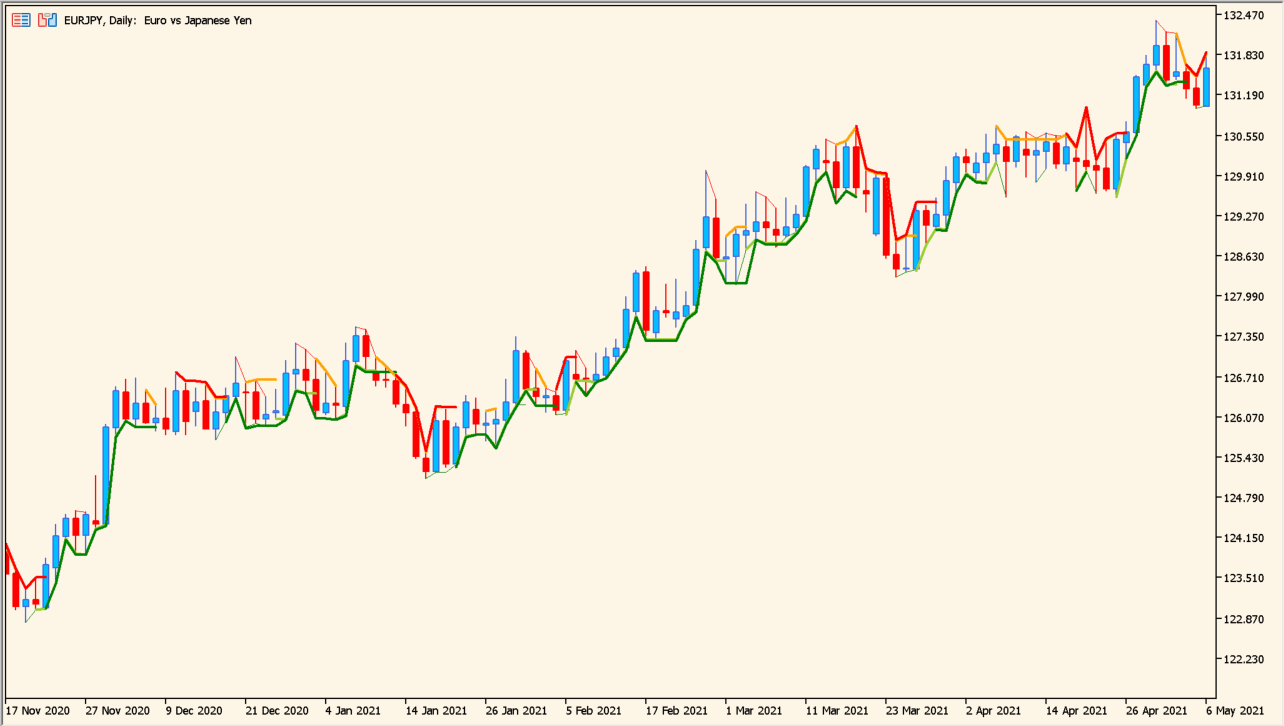
gann-multi-trend-indicator uses Gann-style calculations to draw three trend lines for different periods. Their colors separate shorter movement from medium and longer market direction.
The initial settings are relatively short, so the lines can follow recent highs and lows closely. The combined view is intended to make the current directional structure easier to compare.
How to use gann-multi-trend-indicator
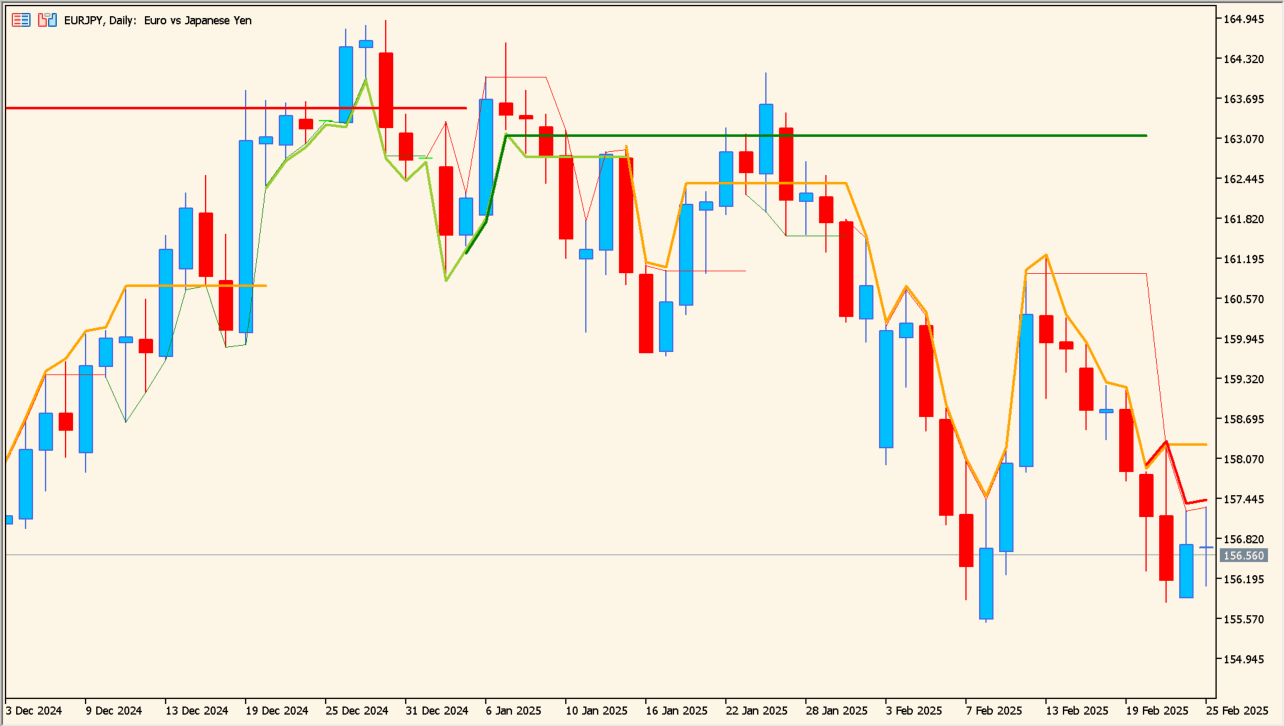
Apply gann-multi-trend-indicator to an MT5 chart and compare the three colored lines before focusing on one timeframe.
Use the short, medium, and long period inputs to change how quickly each line responds, then review the result on the timeframe where you plan to read the chart.
Where it helps
Separates short-, medium-, and long-term direction in one chart view.
Makes the different trend periods easier to distinguish at a glance.
Supports a broader directional read instead of relying on one line alone.
MT5 Indicator Parameters
The table below lists the available MT5 indicator parameters. You can customize these options in the MetaTrader Inputs dialog to match your trading preferences.
| Parameter | Description |
|---|---|
| InpPeriod1 | Sets this calculation or display option. Default: 1. |
| InpPeriod2 | Sets this calculation or display option. Default: 2. |
| InpPeriod3 | Sets this calculation or display option. Default: 3. |
| InpDev | Controls this indicator option. Default: 15. |
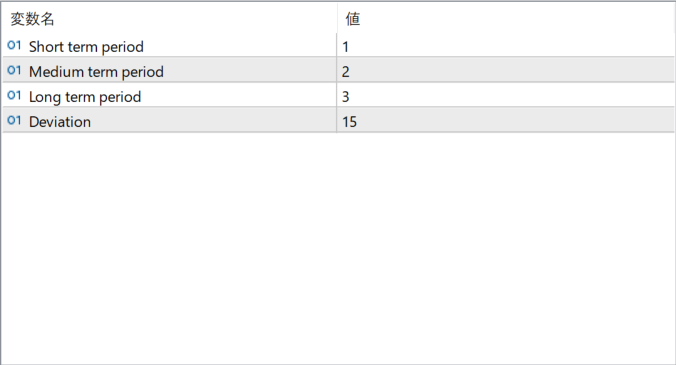
The screenshot above shows the default input parameters in the MT5 settings window.
How to Install .ex5 Indicator in MetaTrader 5
- Download the ZIP file and extract it.
- In MT5, select File → Open Data Folder.
- Open MQL5 → Indicators and copy the EX5 or MQ5 file into it.
- If the package includes library files, copy them to MQL5 → Libraries. Copy TPL files to the top-level templates folder.
- Restart MT5, find the indicator in the Navigator, and drag it onto a chart.
Test the tool on a demo account first. File contents and required folders can vary between packages.