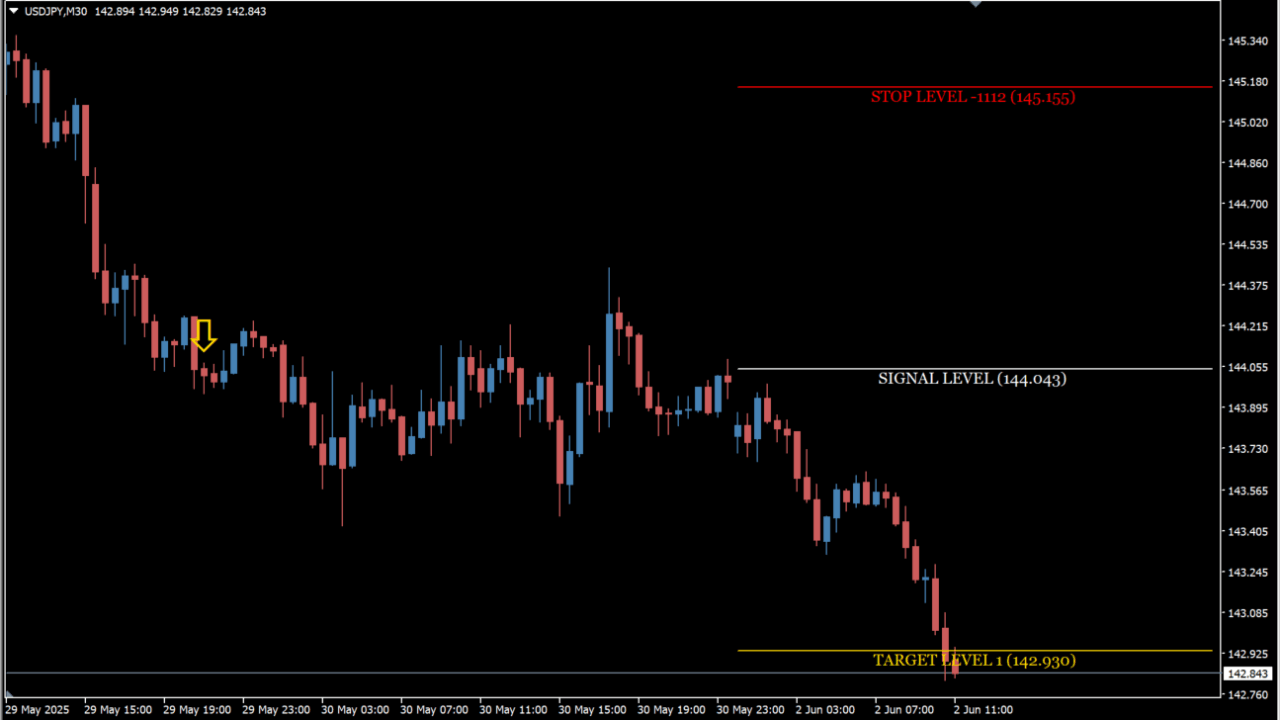
What is GannMadeEasy @free_fx_pro?
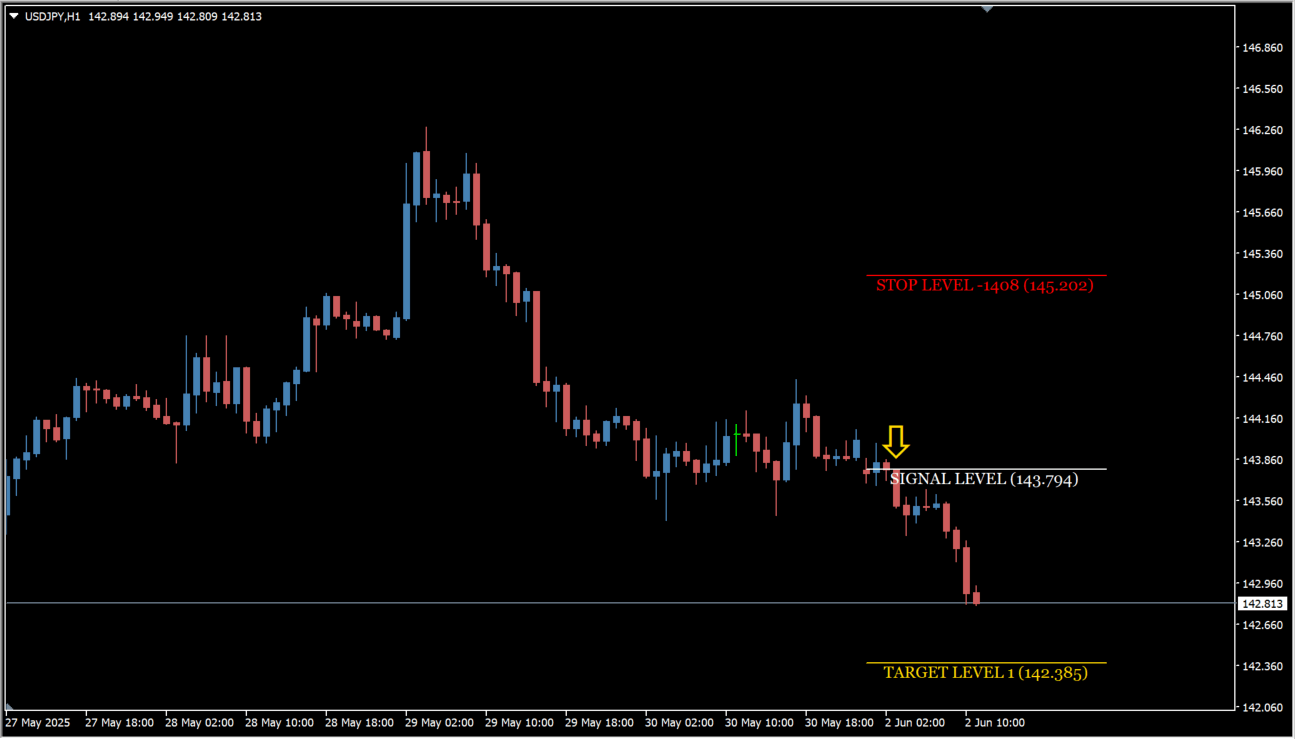
GannMadeEasy @free_fx_pro is an MT4 indicator that draws an entry sign together with a signal level, a stop level and three target levels. Only the current set is shown, so earlier signs are not left on the chart.
How to use GannMadeEasy @free_fx_pro
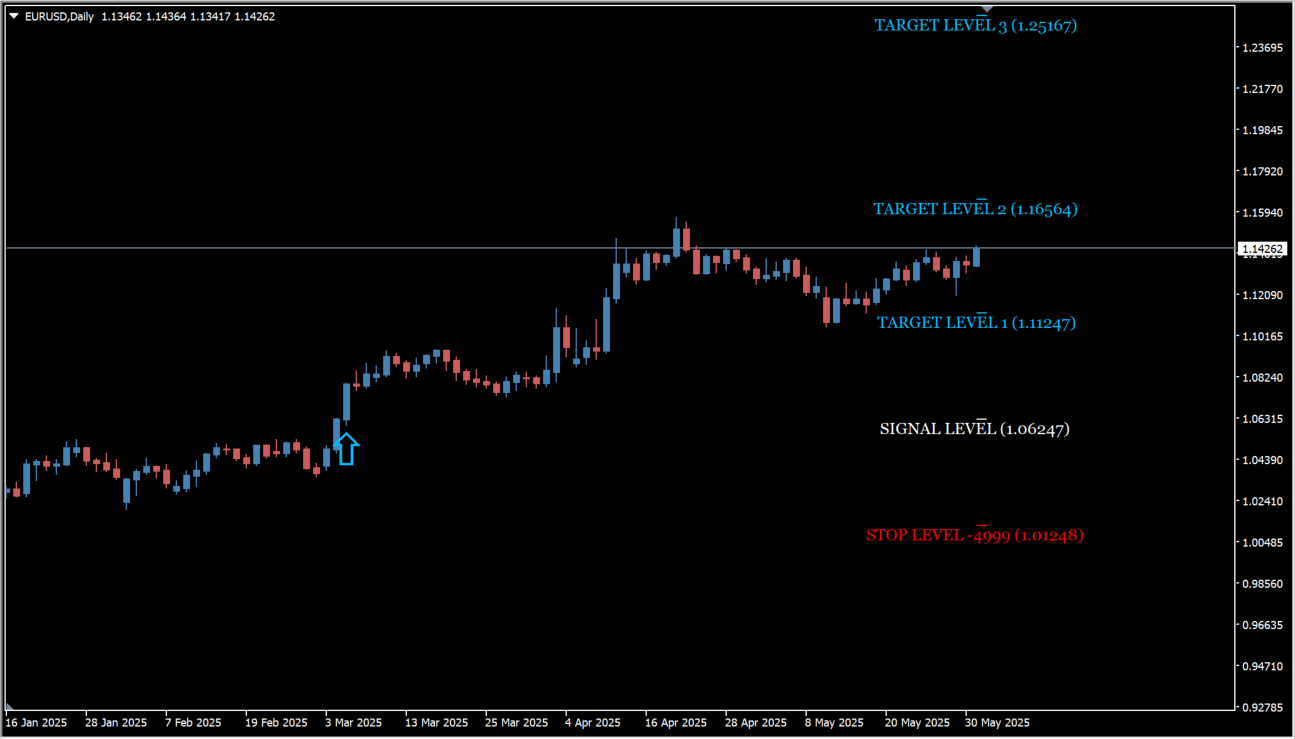
An entry arrow, a signal level, a stop level and three target levels appear when an entry sign lights up. When a new entry condition is met, the current sign and its lines are cleared and a new set is drawn.
Where it helps
MT4 Indicator Parameters
The table below lists the available MT4 indicator parameters. You can customize these options in the MetaTrader Inputs dialog to match your trading preferences.
| Parameter | Description |
|---|---|
| BUY TARGET Color | Sets the color of the buy target line. |
| SELL TARGET Color | Sets the color of the sell target line. |
| Signal Arrow Size | Sets the size of the arrow drawn for the entry sign. |
| STOP LEVEL Color | Sets the color of the stop level line. |
| Multiply Risk Stop | Sets the multiplier applied to the stop used in the risk-to-reward calculation, which changes how far the target levels are placed. |
| ================== | Section label for the alert group. |
| PopUp Alert | Controls whether a pop-up notification is shown when a signal occurs. |
| Email Alert | Controls whether an email notification is sent when a signal occurs. |
| PUSH Alert | Controls whether a push notification is sent to a mobile device. |
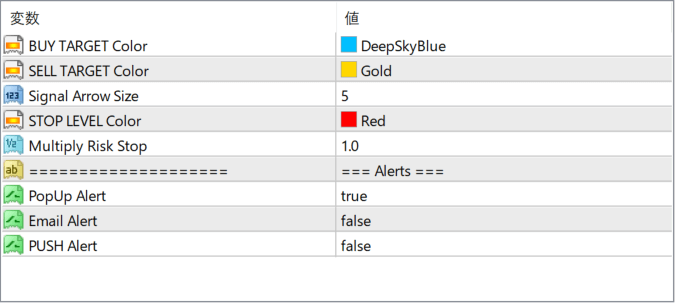
The screenshot above shows the default input parameters in the MT4 settings window.
How to Install .ex4 Indicator in MetaTrader 4
- Download the ZIP file and extract it.
- In MT4, select File → Open Data Folder.
- Open MQL4 → Indicators and copy the EX4 or MQ4 file into it.
- If the package includes library files, copy them to MQL4 → Libraries. Copy TPL files to the top-level templates folder.
- Restart MT4, find the indicator in the Navigator, and drag it onto a chart.
Test the tool on a demo account first. File contents and required folders can vary between packages.


