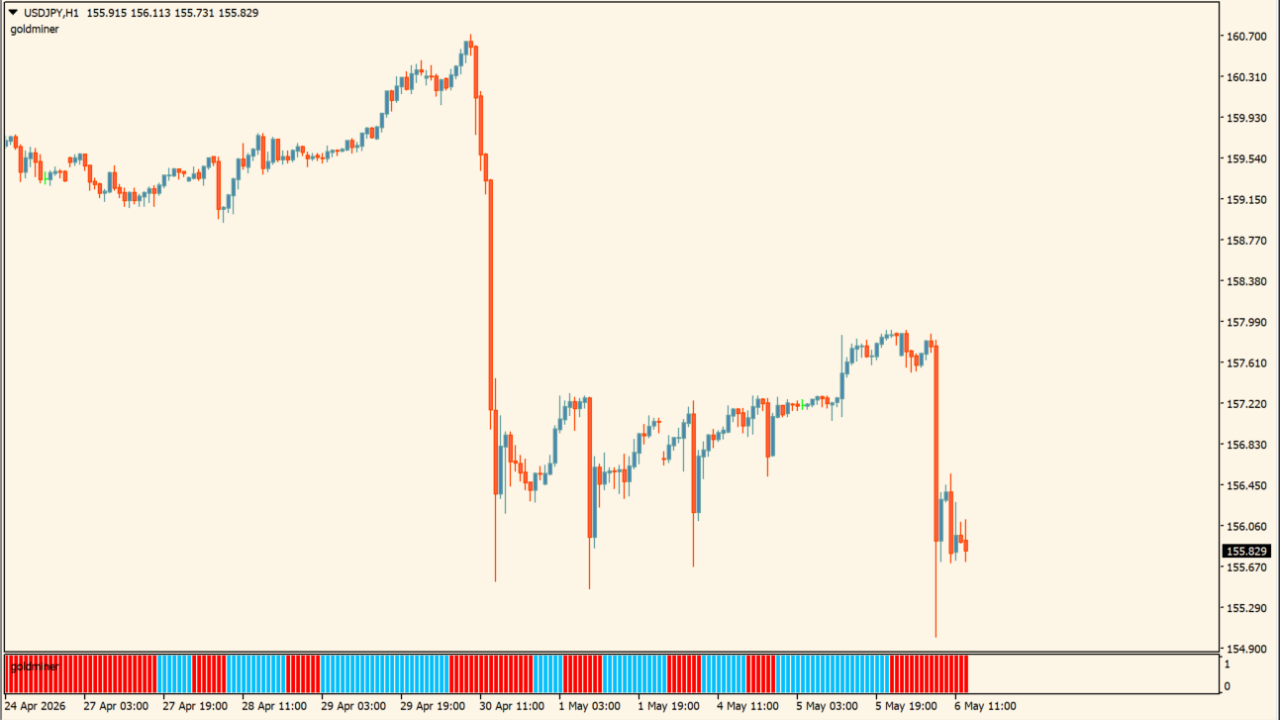
What is goldminer2?
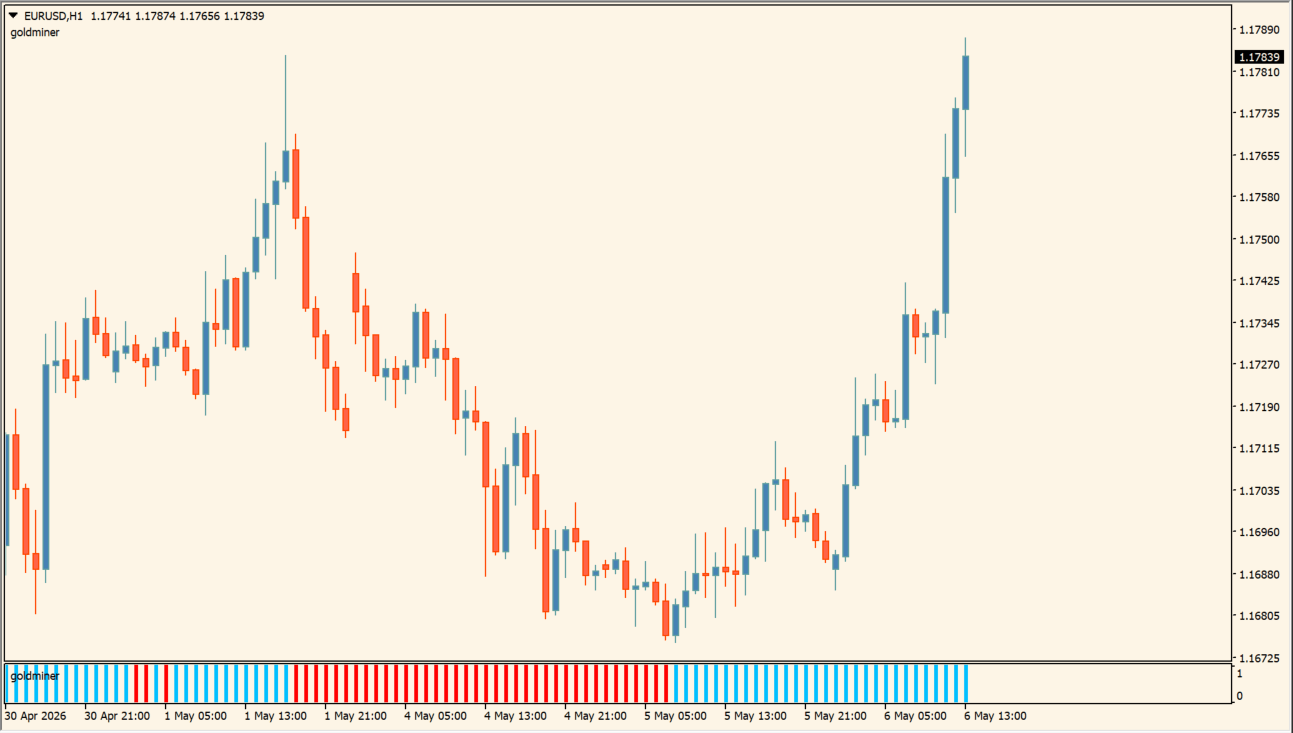
goldminer2 visualizes market trends using color-coded bars in a separate indicator window below the price chart.
Green bars indicate bullish momentum, while red bars indicate bearish momentum to assist in market context evaluation.
How to use goldminer2
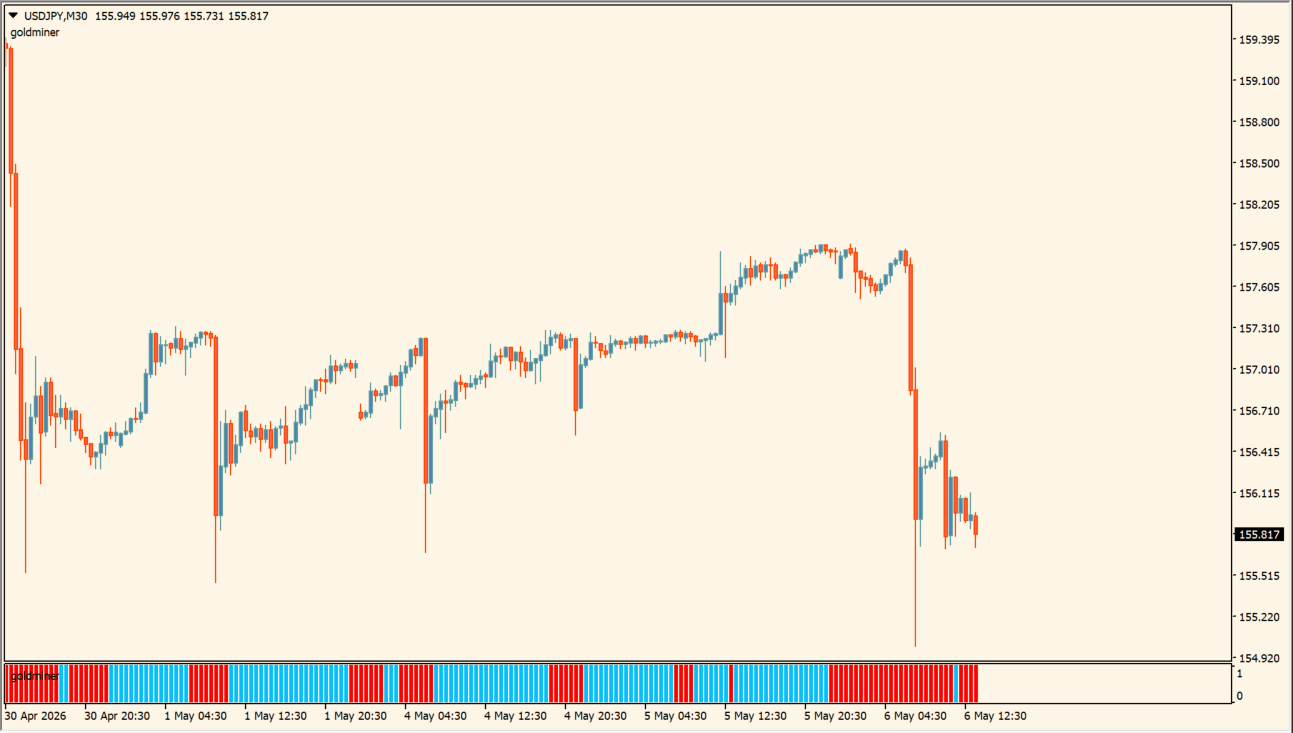
Review the bar colors alongside higher timeframe context to confirm trend bias.
Adjust SSP for sensitivity, Kmax for trend thresholding, and CountBars for calculation history depth.
Where it helps
Presents trend direction clearly with colored histogram bars.
SSP and Kmax inputs allow custom smoothing and threshold tuning.
Runs in a separate indicator window to keep the main chart uncluttered.
MT4 Indicator Parameters
The table below lists the available MT4 indicator parameters. You can customize these options in the MetaTrader Inputs dialog to match your trading preferences.
| Parameter | Description |
|---|---|
| SSP | Adjusts market analysis sensitivity. Default: 7. |
| Kmax | Sets the trend determination threshold. Default: 50.0. |
| CountBars | Sets the number of past bars used for calculation. Default: 350. |
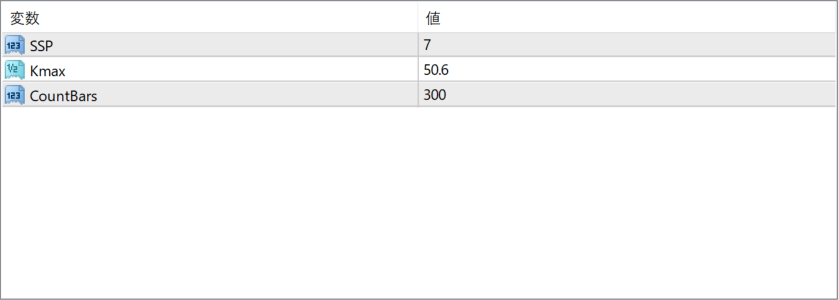
The screenshot above shows the default input parameters in the MT4 settings window.
How to Install .ex4 Indicator in MetaTrader 4
- Download the ZIP file and extract it.
- In MT4, select File → Open Data Folder.
- Open MQL4 → Indicators and copy the EX4 or MQ4 file into it.
- If the package includes library files, copy them to MQL4 → Libraries. Copy TPL files to the top-level templates folder.
- Restart MT4, find the indicator in the Navigator, and drag it onto a chart.
Test the tool on a demo account first. File contents and required folders can vary between packages.


