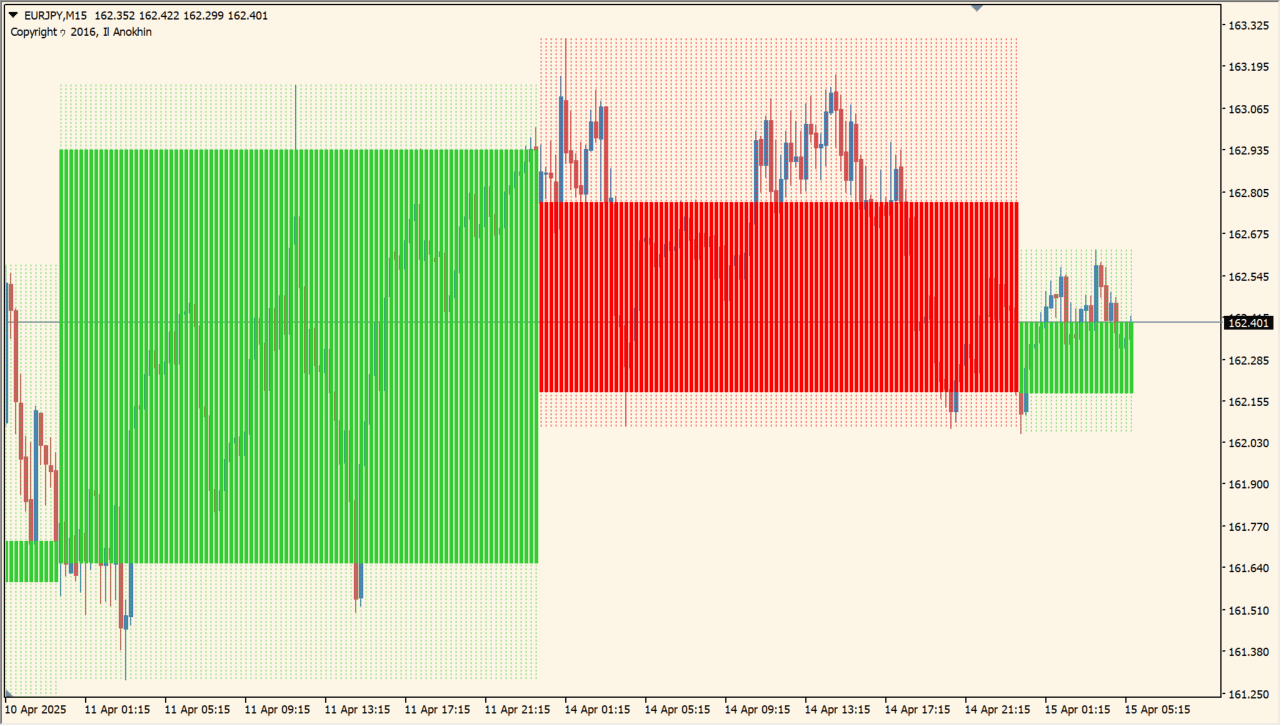
What is HigherTimeframe?
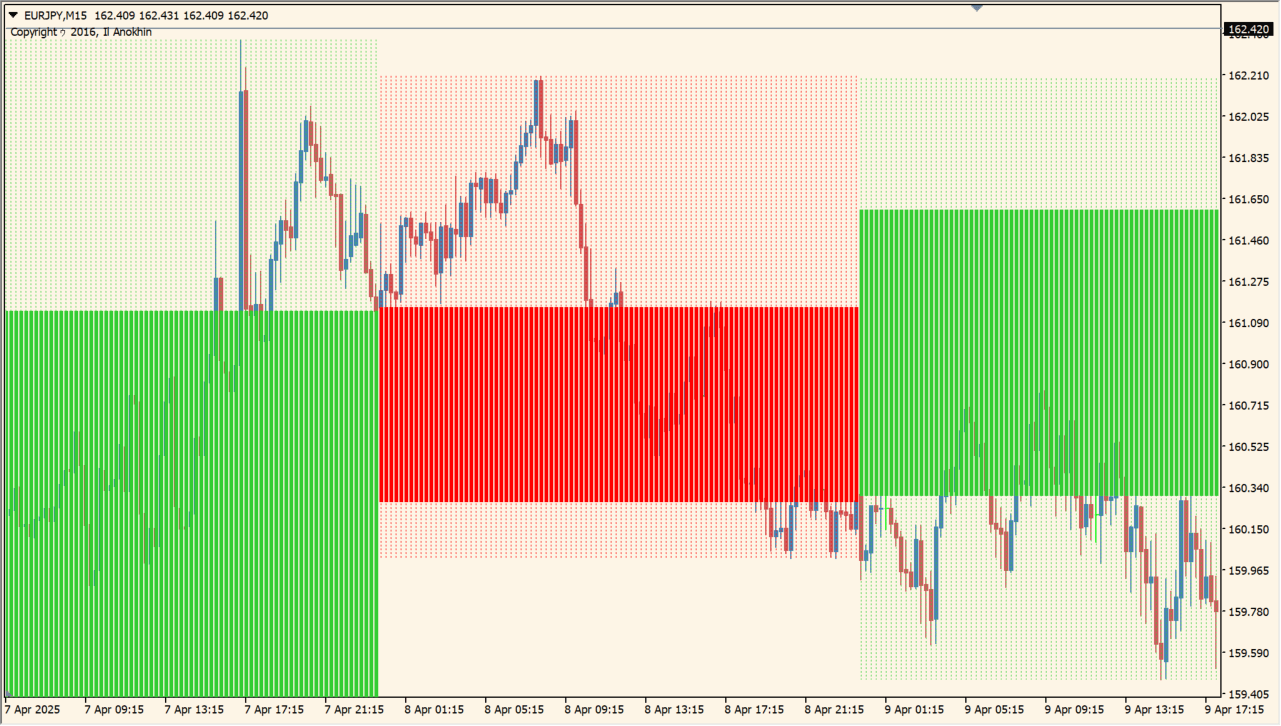
HigherTimeframe places the candles or background areas from a larger timeframe over the current MT4 chart. The overlay is designed to keep higher-timeframe trend direction and important zones visible while reading lower-timeframe movement.
Higher-timeframe highs and lows are areas that can matter during scalping or day-trade review. The display has a strong visual style, so it should be adjusted for the chart scale.
How to use HigherTimeframe
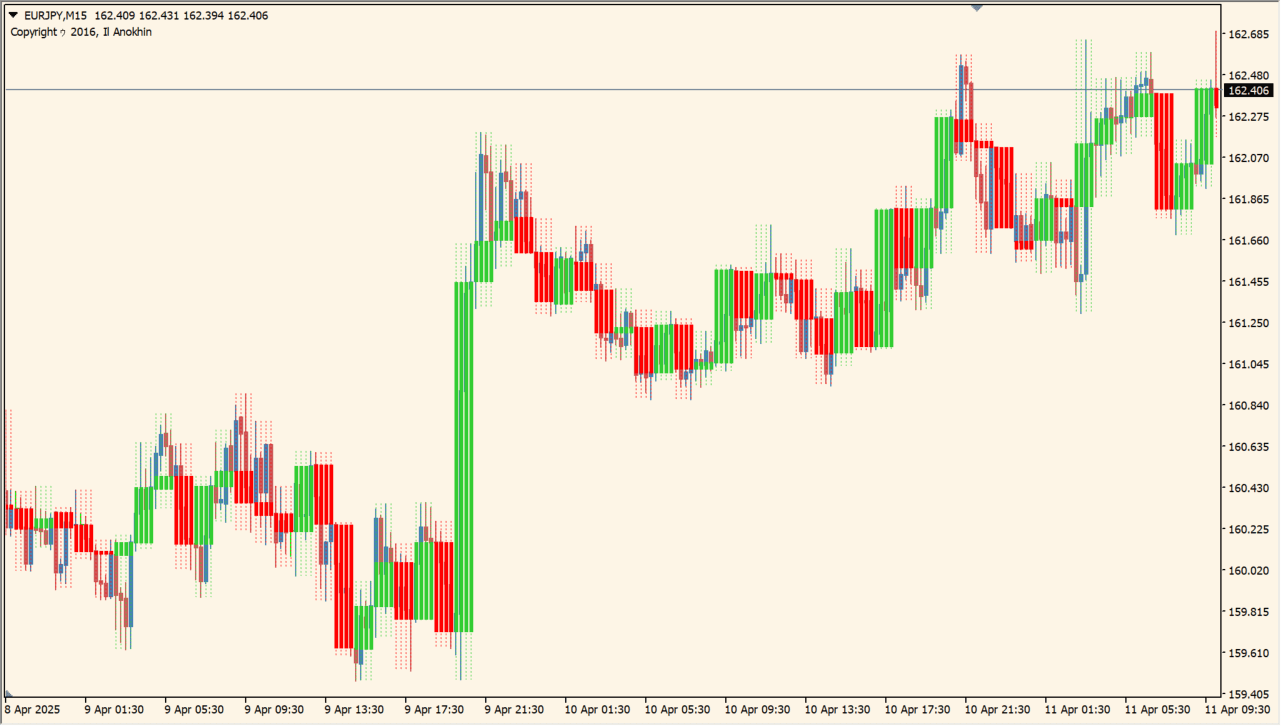
Apply HigherTimeframe to an MT4 chart and select a timeframe larger than the current chart to create the background layer.
Review the overlay around recent highs, lows, and breaks, then change the colors and display controls if the layer obscures the working candles.
Where it helps
Keeps larger candle structure visible behind the current chart.
Makes higher-timeframe highs and lows easier to compare with lower-timeframe price.
Provides display controls for the distinctive overlay style.
MT4 Indicator Parameters
The table below lists the available MT4 indicator parameters. You can customize these options in the MetaTrader Inputs dialog to match your trading preferences.
| Parameter | Description |
|---|---|
| TF | Controls this indicator option. Default: PERIOD_D1. |
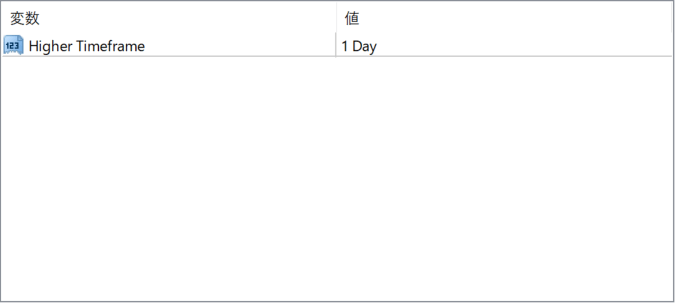
The screenshot above shows the default input parameters in the MT4 settings window.
How to Install .ex4 Indicator in MetaTrader 4
- Download the ZIP file and extract it.
- In MT4, select File → Open Data Folder.
- Open MQL4 → Indicators and copy the EX4 or MQ4 file into it.
- If the package includes library files, copy them to MQL4 → Libraries. Copy TPL files to the top-level templates folder.
- Restart MT4, find the indicator in the Navigator, and drag it onto a chart.
Test the tool on a demo account first. File contents and required folders can vary between packages.


