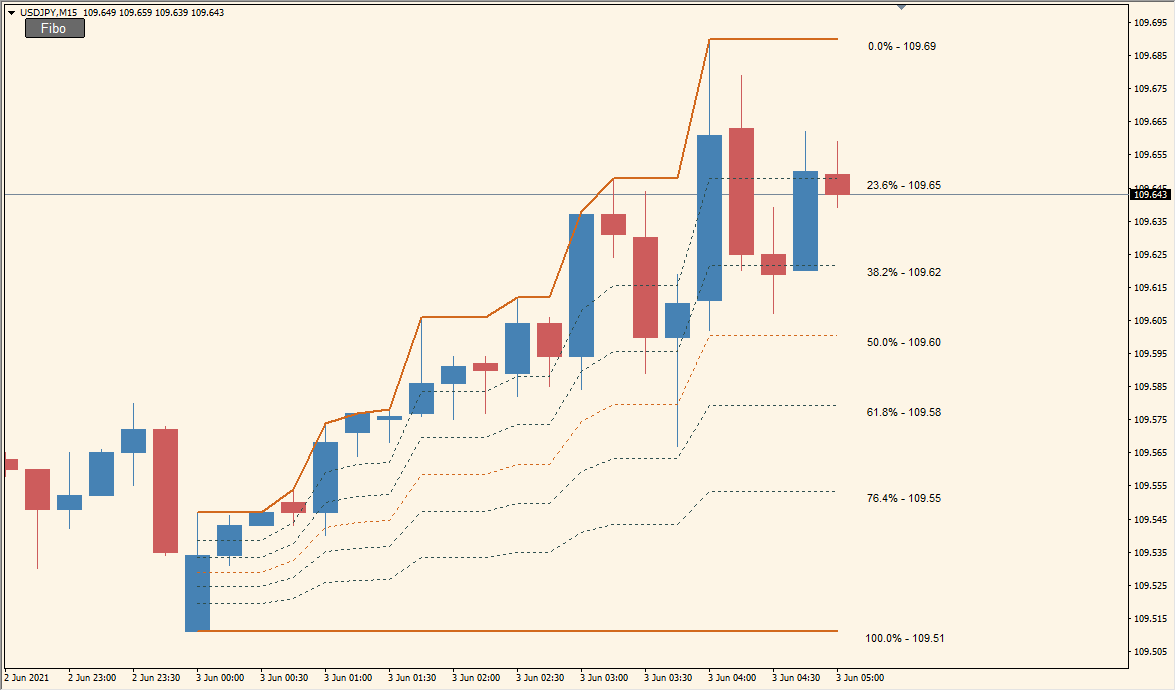
What is JJN-Fibo button?
JJN-Fibo button draws Fibonacci levels between the current day high and low. A chart button provides a compact way to show or hide the overlay while the range develops.
The displayed levels are tied to the daily range used by the indicator. Earlier ranges can also be displayed when the historical-unit setting is increased.
How to use JJN-Fibo button
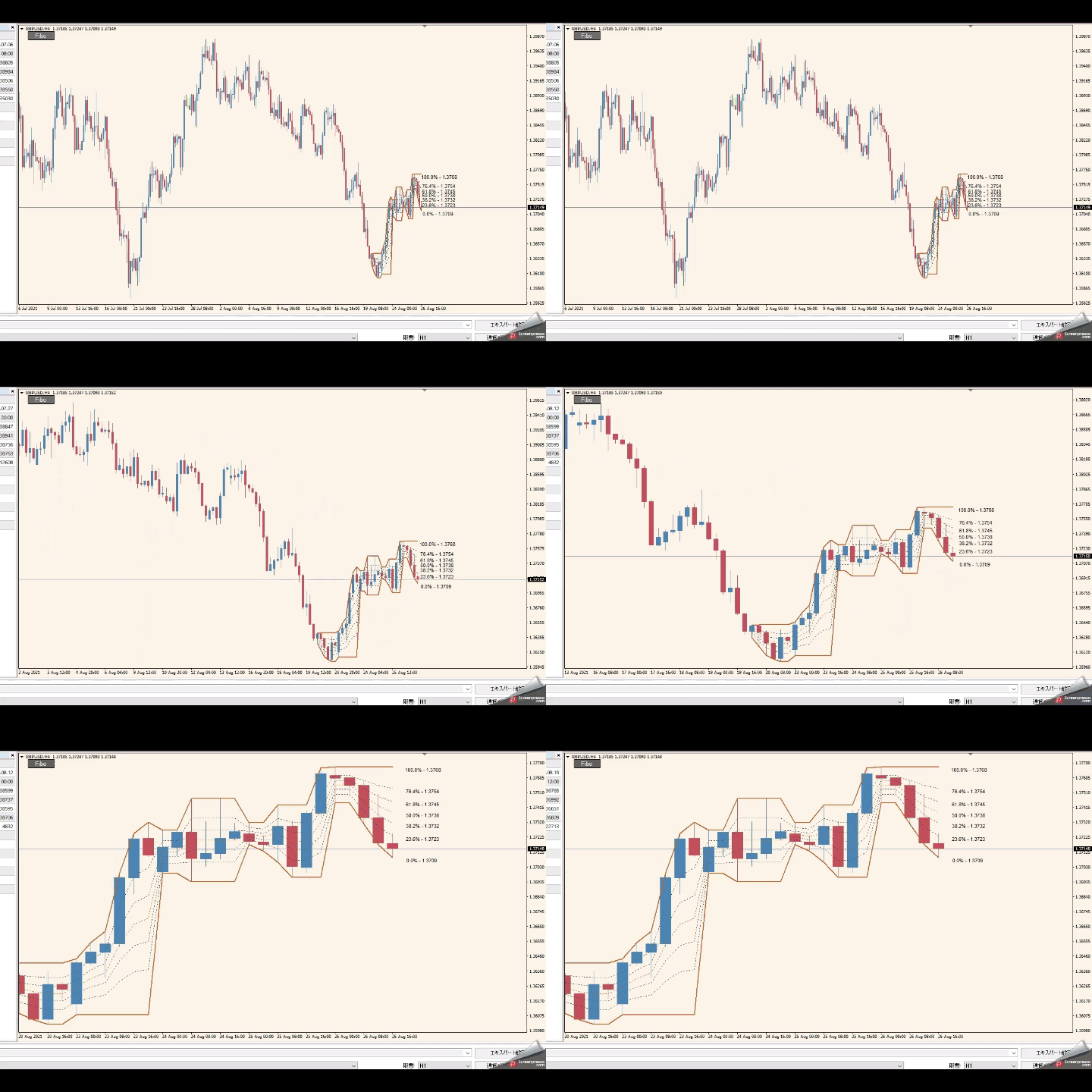
Review the daily high and low first, then compare the Fibonacci levels with the surrounding chart structure. The overlay can change during the day as the recorded range changes.
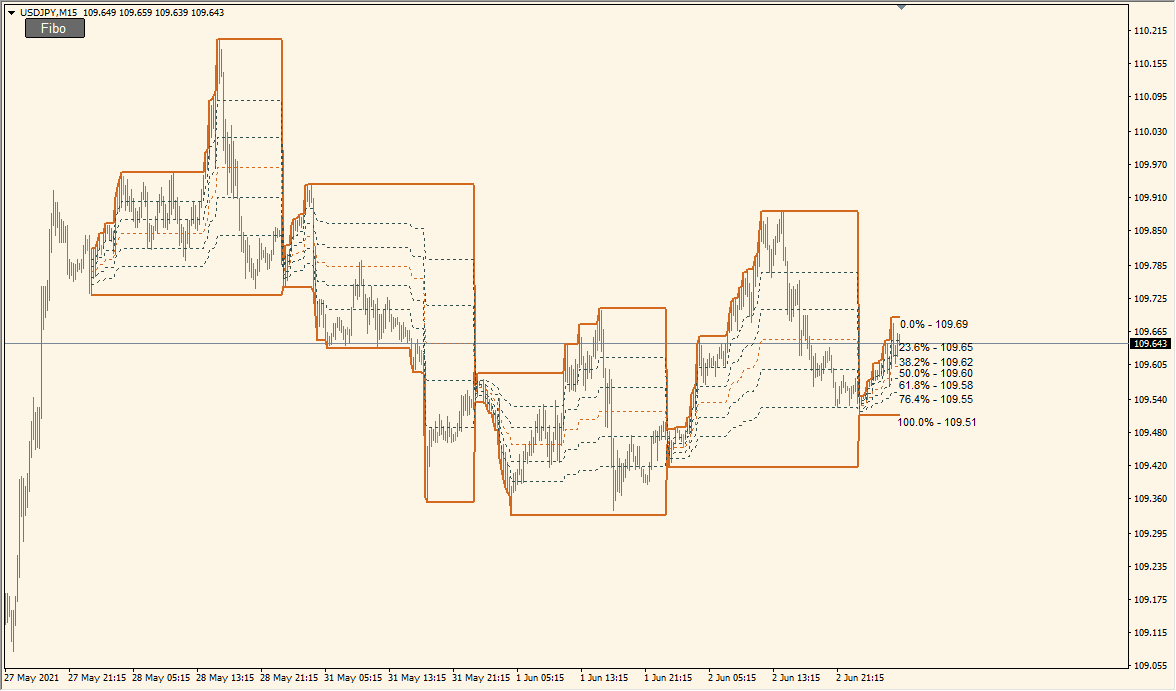
ProcessedUnits controls how many daily ranges are drawn. BasisTF and DisplayDecimals provide timeframe and numeric display settings, while the button inputs control its appearance and placement.
Where it helps
The current day high and low provide the two range anchors used by the overlay.
ProcessedUnits can extend the display to additional historical units.
The package includes a button with configurable position, size, colors, and text.
MT4 Indicator Parameters
The table below lists the available MT4 indicator parameters. You can customize these options in the MetaTrader Inputs dialog to match your trading preferences.
| Parameter | Description |
|---|---|
| Processed Units | Sets how many daily range units are processed for the Fibonacci display. Default: 1. |
| Display Text | Shows or hides the text associated with the Fibonacci overlay. Default: true. |
| Text Color | Sets the color used for displayed text. Default: clrBlack. |
| Text Font | Sets the font used for displayed text. Default: Arial. |
| Text Size | Sets the size of displayed text. Default: 8. |
| Text Position Shift | Shifts the displayed labels horizontally. Default: 1. |
| Basis Timeframe Help | Provides the timeframe reference text. Default: M:43200;W:10080;D1:1440;H4:240;H1:60. |
| Basis Timeframe | Selects the timeframe used for the range basis. Default: PERIOD_D1. |
| Display Decimals Help | Provides the decimal-display note. Default: Used only: 4,5!. |
| Display Decimals | Sets the number of displayed decimal places. Default: 4. |
| Button Settings Section | Section label: Button settings. |
| Button Corner | Selects the chart corner used to anchor the button. Default: CORNER_LEFT_UPPER. |
| Button Text | Sets the text shown on the button. Default: Fibo. |
| Button Font | Sets the button font. Default: Arial. |
| Button Font Size | Sets the button font size. Default: 10. |
| Button On Color | Sets the button text color for the enabled state. Default: clrWhite. |
| Button Off Color | Sets the button text color for the disabled state. Default: clrRed. |
| Button Background Color | Sets the button background color. Default: clrDimGray. |
| Button Border Color | Sets the button border color. Default: clrBlack. |
| Button X Position | Sets the horizontal button position. Default: 20. |
| Button Y Position | Sets the vertical button position. Default: 13. |
| Button Width | Sets the button width. Default: 60. |
| Button Height | Sets the button height. Default: 20. |
| Button End Section | Section label: End of button settings. |
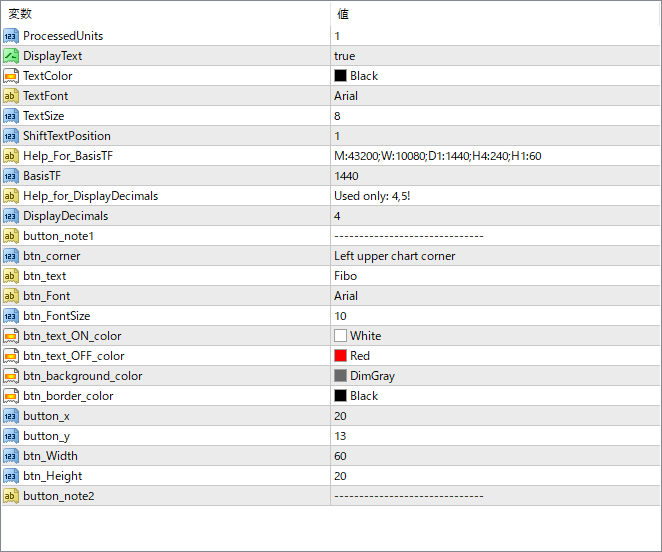
The screenshot above shows the default input parameters in the MT4 settings window.
How to Install .ex4 Indicator in MetaTrader 4
- Download the ZIP file and extract it.
- In MT4, select File → Open Data Folder.
- Open MQL4 → Indicators and copy the EX4 or MQ4 file into it.
- If the package includes library files, copy them to MQL4 → Libraries. Copy TPL files to the top-level templates folder.
- Restart MT4, find the indicator in the Navigator, and drag it onto a chart.
Test the tool on a demo account first. File contents and required folders can vary between packages.


