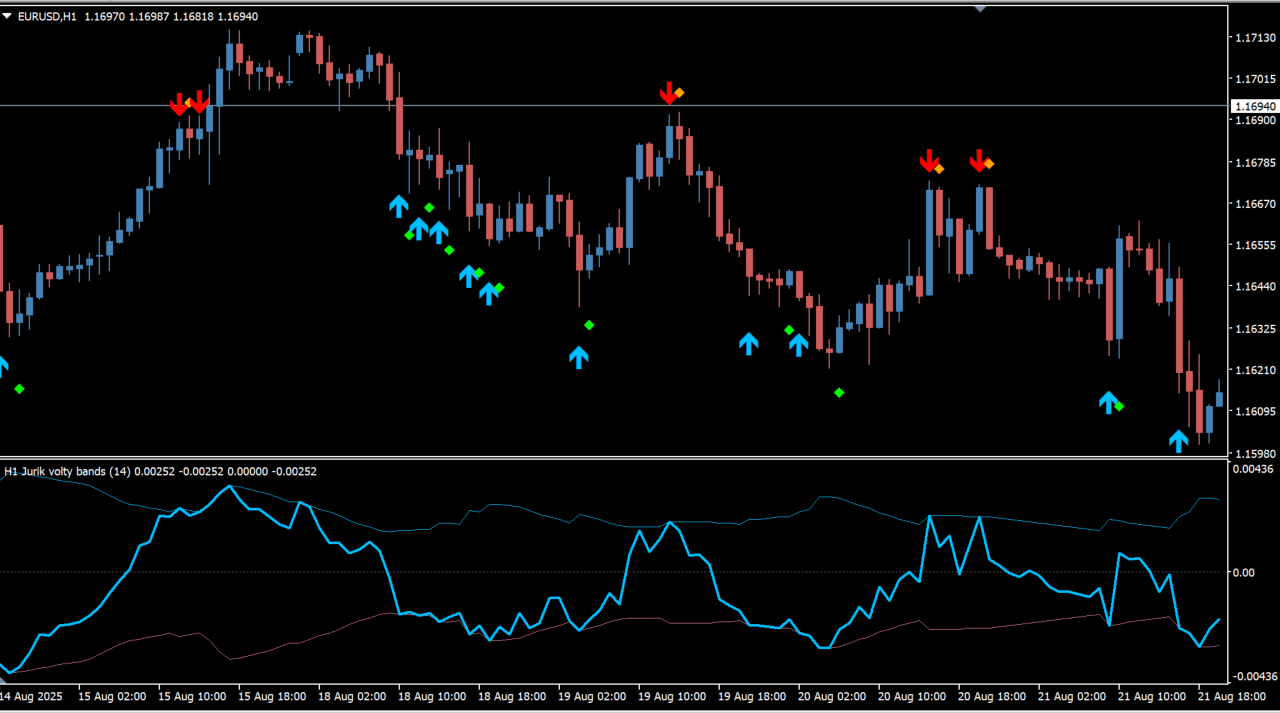
What is Jurik Volty Bands Separate?
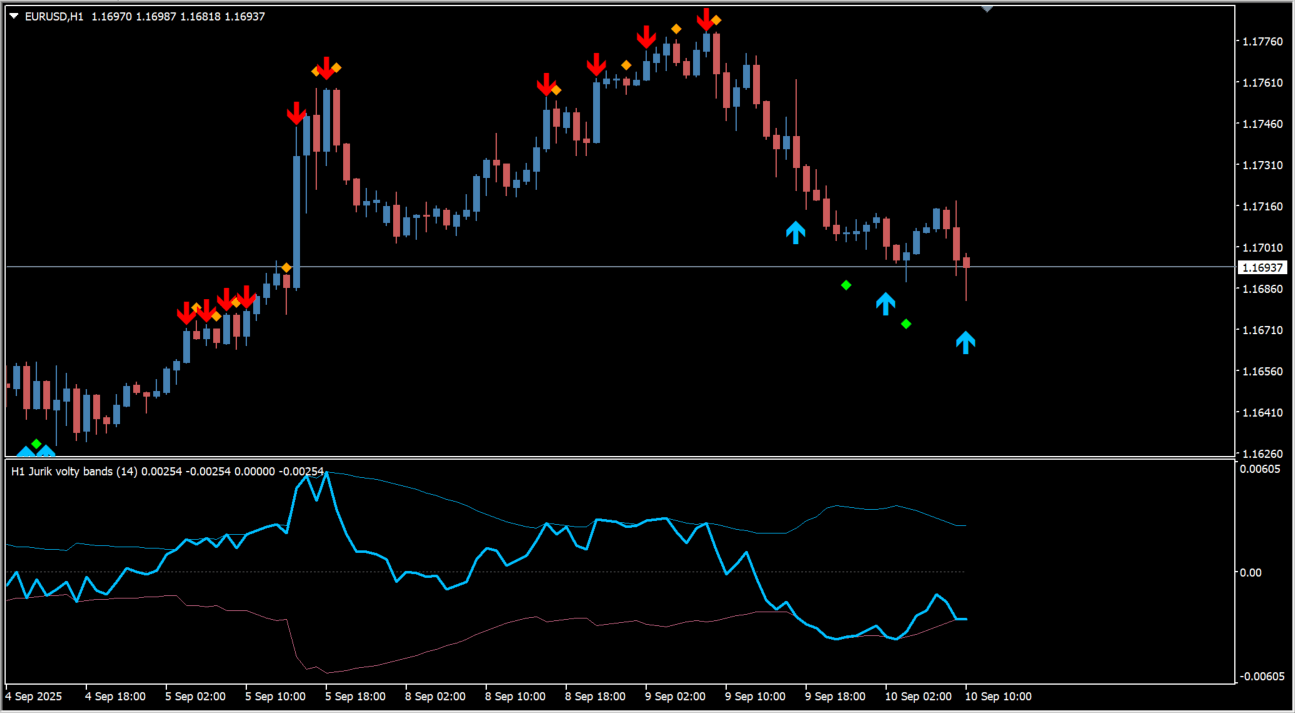
Jurik Volty Bands Separate is an MT4 indicator that combines momentum and volatility information to help identify trend direction and potential reversal areas. It appears in a separate subwindow, displaying an oscillator with upper and lower bands, along with blue upward markers and red downward markers.
How to use Jurik Volty Bands Separate
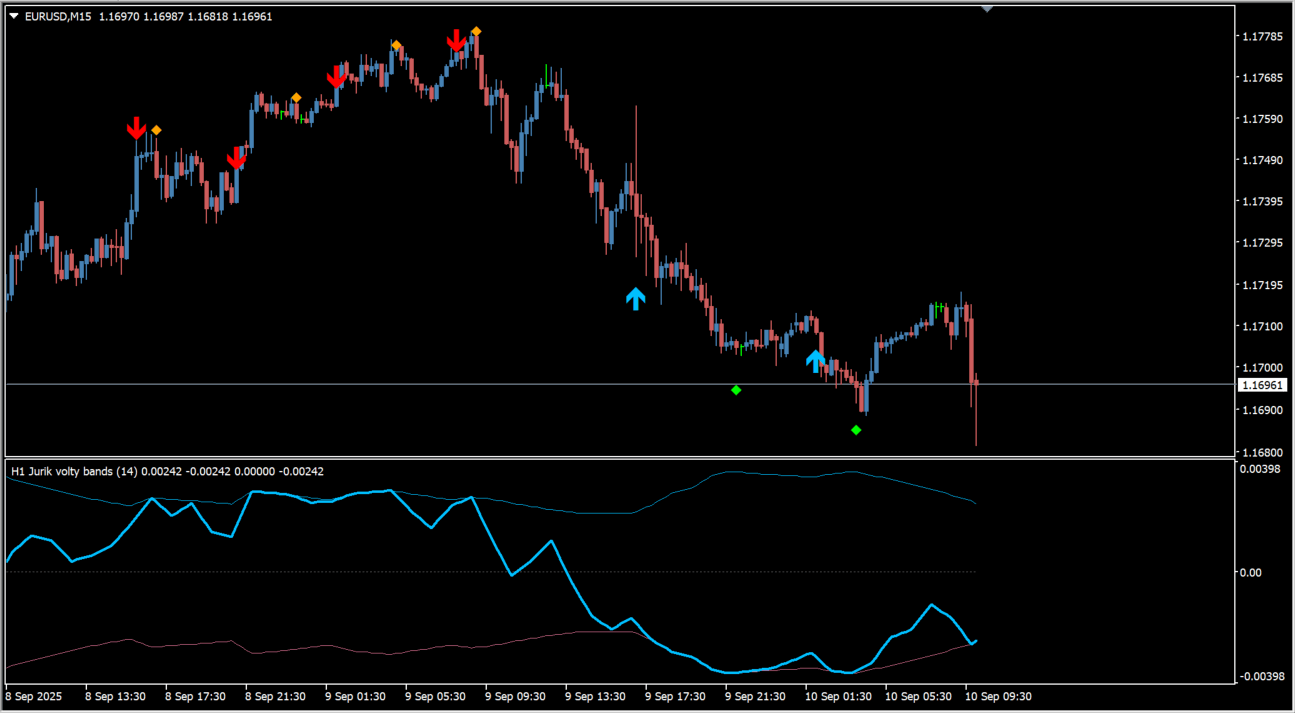
Reversal markers appear when the line reaches a lower or upper band. Watch how the oscillator behaves near the upper and lower bands. A blue arrow or dot appearing near the lower band can be used as a bullish reversal signal, while a red arrow or dot near the upper band can indicate a bearish reversal signal. The original usage method suggests considering a buy when the line reaches the lower band and a blue marker appears, and a sell when it reaches the upper band with a red marker. An opposite signal or a move toward the other band can be used as an exit reference. The indicator can also use higher-timeframe calculations, which may help reduce false signals.
Where it helps
MT4 Indicator Parameters
The table below lists the available MT4 indicator parameters. You can customize these options in the MetaTrader Inputs dialog to match your trading preferences.
| Parameter | Description |
|---|---|
| TimeFrame | Sets the timeframe used for calculation. Default: Current time frame. |
| Length | Sets the calculation period. Default: 14. |
| Price | Selects the price type used for calculation. Default: Close price. |
| Shift | Sets the calculation shift. Default: 0. |
| ShowMiddle | Shows or hides the middle line. Default: true. |
| ZeroBind | Binds the oscillator to the zero reference. Default: true. |
| Normalize | Enables or disables value normalization. Default: false. |
| alertsOn | Enables or disables alerts. Default: true. |
| alertsOnMidCross | Enables or disables alerts when the middle line is crossed. Default: false. |
| alertsOnZeroCross | Enables or disables alerts when the zero line is crossed. Default: false. |
| alertsOnZoneEnter | Enables or disables alerts when entering a zone. Default: true. |
| alertsOnZoneExit | Enables or disables alerts when leaving a zone. Default: true. |
| alertsOnCurrent | Enables or disables alerts on the current bar. Default: false. |
| alertsMessage | Enables or disables message alerts. Default: true. |
| alertsSound | Enables or disables sound alerts. Default: true. |
| alertsNotify | Enables or disables push notifications. Default: false. |
| alertsEmail | Enables or disables email alerts. Default: false. |
| soundFile | Sets the alert sound filename. Default: alert.wav. |
| Interpolate | Enables or disables timeframe interpolation. Default: true. |
| arrowsVisible | Shows or hides arrows. Default: true. |
| arrowsIdentifier | Sets the arrow identifier. Default: jv arrows1. |
| arrowsOnNewest | Shows or hides arrows on the newest bar. Default: false. |
| arrowsDisplaceUp | Adjusts the position of upward arrows. Default: 0.5. |
| arrowsDisplaceDn | Adjusts the position of downward arrows. Default: 0.5. |
| arrowsOnZeroCross | Shows or hides arrows on a zero cross. Default: false. |
| arrowsZeroCrossUpColor | Sets the upward zero-cross arrow color. Default: DeepSkyBlue. |
| arrowsZeroCrossDnColor | Sets the downward zero-cross arrow color. Default: Red. |
| arrowsZeroCrossUpCode | Sets the upward arrow code. Default: 233. |
| arrowsZeroCrossDnCode | Sets the downward arrow code. Default: 234. |
| arrowsZeroCrossUpSize | Sets the upward arrow size. Default: 2. |
| arrowsZeroCrossDnSize | Sets the downward arrow size. Default: 2. |
| arrowsOnMidCross | Shows or hides arrows on a middle-line cross. Default: false. |
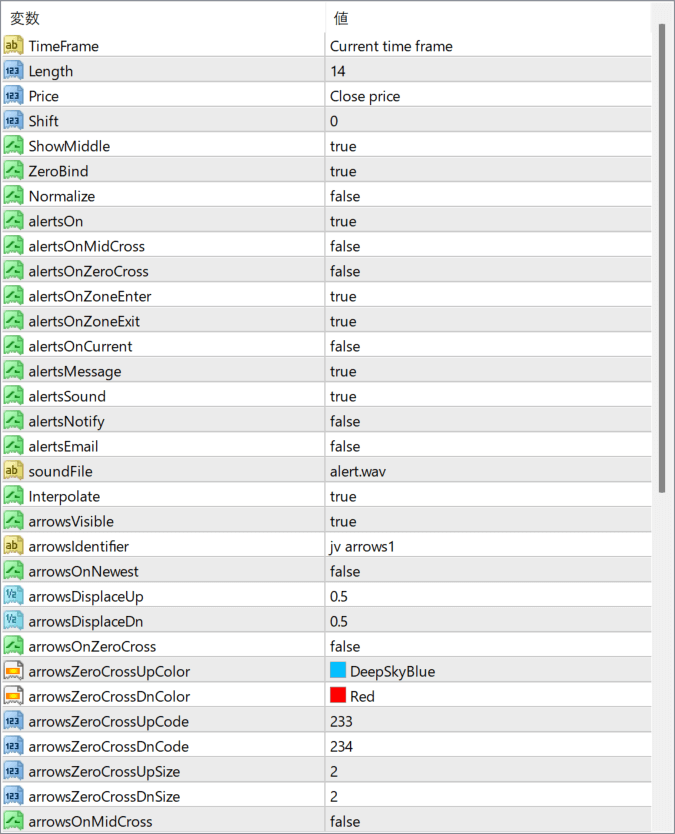
The screenshot above shows the default input parameters in the MT4 settings window.
How to Install .ex4 Indicator in MetaTrader 4
- Download the ZIP file and extract it.
- In MT4, select File → Open Data Folder.
- Open MQL4 → Indicators and copy the EX4 or MQ4 file into it.
- If the package includes library files, copy them to MQL4 → Libraries. Copy TPL files to the top-level templates folder.
- Restart MT4, find the indicator in the Navigator, and drag it onto a chart.
Test the tool on a demo account first. File contents and required folders can vary between packages.


