What is M-Candles Button?
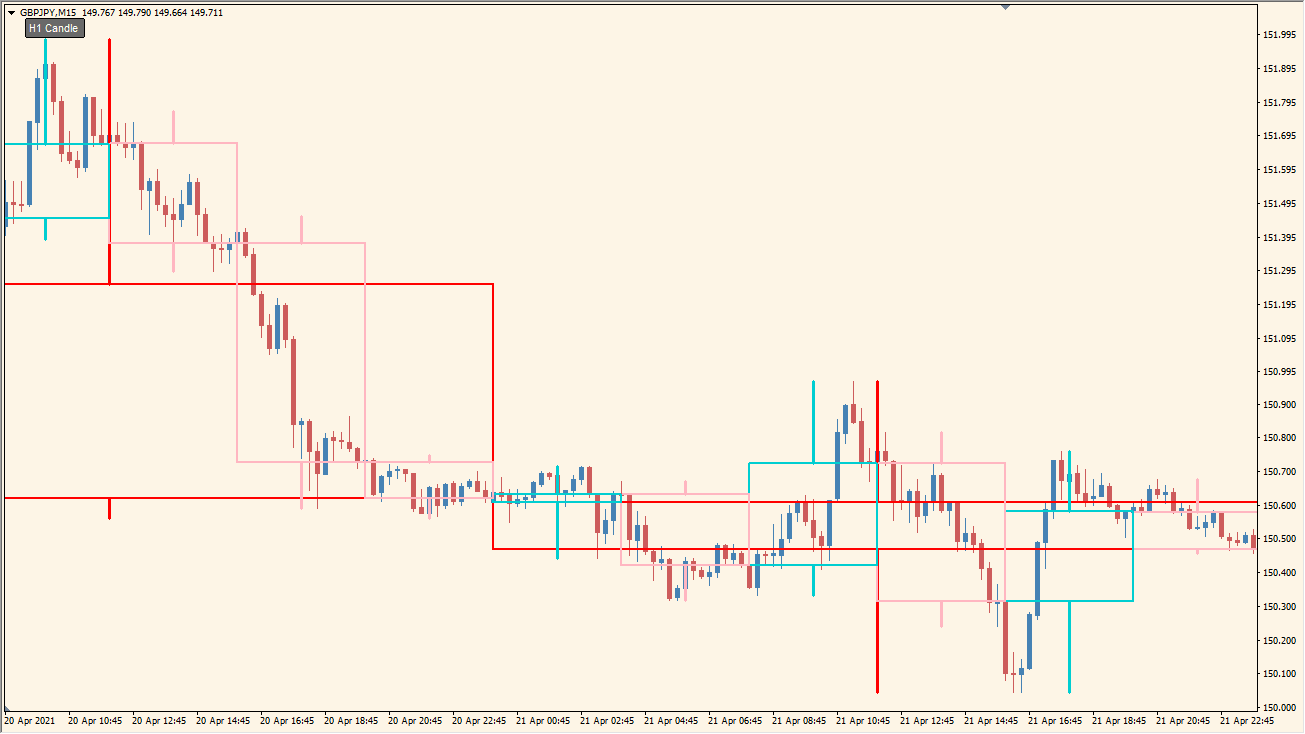
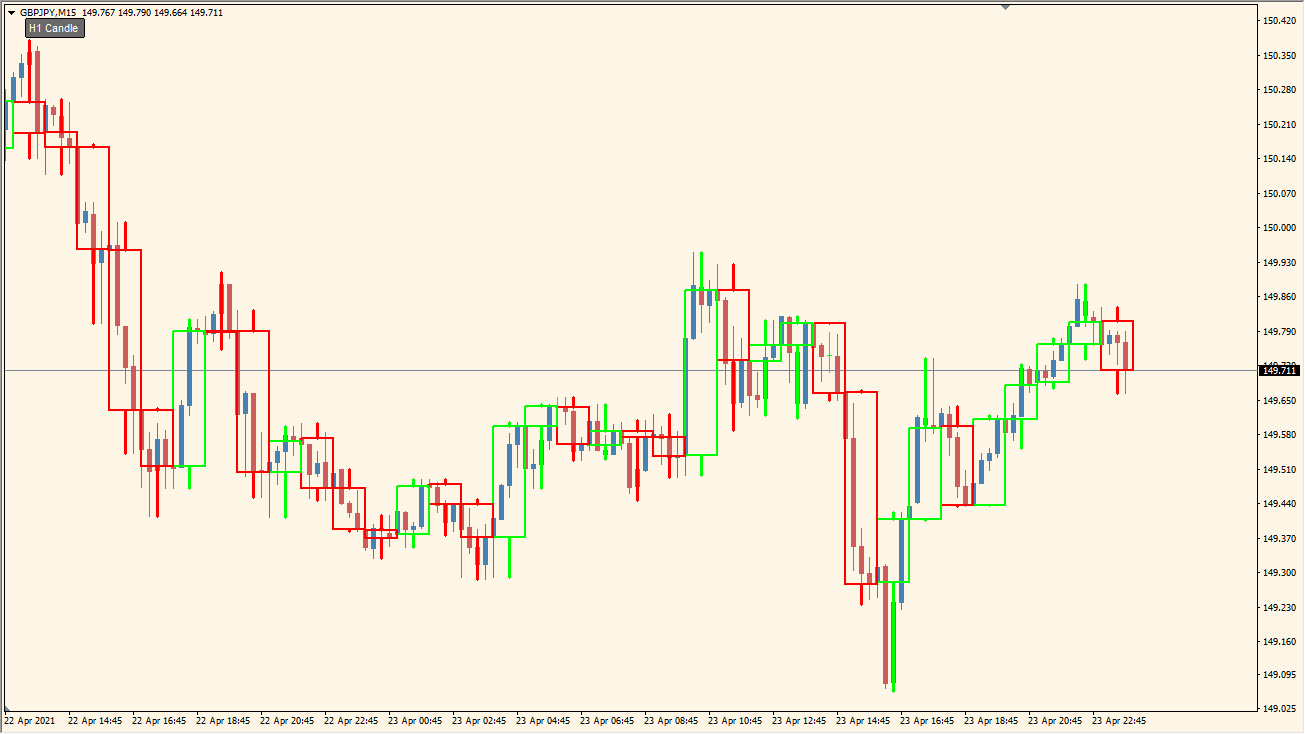
M-Candles Button overlays candles from a selected higher timeframe on the active MT4 chart. The colored candle bodies and ranges provide a compact view of broader price structure without changing the chart timeframe.
A small chart button controls the visibility of the overlay. The package is an MT4 indicator and includes an .mq4 file.
How to use M-Candles Button
Add the indicator to a lower-timeframe chart and compare the overlaid higher-timeframe candles with the active candles. The higher-timeframe range remains a visual reference for reviewing broader movement.
Use CandleTimeFrame and NumberOfBar to control the displayed candle scale and history. FillCandleWithColors and the color inputs adjust the presentation, while the button inputs control the on-chart control.
Where it helps
Higher-timeframe candles remain visible on the active MT4 chart.
The button can show or hide the overlay without removing the indicator.
Timeframe, history, fill, and color inputs are available in the Inputs dialog.
MT4 Indicator Parameters
The table below lists the available MT4 indicator parameters. You can customize these options in the MetaTrader Inputs dialog to match your trading preferences.
| Parameter | Description |
|---|---|
| CandleTimeFrame | Sets the timeframe used for the overlaid candles. Default: 60. |
| FillCandleWithColors | Controls whether the higher-timeframe candles are filled. Default: false. |
| NumberOfBar | Sets the amount of higher-timeframe history displayed. Default: 100. |
| ColorUp | Sets the color used for upward candles. Default: Lime. |
| ColorDown | Sets the color used for downward candles. Default: Red. |
| button_note1 | Labels the first button settings section. |
| btn_corner | Selects the chart corner used for the button. Default: Left upper chart corner. |
| btn_text | Sets the text shown on the button. Default: H1 Candle. |
| btn_Font | Sets the button font. Default: Arial. |
| btn_FontSize | Sets the button text size. Default: 8. |
| btn_text_color | Sets the button text color. Default: White. |
| btn_background_color | Sets the button background color. Default: DimGray. |
| btn_border_color | Sets the button border color. Default: Black. |
| button_x | Sets the horizontal button position. Default: 20. |
| button_y | Sets the vertical button position. Default: 13. |
| btn_Width | Sets the button width. Default: 60. |
| btn_Height | Sets the button height. Default: 20. |
| button_note2 | Labels the second button settings section. |
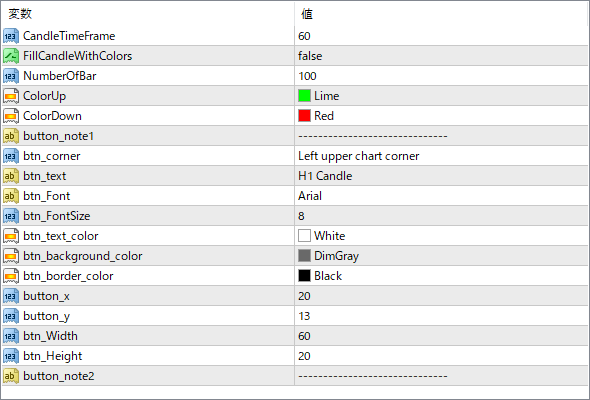
The screenshot above shows the default input parameters in the MT4 settings window.
How to Install .ex4 Indicator in MetaTrader 4
- Download the ZIP file and extract it.
- In MT4, select File → Open Data Folder.
- Open MQL4 → Indicators and copy the EX4 or MQ4 file into it.
- If the package includes library files, copy them to MQL4 → Libraries. Copy TPL files to the top-level templates folder.
- Restart MT4, find the indicator in the Navigator, and drag it onto a chart.
Test the tool on a demo account first. File contents and required folders can vary between packages.


