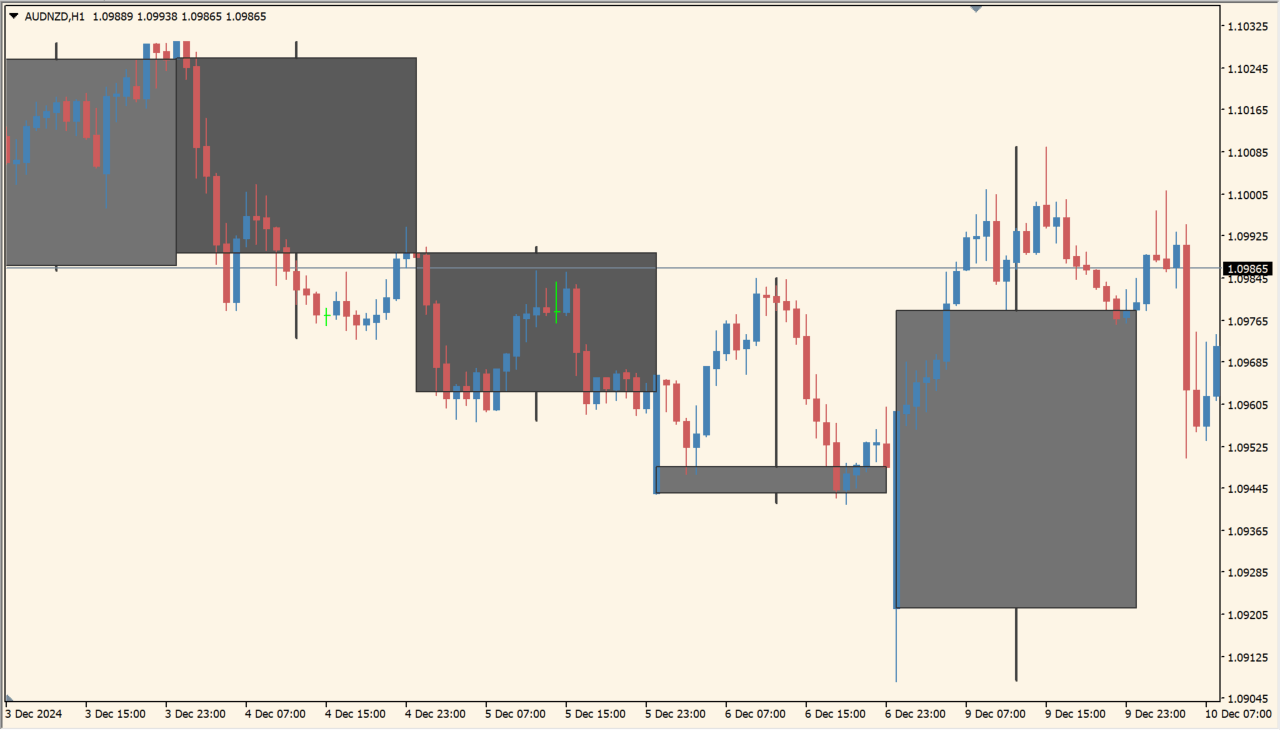
What is m-candles-indicator?
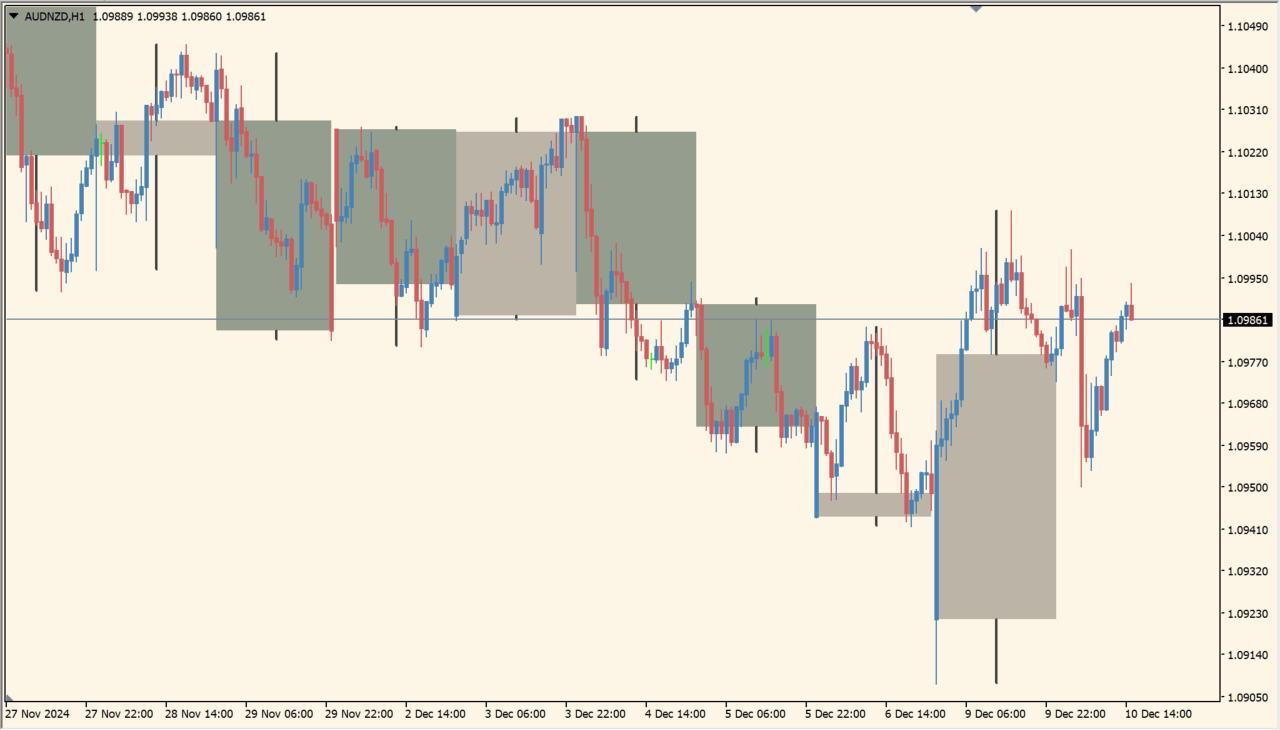
m-candles-indicator draws candles from the timeframe selected in TFBar over the current MT4 chart. The overlay keeps higher-timeframe open, high, low, and close movement visible while lower-timeframe candles continue underneath.
Those higher-timeframe prices serve as reference areas for short-term chart review. Two instances can be combined for different higher timeframes, although some combinations may not display cleanly.
How to use m-candles-indicator
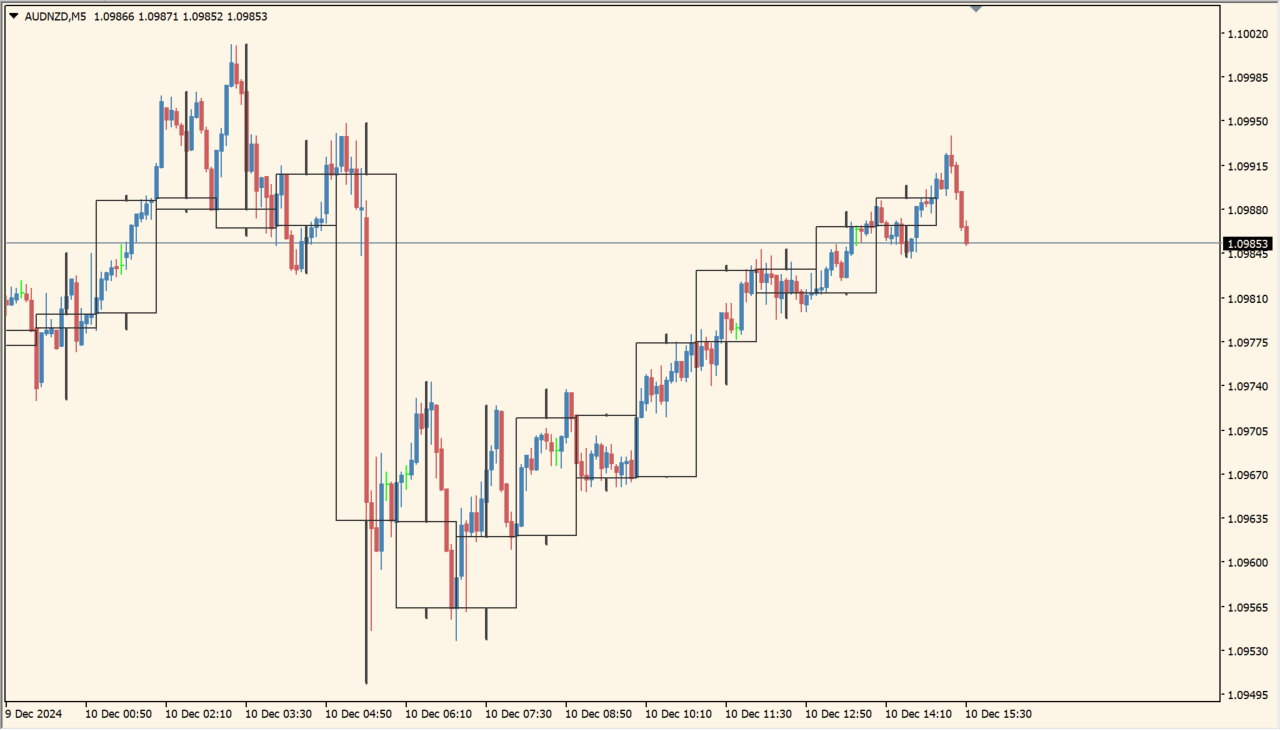
Apply m-candles-indicator to an MT4 chart and set TFBar to the higher timeframe you want to see, such as 60 or 1440.
Use NumberOfBar to limit the overlay and adjust background, border, and up or down candle colors so the higher-timeframe layer does not hide the working chart.
Where it helps
Keeps larger candles and their four price points visible on a lower chart.
Can show different higher-timeframe views through separate instances.
Provides candle count, fill, boundary, and color settings.
MT4 Indicator Parameters
The table below lists the available MT4 indicator parameters. You can customize these options in the MetaTrader Inputs dialog to match your trading preferences.
| Parameter | Description |
|---|---|
| TFBar | Sets this calculation or display option. Default: 1440. |
| bcgr | Enables or disables this display option. Default: true. |
| bcgr1 | Enables or disables this display option. Default: false. |
| NumberOfBar | Sets this calculation or display option. Default: 32. |
| ColorUp | Sets the display color for this option. Default: C'115. |
| ColorDown | Sets the display color for this option. Default: C'90. |
| ColorS | Sets the display color for this option. Default: C'65. |
| ColorB | Sets the display color for this option. Default: C'50. |
| PaintBar0 | Enables or disables this display option. Default: false. |
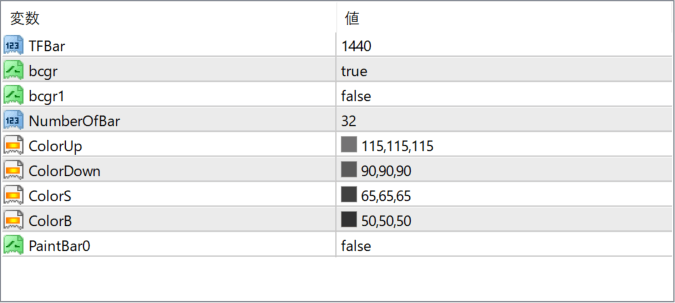
The screenshot above shows the default input parameters in the MT4 settings window.
How to Install .ex4 Indicator in MetaTrader 4
- Download the ZIP file and extract it.
- In MT4, select File → Open Data Folder.
- Open MQL4 → Indicators and copy the EX4 or MQ4 file into it.
- If the package includes library files, copy them to MQL4 → Libraries. Copy TPL files to the top-level templates folder.
- Restart MT4, find the indicator in the Navigator, and drag it onto a chart.
Test the tool on a demo account first. File contents and required folders can vary between packages.


