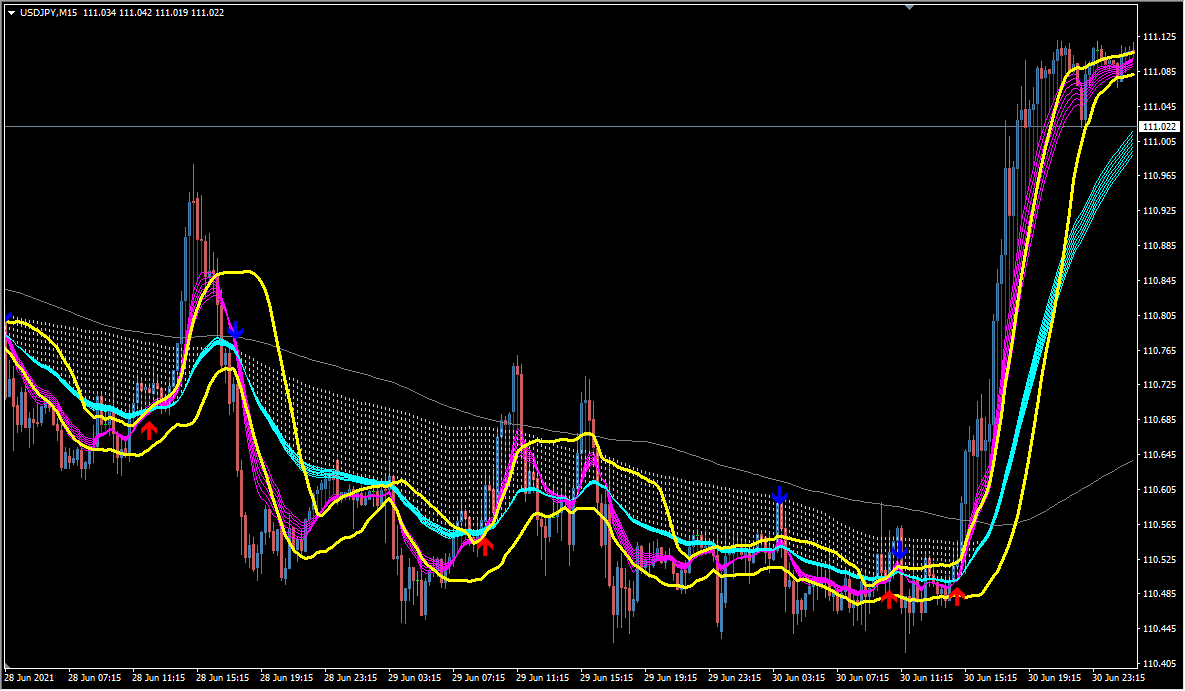
What is MAC3D_bb?
MAC3D_bb brings MACD logic — normally drawn in a sub-window — onto the main MT4 chart as a signal tool. It is a trend-following type that produces a moderate number of signals.
Under the hood, a signal prints when the MACD histogram crosses its zero line and the candle's close lands outside the Bollinger Bands.
How to use MAC3D_bb
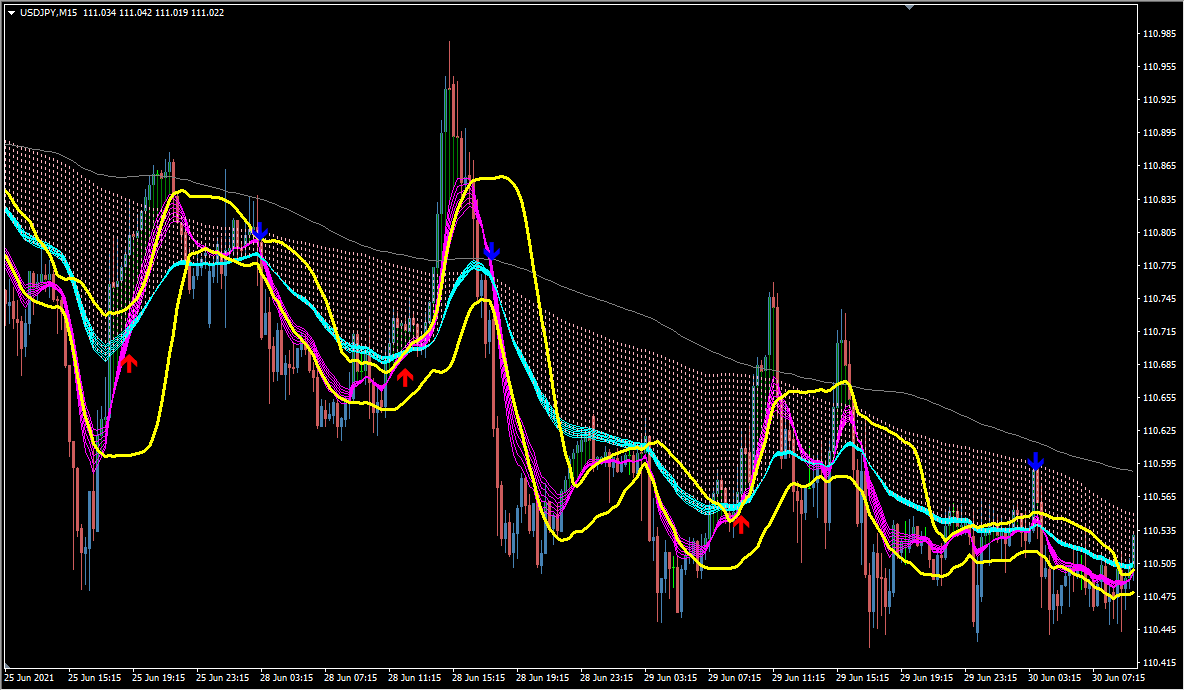
The Bollinger Bands are drawn in yellow, and signals follow the direction in which price breaks out of them.
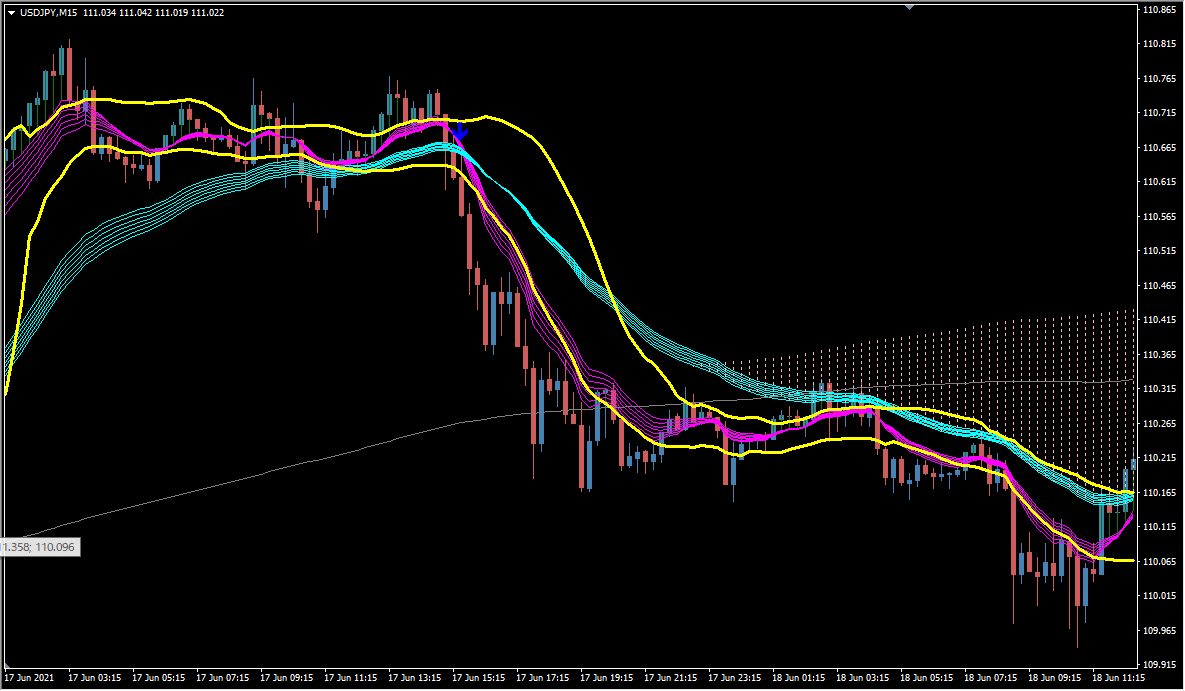
No signals appear while the market drifts sideways in a range.
Besides the MACD condition, the candle must also sit outside the Bollinger Bands before a signal appears.
One side note from the original: if you use Bollinger Bands for counter-trend trading, understand the normal distribution first — otherwise the market can batter you.
MT4 Indicator Parameters
The table below lists the available MT4 indicator parameters. You can customize these options in the MetaTrader Inputs dialog to match your trading preferences.
| Parameter | Description |
|---|---|
| MAC3D Period 1 | Relates to the display. |
| MAC3D Period 2 | Relates mainly to where the arrows appear. |
| MAC3D Period 3 | Relates mainly to where the arrows appear. |
| MAC3D Period 4 | Relates to the display. |
| Bands Deviation | Changes the deviation of the Bollinger Bands. |
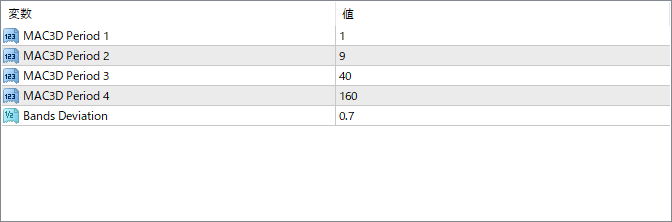
The screenshot above shows the default input parameters in the MT4 settings window.
How to Install .ex4 Indicator in MetaTrader 4
- Download the ZIP file and extract it.
- In MT4, select File → Open Data Folder.
- Open MQL4 → Indicators and copy the EX4 or MQ4 file into it.
- If the package includes library files, copy them to MQL4 → Libraries. Copy TPL files to the top-level templates folder.
- Restart MT4, find the indicator in the Navigator, and drag it onto a chart.
Test the tool on a demo account first. File contents and required folders can vary between packages.


