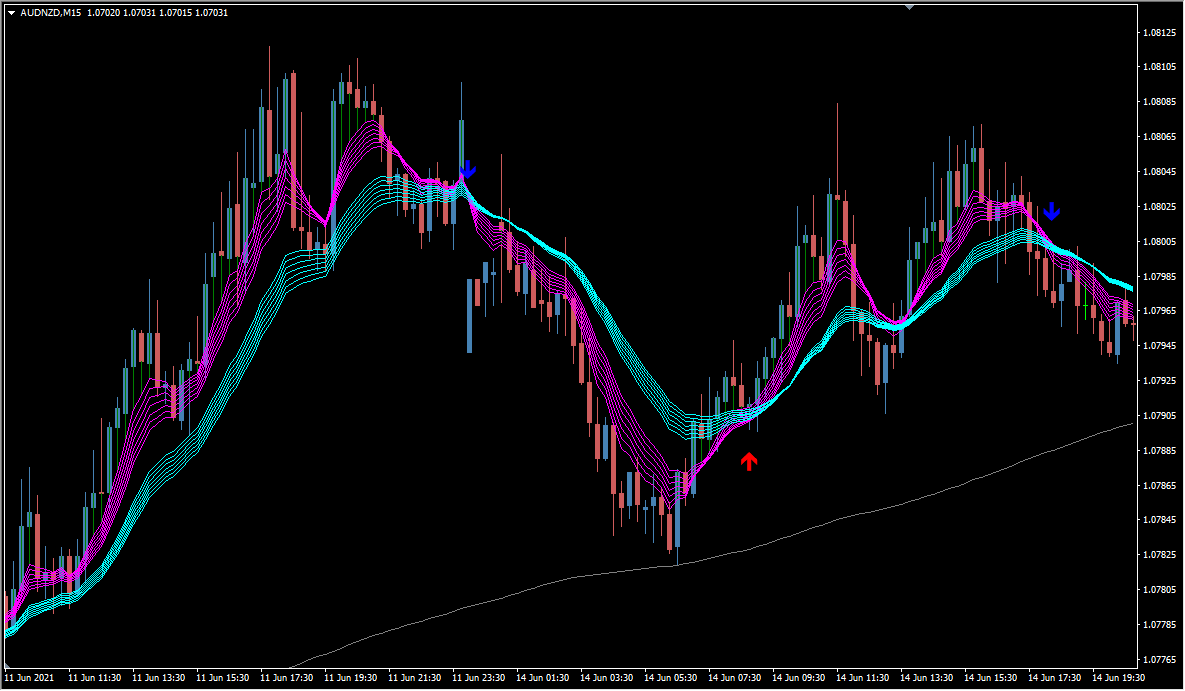
What is MAC3D_gate_v2?
MAC3D_gate_v2 draws MACD on the MT4 chart and prints signal arrows on it. It is a counter-trend tool that tends to produce signals relatively often.
Several other versions of this indicator exist as well.
How to use MAC3D_gate_v2
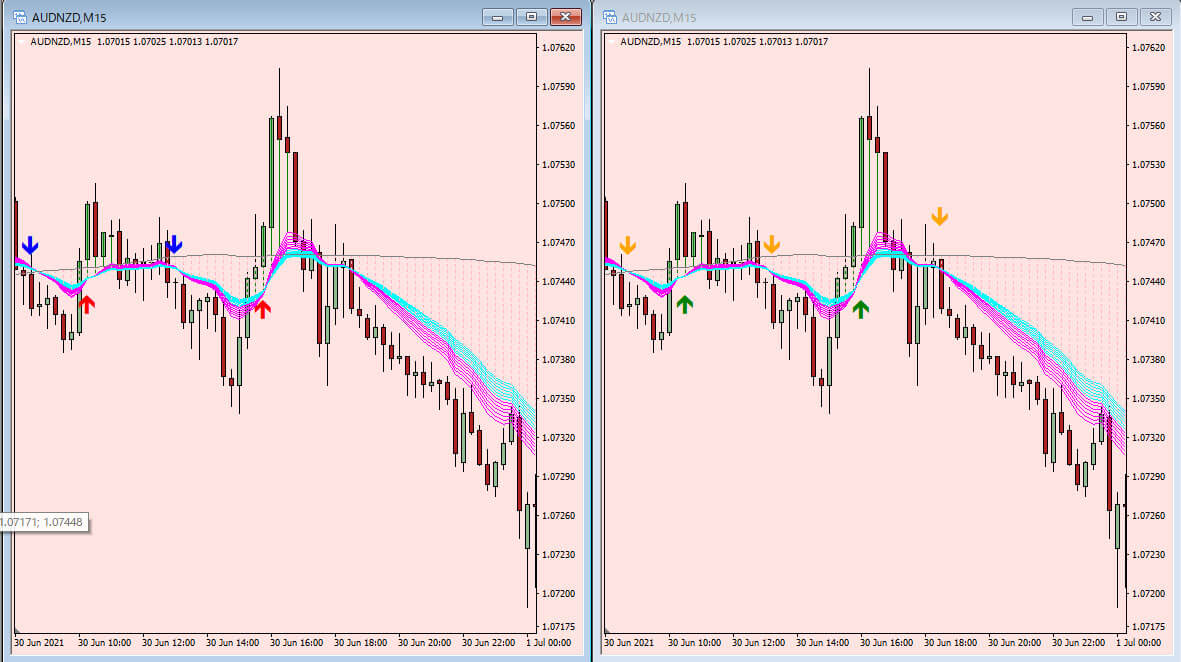
In the comparison image, this release — ver.2 — sits on the left, and ver.1 sits on the right.
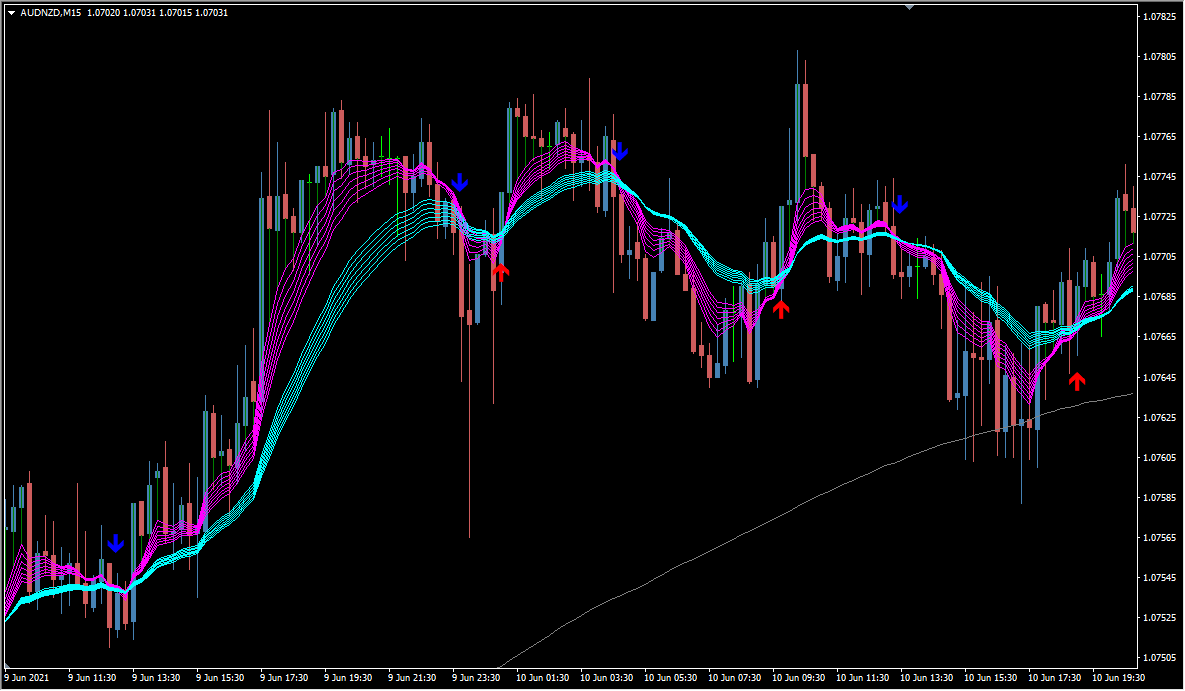
Signals are frequent, so it is best to thin them out with your own judgment.
The chart shows what look like GMMA-style moving averages, but the logic underneath is built on MACD.
The signal timing is the point where MACD switches across its zero line, but the signal conditions run through a filter — as far as can be seen on the chart, the arrows seem to print slightly ahead of the actual switch.
A version 1 that uses a different filter is also distributed.
There appear to be roughly ten variants of this indicator in total.
MT4 Indicator Parameters
The table below lists the available MT4 indicator parameters. You can customize these options in the MetaTrader Inputs dialog to match your trading preferences.
| Parameter | Description |
|---|---|
| MAC3D Period 1 | Affects how the lines are drawn. |
| MAC3D Period 2 | Has a large effect on where the arrows are placed. |
| MAC3D Period 3 | Has a large effect on where the arrows are placed. |
| MAC3D Period 4 | Affects how the lines are drawn. |
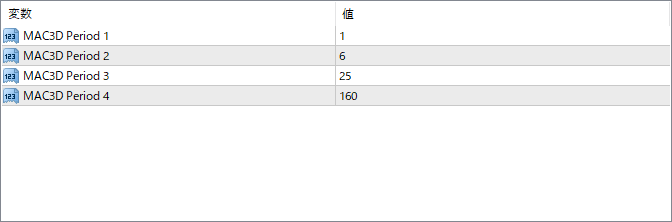
The screenshot above shows the default input parameters in the MT4 settings window.
How to Install .ex4 Indicator in MetaTrader 4
- Download the ZIP file and extract it.
- In MT4, select File → Open Data Folder.
- Open MQL4 → Indicators and copy the EX4 or MQ4 file into it.
- If the package includes library files, copy them to MQL4 → Libraries. Copy TPL files to the top-level templates folder.
- Restart MT4, find the indicator in the Navigator, and drag it onto a chart.
Test the tool on a demo account first. File contents and required folders can vary between packages.


