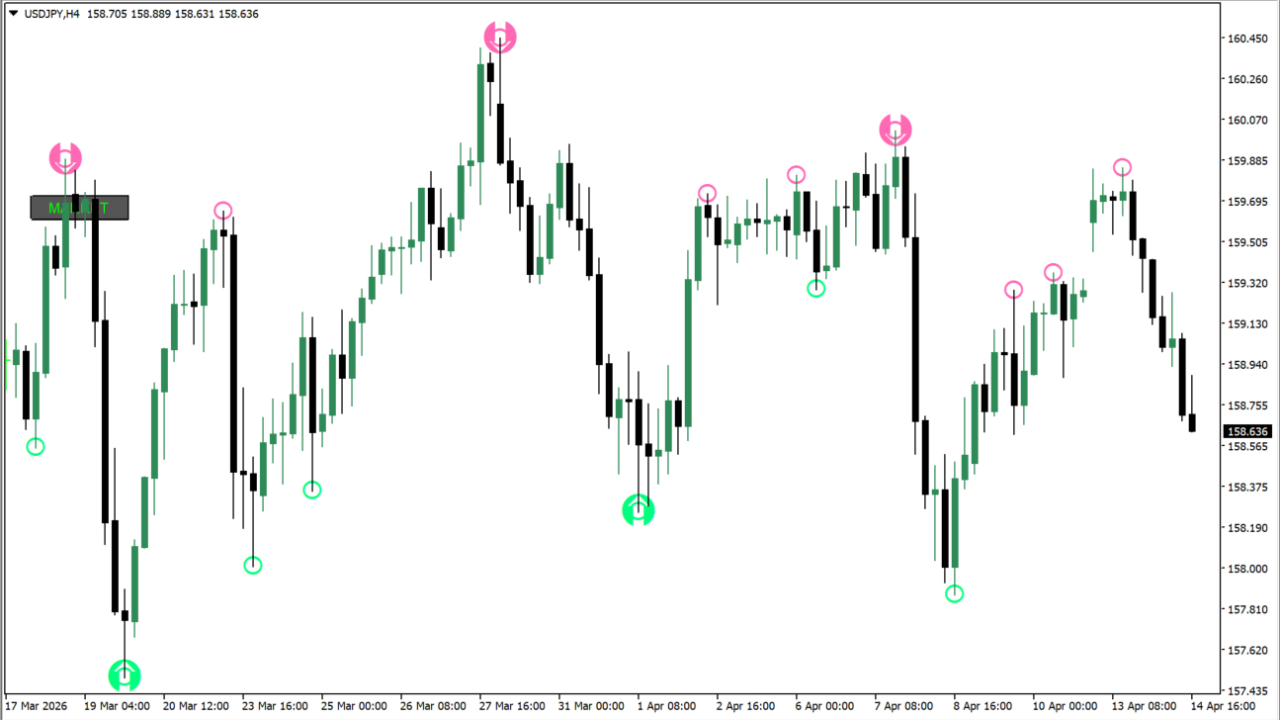
What is MarketStructure Button?
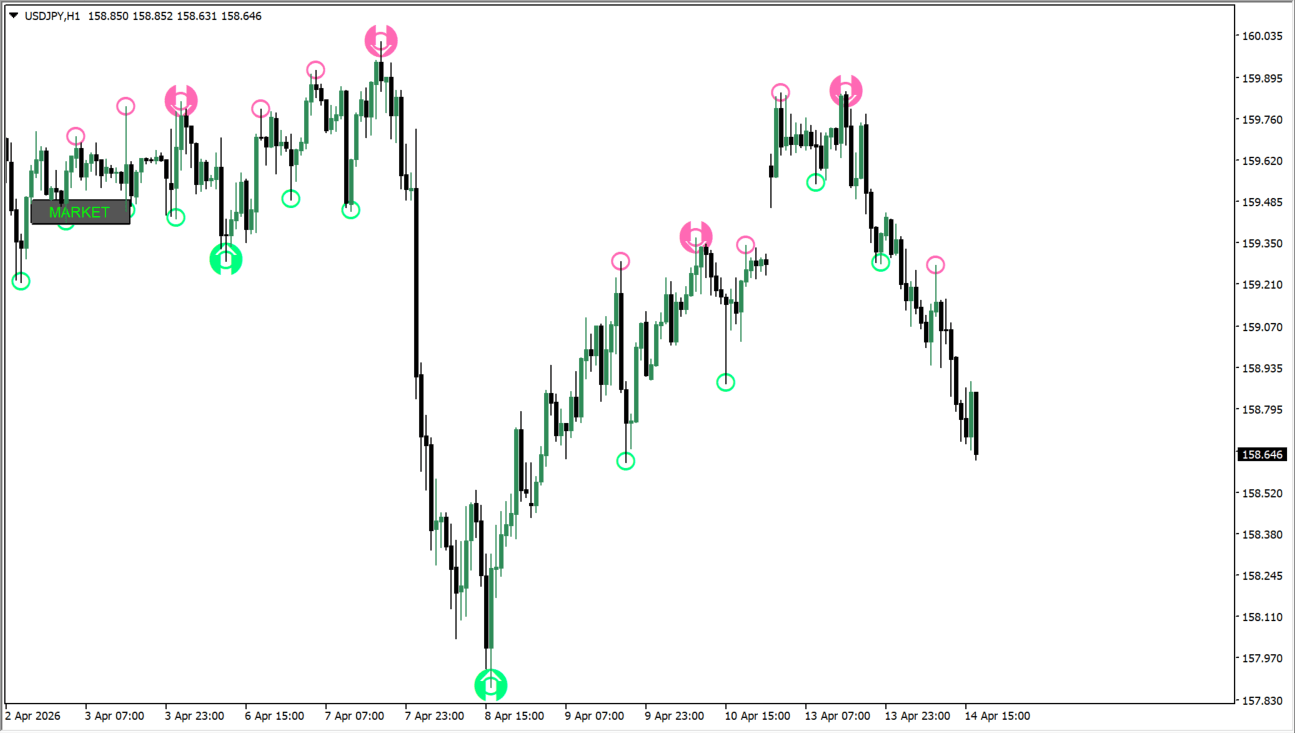
MarketStructure Button draws markings from short-, intermediate-, and long-term gap settings. It has independent arrow controls for each horizon and an optional trend-candle color display.
The markings describe the indicator calculation at its selected settings. They should be compared with the wider chart structure instead of treated as a self-contained price forecast.
How to use MarketStructure Button
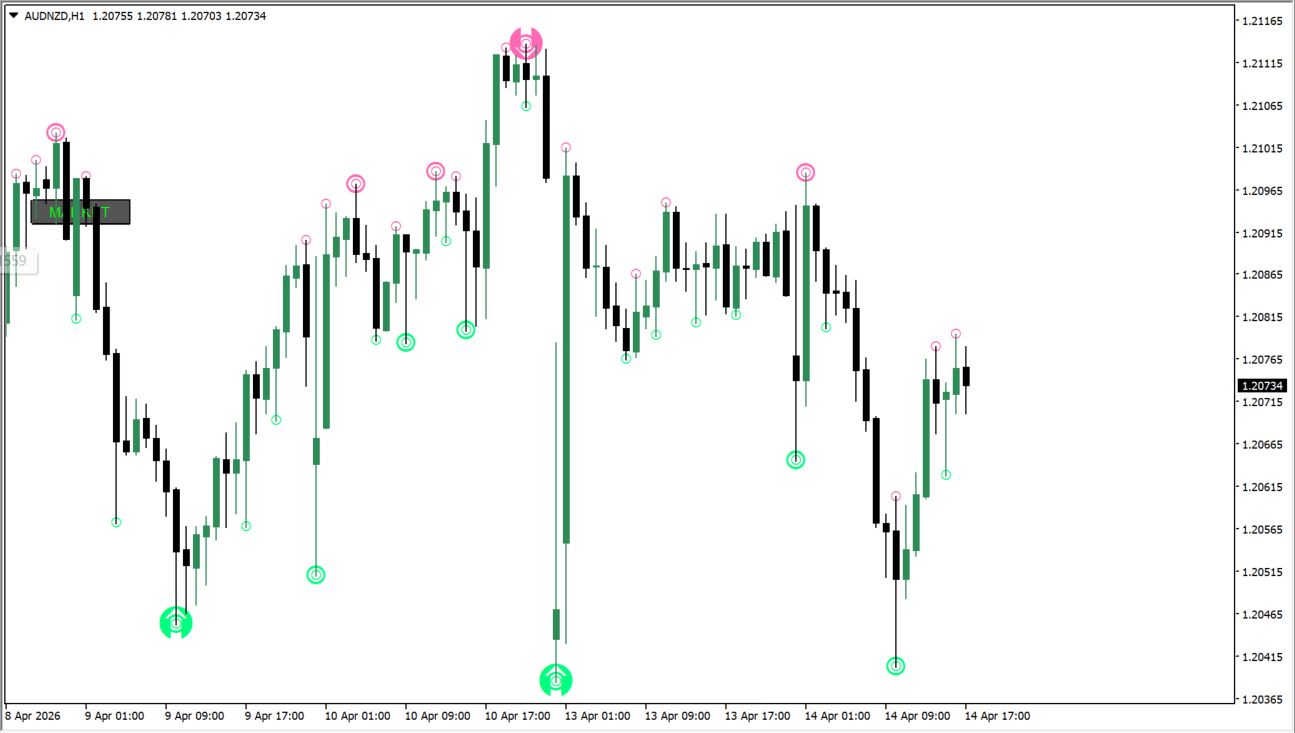
Set the three gap widths first, then review each arrow horizon with nearby swings and candles. Keep the short, intermediate, and long outputs distinct when comparing their chart context.
Arrow codes, display switches, candle coloring, and the button-position settings change the visual presentation without changing the source candles.
Where it helps
Short-, intermediate-, and long-term gap inputs are independent.
Each horizon has a separate arrow display switch and codes.
Position, font, colors, size, and ID are exposed as Inputs.
MT4 Indicator Parameters
The table below lists the available MT4 indicator parameters. You can customize these options in the MetaTrader Inputs dialog to match your trading preferences.
| Parameter | Description |
|---|---|
| ShortTermGapPts | Configures the ShortTermGapPts option. |
| IntermediateTermGapPts | Configures the IntermediateTermGapPts option. |
| LongTermGapPts | Configures the LongTermGapPts option. |
| DisplayShortTermArrows | Configures the DisplayShortTermArrows option. |
| DisplayIntermediateTermArrows | Configures the DisplayIntermediateTermArrows option. |
| DisplayLongTermArrows | Configures the DisplayLongTermArrows option. |
| ShortTermUpArrowCode | Configures the ShortTermUpArrowCode option. |
| ShortTermDownArrowCode | Configures the ShortTermDownArrowCode option. |
| IntermediateTermUpArrowCode | Configures the IntermediateTermUpArrowCode option. |
| IntermediateTermDownArrowCode | Configures the IntermediateTermDownArrowCode option. |
| LongTermUpArrowCode | Configures the LongTermUpArrowCode option. |
| LongTermDownArrowCode | Configures the LongTermDownArrowCode option. |
| EnableTrendCandleColoring | Configures the EnableTrendCandleColoring option. |
| button corner on chart for anchoring | Configures the button corner on chart for anchoring option. |
| button font name | Configures the button font name option. |
| button font size | Configures the button font size option. |
| ON color when the button is turned on | Configures the ON color when the button is turned on option. |
| OFF color when the button is turned off | Configures the OFF color when the button is turned off option. |
| background color of the button | Configures the background color of the button option. |
| border color the button | Configures the border color the button option. |
| x coordinate of the button | Configures the x coordinate of the button option. |
| y coordinate of the button | Configures the y coordinate of the button option. |
| button width | Configures the button width option. |
| button height | Configures the button height option. |
| Unique ID for each button | Configures the Unique ID for each button option. |
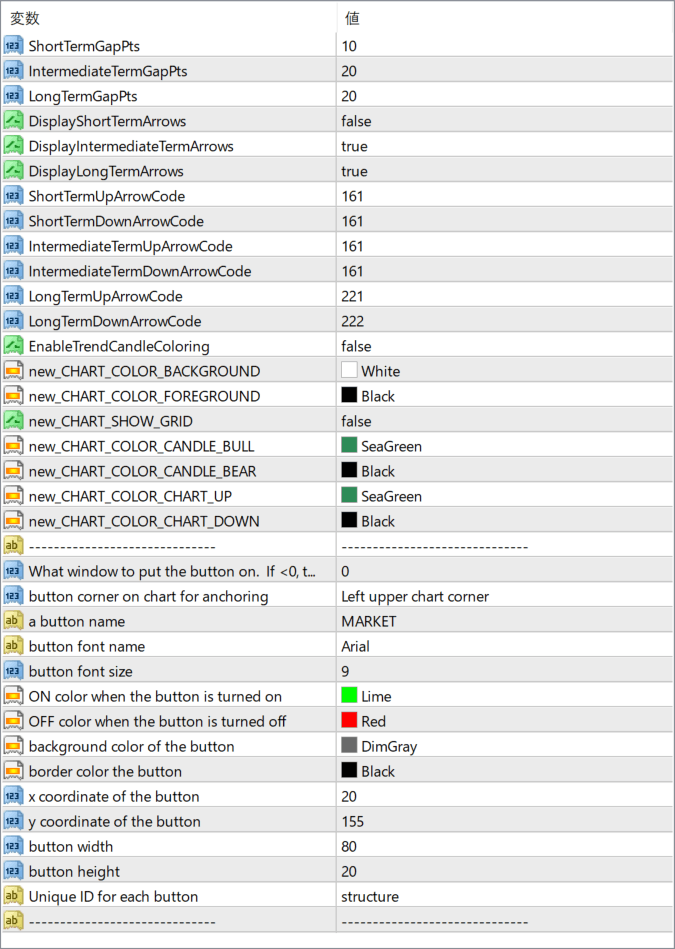
The screenshot above shows the default input parameters in the MT4 settings window.
How to Install .ex4 Indicator in MetaTrader 4
- Download the ZIP file and extract it.
- In MT4, select File → Open Data Folder.
- Open MQL4 → Indicators and copy the EX4 or MQ4 file into it.
- If the package includes library files, copy them to MQL4 → Libraries. Copy TPL files to the top-level templates folder.
- Restart MT4, find the indicator in the Navigator, and drag it onto a chart.
Test the tool on a demo account first. File contents and required folders can vary between packages.


