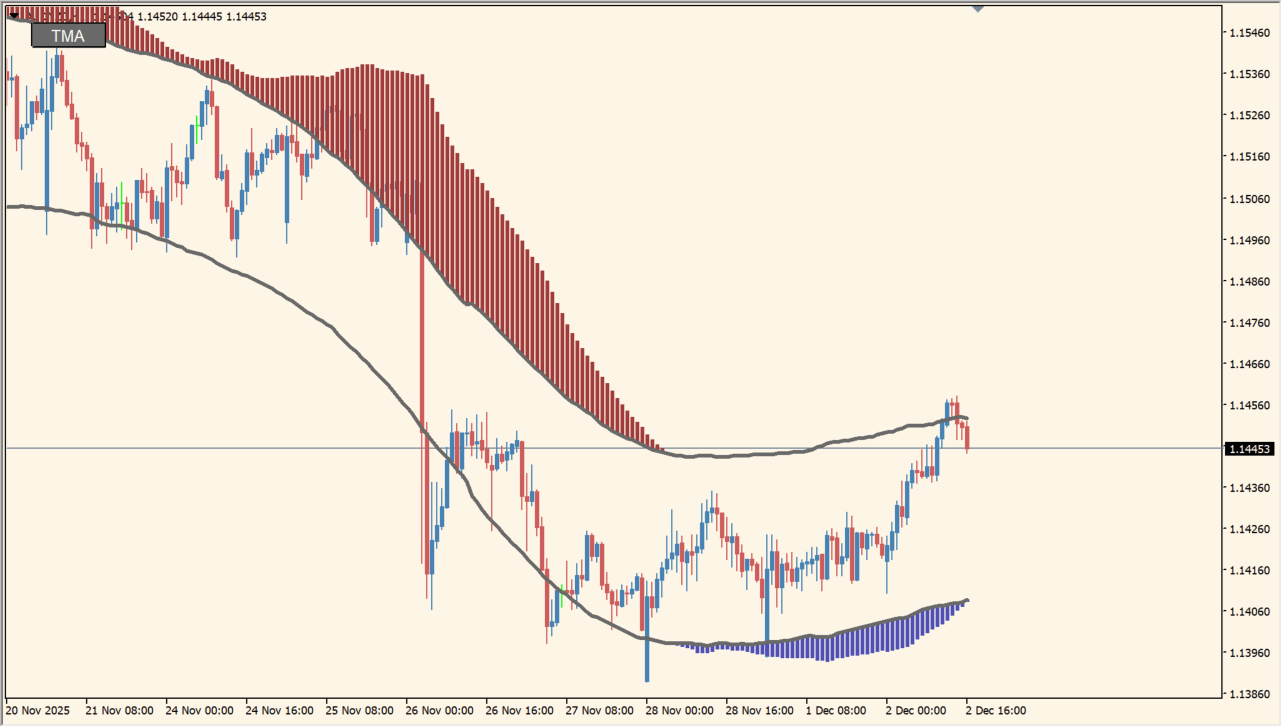
What is MT4 X-TMA CHANNEL-01 button?
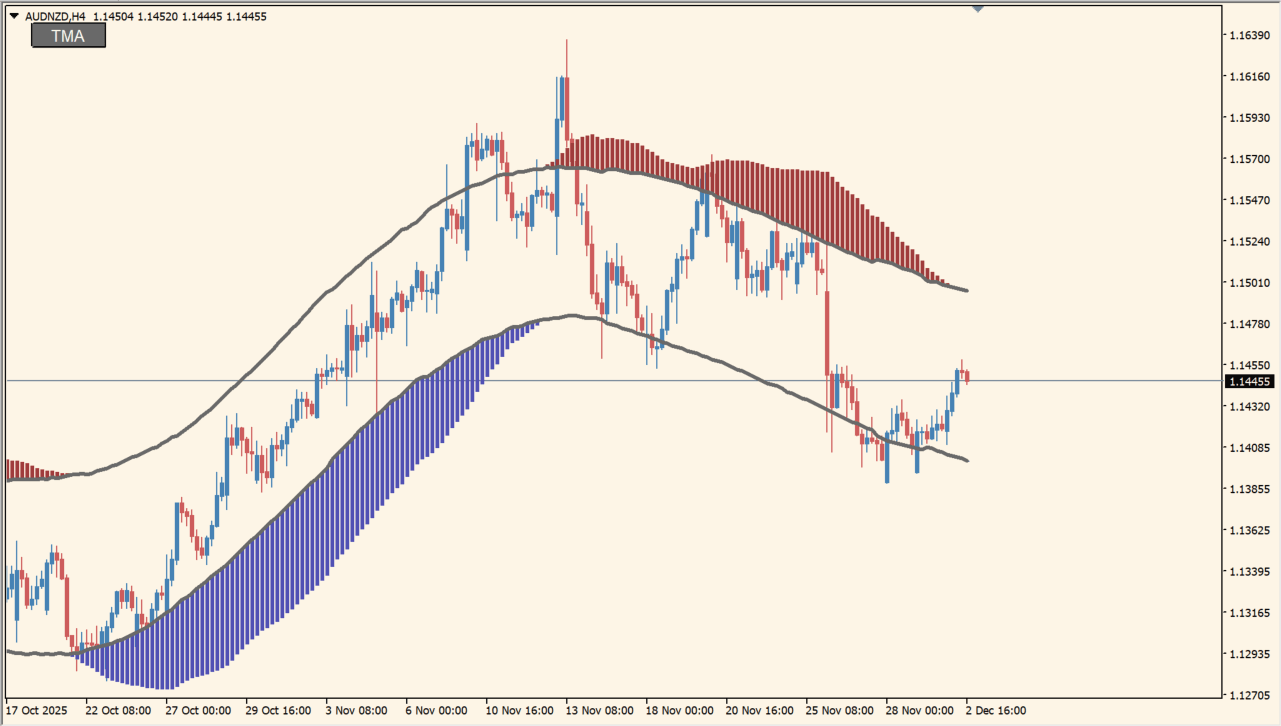
MT4 X-TMA CHANNEL-01 button uses two TMA lines and a ribbon to show the slope and momentum of price. The channel width and ribbon color change provide additional visual context around the current direction.
The second TMA line and ribbon are enabled by default, while the first red TMA line can be turned on from the Inputs dialog. A button lets the chart display be controlled without removing the indicator.
How to use MT4 X-TMA CHANNEL-01 button
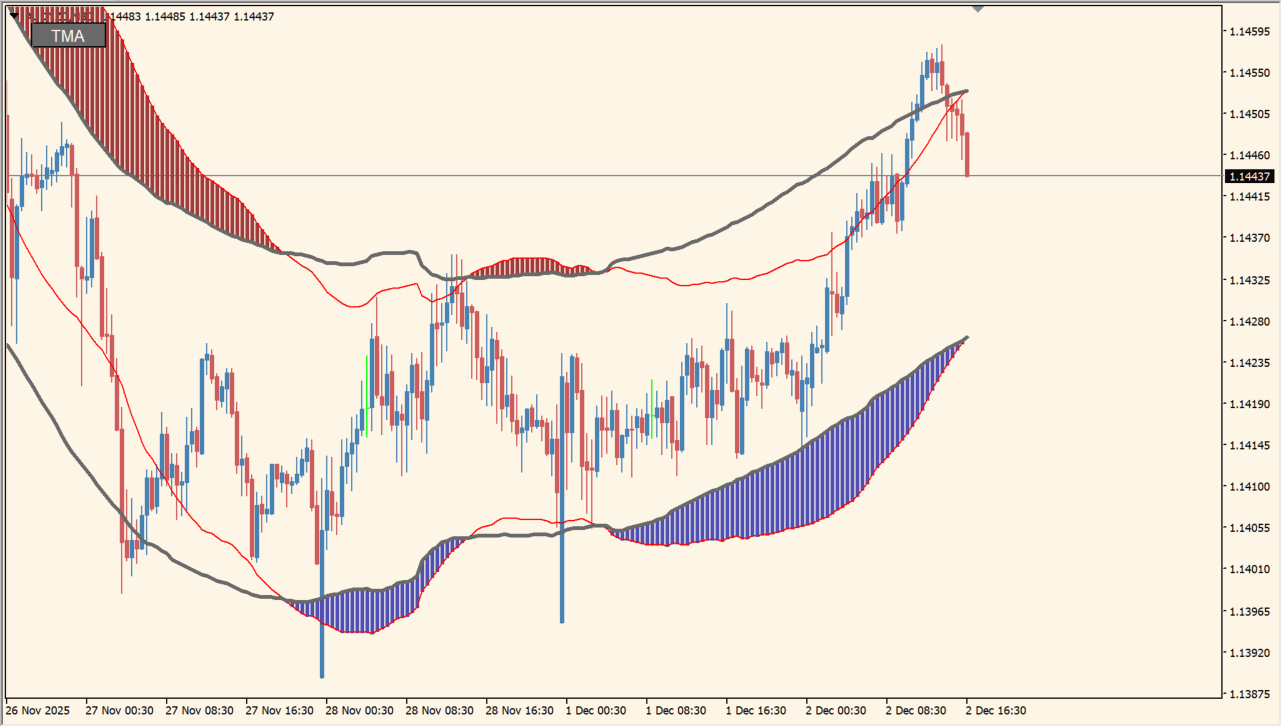
Inspect the two TMA lines and the ribbon as separate display layers: TMA2 and the ribbon are shown by default, while the thin red TMA1 line can be enabled from the Inputs.
- Compare the slope of the brown TMA2 line with the blue or red ribbon state on the same chart.
- Watch whether the ribbon is widening or narrowing to describe the visible change in channel width.
- Use showTMA1 and showTMA2 to choose which TMA references remain visible, and use showRIBBON to toggle the colored ribbon.
- Set TMA1per or TMA2per for the two calculation periods, then use their ATR multiplier settings to change the displayed channel width.
- Use Extrapolate and the button position, color, and size inputs to arrange the display without removing the indicator.
Where it helps
Adds a colored band around the TMA lines to show directional change.
Allows the first TMA line to be displayed when a second reference is needed.
Provides a quick way to control the visual layer from the chart.
MT4 Indicator Parameters
The table below lists the available MT4 indicator parameters. You can customize these options in the MetaTrader Inputs dialog to match your trading preferences.
| Parameter | Description |
|---|---|
| Indicator | Controls this indicator option. Default: Version. |
| STR01 | Settings section. |
| showTMA1 | Enables or disables this display option. Default: false. |
| TMA1per | Controls this indicator option. Default: 56. |
| TMA1atr | Controls this indicator option. Default: 100. |
| TMA1width | Sets the display width or text size. Default: 1. |
| TMA1clr | Sets the display color for this option. Default: clrRed. |
| TMA1atrMulti | Sets this calculation or display option. Default: 2.. |
| STR02 | Settings section. |
| showTMA2 | Enables or disables this display option. Default: true. |
| Extrapolate | Enables or disables this display option. Default: true. |
| TMA2per | Controls this indicator option. Default: 56. |
| TMA2atr | Controls this indicator option. Default: 100. |
| TMA2width | Sets the display width or text size. Default: 3. |
| TMA2price | Sets this calculation or display option. Default: PRICE_WEIGHTED. |
| TMA2clr | Sets the display color for this option. Default: clrDimGray. |
| TMA2atrMulti | Sets this calculation or display option. Default: 2.. |
| STR03 | Settings section. |
| showRIBBON | Enables or disables this display option. Default: true. |
| RibColUP | Sets the display color for this option. Default: C'80. |
| RibColDN | Sets the display color for this option. Default: C'160. |
| button_note1 | Settings section. |
| btn_corner | Sets this calculation or display option. Default: CORNER_LEFT_UPPER. |
| btn_text | Controls this indicator option. Default: "TMA". |
| btn_Font | Sets the display width or text size. Default: "Arial". |
| btn_FontSize | Sets the display width or text size. Default: 10. |
| btn_text_ON_color | Sets the display color for this option. Default: clrWhite. |
| btn_text_OFF_color | Sets the display color for this option. Default: clrRed. |
| btn_background_color | Sets the display color for this option. Default: clrDimGray. |
| btn_border_color | Sets the display color for this option. Default: clrBlack. |
| button_x | Controls this indicator option. Default: 20. |
| button_y | Controls this indicator option. Default: 13. |
| btn_Width | Sets the display width or text size. Default: 60. |
| btn_Height | Controls this indicator option. Default: 20. |
| button_note2 | Settings section. |
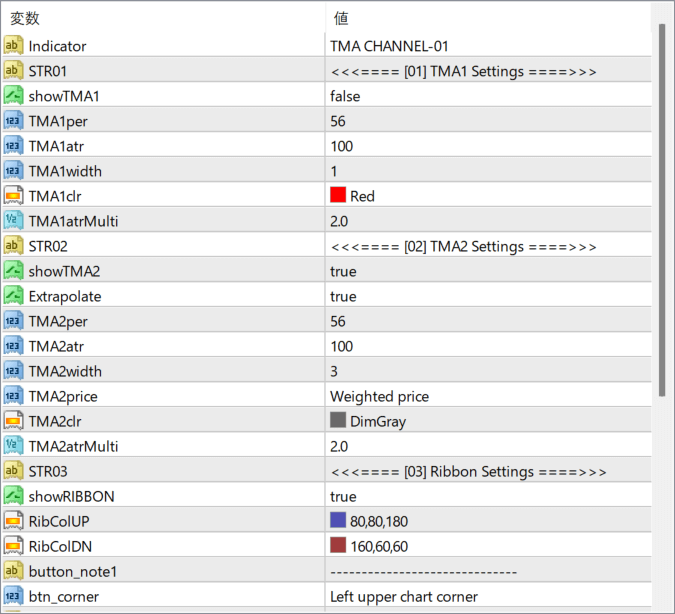
The screenshot above shows the default input parameters in the MT4 settings window.
How to Install .ex4 Indicator in MetaTrader 4
- Download the ZIP file and extract it.
- In MT4, select File → Open Data Folder.
- Open MQL4 → Indicators and copy the EX4 or MQ4 file into it.
- If the package includes library files, copy them to MQL4 → Libraries. Copy TPL files to the top-level templates folder.
- Restart MT4, find the indicator in the Navigator, and drag it onto a chart.
Test the tool on a demo account first. File contents and required folders can vary between packages.


