What is MyPriceAction?
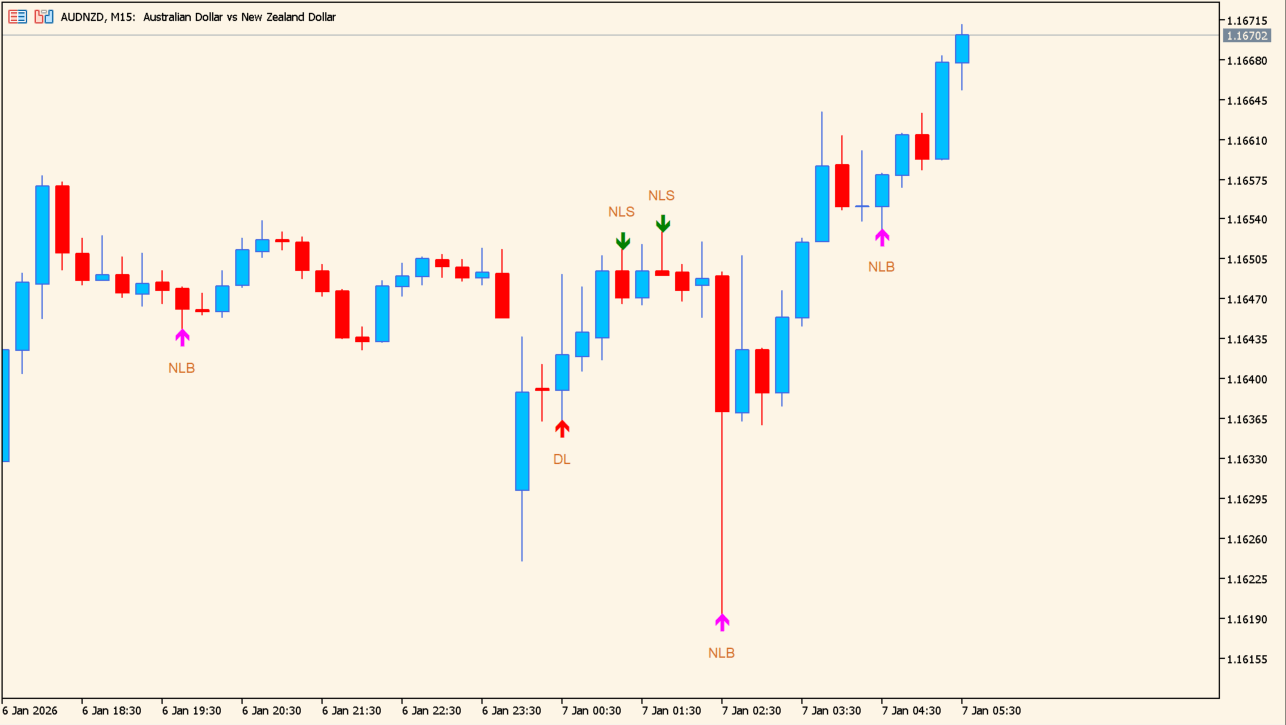
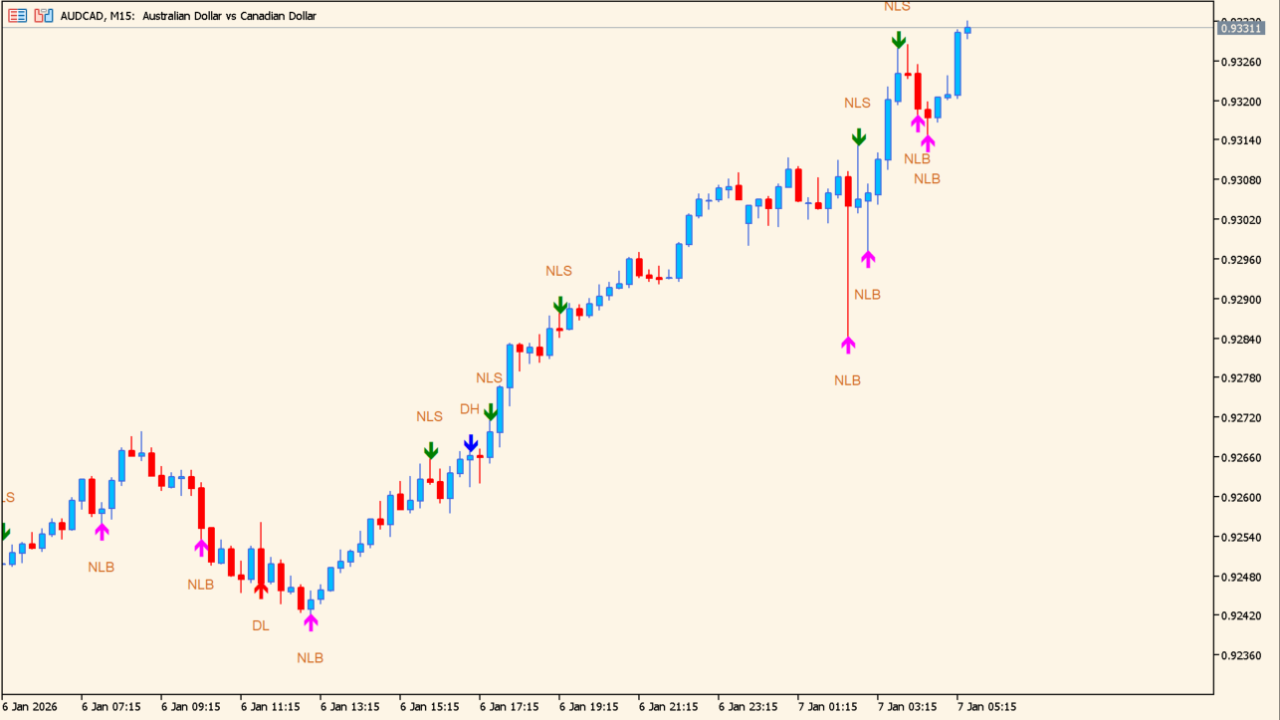
MyPriceAction is a candlestick-pattern indicator that marks NLS, NLB, DH, and DL labels on the chart. NLS and NLB are new-low labels, while DH and DL are double-high and double-low labels.
How to use MyPriceAction
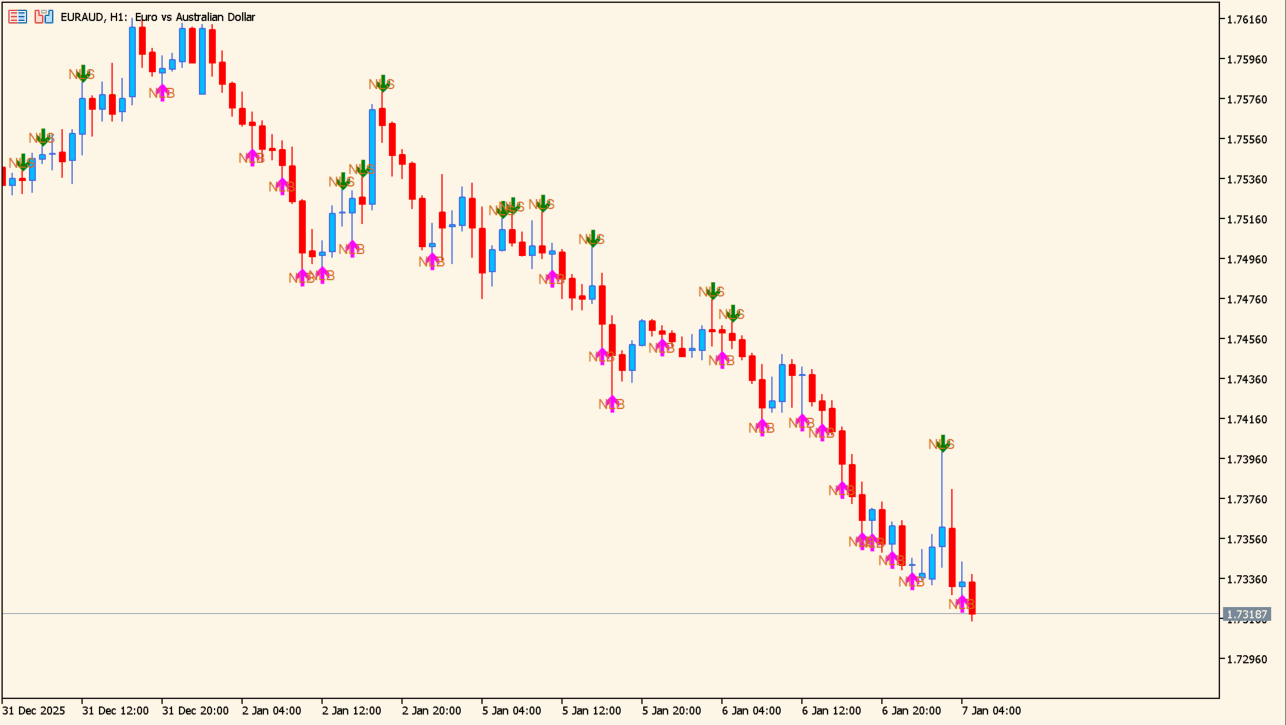
In an uptrend, give NLB and DL more attention; in a downtrend, focus on NLS and DH.
Where it helps
Identify selling pressure after a recent new low
Identify buying after a temporary test of a low
Treat double highs and double lows as separate caution areas
MT5 Indicator Parameters
The table below lists the available MT5 indicator parameters. You can customize these options in the MetaTrader Inputs dialog to match your trading preferences.
| Parameter | Description |
|---|---|
| ---- CANDLE SETTINGS ---- | Configuration group. |
| Twick Ratio | Displays the setting currently configured as 1.2. Default: 1.2. |
| High Twick 1 | Displays the setting currently configured as 10.0. Default: 10.0. |
| High Twick 2 | Displays the setting currently configured as 5.0. Default: 5.0. |
| Low Twick 1 | Displays the setting currently configured as 10.0. Default: 10.0. |
| Low Twick 2 | Displays the setting currently configured as 5.0. Default: 5.0. |
| ---- SHOW PATTERNS ---- | Configuration group. |
| Show DH | Displays the setting currently configured as true. Default: true. |
| Show BEOV | Displays the setting currently configured as true. Default: true. |
| Show DL | Displays the setting currently configured as true. Default: true. |
| Show IB4 | Displays the setting currently configured as true. Default: true. |
| ---- OTHER SETTINGS ---- | Configuration group. |
| Show Letterings | Displays the setting currently configured as true. Default: true. |
| Lettering Shift (pixel) | Displays the setting currently configured as 15. Default: 15. |
| Lettering Color | Displays the setting currently configured as Chocolate. Default: Chocolate. |
| History Bars | Displays the setting currently configured as 1000. Default: 1000. |
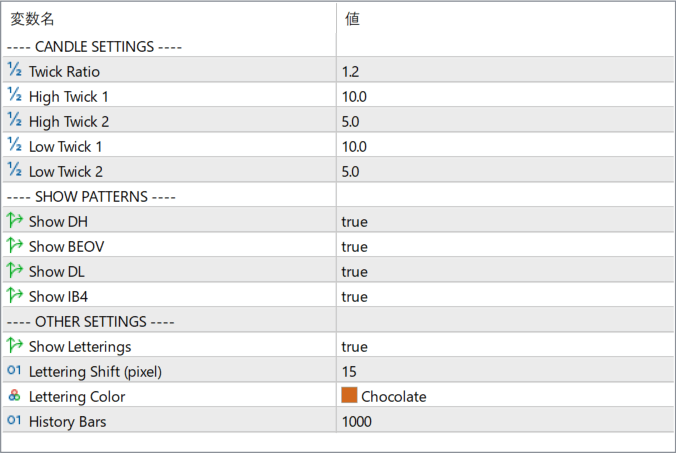
The screenshot above shows the default input parameters in the MT5 settings window.
How to Install .ex5 Indicator in MetaTrader 5
- Download the ZIP file and extract it.
- In MT5, select File → Open Data Folder.
- Open MQL5 → Indicators and copy the EX5 or MQ5 file into it.
- If the package includes library files, copy them to MQL5 → Libraries. Copy TPL files to the top-level templates folder.
- Restart MT5, find the indicator in the Navigator, and drag it onto a chart.
Test the tool on a demo account first. File contents and required folders can vary between packages.