What is Perfect Trend Line V2?
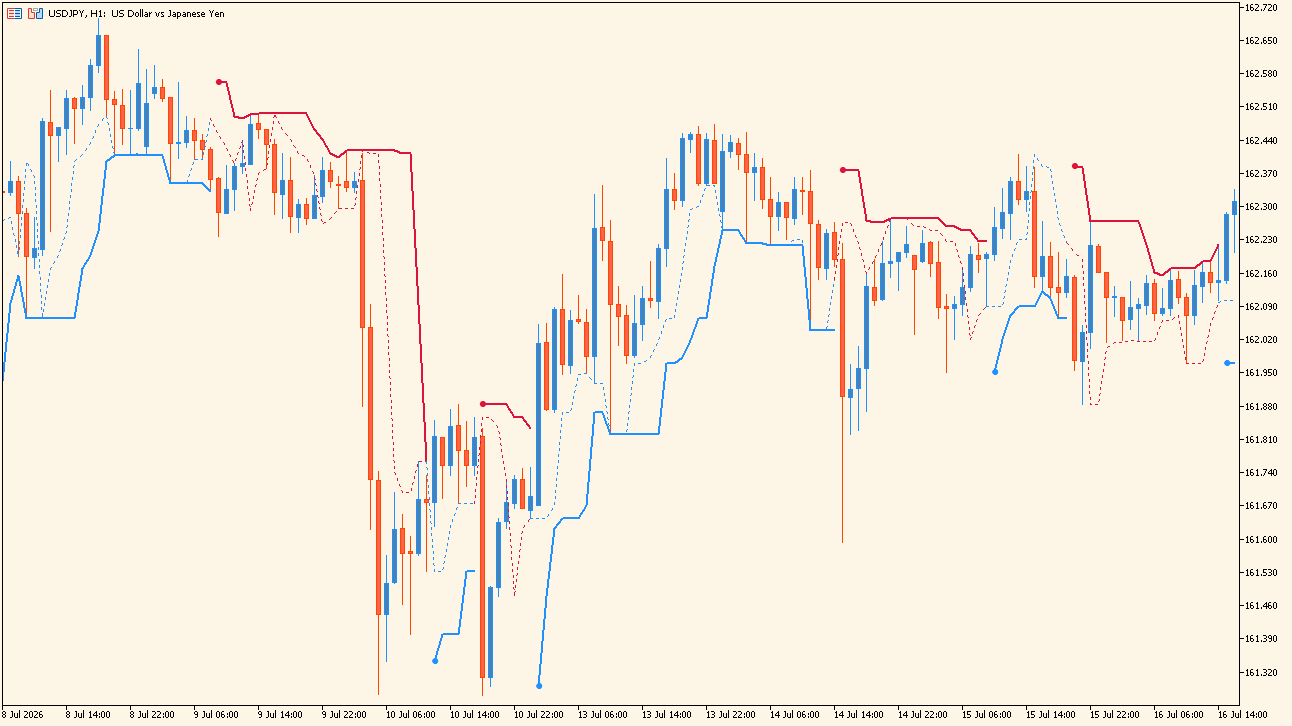
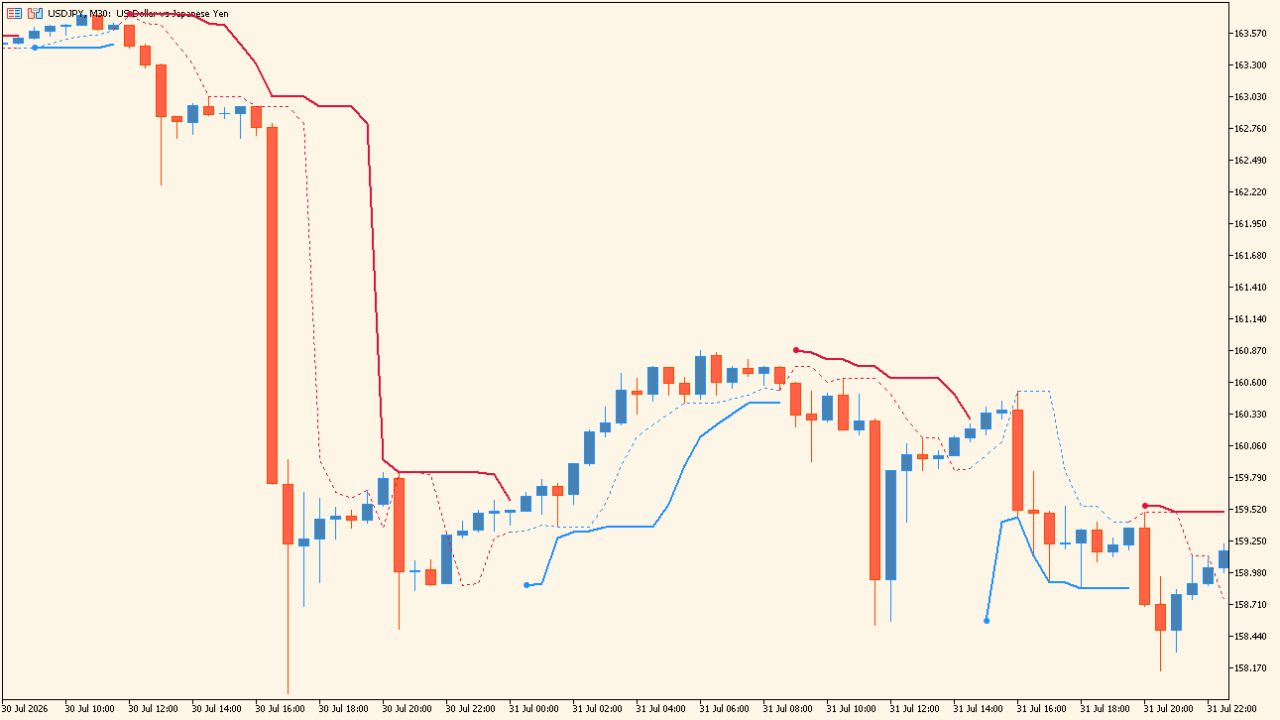
Perfect Trend Line V2 draws a red line and a blue line on an MT5 chart. The line is blue while the calculation is in its rising state and red while it is in its falling state.
The line sits below or above the candles rather than running through them, so the distance between price and the line stays visible.
How to use Perfect Trend Line V2
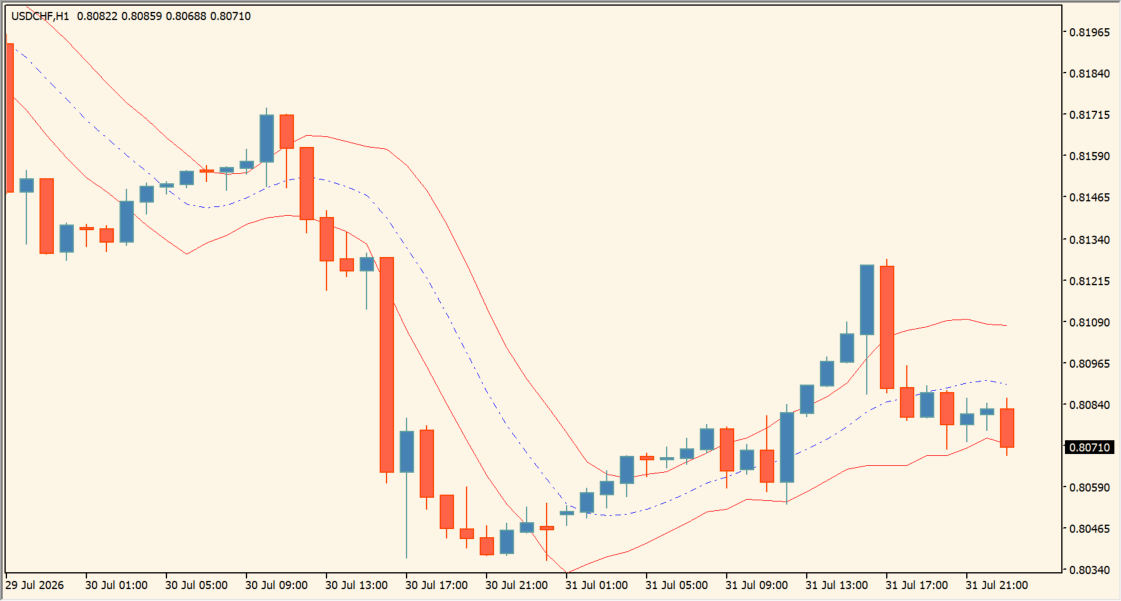
Read the switch between red and blue for the bar where the displayed state changed. The color change puts that bar on the chart.
Do not read the color on its own. Compare it with where price sits relative to the line and with what the candles are doing over the same bars.
Where it helps
The switch from red to blue, or the reverse, puts the change on a specific bar rather than leaving it to interpretation.
The same line carries the current state and its position relative to price, so both are read from one display.
Because the line is drawn relative to the candles, the line and the price action are compared directly on the same chart.
MT5 Indicator Parameters
The table below lists the available MT5 indicator parameters. You can customize these options in the MetaTrader Inputs dialog to match your trading preferences.
| Parameter | Description |
|---|---|
| Fast length | Sets the shorter lookback length. The default value is 3. |
| Slow length | Sets the longer lookback length. The default value is 7. |
| Notifications | Labels the notification settings section. |
| Notifications On? | Enables or disables notifications. The default value is false. |
| Popup MT4 Notifications | Enables or disables popup notifications. The default value is false. |
| Email Notifications | Enables or disables email notifications. The default value is false. |
| Push Mobile Notifications | Enables or disables mobile push notifications. The default value is false. |
| Sound notifications | Enables or disables sound notifications. The default value is false. |
| Choose a sound file for notifications | Selects the sound file played for notifications. The default value is Tick.wav. |
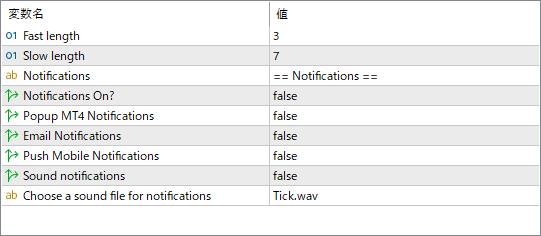
The screenshot above shows the default input parameters in the MT5 settings window.
How to Install .ex5 Indicator in MetaTrader 5
- Download the ZIP file and extract it.
- In MT5, select File → Open Data Folder.
- Open MQL5 → Indicators and copy the EX5 or MQ5 file into it.
- If the package includes library files, copy them to MQL5 → Libraries. Copy TPL files to the top-level templates folder.
- Restart MT5, find the indicator in the Navigator, and drag it onto a chart.
Test the tool on a demo account first. File contents and required folders can vary between packages.