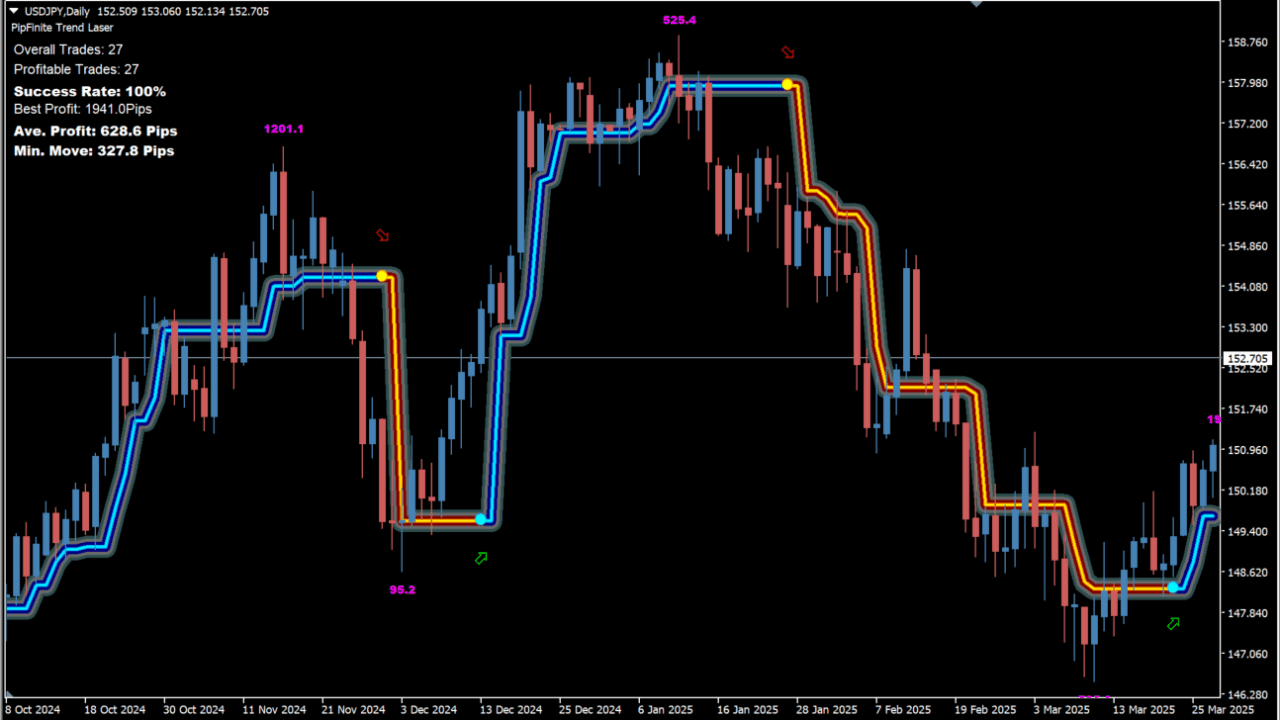
What is PipFinite Trend Laser?
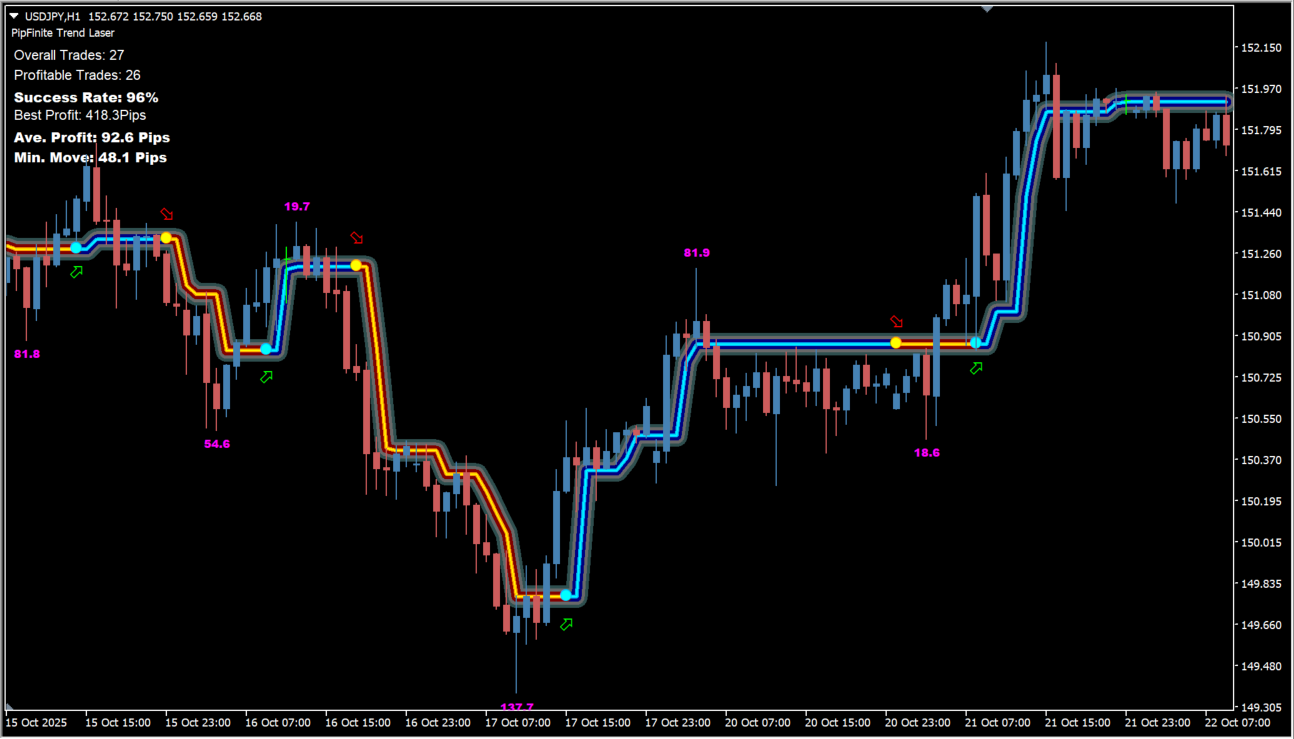
PipFinite Trend Laser is an MT4 indicator that detects trend direction and displays it with a SuperTrend-like laser band. Blue shows an upward trend, yellow shows a downward trend, and a horizontal line indicates a range.
How to use PipFinite Trend Laser
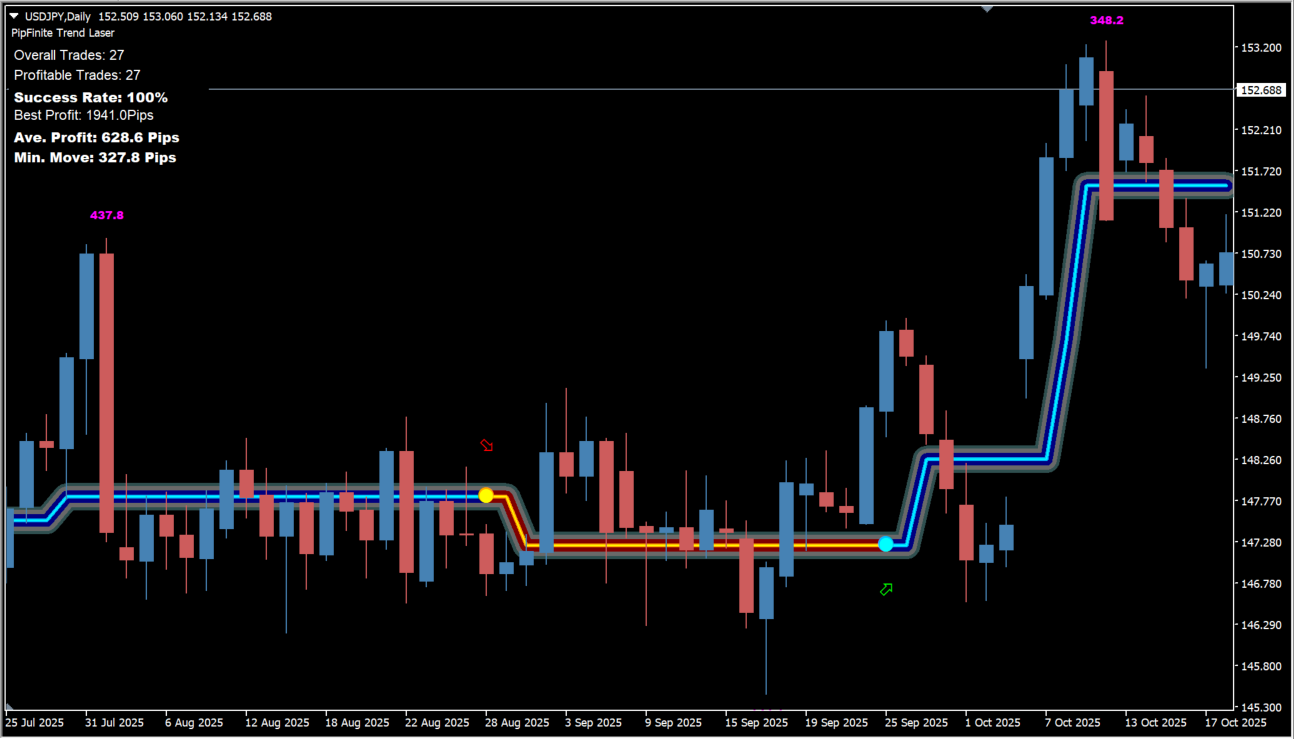
Markers appear when a new trend begins. The chart displays overall trades, profitable trades, success rate, best profit, average profit, and minimum move. Compare the band color with the candles over the same bars..
Where it helps
MT4 Indicator Parameters
The table below lists the available MT4 indicator parameters. You can customize these options in the MetaTrader Inputs dialog to match your trading preferences.
| Parameter | Description |
|---|---|
| <====================> | Configuration group. |
| Period | Sets the period used to detect trend changes; larger values respond more slowly. Default: 3. |
| Maximum History Bars | Sets how many historical bars are calculated and displayed. Default: 1000. |
| <====================> | Configuration group. |
| Show Max Profit | Shows or hides the maximum profit value for each trend. Default: true. |
| Max Profit Text Size | Sets the text size for the maximum-profit display. Default: 7. |
| Show Statistics | Shows or hides the on-chart trade statistics. Default: true. |
| Statistics X-Offset | Adjusts the horizontal position of the statistics display. Default: 2. |
| Statistics Y-Offset | Adjusts the vertical position of the statistics display. Default: 8. |
| Statistics Text Size | Sets the text size of the statistics display. Default: 8. |
| Charts To Foreground | Keeps the chart in the foreground so the statistics remain visible. Default: true. |
| <====================> | Configuration group. |
| Color Scheme | Selects the display theme, such as Dark or Light. Default: Dark. |
| Highlight Laser | Shows or hides emphasis on the trend laser line. Default: true. |
| <====================> | Configuration group. |
| Enable Pop-Up Alerts | Shows or hides pop-up alerts when a trend change occurs. Default: true. |
| Enable Email Alerts | Enables or disables email notifications. Default: false. |
| Enable Push Notification Alerts | Enables or disables push notifications. Default: false. |
| Enable Sound Alerts | Enables or disables sound notifications. Default: false. |
| Sound Alert Name | Sets the filename used for the alert sound. Default: alert.wav. |
| Enable Screen Comments | Shows or hides statistics as comments on the screen. Default: true. |
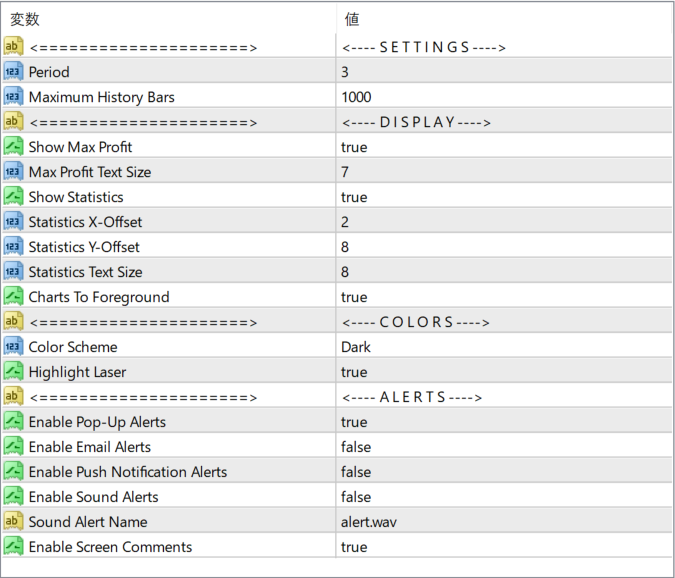
The screenshot above shows the default input parameters in the MT4 settings window.
How to Install .ex4 Indicator in MetaTrader 4
- Download the ZIP file and extract it.
- In MT4, select File → Open Data Folder.
- Open MQL4 → Indicators and copy the EX4 or MQ4 file into it.
- If the package includes library files, copy them to MQL4 → Libraries. Copy TPL files to the top-level templates folder.
- Restart MT4, find the indicator in the Navigator, and drag it onto a chart.
Test the tool on a demo account first. File contents and required folders can vary between packages.


