What is price-position-indicator?
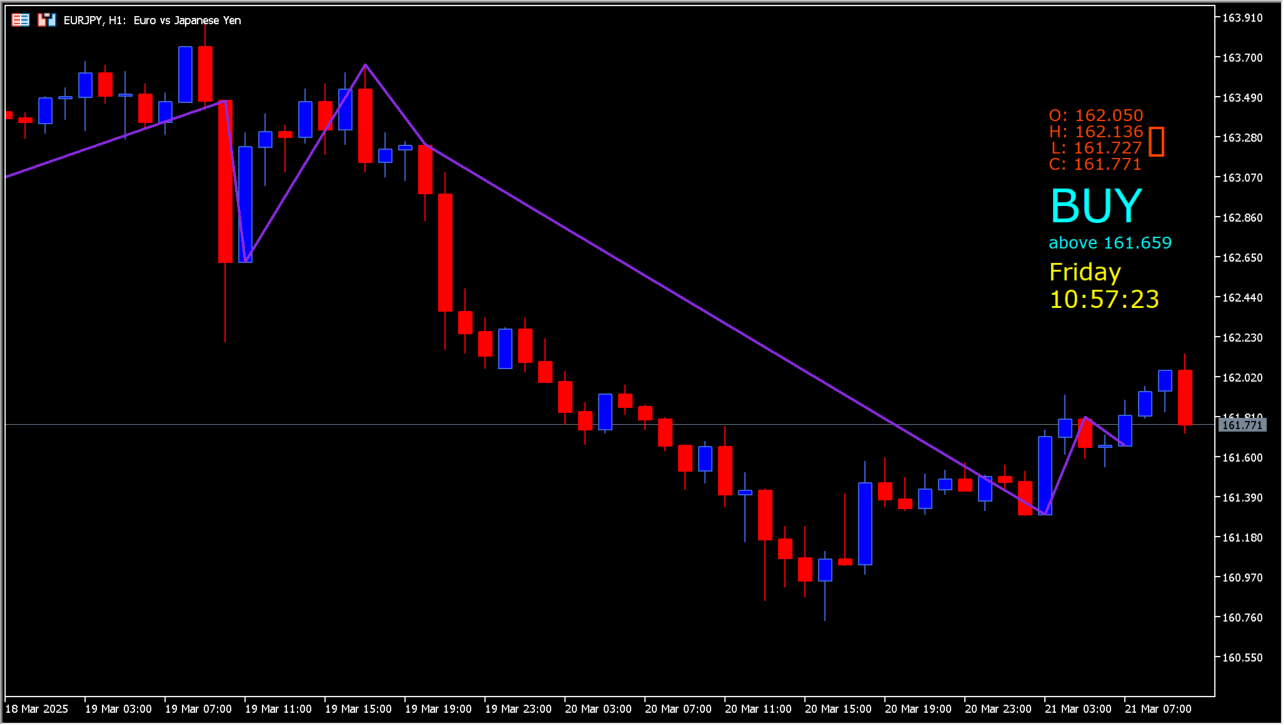
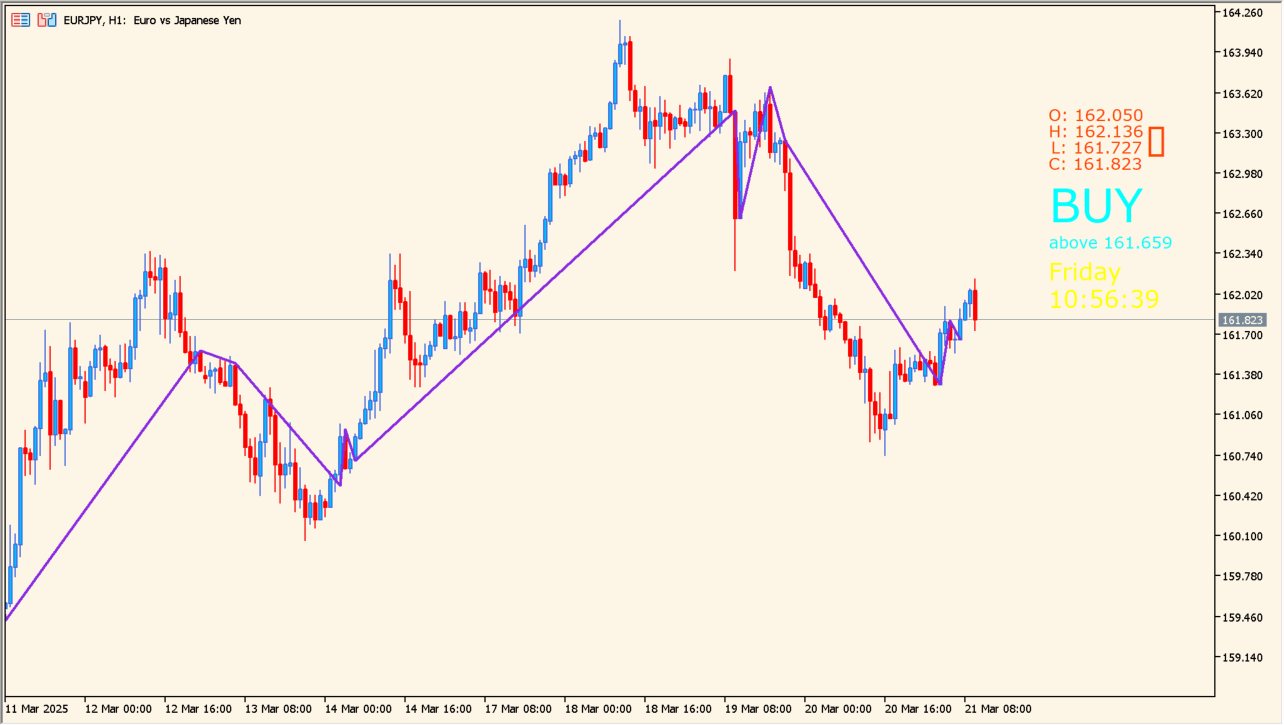
price-position-indicator uses prominent highs and lows to estimate a current trend direction and prints BUY or SELL in the upper-right area. It also shows a ZigZag-like line plus recent open, high, low, close, and date information.
The displayed direction is not an exact entry time, and the underlying trend logic is not fully explained. Alerts can be frequent, so they should be managed deliberately.
How to use price-position-indicator
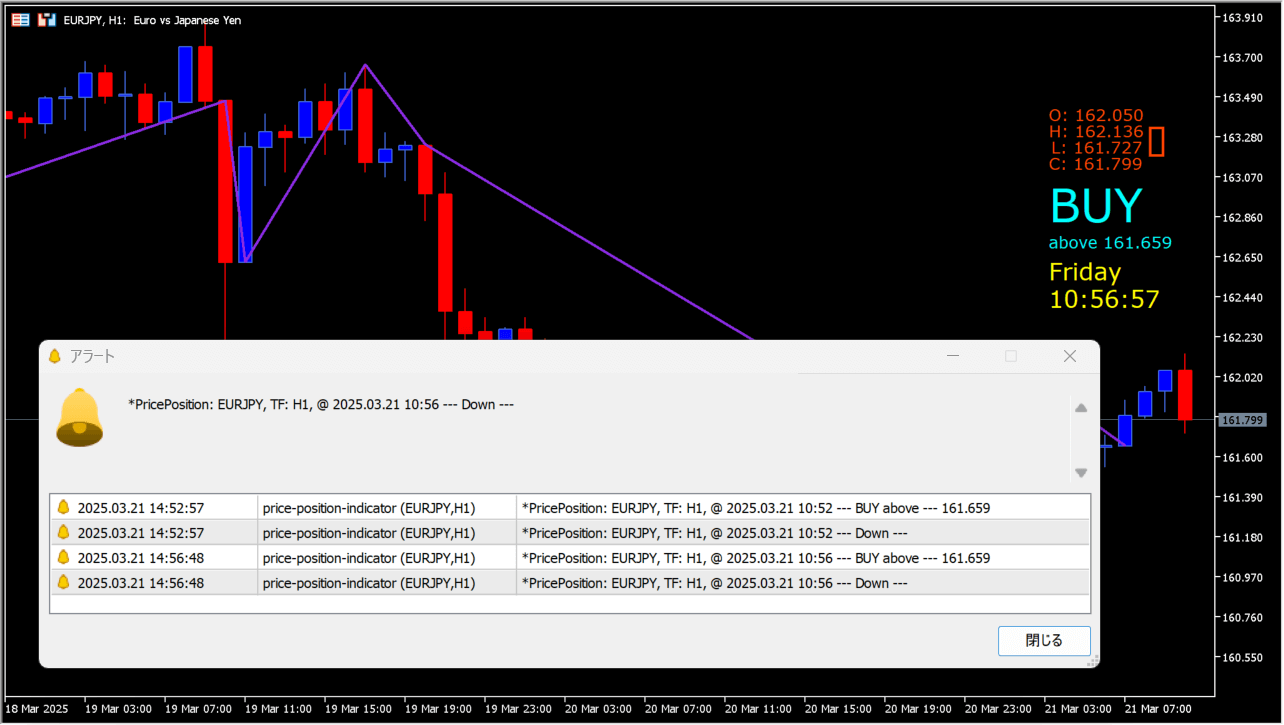
Place price-position-indicator on an MT5 chart and use the corner label as a summary of the displayed trend, then inspect the swing line and recent price values.
Use Turn On Alert to control notifications and adjust Color Section Line, BUY Color, SELL Color, and No Trend Color to keep the status readable.
Where it helps
Presents the current displayed direction without requiring a separate subwindow.
Adds recent OHLC values, dates, and a swing-style line to the chart.
Allows the frequent trend notifications to be turned on or off.
MT5 Indicator Parameters
The table below lists the available MT5 indicator parameters. You can customize these options in the MetaTrader Inputs dialog to match your trading preferences.
| Parameter | Description |
|---|---|
| corn | Controls this indicator option. Default: RightHand. |
| UseAlert | Enables or disables this display option. Default: Yes. |
| SectionColor | Sets the display color for this option. Default: clrBlueViolet. |
| BuyColor | Sets the display color for this option. Default: clrAqua. |
| SellColor | Sets the display color for this option. Default: clrOrangeRed. |
| clrNT | Sets the display color for this option. Default: clrYellow. |
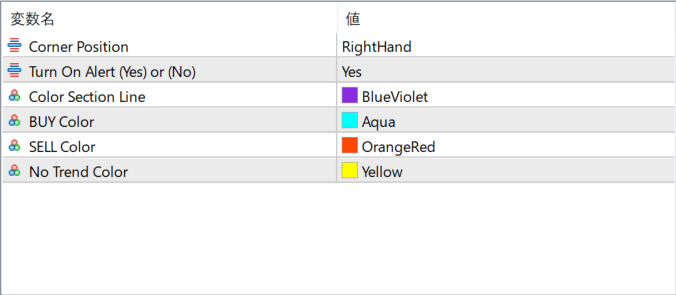
The screenshot above shows the default input parameters in the MT5 settings window.
How to Install .ex5 Indicator in MetaTrader 5
- Download the ZIP file and extract it.
- In MT5, select File → Open Data Folder.
- Open MQL5 → Indicators and copy the EX5 or MQ5 file into it.
- If the package includes library files, copy them to MQL5 → Libraries. Copy TPL files to the top-level templates folder.
- Restart MT5, find the indicator in the Navigator, and drag it onto a chart.
Test the tool on a demo account first. File contents and required folders can vary between packages.