What is PTL 2 (alerts)?
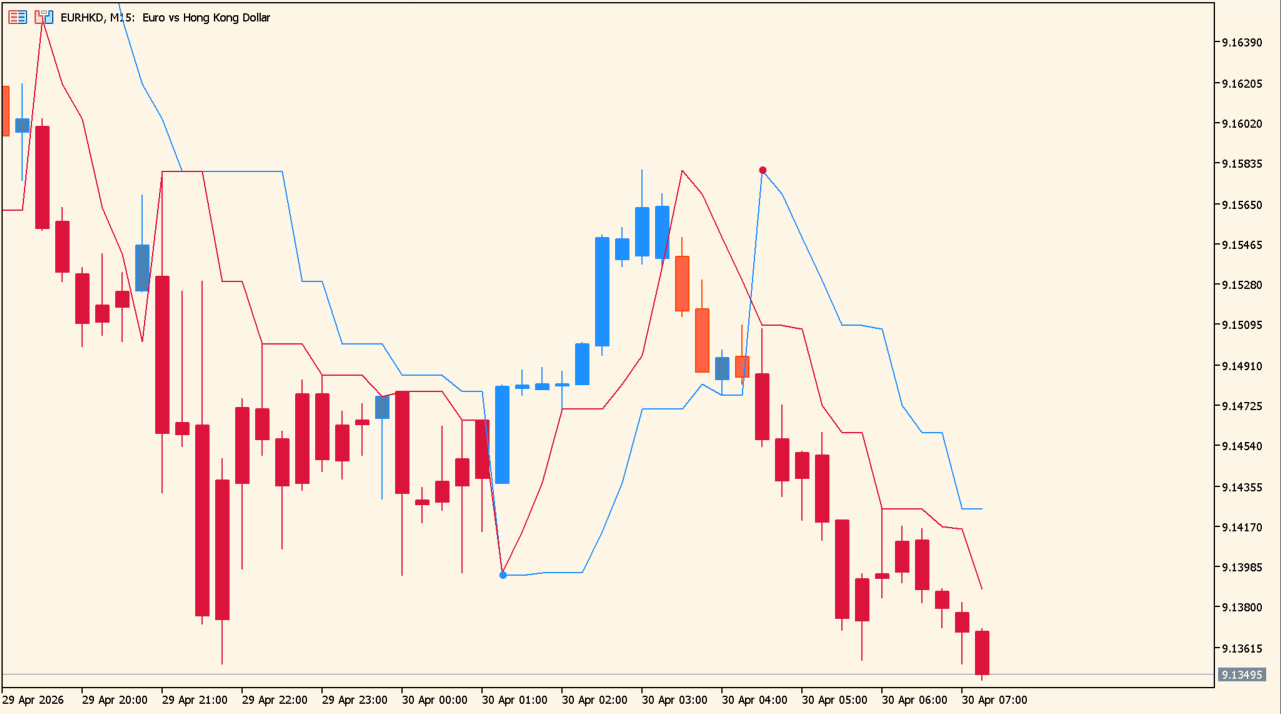
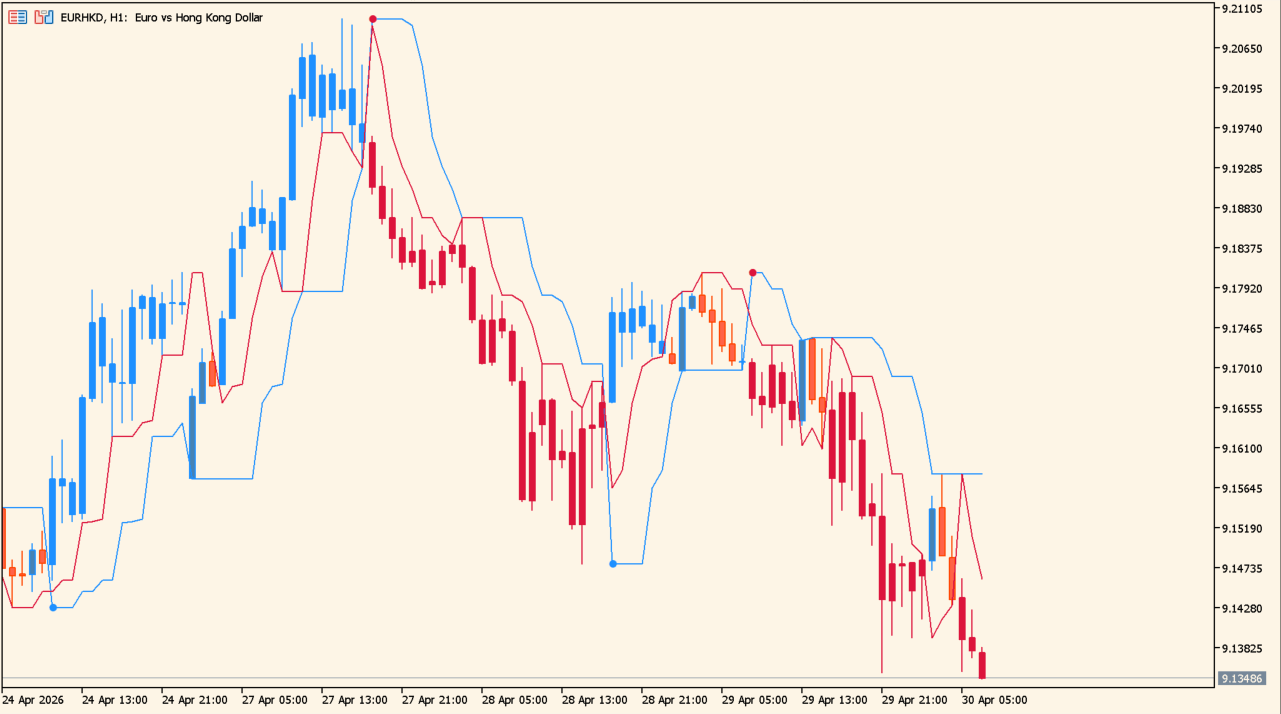
PTL 2 (alerts) displays two configurable line lengths on an MT5 chart and provides independent notification settings. The source chart shows stepped lines with condition marks at selected points.
The visual output reflects the chosen fast and slow lengths. It is a chart calculation to review with price behavior, not a promise of direction.
How to use PTL 2 (alerts)
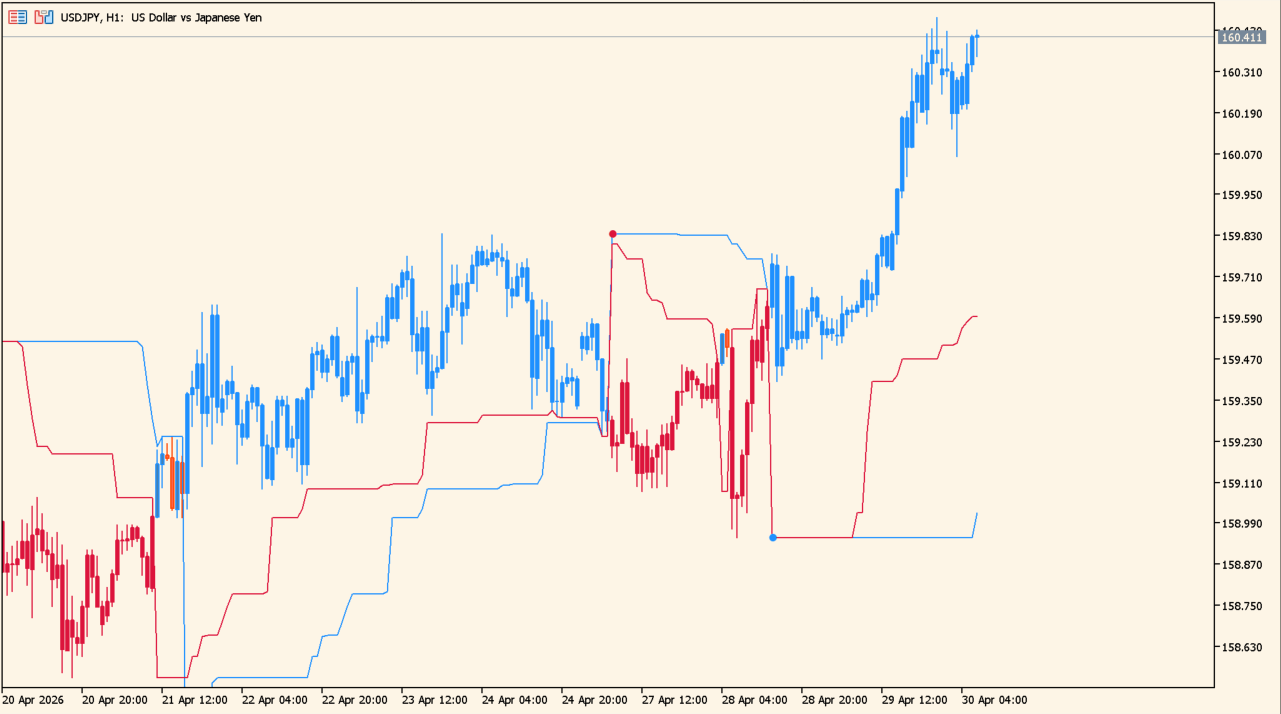
Compare the faster and slower displays with completed candles and the broader chart range. Keep notification behavior separate from the underlying line calculation.
The alert settings separately control alerts on an open bar, messages, sound, notifications, and email.
Where it helps
Fast and slow lengths are independently configurable.
The Inputs choose whether alerts may occur on the current bar.
Message, sound, push-notification, and email switches are separate.
MT5 Indicator Parameters
The table below lists the available MT5 indicator parameters. You can customize these options in the MetaTrader Inputs dialog to match your trading preferences.
| Parameter | Description |
|---|---|
| Fast length | Sets the fast calculation length. Default: 3. |
| Slow length | Sets the slow calculation length. Default: 7. |
| Alerts? | Enables or disables alerts. Default: true. |
| Alerts open bar? | Enables or disables alerts on the current open bar. Default: false. |
| Alerts message? | Enables or disables alert messages. Default: true. |
| Alerts sound? | Enables or disables alert sounds. Default: false. |
| Alerts notification? | Enables or disables push notifications. Default: false. |
| Alerts email? | Enables or disables email alerts. Default: false. |
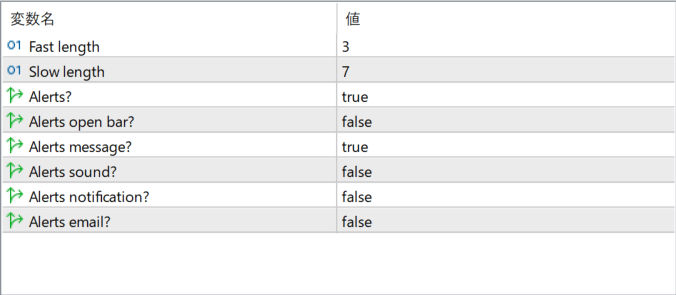
The screenshot above shows the default input parameters in the MT5 settings window.
How to Install .ex5 Indicator in MetaTrader 5
- Download the ZIP file and extract it.
- In MT5, select File → Open Data Folder.
- Open MQL5 → Indicators and copy the EX5 or MQ5 file into it.
- If the package includes library files, copy them to MQL5 → Libraries. Copy TPL files to the top-level templates folder.
- Restart MT5, find the indicator in the Navigator, and drag it onto a chart.
Test the tool on a demo account first. File contents and required folders can vary between packages.