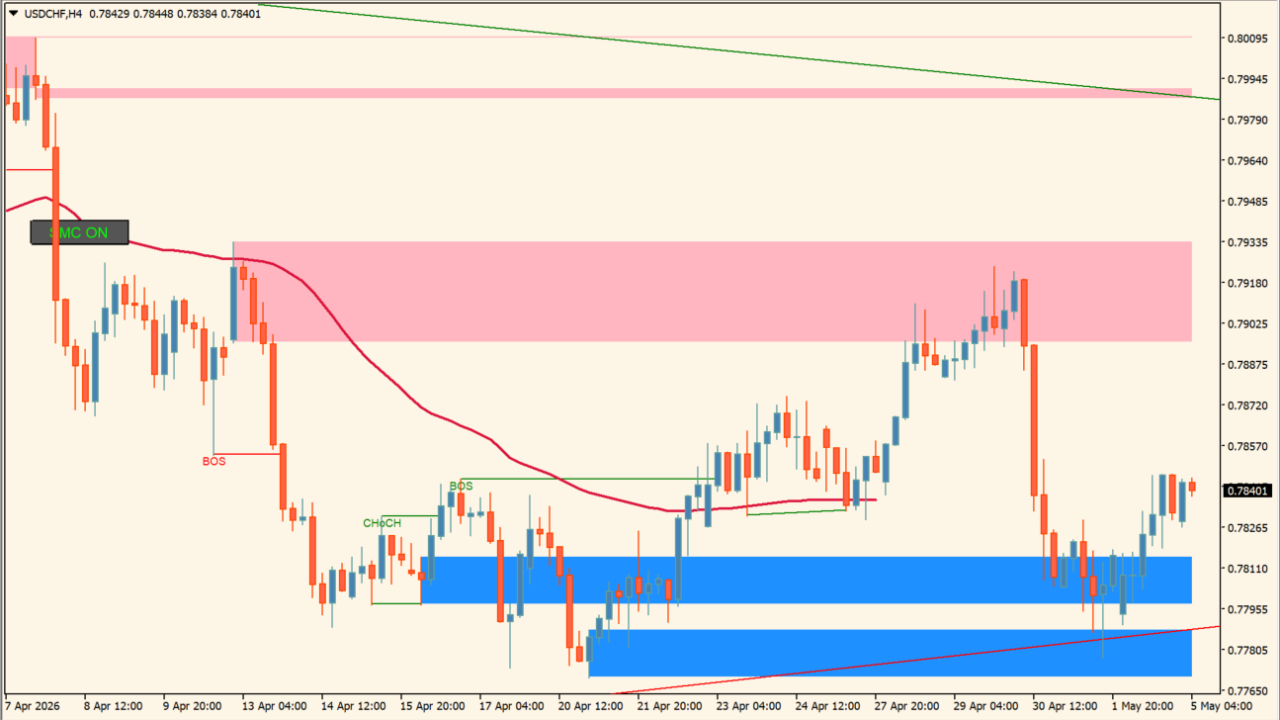
What is RoyalPrince_SMC BT?
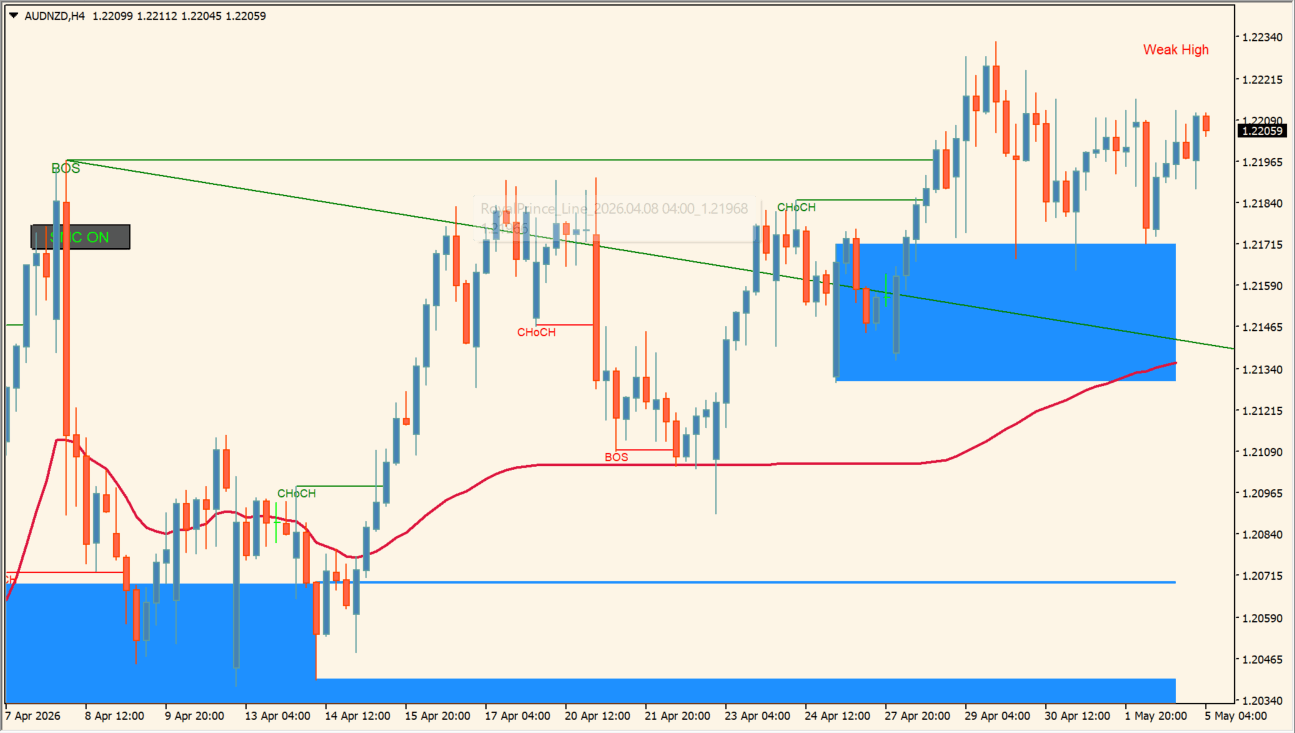
RoyalPrince_SMC BT combines several Smart Money Concept display layers: internal and swing structure, order blocks, equal highs/lows, and Fair Value Gaps. Each layer has its own switch, count, color, or size setting.
These elements map calculated market structure on a chart. The markings are references for reviewing price behavior, not confirmations of a future price path.
How to use RoyalPrince_SMC BT
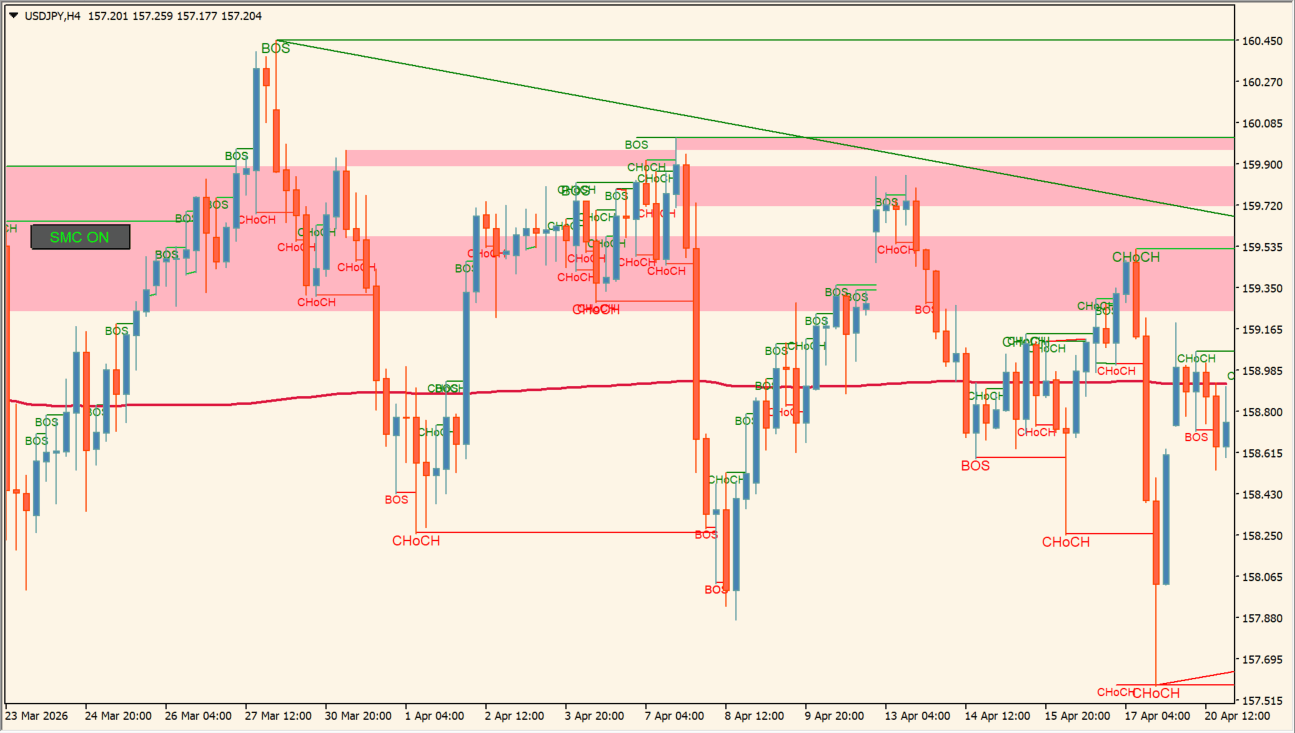
Turn on only the layers relevant to the chart review, then compare each visible structure marking with nearby swings and candles. Treat internal and swing settings independently because they control different display layers.
Mode and Style select the overall presentation. The remaining inputs organize the structure, order-block, equal-high/low, and FVG displays.
Where it helps
Internal and swing structure have distinct controls.
Order-block count settings constrain how many markings are shown.
Colors and label sizes can be adjusted by element.
MT4 Indicator Parameters
The table below lists the available MT4 indicator parameters. You can customize these options in the MetaTrader Inputs dialog to match your trading preferences.
| Parameter | Description |
|---|---|
| Mode | Configures the Mode display or calculation option. |
| Style | Configures the Style display or calculation option. |
| AMAColor | Configures the AMAColor display or calculation option. |
| ShowTrend | Configures the ShowTrend display or calculation option. |
| ShowInternals | Configures the ShowInternals display or calculation option. |
| ShowIBull | Configures the ShowIBull display or calculation option. |
| SwingIBullColor | Configures the SwingIBullColor display or calculation option. |
| ShowIBear | Configures the ShowIBear display or calculation option. |
| SwingIBearColor | Configures the SwingIBearColor display or calculation option. |
| IFilterConfluence | Configures the IFilterConfluence display or calculation option. |
| InternalStructureSize | Configures the InternalStructureSize display or calculation option. |
| ShowStructure | Configures the ShowStructure display or calculation option. |
| ShowBull | Configures the ShowBull display or calculation option. |
| SwingBullColor | Configures the SwingBullColor display or calculation option. |
| ShowBear | Configures the ShowBear display or calculation option. |
| SwingBearColor | Configures the SwingBearColor display or calculation option. |
| SwingStructureSize | Configures the SwingStructureSize display or calculation option. |
| ShowSwings | Configures the ShowSwings display or calculation option. |
| SwingLength | Configures the SwingLength display or calculation option. |
| ShowHLSwings | Configures the ShowHLSwings display or calculation option. |
| ShowIOB | Configures the ShowIOB display or calculation option. |
| IOBShowLast | Configures the IOBShowLast display or calculation option. |
| ShowOB | Configures the ShowOB display or calculation option. |
| OBShowLast | Configures the OBShowLast display or calculation option. |
| OBFilter | Configures the OBFilter display or calculation option. |
| IBullOBColor | Configures the IBullOBColor display or calculation option. |
| IBearOBColor | Configures the IBearOBColor display or calculation option. |
| BullOBColor | Configures the BullOBColor display or calculation option. |
| BearOBColor | Configures the BearOBColor display or calculation option. |
| ShowEQ | Configures the ShowEQ display or calculation option. |
| EQLen | Configures the EQLen display or calculation option. |
| EQThreshold | Configures the EQThreshold display or calculation option. |
| EQSize | Configures the EQSize display or calculation option. |
| ShowFVG | Configures the ShowFVG display or calculation option. |
| FVGAuto | Configures the FVGAuto display or calculation option. |
| FVGTF | Configures the FVGTF display or calculation option. |
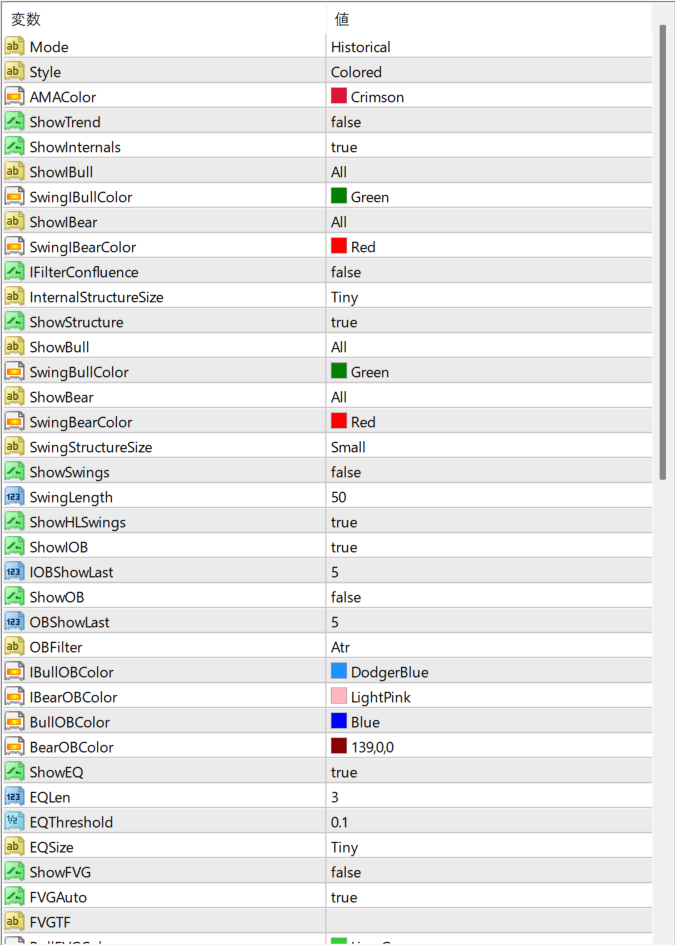
The screenshot above shows the default input parameters in the MT4 settings window.
How to Install .ex4 Indicator in MetaTrader 4
- Download the ZIP file and extract it.
- In MT4, select File → Open Data Folder.
- Open MQL4 → Indicators and copy the EX4 or MQ4 file into it.
- If the package includes library files, copy them to MQL4 → Libraries. Copy TPL files to the top-level templates folder.
- Restart MT4, find the indicator in the Navigator, and drag it onto a chart.
Test the tool on a demo account first. File contents and required folders can vary between packages.


