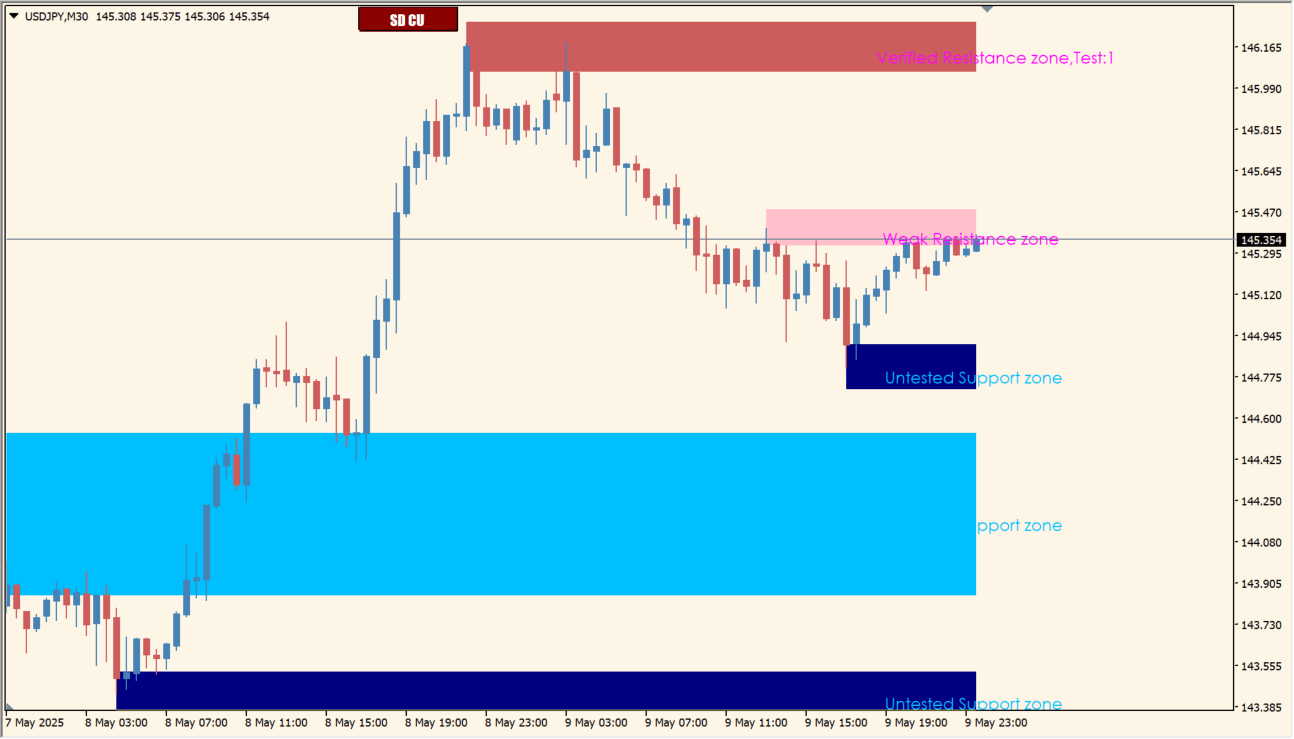
What is SD_SR_But CU?
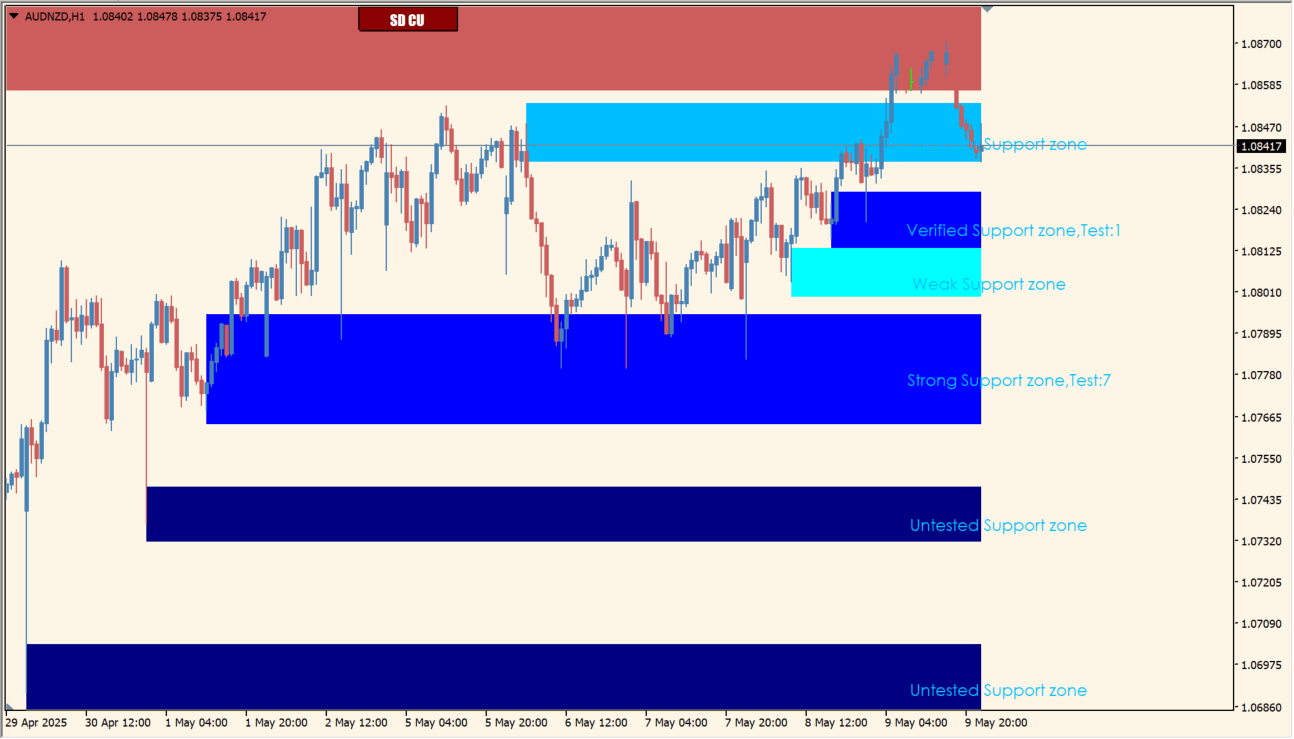
SD_SR_But CU automatically plots several support and resistance zones and assigns a color and label to each zone. The labels include Weak Support, Verified Support, and Turncoat Support, with corresponding resistance states.
The labels are intended to keep the relative history of a zone visible while the chart is reviewed. They are reference categories, not an automatic decision about future price behavior.
How to use SD_SR_But CU
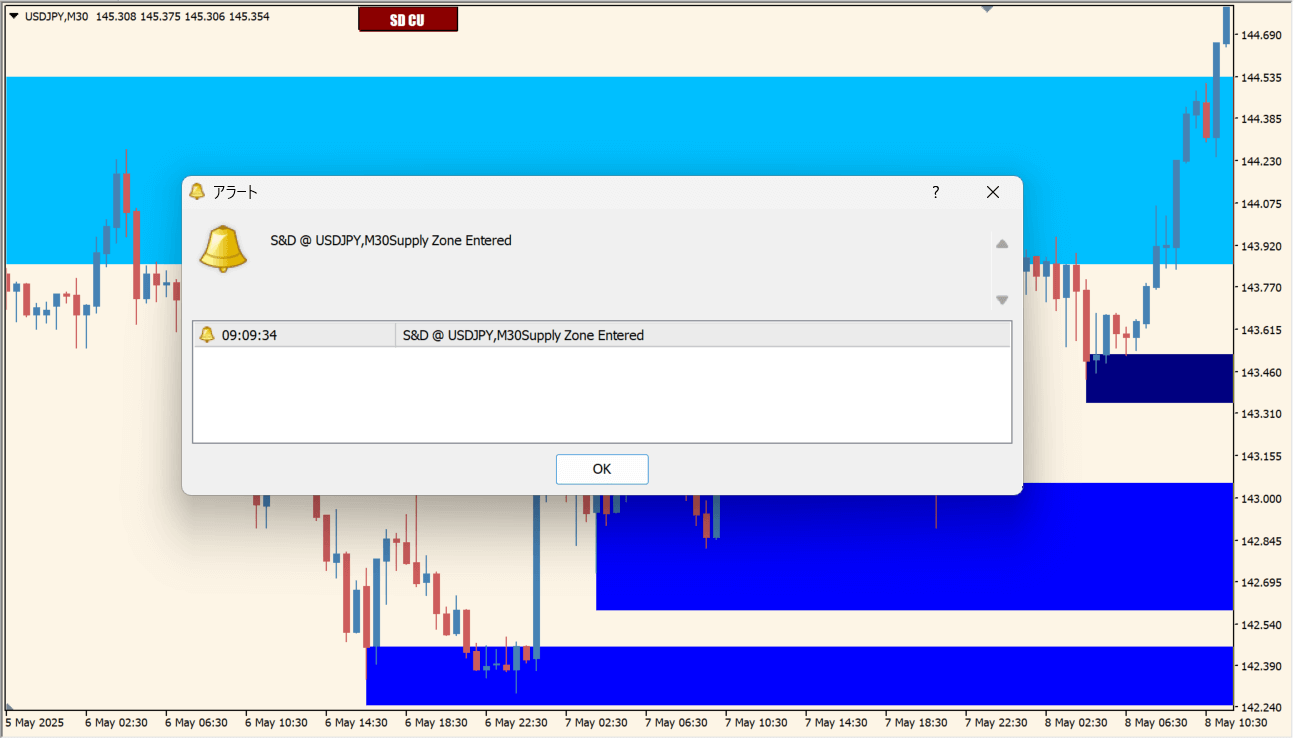
Apply SD_SR_But CU to an MT4 chart and compare the color and strength label of each zone with the recent price reactions around it.
Use the zone, label, and color inputs to reduce clutter and keep the strength categories readable on the selected timeframe.
Where it helps
Separates weak, verified, and turncoat support or resistance states.
Draws multiple horizontal areas without requiring every level to be placed manually.
Makes the zone classification visible directly on the chart.
MT4 Indicator Parameters
The table below lists the available MT4 indicator parameters. You can customize these options in the MetaTrader Inputs dialog to match your trading preferences.
| Parameter | Description |
|---|---|
| BackLimit | Enables or disables this display option. Default: 5000. |
| TimeFrame | Sets this calculation or display option. Default: 0. |
| TimeString | Sets this calculation or display option. Default: "0=Current, 60=H1, 240=H4, 1440=Day, 10080=Week, 43200=Month". |
| color_support_weak | Sets the display color for this option. Default: clrAqua. |
| color_support_untested | Sets the display color for this option. Default: clrNavy. |
| color_support_verified | Sets the display color for this option. Default: clrBlue. |
| color_support_proven | Sets the display color for this option. Default: clrBlue. |
| color_support_turncoat | Sets the display color for this option. Default: clrDeepSkyBlue. |
| color_resist_weak | Sets the display color for this option. Default: clrPink. |
| color_resist_untested | Sets the display color for this option. Default: clrMaroon. |
| color_resist_verified | Sets the display color for this option. Default: clrIndianRed. |
| color_resist_proven | Sets the display color for this option. Default: clrIndianRed. |
| color_resist_turncoat | Sets the display color for this option. Default: clrTomato. |
| zone_show_weak | Enables or disables this display option. Default: true. |
| zone_fuzzfactor | Sets this calculation or display option. Default: 0.75. |
| zone_solid | Enables or disables this display option. Default: true. |
| zone_linewidth | Sets the display width or text size. Default: 1. |
| zone_style | Sets this calculation or display option. Default: 0. |
| zone_show_info | Enables or disables this display option. Default: true. |
| zone_info_fontsize | Sets the display width or text size. Default: 10. |
| zone_info_color_support | Sets the display color for this option. Default: clrDeepSkyBlue. |
| zone_info_color_resistance | Sets the display color for this option. Default: clrMagenta. |
| zone_info_ftype | Sets this calculation or display option. Default: "Century Gothic". |
| zone_label_shift | Sets this calculation or display option. Default: -5. |
| zone_show_alerts | Enables or disables this display option. Default: true. |
| zone_alert_popups | Enables or disables this display option. Default: true. |
| zone_alert_sounds | Enables or disables this display option. Default: false. |
| zone_alert_waitseconds | Enables or disables this display option. Default: 120. |
| zone_merge | Enables or disables this display option. Default: true. |
| zone_extend | Enables or disables this display option. Default: true. |
| fractals_show | Enables or disables this display option. Default: false. |
| FractalUpArrowCode1 | Controls this indicator option. Default: 236. |
| FractalDownArrowCode1 | Controls this indicator option. Default: 238. |
| FractalUpArrowCode2 | Controls this indicator option. Default: 228. |
| FractalDownArrowCode2 | Controls this indicator option. Default: 230. |
| fractal_fast_factor | Sets this calculation or display option. Default: 2.0. |
| fractal_slow_factor | Sets this calculation or display option. Default: 5.0. |
| SetGlobals | Enables or disables this display option. Default: true. |
| button_note1 | Settings section. |
| btn_Subwindow | Controls this indicator option. Default: 1. |
| btn_corner | Sets this calculation or display option. Default: CORNER_RIGHT_UPPER. |
| btn_text | Controls this indicator option. Default: "SD CU". |
| btn_Font | Sets the display width or text size. Default: "Impact". |
| btn_FontSize | Sets the display width or text size. Default: 9. |
| btn_text_ON_color | Sets the display color for this option. Default: clrWhite. |
| btn_text_OFF_color | Sets the display color for this option. Default: C'120. |
| btn_background_color | Sets the display color for this option. Default: clrDarkRed. |
| btn_border_color | Sets the display color for this option. Default: clrBlack. |
| button_x | Controls this indicator option. Default: 700. |
| button_y | Controls this indicator option. Default: 0. |
| btn_Width | Sets the display width or text size. Default: 80. |
| btn_Height | Controls this indicator option. Default: 20. |
| UniqueButtonID | Controls this indicator option. Default: "SupplyDemandCU". |
| button_note2 | Settings section. |
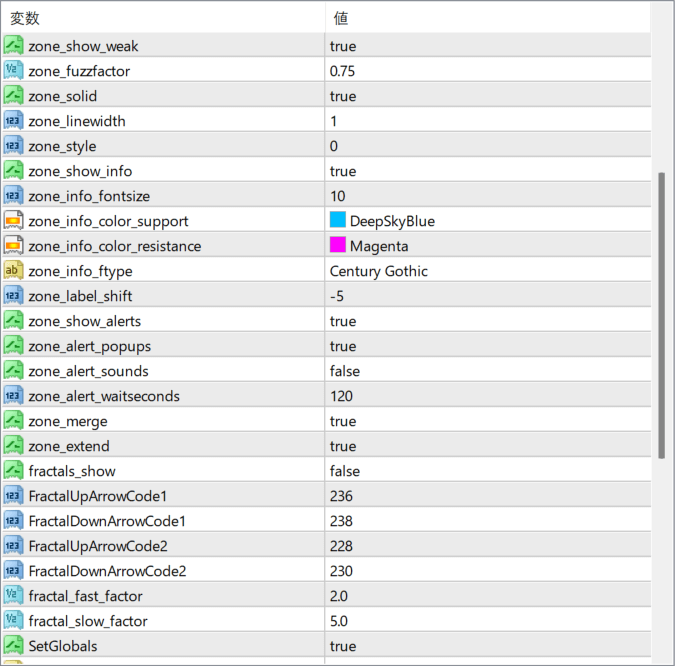
The screenshot above shows the default input parameters in the MT4 settings window.
How to Install .ex4 Indicator in MetaTrader 4
- Download the ZIP file and extract it.
- In MT4, select File → Open Data Folder.
- Open MQL4 → Indicators and copy the EX4 or MQ4 file into it.
- If the package includes library files, copy them to MQL4 → Libraries. Copy TPL files to the top-level templates folder.
- Restart MT4, find the indicator in the Navigator, and drag it onto a chart.
Test the tool on a demo account first. File contents and required folders can vary between packages.


