What is shved_supply_and_demand_v1.2?
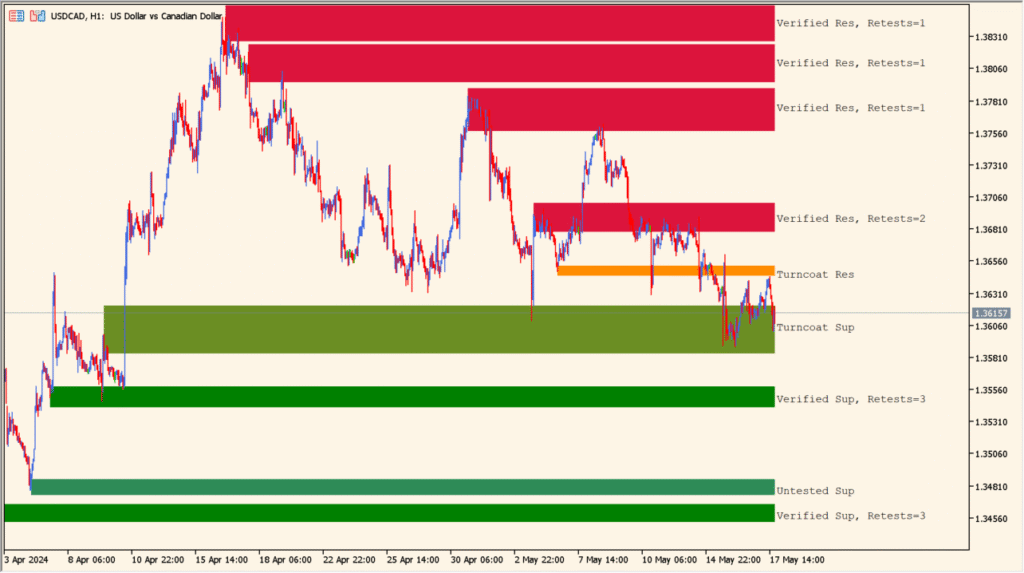
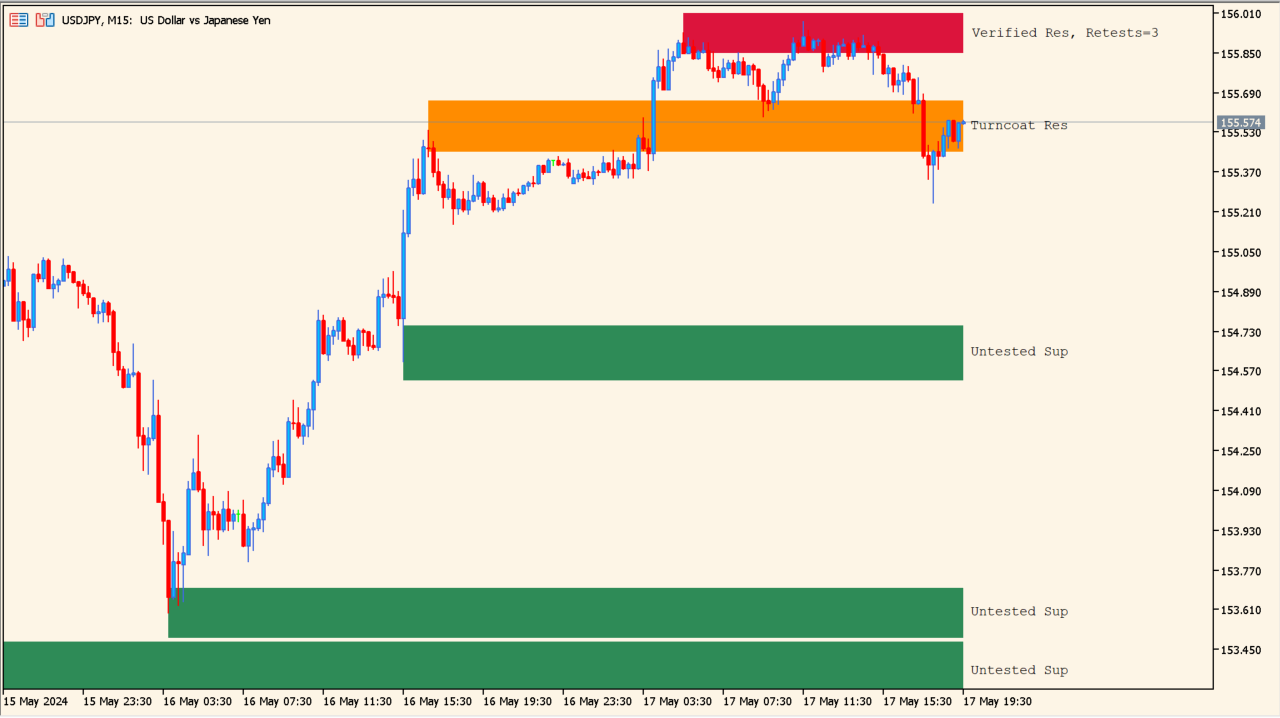
shved_supply_and_demand_v1.2 is an MT5 indicator that displays labeled supply and demand zones based on detected chart structure. Zone visibility can be filtered by status, including weak, untested, and broken zones.
Zone fills, borders, labels, merging, and forward extension organize the displayed areas. Use them as visual references for reviewing price behavior around marked zones, without treating a zone as a fixed reaction point.
How to use shved_supply_and_demand_v1.2
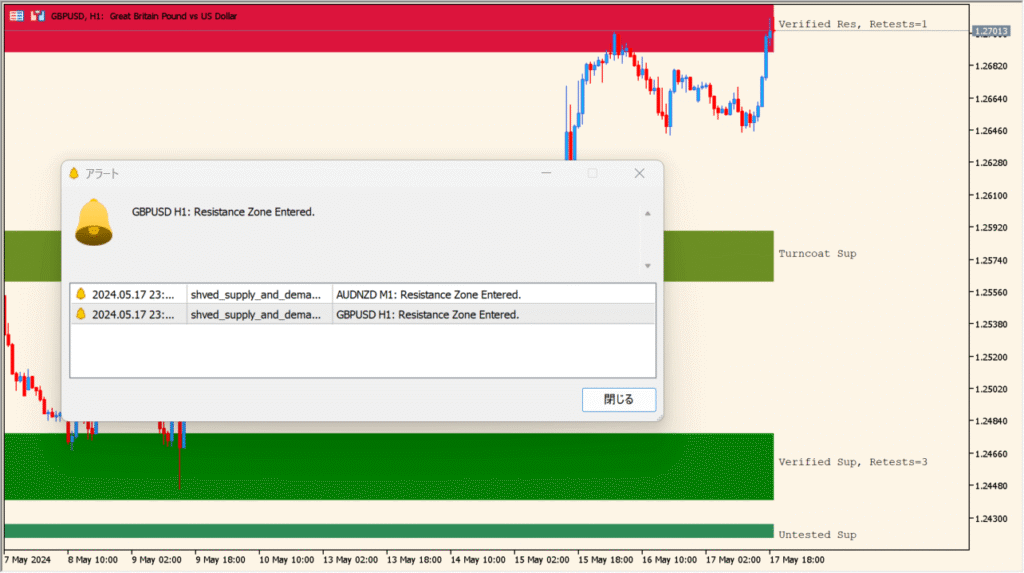
Read the red resistance and green support zones together with their status labels and retest counts:
- Use the labels to distinguish Verified, Proven, turncoat, untested, and weak zones shown on the chart.
- Read the retest count as the indicator’s recorded count; a previously broken zone can still be counted.
- Use Show Untest Zones and Show Broken Zones to reduce the number of visible areas when the chart is crowded.
- Reduce Back Limit when a shorter calculation history is needed; ATR and Fractal settings change where zones are formed.
Where it helps
Automatic zone marking reduces manual drawing, status filters keep historical areas organized, and display or alert settings support different chart review preferences.
MT5 Indicator Parameters
The table below lists the available MT5 indicator parameters. You can customize these options in the MetaTrader Inputs dialog to match your trading preferences.
| Parameter | Description |
|---|---|
| Back Limit | Sets the maximum number of historical bars scanned for zone detection. Default: 1000. |
| History Mode (with double click) | Enables historical mode to display past detected zones upon double clicking. Default: false. |
| pus1 Section | Section divider row in MetaTrader inputs. |
| Show Weak Zones | Displays or hides weak zones with lower historical reliability on the chart. Default: false. |
| Show Untested Zones | Displays or hides untested supply and demand zones on the chart. Default: true. |
| Show Broken Zones | Displays or hides broken zones that price has traded through. Default: true. |
| Zone ATR Factor | Sets the ATR multiplier used to scale zone height based on volatility. Default: 0.75. |
| pus2 Section | Section divider row in MetaTrader inputs. |
| Fractal Fast Factor | Sets the sensitivity factor for fast fractal detection. Default: 3.0. |
| Fractal slow Factor | Sets the sensitivity factor for slow fractal confirmation. Default: 6.0. |
| Set terminal global variables | Enables storing zone coordinates as terminal global variables for external scripts. Default: false. |
| pus3 Section | Section divider row in MetaTrader inputs. |
| Fill zone with color | Displays or hides background color fills inside supply and demand zones. Default: true. |
| Zone border width | Sets the line width of the zone outer border. Default: 1. |
| Zone border style | Selects the visual line style for zone outer borders. Default: Solid. |
| Show info labels | Displays or hides text labels showing zone status and type. Default: true. |
| Info label shift | Sets the horizontal offset distance for zone information labels. Default: 10. |
| Zone Merge | Enables automatic merging of overlapping or adjacent supply and demand zones. Default: true. |
| Zone Extend | Extends zone boundaries forward in time for future price reference. Default: true. |
| pus4 Section | Section divider row in MetaTrader inputs. |
| Trigger alert when entering a zone | Enables alerts when live price enters a supply or demand zone. Default: false. |
| Show alert window | Displays a desktop popup window when a zone alert triggers. Default: true. |
| Play alert sound | Plays an audio notification when a zone alert triggers. Default: true. |
| Delay between alerts (seconds) | Sets the minimum seconds required between consecutive zone alerts. Default: 300. |
| pus5 Section | Section divider row in MetaTrader inputs. |
| Text Size | Sets the font size for zone labels and status text. Default: 8. |
| Text Font | Sets the font family for zone labels and status text. Default: Courier New. |
| Text Color | Sets the font color for zone labels and status text. Default: Black. |
| Support Name | Sets the prefix label for support zones. Default: Sup. |
| Resistance Name | Sets the prefix label for resistance zones. Default: Res. |
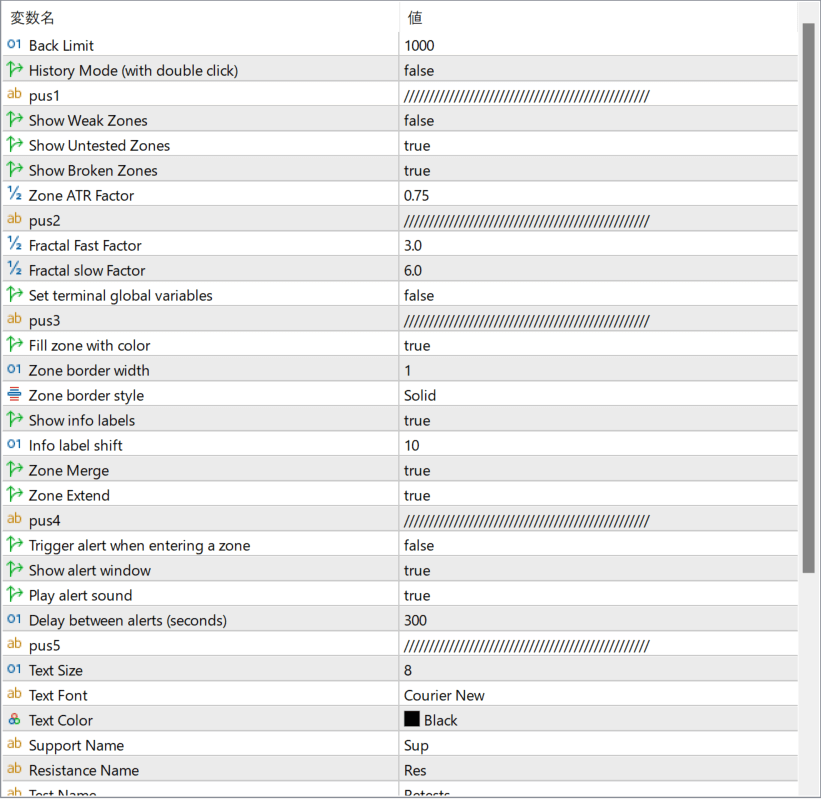
The screenshot above shows the default input parameters in the MT5 settings window.
How to Install .ex5 Indicator in MetaTrader 5
- Download the ZIP file and extract it.
- In MT5, select File → Open Data Folder.
- Open MQL5 → Indicators and copy the EX5 or MQ5 file into it.
- If the package includes library files, copy them to MQL5 → Libraries. Copy TPL files to the top-level templates folder.
- Restart MT5, find the indicator in the Navigator, and drag it onto a chart.
Test the tool on a demo account first. File contents and required folders can vary between packages.