What is Spearman Rank Correlation Histogram Alerts 1.00?
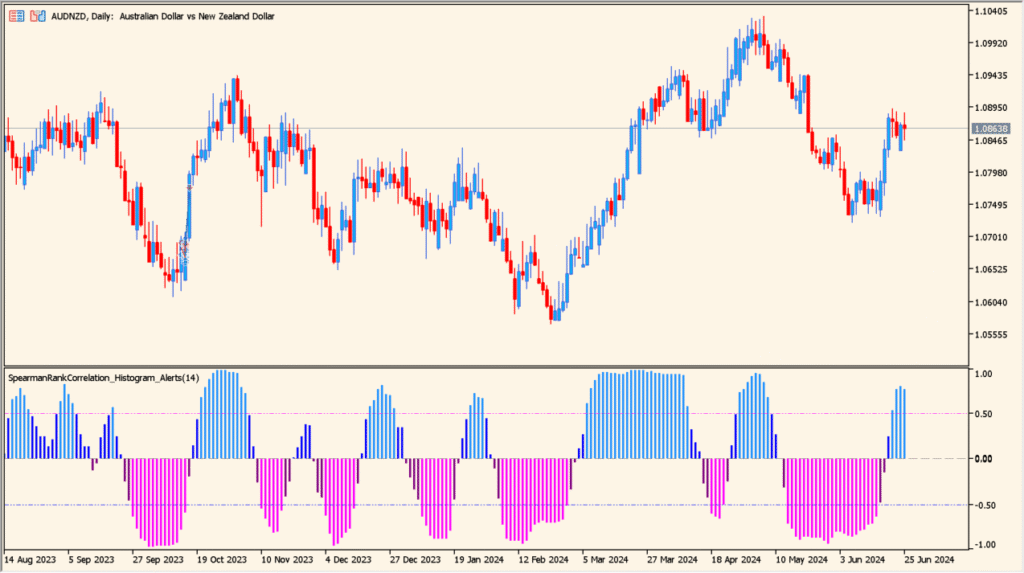
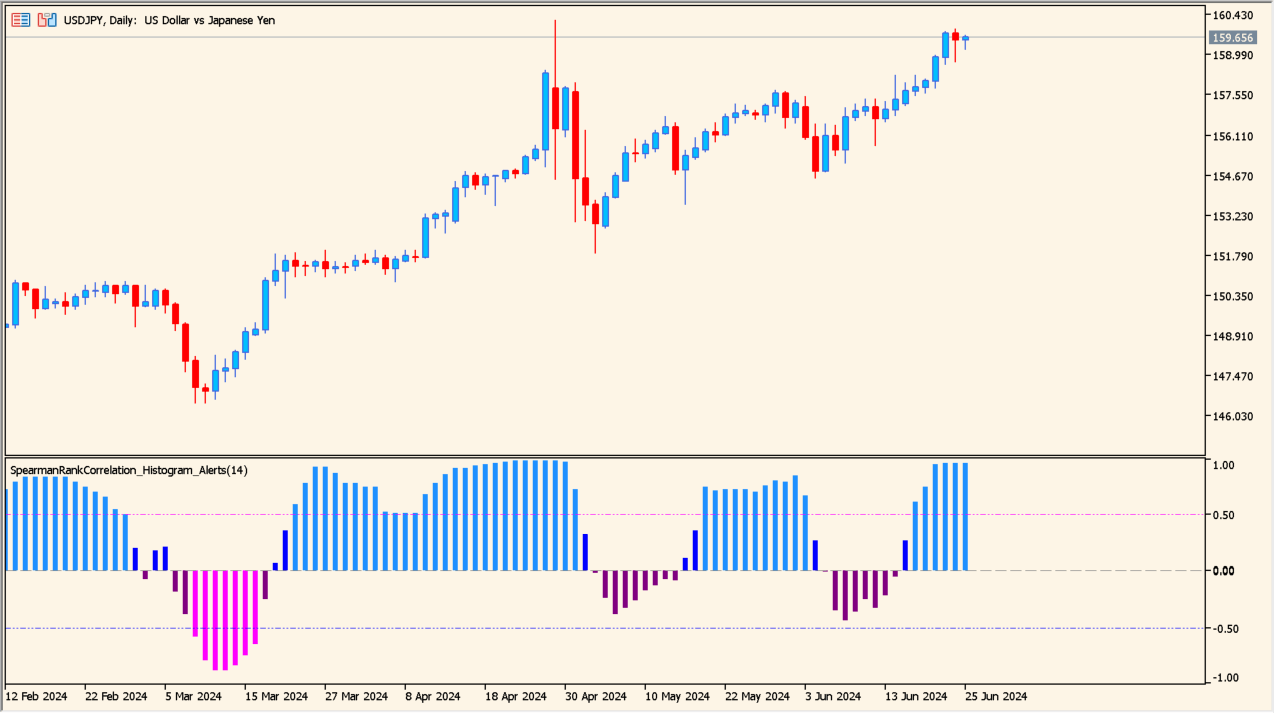
Spearman Rank Correlation Histogram Alerts 1.00 is an MT5 indicator that measures statistical trend correlation.
It outputs a subwindow histogram ranging between -1 and +1, where high positive values indicate orderly uptrends and negative values indicate orderly downtrends.
How to use Spearman Rank Correlation Histogram Alerts 1.00
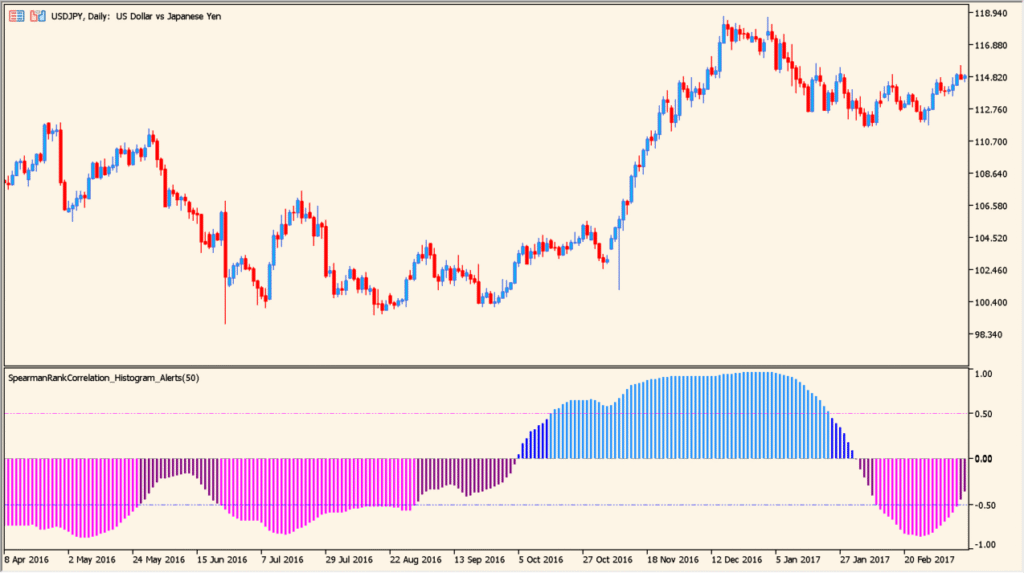
Use histogram values near +1 or -1 to confirm structurally strong trends.
Watch for histogram values returning toward zero as an early indication of trend weakening or range consolidation.
Where it helps
Evaluates trend consistency using Spearman's rank correlation method.
Sends notifications when correlation crosses defined upper or lower threshold levels.
MT5 Indicator Parameters
The table below lists the available MT5 indicator parameters. You can customize these options in the MetaTrader Inputs dialog to match your trading preferences.
| Parameter | Description |
|---|---|
| rangeN | Defines the number of bars used to calculate the Spearman rank correlation. Default: 14. |
| CalculatedBars | Limits the total number of historical bars processed by the calculation. Default: 1000. |
| Maxrange | Sets the maximum lookback range cap to maintain performance. Default: 100. |
| direction | Enables directional interpretation separating positive and negative correlation. Default: true. |
| price constant | Specifies the price type used for calculation, such as closing price. Default: 0. |
| inHighLevel | Upper threshold level indicating strong bullish correlation. Default: 0.8. |
| inLowLevel | Lower threshold level indicating strong bearish correlation. Default: -0.8. |
| Signal bar number | Defines which bar index is evaluated for generating alerts. Default: 1. |
| Alert enable | Toggles pop-up and sound alerts when correlation thresholds are crossed. Default: true. |
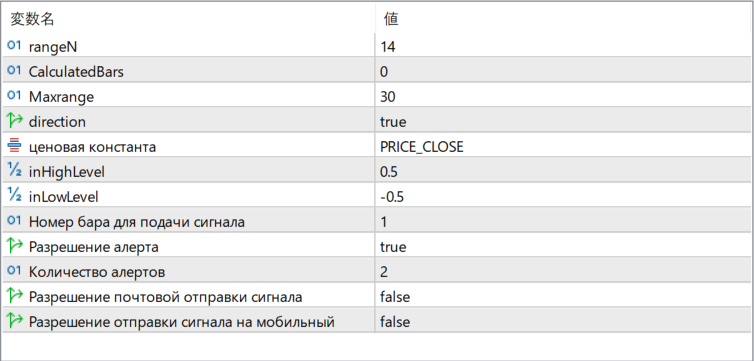
The screenshot above shows the default input parameters in the MT5 settings window.
How to Install .ex5 Indicator in MetaTrader 5
- Download the ZIP file and extract it.
- In MT5, select File → Open Data Folder.
- Open MQL5 → Indicators and copy the EX5 or MQ5 file into it.
- If the package includes library files, copy them to MQL5 → Libraries. Copy TPL files to the top-level templates folder.
- Restart MT5, find the indicator in the Navigator, and drag it onto a chart.
Test the tool on a demo account first. File contents and required folders can vary between packages.