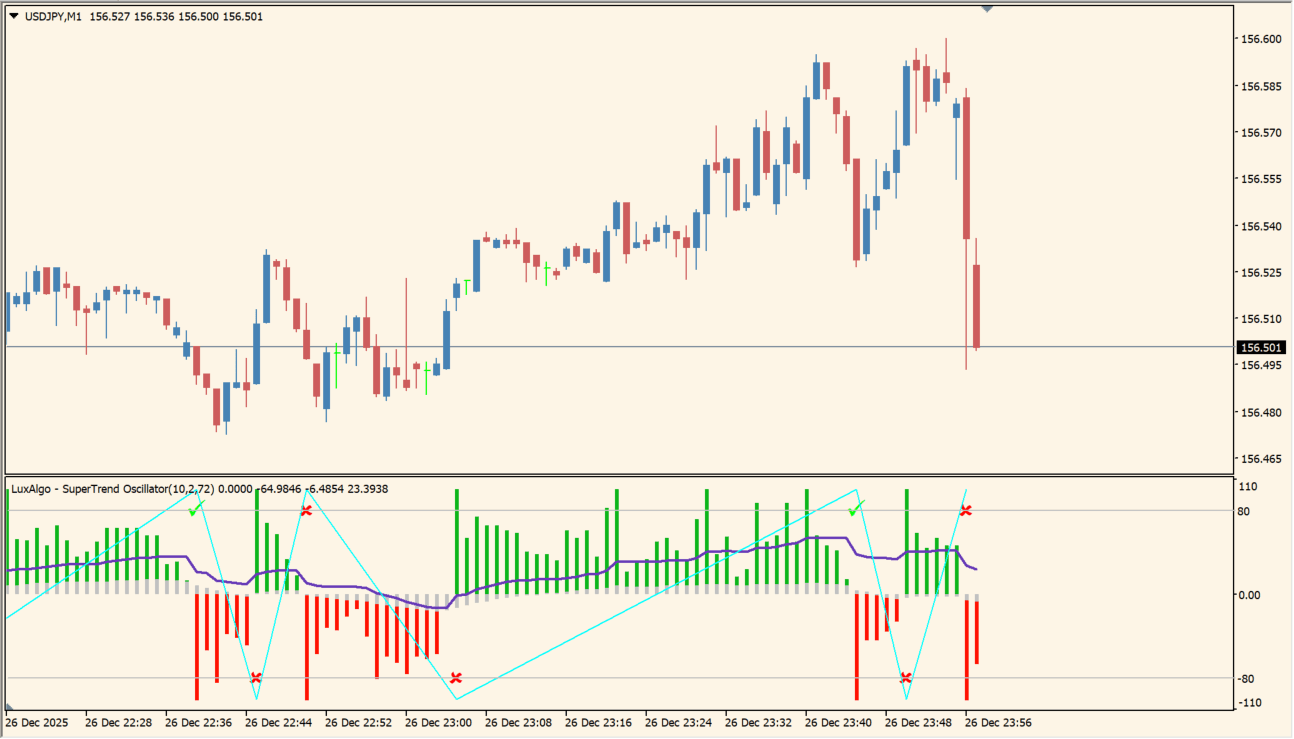
What is SuperTrend Oscillator?
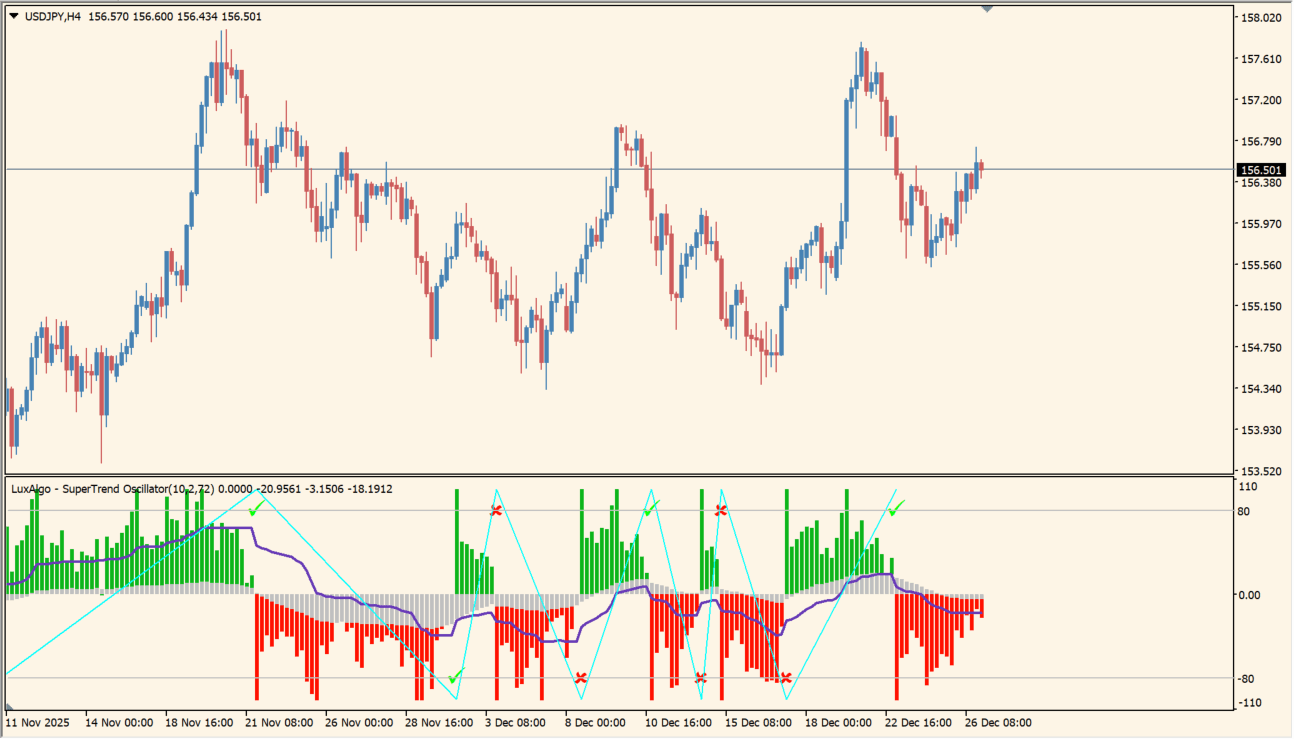
SuperTrend Oscillator presents SuperTrend movement in a separate MT4 pane with a main line, signal line, and histogram. The MACD-style layout keeps line spacing and bar height visible together.
Optional labels and false-signal display settings affect chart presentation. The package includes an .ex4 file and the display is intended for reviewing indicator states.
How to use SuperTrend Oscillator
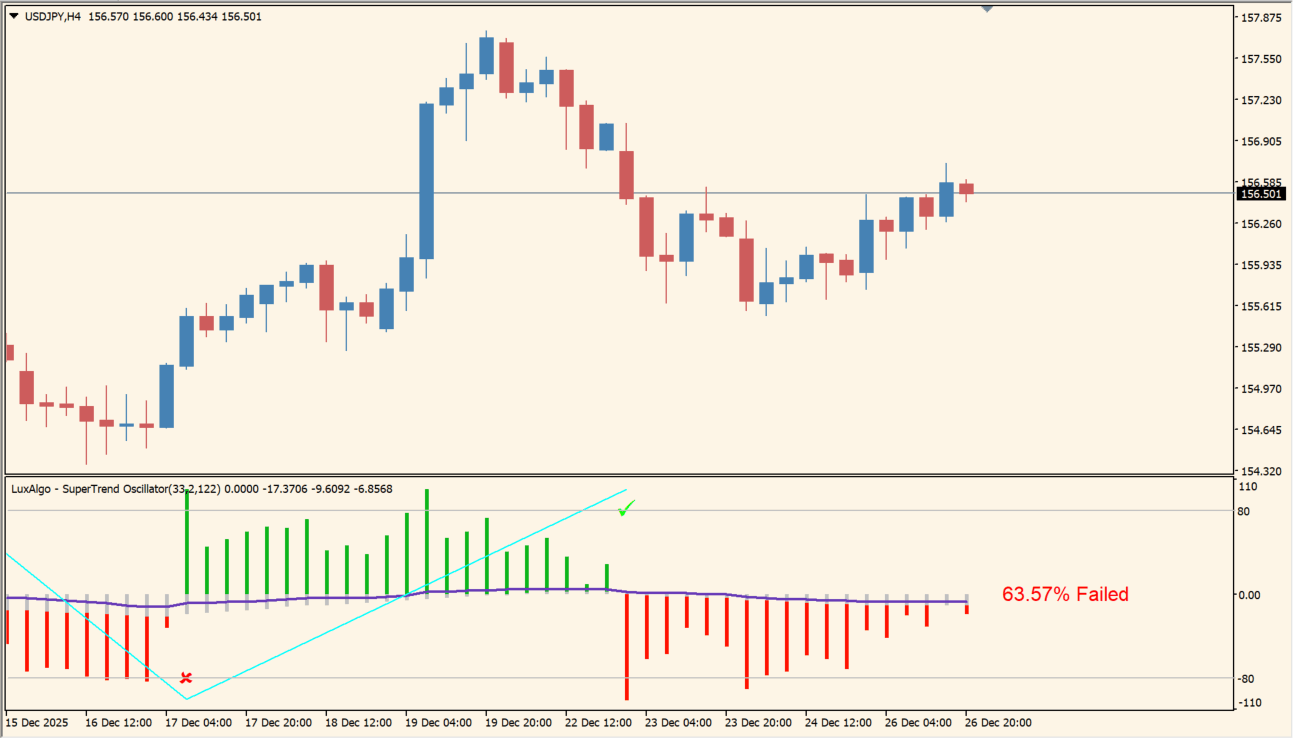
Review the main and signal lines together with the histogram and the corresponding price chart. Changes in line spacing and bar height provide visual context for the selected calculation window.
ATR Length, Mult, and Smooth control the main calculation. Show Lines, Show Labels, and Show % False Signals control the optional display elements shown in the Inputs image.
Where it helps
Lines and histogram provide related views of the same oscillator state.
ATR-based settings connect the display to the selected movement window.
Labels and false-signal display options can be enabled or disabled.
MT4 Indicator Parameters
The table below lists the available MT4 indicator parameters. You can customize these options in the MetaTrader Inputs dialog to match your trading preferences.
| Parameter | Description |
|---|---|
| ATR Length | Sets the ATR window used by the oscillator. Default: 10. |
| Mult | Sets the multiplier applied to the ATR-based calculation. Default: 2.0. |
| Smooth | Sets the smoothing length for the displayed lines. Default: 72. |
| Show Lines | Shows or hides the oscillator lines. Default: true. |
| Show Labels | Shows or hides the displayed labels. Default: true. |
| Show % False Signals | Shows or hides the optional false-signal annotations. Default: false. |
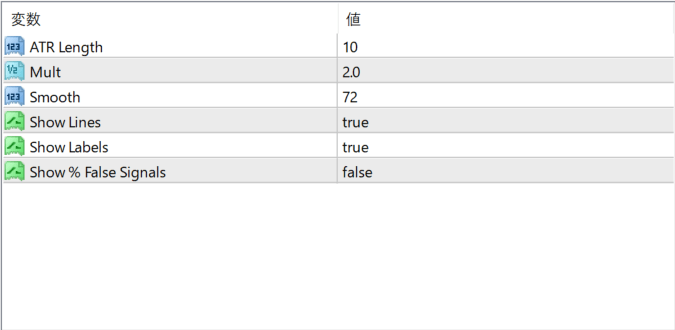
The screenshot above shows the default input parameters in the MT4 settings window.
How to Install .ex4 Indicator in MetaTrader 4
- Download the ZIP file and extract it.
- In MT4, select File → Open Data Folder.
- Open MQL4 → Indicators and copy the EX4 or MQ4 file into it.
- If the package includes library files, copy them to MQL4 → Libraries. Copy TPL files to the top-level templates folder.
- Restart MT4, find the indicator in the Navigator, and drag it onto a chart.
Test the tool on a demo account first. File contents and required folders can vary between packages.


