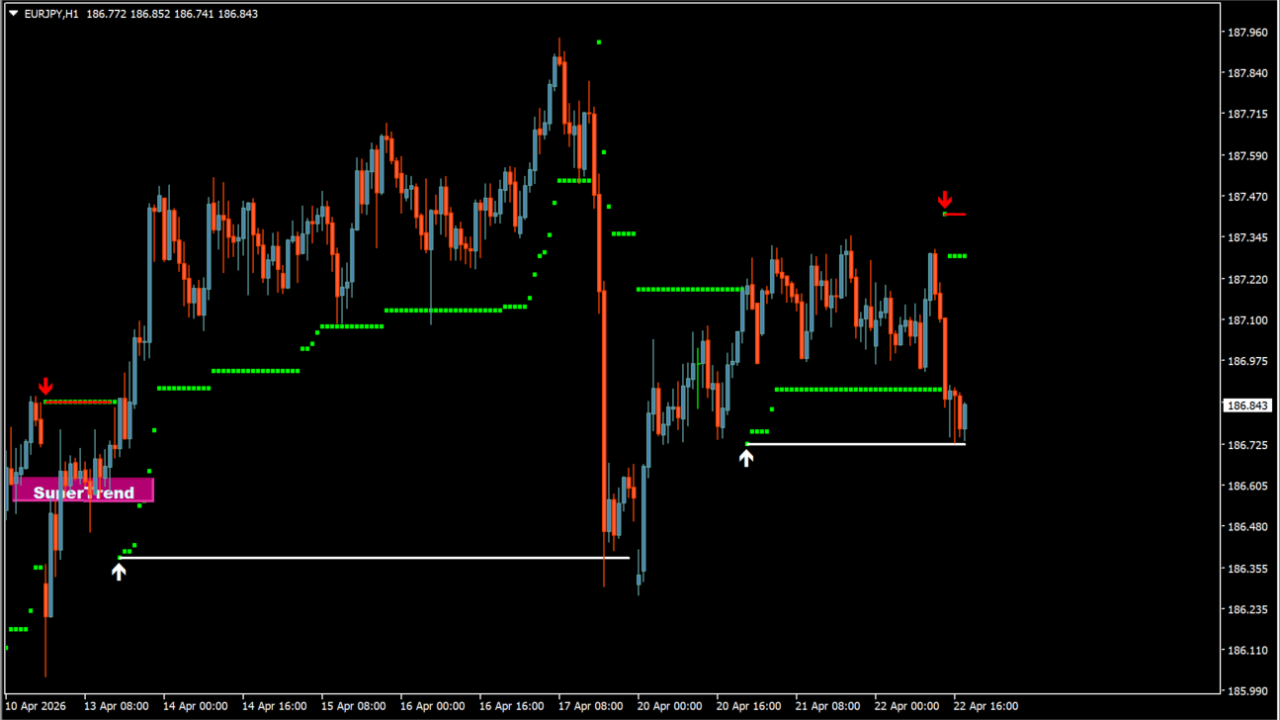
What is SuperTrend SR TT alt?
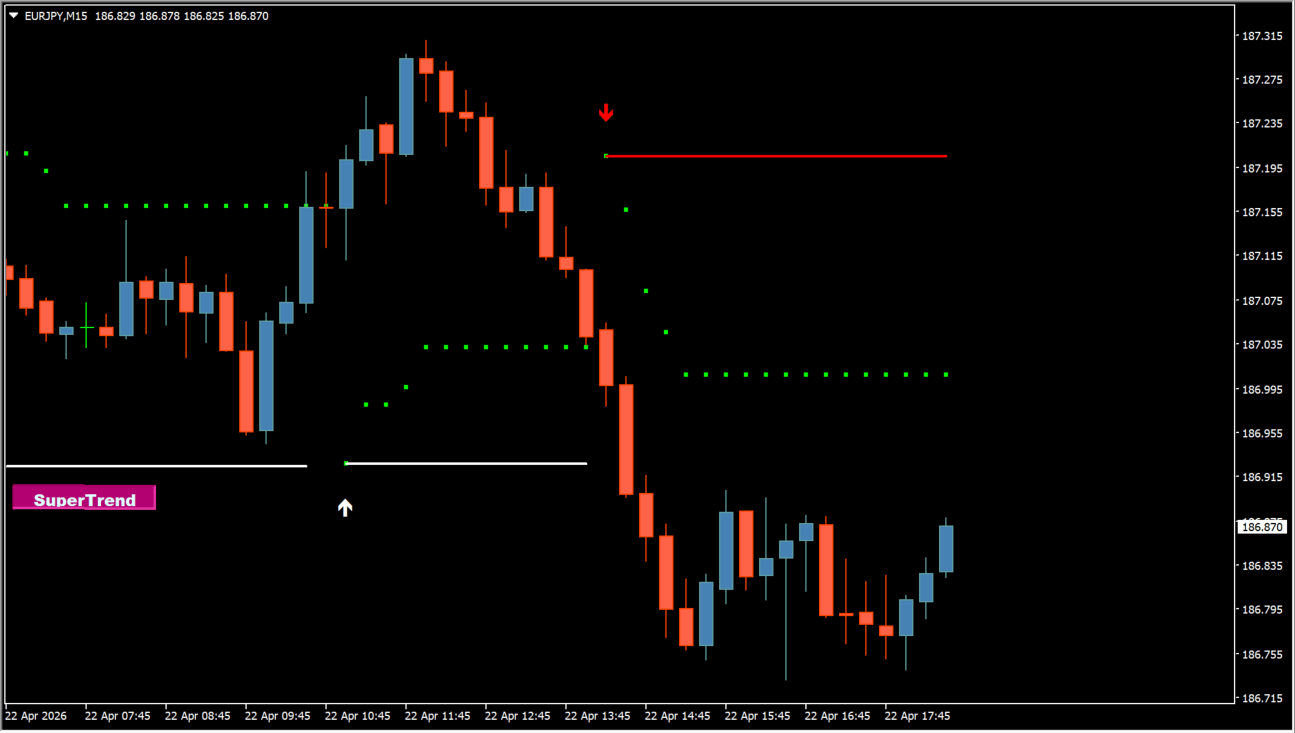
SuperTrend SR TT alt plots an ATR-based SuperTrend line to identify market direction while displaying support and resistance levels and signal arrows.
A line below price indicates a bullish condition, while a line above price indicates a bearish condition. Arrow signals highlight potential entry opportunities on the chart.
How to use SuperTrend SR TT alt
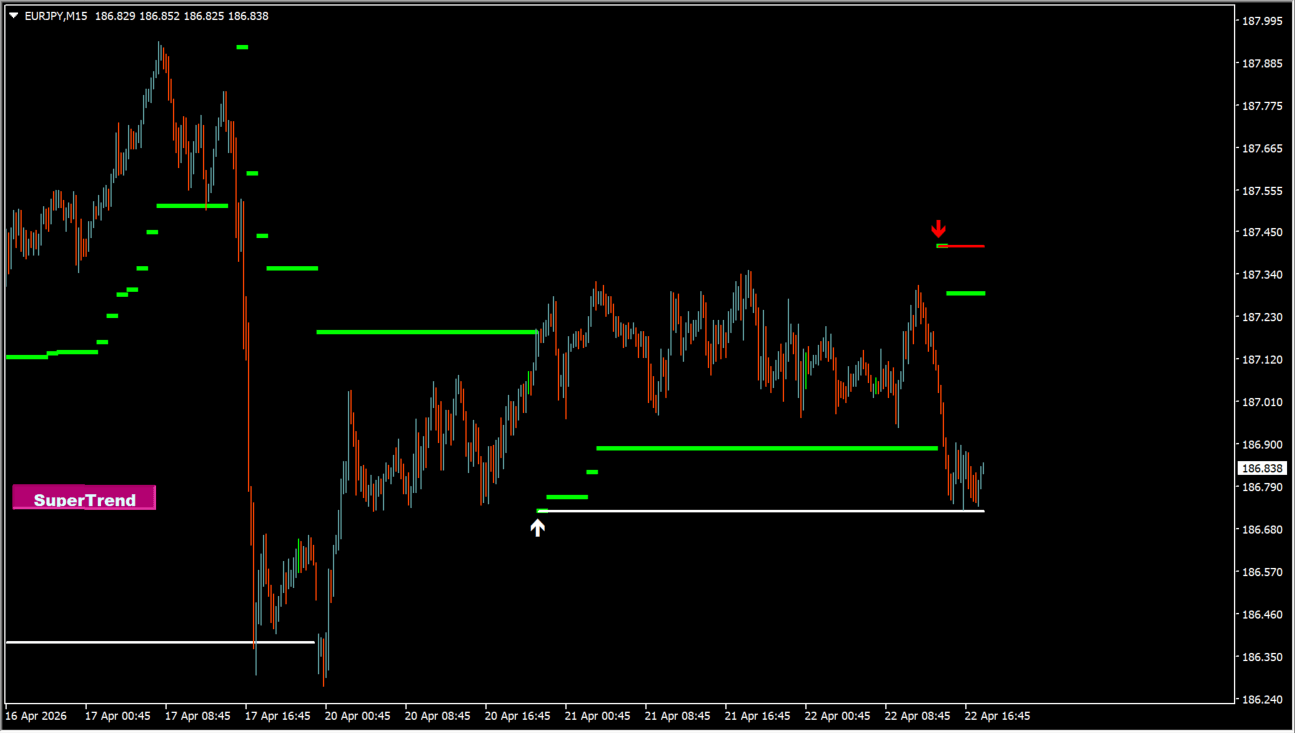
Use the green line for long trend references and the red line for short trend references. Combine horizontal support/resistance lines to evaluate price reactions.
Adjust ATRperiod and ATRcoef in the Inputs tab to modify indicator sensitivity. Configure arrow positions, alert options, and button controls as needed.
Where it helps
Displays SuperTrend directional lines together with support/resistance references.
Highlights potential entry points with visual arrow markers.
Allows higher timeframe analysis directly on the current chart.
MT4 Indicator Parameters
The table below lists the available MT4 indicator parameters. You can customize these options in the MetaTrader Inputs dialog to match your trading preferences.
| Parameter | Description |
|---|---|
| History | Sets the past data lookback range. Default: 0. |
| TimeFrame | Specifies the timeframe used for calculation. Default: PERIOD_CURRENT. |
| ATRperiod | Sets the ATR calculation period. Default: 10. |
| ATRcoef | Adjusts trend detection sensitivity. Default: 3.0. |
| MedianMode | Selects the median calculation method. Default: MODE_SMA. |
| MedianPeriod | Sets the median calculation period. Default: 0. |
| MedianPrice | Specifies the price type used for median calculation. Default: PRICE_MEDIAN. |
| CloseMode | Selects the close calculation method. Default: MODE_SMA. |
| ClosePeriod | Sets the close calculation period. Default: 0. |
| ClosePrice | Specifies the price type used for close calculation. Default: PRICE_CLOSE. |
| ShowTrend | Toggles the trend display mode. Default: DOTS. |
| ShowSupRes | Enables or disables support and resistance display. Default: true. |
| ARROWBAR | Sets the bar index used for arrow signals. Default: 0. |
| ShowArrows | Configures the arrow signal display position. Default: OUTSIDE. |
| ArrowGap | Sets the gap distance between arrow signals and candles. Default: 3.78. |
| ColorBUY | Sets the buy signal display color. Default: clrWhite. |
| ColorSELL | Sets the sell signal display color. Default: clrRed. |
| CodeBUY | Sets the character code for buy arrows. Default: 233. |
| CodeSELL | Sets the character code for sell arrows. Default: 234. |
| ArrowSize | Adjusts the arrow display size. Default: 1. |
| SoundFile | Specifies the sound file used for alerts. Default: alert2.wav. |
| ALERTBAR | Sets the bar index that triggers alerts. Default: 0. |
| AlertsMessage | Enables or disables message pop-up alerts. Default: true. |
| AlertsSound | Enables or disables sound alerts. Default: true. |
| AlertsEmail | Enables or disables email notification alerts. Default: false. |
| AlertsMobile | Enables or disables mobile push notification alerts. Default: false. |
| buttColor | Sets the button text display color. Default: clrLightCyan. |
| buttSize | Adjusts the button text size. Default: 10. |
| backColor | Sets the button background display color. Default: clrMediumVioletRed. |
| axisX | Sets the X-axis offset for button placement. Default: 0. |
| axisY | Sets the Y-axis offset for button placement. Default: 378. |
| buttCorner | Sets the anchor corner for button placement. Default: CORNER_LEFT_UPPER. |
| buttWindow | Specifies the chart subwindow index for button display. Default: 0. |
| buttName | Sets the display label text for the button. Default: SuperTrend. |
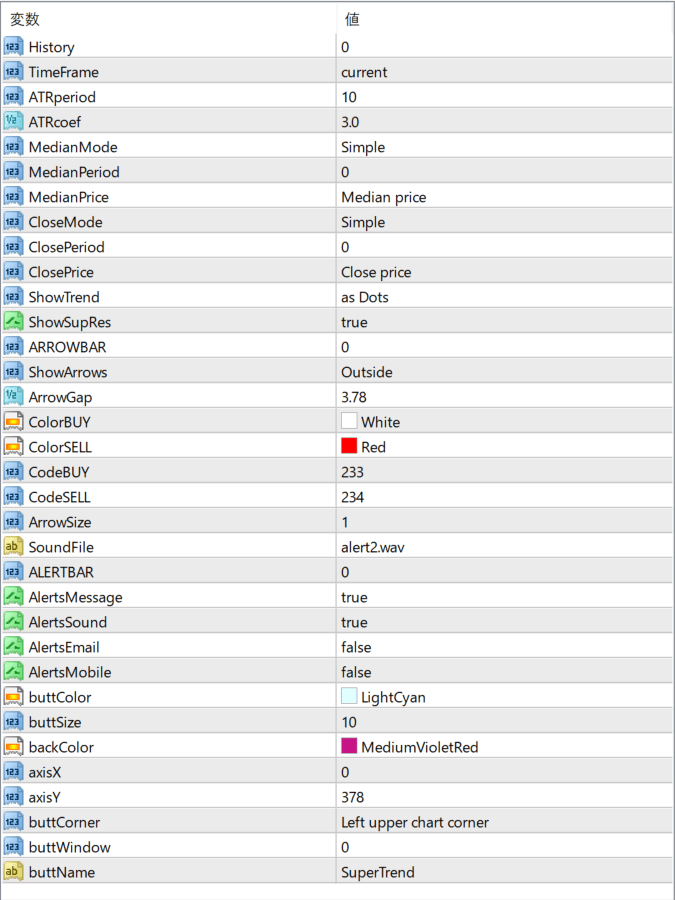
The screenshot above shows the default input parameters in the MT4 settings window.
How to Install .ex4 Indicator in MetaTrader 4
- Download the ZIP file and extract it.
- In MT4, select File → Open Data Folder.
- Open MQL4 → Indicators and copy the EX4 or MQ4 file into it.
- If the package includes library files, copy them to MQL4 → Libraries. Copy TPL files to the top-level templates folder.
- Restart MT4, find the indicator in the Navigator, and drag it onto a chart.
Test the tool on a demo account first. File contents and required folders can vary between packages.


